
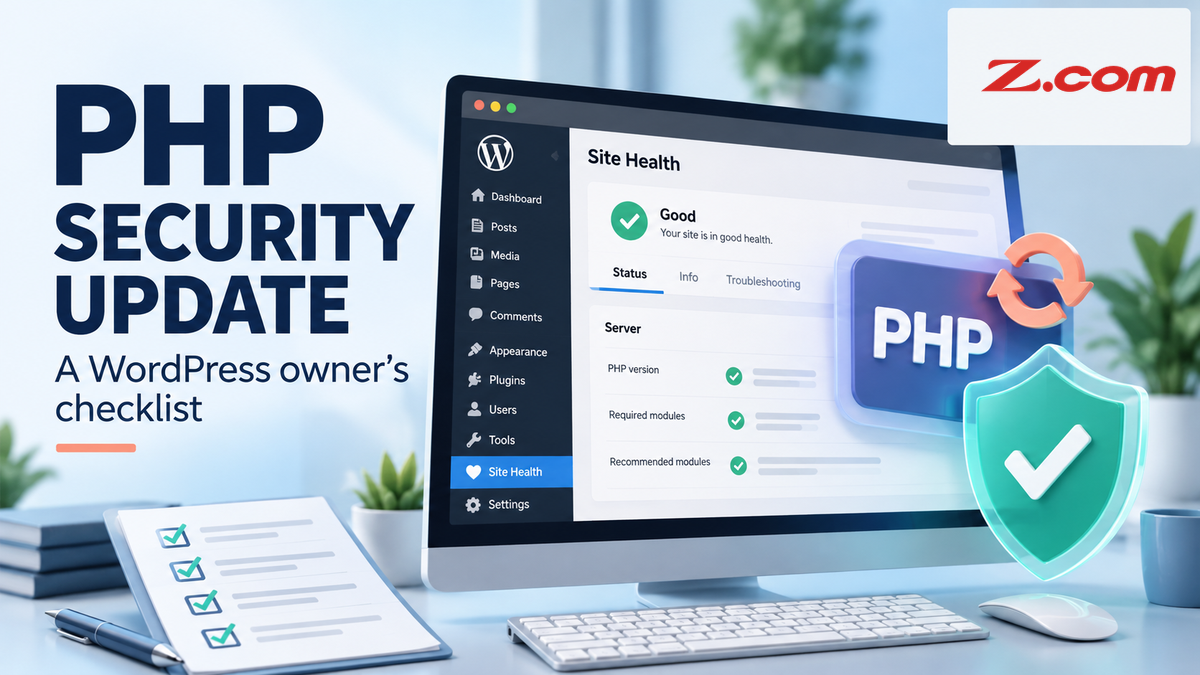
Critical PHP Security Release: What WordPress Site Owners Should Check This Week
On October 21, 2026, WordPress.org published a notice about a critical PHP security release. Every WordPress site runs on PHP, so this is worth a few minutes today. This guide explains how to find your PHP version, what to ask your host, and how to update PHP without breaking your site.
Table of contents
- Executive Summary
- Quick Answer
- What the PHP Security Release Is
- Does This Affect Your Site?
- Step 1: Check Your PHP Version
- Step 2: Ask Your Host the Right Questions
- Step 3: Update PHP Safely
- If You Manage Your Own Server
- Common Mistakes to Avoid
- If You Suspect Your Site Was Compromised
- Frequently Asked Questions
- Key Takeaways
- Make WordPress Maintenance Easier
- Related Articles
Executive Summary
The PHP project released an update that fixes two critical vulnerabilities. WordPress.org says the issue affects any server running PHP applications, not only WordPress, and that no WordPress update is required or planned.
- Your action is at the PHP level: confirm your PHP version and that the fix is applied.
- Hosts may already be updating PHP, but you should still confirm for your own site.
- Back up and test before you change PHP versions.
Quick Answer
Open Tools > Site Health > Info > Server in WordPress to see your PHP version, then compare it with the fixed releases in the PHP project's advisory: PHP 8.2.35, 8.3.36, 8.4.27 and 8.5.12 (verified October 23, 2026). Vendor backports can keep an older-looking version number, so ask your host to confirm the patched package or build. If your host controls PHP, ask them to confirm the update is applied. If you can change it yourself, back up first, update WordPress, themes and plugins, switch PHP, then test your key pages. WordPress itself does not need an update for this issue.
What the PHP Security Release Is
According to the WordPress.org announcement, the PHP project released a security update that fixes two critical vulnerabilities. Site owners are encouraged to update PHP immediately.
Three details are worth knowing before you act:
- The WordPress.org post does not list CVE IDs or version numbers. The PHP security advisory, checked October 23, 2026, identifies CVE-2026-109618 and CVE-2026-109619 and lists fixes in PHP 8.2.35, 8.3.36, 8.4.27 and 8.5.12. These are the releases named when we checked, not the only safe ones, and a supported branch number alone does not prove your server is fixed. Vendor backports can keep an older-looking version, so ask your host to confirm the patched build.
- The same post says PHP versions before 8.2 no longer receive security updates from the PHP project. If you run one, the PHP project may not provide a fix for your branch, so ask your vendor whether a backport exists, or plan an upgrade.
- Hosts may add web application firewall (WAF) rules as an interim measure. WordPress.org treats that as a stopgap, not a replacement for updating PHP.
This is separate from WordPress 7.1.3, released on October 6, 2026 with 7 security fixes and 4 bug fixes. If you have not applied it and background updates are off, update from Dashboard > Updates.
Does This Affect Your Site?
Almost certainly your site uses PHP. The real questions are which version it runs and who controls it. The answer decides what you do next.
| Your setup | Who controls PHP | What to do |
|---|---|---|
| Shared or managed WordPress hosting | Usually the host, sometimes with a PHP version setting you can change | Check your version, ask the host to confirm the fix is applied, and switch versions if your plan allows it. |
| VPS or cloud server you manage | You | Apply the PHP update through your server's package source, restart services, then test the site. |
| Site managed by an agency or freelancer | Your developer | Ask them to confirm in writing which PHP version is running and when it was updated. |
Step 1: Check Your PHP Version
- Log in to your WordPress dashboard as an administrator.
- Go to Tools > Site Health and open the Info tab.
- Expand the Server section and find the PHP version entry.
- Compare that version with the fixed releases in the PHP advisory (8.2.35, 8.3.36, 8.4.27 or 8.5.12 when checked on October 23, 2026).
Many hosts also show the PHP version in their control panel. If your version is earlier than 8.2, put an upgrade on your list now, because the PHP project no longer issues security updates for it. An older-looking version may still be patched through a vendor backport, so ask your host to confirm.
Step 2: Ask Your Host the Right Questions
If you cannot change PHP yourself, a short message to support saves guesswork. Ask:
- Has the PHP security update from October 21, 2026 been applied to the server my site runs on?
- Which PHP version is my site using today, and is it a fixed release or a vendor-patched build?
- Are temporary WAF rules in place, and do I still need to update PHP myself?
- Can I switch PHP versions from my control panel, and which patched versions can I choose if a plugin fails?
If you host with Z.com, the WordPress Hosting page lists a PHP Version Switch among its plan features, but it does not show which plans include it. Confirm availability in your hosting account or with Z.com support. This article does not state the patch status of any specific server.
Step 3: Update PHP Safely
Changing PHP usually works, but it is not guaranteed. WordPress.org's PHP update guide recommends this order:
- Back up your site files and database before changing anything. A website backup does not patch or replace PHP, which your host or server controls, so restoring it never fixes the vulnerability by itself.
- Update WordPress, themes and plugins from Dashboard > Updates, then confirm the site still works.
- Run a compatibility check, for example with the PHP Compatibility Checker plugin. WordPress.org notes it is not perfect and can miss issues or flag false positives.
- Test the change on a staging copy if you have one. Z.com's WordPress Hosting page says its plans include a staging site feature.
- Switch to a PHP version that is both supported and patched, then test login, forms, checkout and key pages.
- If something breaks, do not reopen the site on unpatched PHP. Ask your host for another compatible patched PHP version or vendor-patched package while you fix the cause, such as the failing plugin. If none is available, restrict access at host or server level, or take the service offline. Restore files or the database only if necessary, because restoring an older database can lose orders or form submissions received since the backup.
On version choice: the WordPress PHP compatibility reference lists WordPress 7.1 as tested with PHP 7.4 and 8.0 through 8.5. Combined with the 8.2 cutoff above, the overlap is PHP 8.2 to 8.5, and the advisory lists a fixed release for each of those branches.
If You Manage Your Own Server
For self-managed servers on older PHP versions, the WordPress.org post suggests considering taking the server offline while you upgrade. It quotes UK National Cyber Security Centre guidance to consider taking the system offline until it can be fully mitigated. Weigh that against your business impact. A WordPress maintenance plugin or page does not stop PHP processing requests and is not security isolation. If you cannot patch yet, coordinate host or server-level access restriction, or take the affected service offline. Use a maintenance page only to tell visitors what is happening; our guide on putting your website in maintenance mode explains how.
Common Mistakes to Avoid
Waiting for a WordPress update
WordPress.org says no WordPress update is required for this issue. The fix lives in PHP, which your host or server controls.
Relying on WAF rules alone
Firewall rules can reduce risk while an update is pending, but they are described as an interim measure.
Switching PHP without a backup
If a plugin fails on the new version, a recent backup and a plan for a compatible patched PHP version keep the outage short.
Testing WordPress 7.2 Beta 1 on a live site
The Beta 1 announcement says not to install or test it on production or mission-critical websites. It is not a fix for this PHP issue.
Leaving outdated plugins in place
An old plugin can block a PHP upgrade. Contact its developer, or replace it with a maintained alternative.
If You Suspect Your Site Was Compromised
Updating PHP closes the vulnerability going forward, but it does not clean a site that was already affected. Follow the first steps in the WordPress.org "My site was hacked" FAQ: document what you see, scan your site and your own computer, reset passwords, replace the secret keys in wp-config.php, and take a backup snapshot before cleaning. This article is general educational guidance, not incident response or security consulting.
Frequently Asked Questions
Do I need to update WordPress for this PHP issue?
No. WordPress.org says no WordPress update is required or planned for it. WordPress 7.1.3 is a separate security release that you should still apply.
Does it only affect WordPress sites?
No. WordPress.org says it affects any server running PHP applications.
Is my site safe if my host added WAF rules?
Not necessarily. WAF rules are an interim mitigation. You should still confirm that PHP itself is updated.
Where do I find the fixed PHP versions?
In the PHP project's security advisory, linked above. When checked on October 23, 2026, it listed PHP 8.2.35, 8.3.36, 8.4.27 and 8.5.12; ask your host to confirm vendor-patched builds. The WordPress.org post does not list version numbers.
What if a plugin breaks after I update PHP?
Do not return to unpatched PHP. Ask your host for another compatible patched PHP version or vendor-patched package. If none is available, restrict access or take the site offline. Restore your backup only if necessary, since an older database can lose newer orders or submissions. Then contact the plugin developer or switch to a maintained alternative.
Key Takeaways
- This is a PHP-level issue, so check PHP rather than waiting for a WordPress update.
- Find your version in Tools > Site Health > Info > Server, and read the PHP advisory for fixed versions.
- Ask your host to confirm the update, and do not treat WAF rules as the final fix.
- Back up, update plugins, test on staging if possible, then switch PHP and check your key pages.
Make WordPress Maintenance Easier
Z.com's WordPress Hosting page lists automated backups, a staging site feature, a web application firewall and a free SSL certificate across its plans. Review the current plans and details before you choose.