
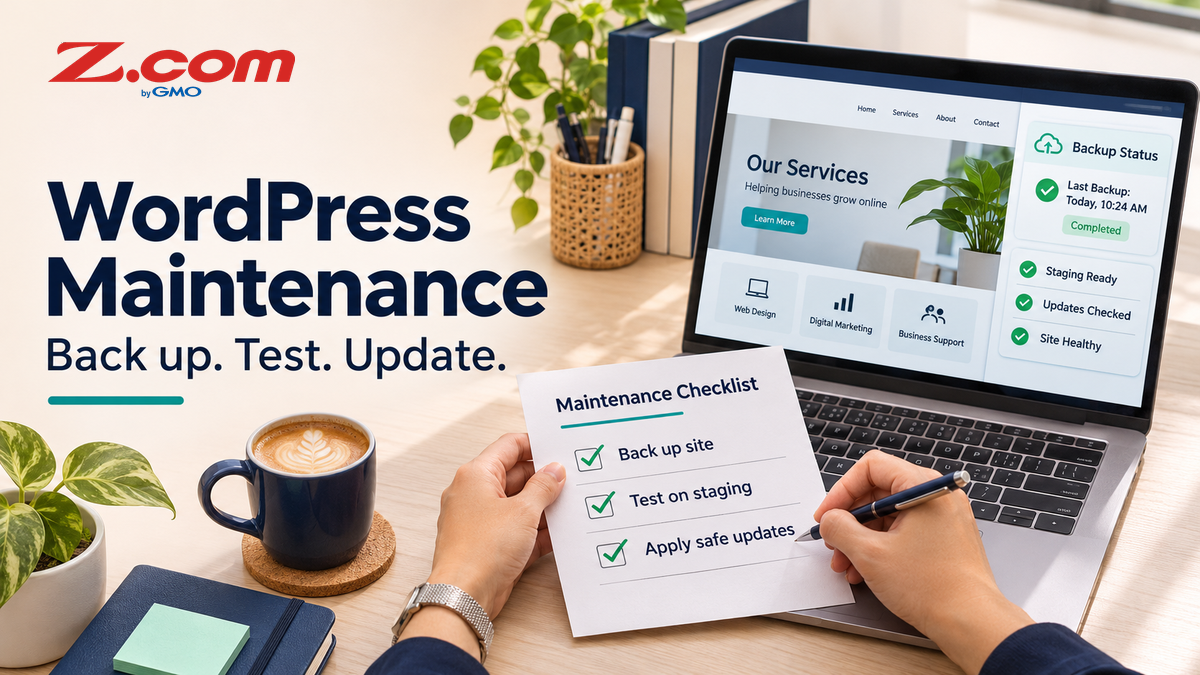
WordPress Maintenance Routine for Singapore SMEs: Staging, Backups and Safe Updates
Most WordPress problems that reach a small business start the same way. Someone clicks "Update" on a busy afternoon, the contact form stops working, and nobody is sure which copy of the site is safe to restore. A short, repeatable routine removes most of that risk, and it does not need a developer on staff.
Table of contents
- Executive summary
- Quick answer
- Why a routine beats updating when you remember
- Step 1: Take a backup you can actually restore
- Step 2: Test the change on a staging copy
- Step 3: Update in small batches
- Step 4: Check the live site after updating
- When an update goes wrong
- A simple maintenance schedule
- Common mistakes to avoid
- What to ask your hosting provider
- Frequently asked questions
- Key Takeaways
- Make staging and backups part of your hosting
Executive summary
WordPress changes even when you do nothing, because security releases and plugin updates keep arriving. A maintenance routine decides when and how those changes reach your live site.
This guide gives a four-step routine for small Singapore teams: back up, test on staging, update in small batches and check the live site. It also covers rollback, a simple schedule and questions to ask your hosting provider.
Quick answer
Back up the database and files before every update, try the change on a staging copy, update in small batches, then check your key pages on the live site. Keep several recent backups in more than one location, and make sure you know how to restore one before you need it.
Why a routine beats updating when you remember
In many Singapore SMEs, the website belongs to a marketer or a single IT generalist. Updates get postponed until something looks wrong, or they are rushed in before a campaign goes live. Both habits make failures more likely and harder to trace.
WordPress also updates itself in layers. The WordPress developer guide to upgrading says automatic background updates are enabled on most sites, and that new installations from WordPress 5.6 also auto-update major core releases. Existing sites and hosts may differ, and developers can change these defaults through update filters. Automatic updates for individual plugins can also be switched on, as the WordPress.org plugin documentation explains.
That means part of your site may already change without your input. Check Dashboard > Updates and any host-managed settings to see what is automatic; a routine lets you control the rest.
Step 1: Take a backup you can actually restore
A WordPress site has two parts, and you need both. The database holds posts, pages, comments and settings. The files hold WordPress core, plugins, themes, uploads and configuration files. The WordPress backup handbook recommends backing up the database first and the files soon after, as one matching set.
The same handbook suggests a few practical habits:
- Back up regularly, and always before an upgrade.
- Back up weekly for a small site that rarely changes, and daily for a site with frequent activity, such as an online shop taking orders.
- Keep at least three to five recent backups, stored in separate places such as your host, cloud storage and a local computer.
Backups often contain customer enquiries or order details, so limit who can download or share them. If your host runs automated backups, still take an occasional manual backup. The handbook notes this is a good way to confirm the automated process is working.
Step 2: Test the change on a staging copy
A staging site is a private copy of your website where you can try updates without visitors seeing the result. If an update breaks a page, you find out on the copy, not on the site your customers are using.
Restrict staging access with a password, since asking search engines not to index it does not make it private, and copy as little customer data as you can.
After each update on staging, walk through the journeys that bring in business:
- Open the homepage and your top service or product pages.
- Submit the contact or enquiry form with a test address.
- Complete a test booking, quote request or checkout if you offer one, using sandbox or test payment methods.
- Log in as an admin and as a customer, if your site has accounts.
- View key pages on a phone, since many visitors will.
Make sure staging cannot send real emails or messages to customers, or trigger live payment, CRM or shipping integrations.
Be careful with stale copies. If your live site has received new orders or form entries since the staging copy was made, do not overwrite the live database with the staging one. Check how your host moves changes from staging to live before you rely on it.
Step 3: Update in small batches
WordPress does not prescribe an update order, so treat the following as a practical habit rather than an official rule. The aim is to make any problem easy to trace.
- Update WordPress core first, then check the site.
- Update your theme, then check again.
- Update plugins one at a time, or in small groups for low-risk plugins, checking after each batch.
- Delete plugins and themes you no longer use, since each one is more code to maintain.
You can decide plugin by plugin whether to enable automatic updates. A reasonable approach is to allow them for simple, low-risk plugins when you have recent backups, and to update manually for anything that affects checkout, bookings or forms. This is a judgement call, not a requirement.
Step 4: Check the live site after updating
Staging does not catch everything, so repeat a quick check on the live site once the update is done.
- The homepage and one inner page load without errors.
- The contact form sends and you receive the notification (use a labelled test entry).
- Checkout, booking or quote tools reach the final step. Complete an end-to-end test on staging using sandbox settings; any production transaction test needs a controlled procedure for charges, notifications and cleanup.
- Images, menus and the mobile layout look normal.
- You can still log in to the dashboard.
- The browser shows a secure connection with no warnings.
For the wider picture on locks, logins and recovery, see our small business website security checklist for Singapore.
When an update goes wrong
Stay calm and change one thing at a time. These steps follow the official WordPress guidance:
- A plugin is suspected. Deactivate plugins one at a time until the problem goes away, then look for an update, an alternative or the plugin's support page.
- The update appears stuck. The WordPress update guide says a "failed update" notice can be cleared by deleting the
.maintenancefile in the WordPress directory. Ask your host for help if you are not comfortable doing this. - You cannot log in afterwards. Clear your browser cookies and try again.
- Nothing else works. Restore a known-good backup, with matching files and database. The backup handbook says to restore the files first, then the database. A restore can overwrite orders, enquiries and bookings received after the backup, so preserve current data and coordinate with your host first.
If you cannot reach the dashboard at all, asking your host for help or restoring a known-good backup is usually quicker than experimenting.
A simple maintenance schedule
Pick a fixed slot, such as Tuesday morning, so routine updates never land during a sale or a busy weekend. Urgent security fixes should not wait for it.
| When | What to do | Why it matters |
|---|---|---|
| Before every update | Back up database and files, then test on staging | Gives you a clean way back |
| Daily or weekly | Automated backup, depending on how often the site changes | Limits how much work you could lose |
| Weekly | Check for pending updates and apply routine ones after testing; apply urgent security fixes at once | Keeps security fixes from piling up |
| Monthly | Remove unused plugins and themes, test forms and checkout | Reduces risk and catches silent failures |
| Quarterly | Practise a restore and review who has admin access | Proves your backups work |
| Before peak periods | Pause non-essential changes a few days ahead and confirm backups; urgent security fixes still proceed | Protects year-end campaigns and festive sales |
Common mistakes to avoid
Updating the live site just before a campaign
A rushed update leaves no time to fix surprises. Finish routine changes a few days early and keep the live site stable during the campaign. Urgent security fixes should not wait until it ends.
Keeping every backup on the same server
If the server has a problem, the site and its backups go together. Store at least one copy somewhere else.
Never trying a restore
A backup is only useful if it can be restored. Practise on a test copy so the first attempt is not during an emergency.
Updating everything in one go
When five plugins change at once, finding the one that broke the site takes much longer. Small batches keep the cause obvious.
What to ask your hosting provider
Your routine depends on what your hosting plan provides. Ask these questions before you need the answers:
- Is a staging site included on my plan, and how do I move changes to the live site?
- How often are backups taken, how long are they kept and how do I restore one?
- Can I download a copy of my backup to store elsewhere?
- Which updates are automatic, and can I turn them off for a specific plugin?
- Who do I contact if an update breaks the site, and through which channels?
Frequently asked questions
How often should I update WordPress?
Check weekly, and apply urgent security fixes promptly after a backup and a quick test. Automatic core updates are on for most sites, and new WordPress 5.6+ installations include major releases, but site and host settings decide. Check Dashboard > Updates and host-managed settings.
Do I need staging for a small brochure site?
Backups matter for every site. Staging earns its place once the site takes enquiries, bookings or payments, because a broken form or checkout costs you business.
Should I turn on automatic plugin updates?
It depends on the plugin. Automatic updates suit simple plugins when recent backups exist. For anything tied to payments, bookings or forms, update manually after testing.
What if I cannot open the dashboard after an update?
Contact your hosting provider, or restore a known-good matching backup. A restore can overwrite orders, enquiries and bookings received since then, so ask your host how to preserve current data first. Avoid making several changes at once, since that makes it harder to see what fixed the problem.
Key Takeaways
- Your site changes even when you do nothing, so a routine is safer than ad-hoc updates.
- Back up both database and files, keep copies in more than one place and practise a restore.
- Use staging for sites that take enquiries, bookings or payments, and update in small batches.
- Choose a fixed maintenance slot and avoid non-essential changes before peak periods, but never delay urgent security fixes.
Make staging and backups part of your hosting
A routine is easier to keep when staging and backups come with your hosting plan. The Z.com Singapore WordPress Hosting page lists a staging feature on all plans, daily automated backups, a web application firewall and free SSL, so you can compare it with the checklist above.
Ask about backup retention and restore steps before you decide, since the page notes that actual data recovery is a server-side function.
Explore WordPress Hosting