

How To Fix 429 Too Many Requests Error
Table of contents
What Is The 429 Too Many Requests Error?
As an internet user, it is quite normal to come across various HTTP error codes. The 429 Too Many Requests is just one of the many HTTP error codes. The 429 error typically occurs when users send too many requests to the browser within a short time frame. The error is seen in response to these requests. It is to inform the users that the number of requests was too many for the internet resource or the website to handle within a short time frame. The failure of the desired operation results in error and inaccessibility to the site. Websites or internet resources have a rate limit. The rate limit is the rate of requests they can handle within a specific time frame. Errors like 429 Too Many Requests are rate-limiting techniques to inform the users that the website does not have the resources to process the large number of requests given to it by the user. There are different ways the 429 error can be displayed on your screen. It depends on the administrator really how they show the error. Some common depictions of it include:- 420 Too Many Requests
- Error 429
- Response Code 429
- 429 (Too Many Requests)
- HTTP Response Code 429
- HTTP code 429
- That’s an error.
- Too many requests Error 429
- 429 Server Error
- Problem with server 429
- HTTP status code 429
Causes Of The HTTP Error 429 Too Many Requests
The HTTP Error code 429 can be triggered for several reasons. The error could come up as a security tactic, as a rate-limiting feature by any website or internet platform, or simply to inform users that they have exhausted the website resources for entertaining too many requests! Here are some common causes why users witness the 429 error.Too Many Repeated Requests
This is the most common cause of the 429 Too Many Requests Error. Websites, browsers, and internet resources have limited capacity to entertain user requests. Repeated requests can send the internet source into a sort of overdrive, causing it to show the error. This, again, can be for various reasons. Seeing this error when you make an API request would mean you have exceeded the limit of requests allowed within a certain period. So, if users continuously try to access a page quickly, they can run into the 429 error. On the other hand, if you encounter this error on a hosting server, it could mean that your package for the server allows only a limited number of requests. And you have exceeded those. Most sites and applications are vulnerable to this error; it is that common. From YouTube and Facebook to Venmo, Airbnb, Paypal, Google Search, etc., you can face this error on all these famous platforms.Rate Limiting Feature
Many websites incorporate a rate-limiting feature. This means it is not unexpected when the users encounter the 429 error code. Rather it is a planned interference by the website’s administrator to prevent excessive requests. So, if a user repeatedly tries to access a page on a website, too many requests will trigger the rate-limiting feature after a certain limit of tries or requests is reached. The administrator sets this limit, after which users will encounter the 429 Too Many Requests Error code. The rate-limiting feature is frequently used for security reasons and to prevent overburdening the website by administrators.Security Measure
The error code 429 (Too Many Requests) is an excellent security measure against brute-force login attempts. It is not just a nuisance but a protective mechanism too! Brute-force login attempts are when your system is being invaded by a hacker trying to gain access by making repeated login attempts into your site. Here, error code 429 functions as an important security tactic. In such cases, the limited number of requests (set by the administrator or allowed by the website based on its resources) triggers the 429 error preventing the hacker from gaining access to your private data.Exceeding Server Resource Limit
The 429 error is likely triggered if too many requests come from a website on a shared hosting server. For instance, say the same website or IP address receives 50 or more requests in a minute. As a result, the IP address or site will come across the 429 error and be blocked for a specific period to prevent repeated requests. In a way allows the system to cool.Fix 429 Too Many Requests Error: 9 Proven Solutions
The error may seem difficult because of the unlimited load of connection requests, but there is no need to worry. You can troubleshoot it easily. Here are the proven solutions you can apply to fix the 429 too many requests error. Solutions for a User- Wait to send another request
- Flush the browser cache
- Implement exponential backoff
- Alter WordPress default login URL
- Deactivate the WordPress Plugins
- Set the default WordPress Theme
- Restore the Site Backup
- Check Resources Usage
- Contact your Hosting provider
1. Wait to Send Another Request
If you encounter an HTTP 429 error, which typically means that you have sent too many requests in a given period, the simplest solution is to wait before sending another request. In many cases, the error message will include a “Retry-after” header, indicating the time you should wait before making another request. This can be as few seconds or as long as several minutes. You can try the next solution if the error persists after your next attempt.2. Flush the Browser Cache
The cluttered browser cache may interrupt the connection between the server and the client, causing 429 too many requests. To fix the error, you must flush the browser cache and cookies to enable the browser to handle multiple requests. If you are using Chrome and want to clear your browsing data, follow these steps:- Press the Control + Shift + Delete keys simultaneously on Windows or CMD + Shift + Delete on Mac. This will open the Clear browsing data
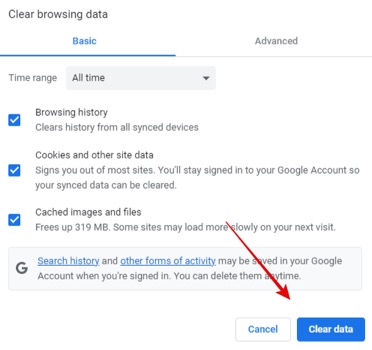
- Choose the time range for which you want to clear the data, and select the types of data you want to delete. You can choose from browsing history, cookies, cache, download history, and more.
- Once you have selected the time range and data types, click on the Clear data button to delete the selected data.
3. Implement Exponential Backoff
If simple fixes like waiting or flushing your cache do not work, you can try implementing retries with exponential backoff. This approach involves progressively increasing the waiting time between each failed request until the server accepts the request. To manually implement exponential backoff, you can use an online calculator like exponentialbackoffcalculator.com with these steps.- Simply input a starting time interval, the maximum number of retries or requests, and an exponential factor for subsequent requests.
- Set the timer using the timekeeper.
- The calculator will then generate timestamps for each retry attempt.
4. Alter WordPress Default Login URL
The 429 error on WordPress websites can be caused by brute-force login attempts, leading to your website being overwhelmed with too many requests. One effective way to prevent these attacks is to change your WordPress login URL from the default option. The default URL, such as wordpresswebsite.com/wp-admin or wordpresswebsite.com/wp-login, is a common target for hackers looking to access your website. You can use the WPS Hide Login plugin to change your WordPress login URL. This plugin creates an alternate login page to prevent hackers from accessing your website. Here's how you can install and use the plugin.- Navigate to your WordPress admin dashboard and choose Plugins > Add New.
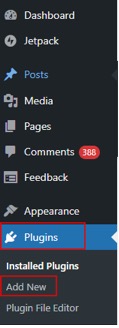
- Search for WPS Hide Login and install the plugin.
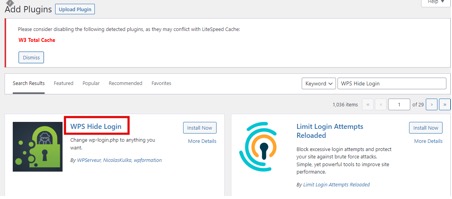
- Once the plugin is activated, go to Settings > WPS Hide Login.
- In the Login URL field, enter your custom login URL.
- Click Save Changes.
5. Deactivate the WordPress Plugins Temporarily
While a specific plugin usually causes 429 too many error requests, any plugin can be the culprit if it makes excessive external requests. To fix the error, firstly, check which plugin is the culprit. Once you've identified the faulty plugin, try updating it to see if that solves the problem In the next step, temporarily disable WordPress plugins that are supposed to cause errors. For this, go to the wp_content folder in your root directory and rename the plugins folder to something like plugins-disable. WordPress won't be able to locate the activated plugin with the previous name, and this way, you have deactivated the plugin, causing the error. Once you've done this, check your site to see if it's functioning normally without any active plugins. If it is, a faulty plugin was the root cause of the 429 error. To identify which plugin caused the problem, follow these steps:- Remove the empty plugins directory you created earlier, and change the name of the plugins directory back to its original name.
- Access the plugin's directory and locate the individual plugin folders within it.
- Rename the first plugin folder. This will disable only that specific plugin.
- Attempt to access your website to see if the 429 error has disappeared.
- If the error is still present, change the name of the first plugin folder back to its original name and move on to the next one.
- Repeat steps 3-5 with the remaining plugin folders until you identify the one causing the 429 error.
6. Set the Default WordPress Theme
If you're experiencing a 429 error and it's not due to a plugin, there's a chance that your active WordPress theme may be the culprit. It is not a frequent occurrence, but it is still a possibility that cannot be ignored. However, a straightforward solution is to switch to a default WordPress theme.- Login to your hosting account and search File Manager.

- Open the wp-config.php file in your File Manager and locate the name of your site's database.

- Next, access your phpMyAdmin and choose the appropriate database name.
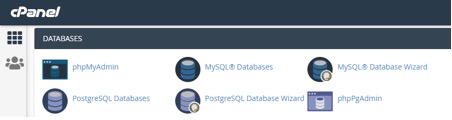
- From there, choose the wp_options table from the list.
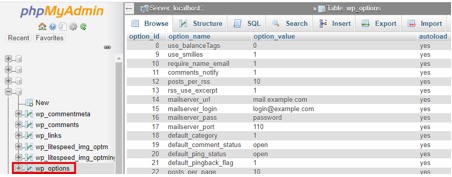
- Once you've located the template and stylesheet rows, usually found on the second page, simply double-click on the option_value of each row and edit the value into the default theme name.
7. Restore a Site Backup
Restoring a website backup can help you undo any changes that may have caused the error and return your website to its normal state. Your website will be restored to a stable state, and the HTTP 429 error will be resolved.8. Check Your Resource Usage
If your website is experiencing 429 too many request error, it could be that it is using too many resources, such as high CPU usage and memory. You can fix the error caused by this by upgrading your hosting plan to get more resources or reducing your website's resources. You can check the resource usage of your website directly within the cPanel of your web hosting account.- If you use cPanel, log in to your account and navigate to the Metrics
- Under the metrics, select the Resource Usage
- Click the Current Usage tab for a detailed breakdown of your website's resource consumption.
- CPU
- Memory
- Bandwidth
- Processes
- Unique IP addresses
- Entry processes
- Total requests