
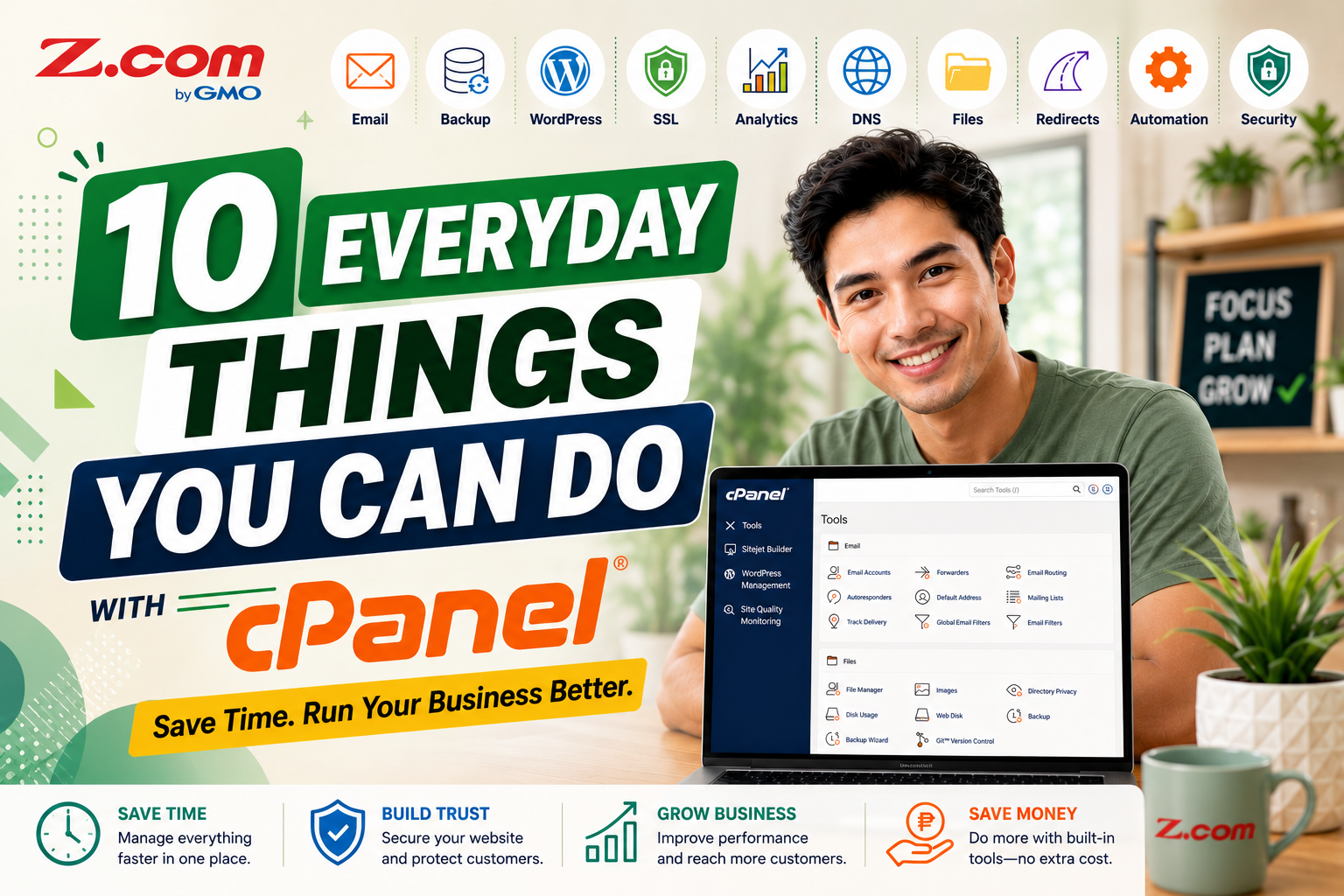
How Small Businesses Actually Use cPanel
10 Everyday Tasks That Save Time and Grow Your Business
In This Article:
- Ten cPanel tasks that solve real business problems
- No coding skills required for daily tasks
- Save time, protect your website, build trust
Learning how to use cPanel is the difference between paying someone every time your website needs a small change, and handling it yourself in a few clicks. Most business owners log into cPanel once, during setup, and never open it again. That's understandable, the dashboard is packed with icons and nobody explains what most of them actually do. But for Filipino entrepreneurs and Philippine small businesses, cPanel is how you run a website without hiring a developer for every small change.
Once you know where to look, cPanel becomes a set of everyday business tools: a way to create a professional email address, protect your site before a big sale, and fix small problems yourself instead of waiting on a developer. This guide walks through ten practical tasks small business owners in the Philippines use regularly, explained in plain language, with the business outcome first and the technical detail second.
None of these tasks require a background in web development. If you can fill out an online form, you can complete every task in this guide. The goal isn't to turn you into a technical expert, it's to help you recognize which button solves which problem, so you stop paying for outside help on things you could just as easily handle yourself in a few minutes.
Table of contents
- What cPanel Actually Does for You
- 1. Create Professional Business Email Addresses
- 2. Install WordPress in Minutes
- 3. Restore Your Website When Something Goes Wrong
- 4. Edit Website Files Without Extra Software
- 5. Secure Customer Information with SSL
- 6. Redirect Old Pages Without Losing Visitors
- 7. Manage Your Domain's DNS
- 8. Protect Private Areas of Your Website
- 9. Understand How Visitors Use Your Website
- 10. Automate Repetitive Website Tasks
- Where to Start Inside cPanel
- Business Problems and the cPanel Tools That Solve Them
- Frequently Asked Questions
What cPanel Actually Does for You
cPanel is a dashboard included with most web hosting plans, including Z.com Philippines hosting. Instead of typing commands, you click buttons and fill out simple forms to manage your website, email, and domain settings. Think of it as the control room behind your website: the visible site is what customers see, and cPanel is where you handle everything happening behind the scenes.
The dashboard is organized into groups like Files, Email, Domains, Security, and Software. You'll rarely touch most of what's on the screen, and that's fine. Here are the ten tools that cover almost everything a small business actually needs.
1. Create Professional Business Email Addresses
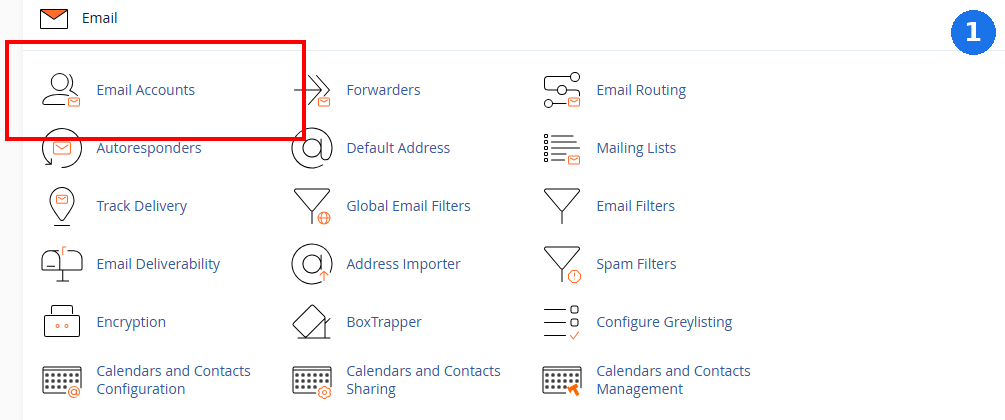
Email Accounts
A free email address works fine for personal messages, but it doesn't say much about your business. cPanel's Email Accounts tool lets you create an address that matches your domain name, such as orders@yourshop.ph, in a few minutes. You choose the mailbox name, set a password, and decide how much storage it gets.
For a home-based online seller who takes orders through Facebook and Shopee, having orders@yourshop.ph on invoices and receipts makes the business look established, even if it's still run from a spare room. You can also set up autoresponders so customers get an instant confirmation when they email you, and forwarders so messages land in the inbox you already check every day.
It's also worth setting up a few separate addresses as your business grows, such as one for orders, one for general inquiries, and one for supplier communication. If your team is growing, a dedicated business email plan keeps everyone on a professional address without sharing one crowded inbox.
A Cebu-based online seller switched from a personal Gmail address to hello@herstore.ph after customers kept asking if the shop was "legit." The switch cost nothing extra since it was already included in her hosting plan.
2. Install WordPress in Minutes
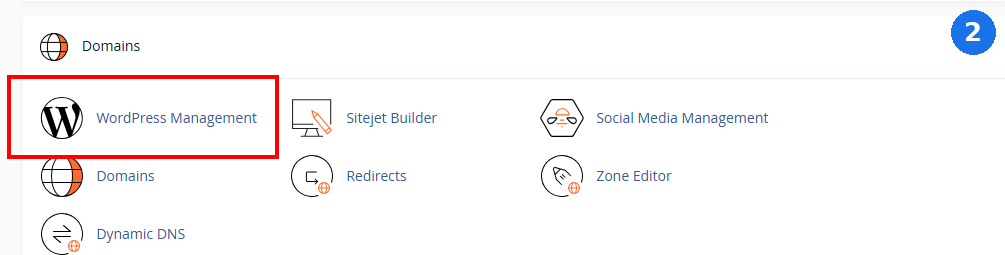
WordPress Management
Building a website used to mean writing code or hiring someone who could. The WordPress Management tool inside cPanel removes that barrier. You choose WordPress from the setup screen, answer a few questions like your site name and admin login, and the tool handles the technical setup automatically, including the database.
A freelance graphic designer in Cebu or a small coffee shop in Quezon City can have a working WordPress hosting site online the same afternoon they decide to build one, without touching a single line of code. From there, adding pages, photos, and a menu or portfolio is mostly drag-and-drop.
WordPress Management also handles routine housekeeping, like keeping WordPress and its plugins updated with a single click, so you're not manually checking for updates every week. This matters more than it seems: outdated software is one of the most common ways small business websites get compromised, and a five-second update click closes that gap.
3. Restore Your Website When Something Goes Wrong
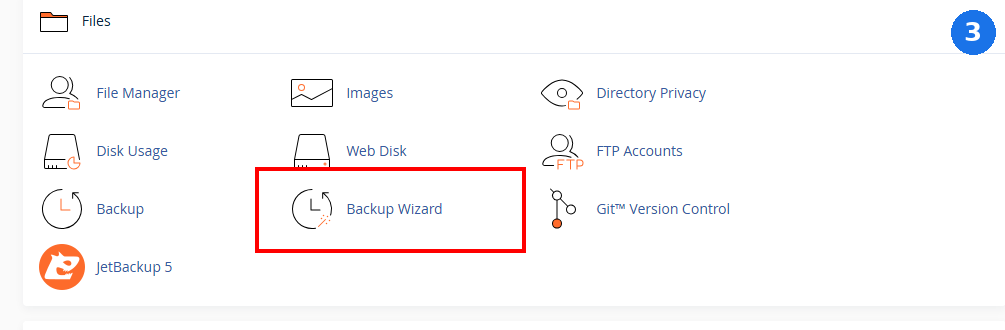
Backup Wizard
Websites occasionally break. A plugin update conflicts with your theme, or a file gets deleted by accident. The Backup Wizard lets you download a full or partial copy of your site so you have something to fall back on. A partial backup, covering your files, database, or email settings, can usually be restored by you directly through the wizard. A full backup is best kept as a safety copy and may need help from your host to restore.
Before a big promotion, many online sellers create a fresh backup just in case a last-minute change causes an issue during their highest-traffic hours.
It's worth building a simple habit around this: back up before any change you're not 100% sure about, whether that's a new plugin, a theme update, or a redesign. A backup taken five minutes before a risky change costs you nothing if everything goes fine, and saves you hours if it doesn't.
Schedule a reminder to back up your site before any major sale, product launch, or website update. It takes a few minutes and can save days of rebuilding.
4. Edit Website Files Without Extra Software
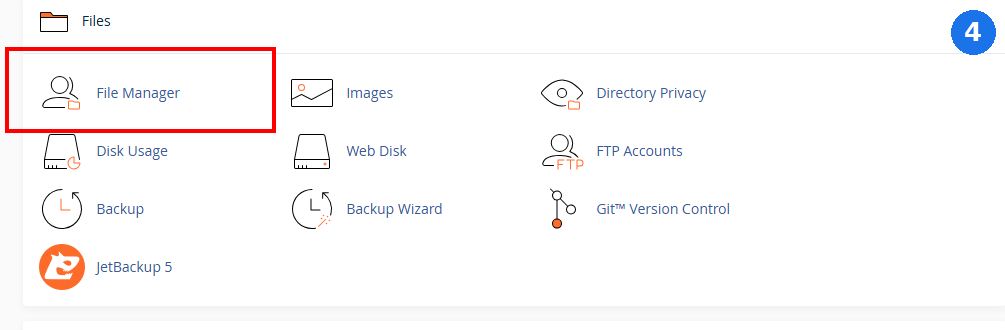
File Manager
Sometimes you need to update a single image, swap a PDF menu, or fix a typo in a file without downloading any software. The File Manager lets you upload, edit, rename, and organize your website's files directly through your browser, similar to managing folders on your computer.
A restaurant owner who wants to update a printable menu after prices change can open File Manager, replace the old file, and the new version is live immediately, no developer required. Just remember that changes here go live right away, so it's worth keeping a backup copy of anything important before editing.
5. Secure Customer Information with SSL
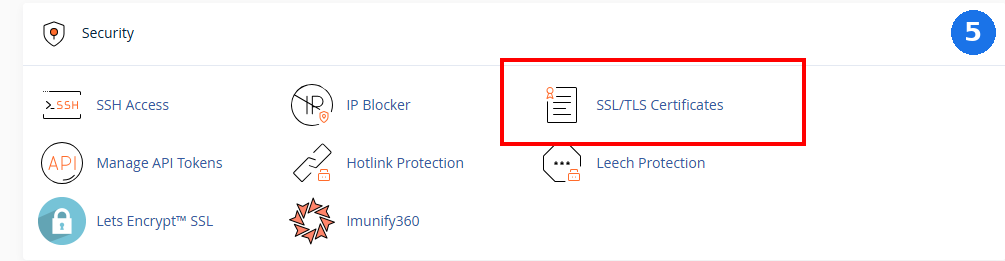
SSL/TLS Certificates
The small padlock icon next to a website address matters more than most business owners realize. It tells visitors that information they type in, like their name, phone number, or payment details, is encrypted. The SSL/TLS Certificates section shows which of your domains have a certificate active and lets you run AutoSSL to secure the rest.
For a clinic taking appointment requests or a real estate agent collecting inquiry forms, that padlock is often the difference between a visitor who trusts the form enough to fill it out and one who leaves. Most Z.com Philippines hosting plans already include a free SSL certificate, so this is often just a matter of confirming it's turned on through the Z.com Help Center.
Beyond the trust factor, an active certificate is also expected by browsers themselves. Sites without one are often flagged as "not secure" directly in the address bar, which can make an otherwise professional business look unfinished to a first-time visitor.
6. Redirect Old Pages Without Losing Visitors
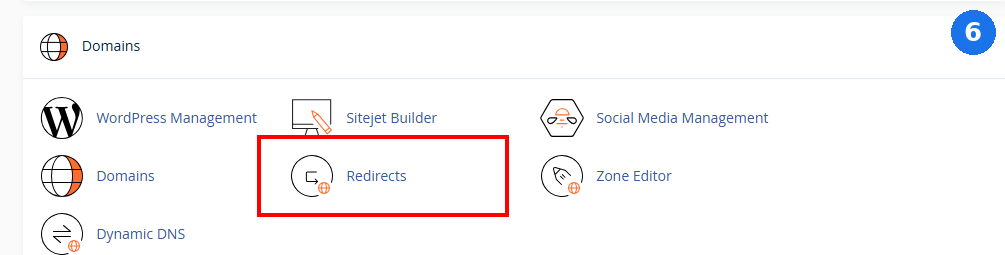
Redirects
Links change. A promotion page expires, a service page gets renamed, or you move a blog post to a new address. Without a redirect, anyone who clicks the old link lands on an error page instead of your business. The Redirects tool lets you point an old URL to its new destination automatically, no coding involved.
A travel agency that shared a seasonal promo link across Facebook groups months ago can redirect that old link to their current offers page, so late clicks still lead somewhere useful instead of a dead end.
7. Manage Your Domain's DNS
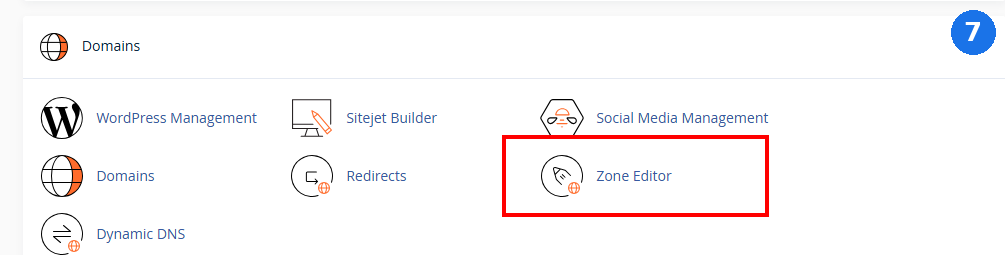
Zone Editor
DNS settings decide where your domain sends people and email, and the Zone Editor is where you manage those records without technical support. This is usually where you'd point your domain to a new email provider or connect a subdomain to a different tool.
One important thing to check first: the Zone Editor only controls your DNS if your domain's nameservers are already pointed to your hosting account. If you haven't registered your domain name with the same provider as your hosting, changes need to be made there instead. When in doubt, your host's support team can confirm where your domain currently points before you make any changes.
DNS changes don't happen instantly. They can take time to update everywhere, so it's normal if a change doesn't appear right away.
8. Protect Private Areas of Your Website
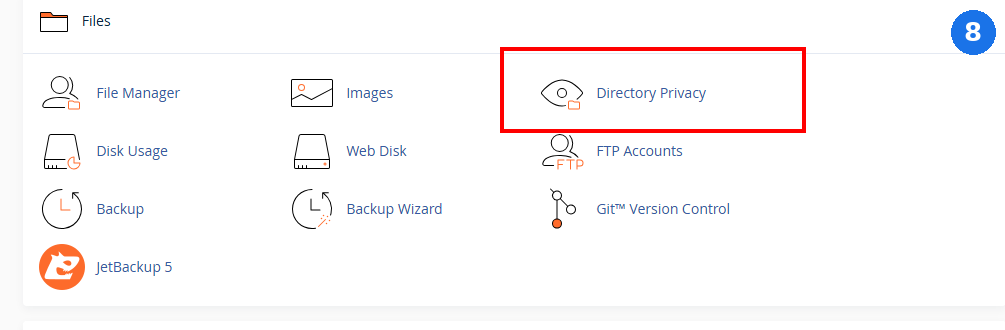
Directory Privacy
Not every page on your site needs to be public. Maybe you have a folder of client proofs, an internal price list for resellers, or a staging version of your site you're not ready to launch. Directory Privacy lets you password-protect a specific folder so only people you share the password with can view it.
A freelance photographer based in Makati can create a private gallery folder for each client's proofs, sharing the password individually instead of emailing large files back and forth.
9. Understand How Visitors Use Your Website
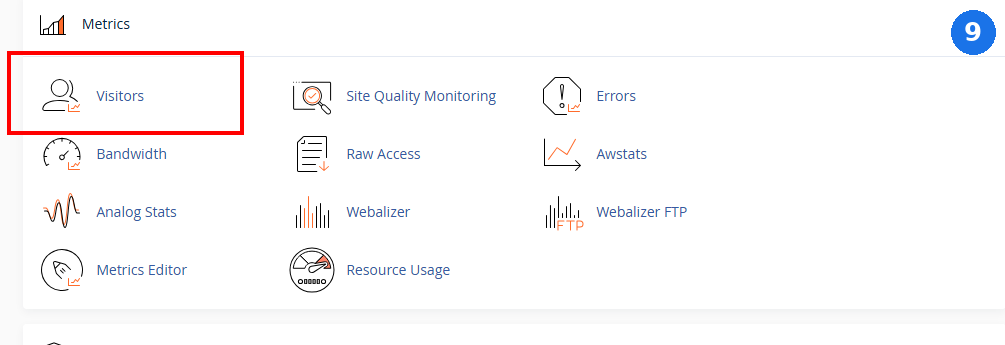
Visitors (Metrics)
The Metrics section shows visitor counts, which pages get the most traffic, and where errors are happening on your site, all without installing anything extra. It's a simpler view than a full analytics platform, but it's often enough to answer everyday questions, like whether your new landing page is getting any traffic at all.
An online seller running a limited-time promotion can check Metrics the next morning to see whether visitors actually reached the offer page, or whether a broken link kept them from getting there.
This is also a useful early-warning tool. If your Errors log suddenly fills up after adding a new page, or your bandwidth usage jumps for no clear reason, Metrics usually shows the first sign before a customer ever has to tell you something's wrong.
10. Automate Repetitive Website Tasks

Cron Jobs
Some tasks don't need a person to remember them every week. Cron Jobs let you schedule things like automatic backups, cache clearing, or a weekly report email to run on their own, at whatever time you choose. cPanel provides simple dropdown menus for common schedules, so you don't need to learn any special commands.
A small clinic that emails itself a weekly appointment summary, or a shop that clears its site cache every night, can set both up once inside Cron Jobs and never think about it again.
Cron Jobs are also what quietly keeps a WordPress site running on schedule in the background, handling tasks like publishing a scheduled blog post at the right time, even if nobody happens to visit the site at that exact moment.
Where to Start Inside cPanel
You don't need to master every tool in one sitting. If you're logging in for the first time, this order builds confidence quickly and covers what most businesses need first:
- Update your password and contact details
- Install WordPress if you don't have a site yet
- Create a professional business email address
- Confirm your SSL certificate is active
- Set up your first backup
If anything looks unfamiliar along the way, the Z.com Help Center has step-by-step guides for each of these tasks, so you're never figuring it out completely alone.
Give yourself a full afternoon for this list rather than trying to squeeze it in between other tasks. Once these five are done, everything else in cPanel becomes optional, something you pick up only when a specific need comes along, like protecting a client folder or scheduling a report.
Business Problems and the cPanel Tools That Solve Them
Here's a quick-reference view of everything covered so far, matched to the business goal it supports.
| Business Goal | cPanel Feature | Business Benefit |
|---|---|---|
| Look more professional | Email Accounts | Build customer trust with a branded address |
| Launch a website quickly | WordPress Management | Get online without hiring a developer |
| Recover from mistakes | Backup Wizard | Restore your site and reduce downtime |
| Make quick edits | File Manager | Update content without extra software |
| Protect customer data | SSL/TLS Certificates | Earn visitor trust with a secure connection |
| Keep old links working | Redirects | Preserve visitors and search rankings |
| Connect domains and email | Zone Editor | Route your domain correctly |
| Keep files confidential | Directory Privacy | Restrict access to sensitive folders |
| Understand your audience | Metrics | See what's working on your site |
| Save time on repeat tasks | Cron Jobs | Automate backups and reports |
Bookmark this table. When a new task comes up, check here first before assuming you need outside help or another paid tool.
Frequently Asked Questions
Is cPanel difficult for beginners?
Not really. cPanel is a graphical dashboard designed so non-technical users can complete tasks with a few clicks instead of typing commands. It can look busy the first time you open it, since it groups many tools on one screen, but most business owners only ever use a handful of sections: Email, Files, Domains, and Security. Once you know where those are, the rest of the dashboard becomes far less intimidating, and you can safely ignore sections you don't need yet.
Do I need coding knowledge to use cPanel?
No. Every task covered in this guide, from creating an email address to installing WordPress, is done through forms and buttons rather than code. Tools like WordPress Management handle the technical setup automatically once you answer a few simple questions. Coding knowledge becomes useful only if you want to customize your site's design or functionality beyond what standard themes and plugins offer, which is a separate, optional step.
Can I manage my website from my phone?
Yes. cPanel works through any modern mobile browser, so you can check email settings, view visitor metrics, or restore a backup from your phone in a pinch. Simple tasks are easy on a smaller screen, though detailed work like editing multiple files is usually more comfortable on a laptop or desktop. For quick checks between errands, a mobile browser is more than enough.
What should I learn first inside cPanel?
Start with the basics that protect and represent your business: update your login details, create a professional business email address, and confirm your SSL certificate is active. From there, set up your first backup so you have a safety net. These five steps, covered earlier in this guide, take less than an hour combined and cover most of what a small business needs in its first month of managing a website.
Is cPanel included with web hosting?
It depends on the host. Many hosting providers, including Z.com Philippines, include cPanel with their hosting plans at no extra cost. Some hosting companies use their own custom dashboards instead of cPanel, which work differently even though they handle similar tasks. If cPanel access matters to you, it's worth confirming with your host before signing up, since the tools described in this guide are specific to the cPanel interface.
Most of the frustration business owners feel about managing a website comes from not knowing what's already available to them. cPanel isn't a tool reserved for developers. It's a set of everyday features, email, backups, security, file management, and more, built to help business owners run their own site with confidence. You don't need to learn all ten tasks at once. Start with the handful that solve your most immediate problem, whether that's a professional email address or your first backup, and build from there. The rest becomes easier once the basics feel familiar.