
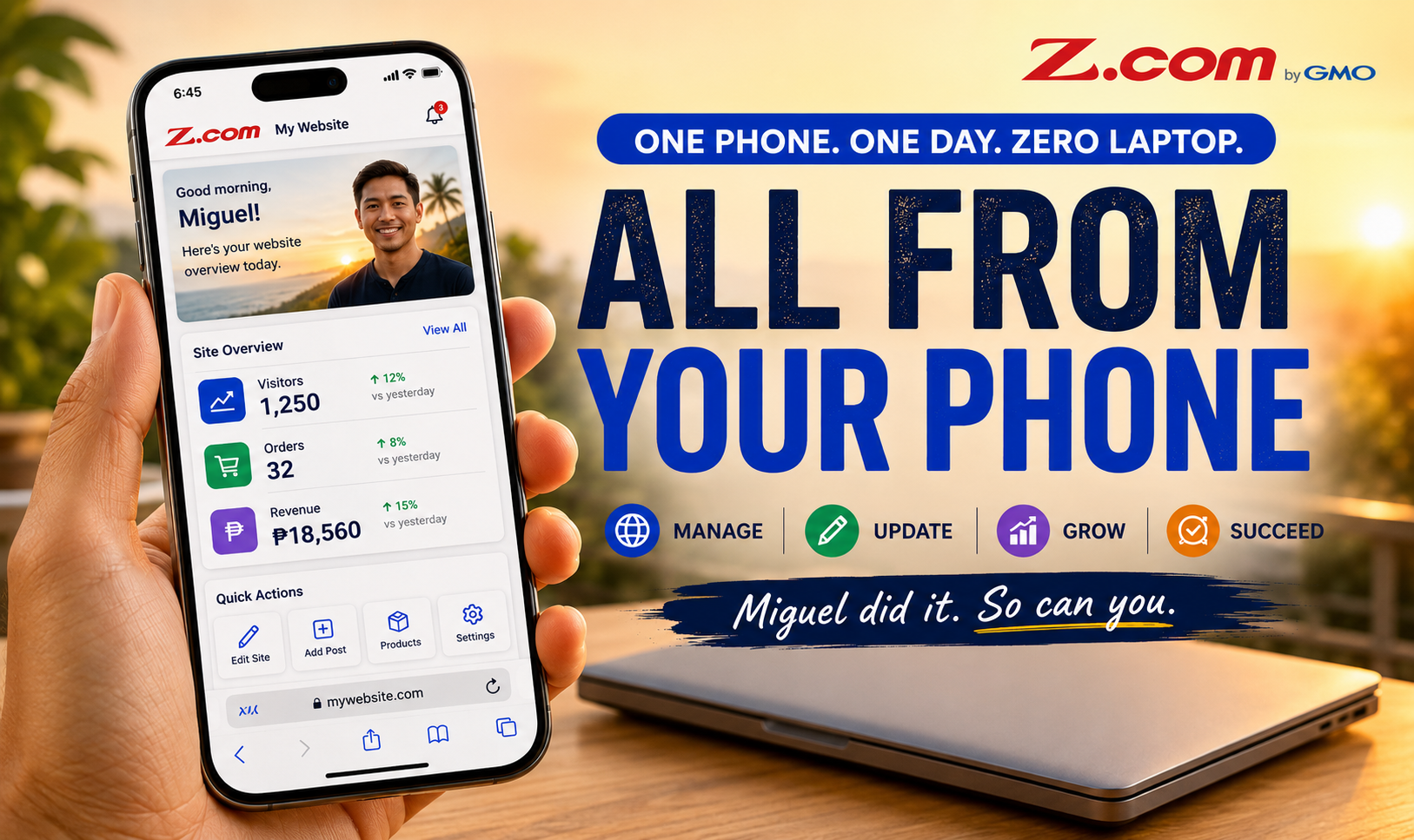
Can You Manage Your Website Using Only Your Phone?
- ✓ One entrepreneur manages site with phone only
- ✓ Real tasks completed using only smartphone
- ✓ Tools, timeline, and strategies that work
Table of contents
- Today's Timeline
- Miguel's Day: Tasks Completed Using Only His Phone
- 📱 7:30 AM — Checking Business Email
- 📱 9:00 AM — Updating the Website
- 📱 11:30 AM — Checking SSL Certificate Status
- 📱 2:00 PM — Handling a Quick Website Issue
- 📱 4:30 PM — Creating a Website Backup
- 📱 6:00 PM — Checking Visitor Activity
- 📱 8:00 PM — Updating a Redirect
- 📱 9:30 PM — End of the Day
- What Miguel Didn't Need Today
- Security Considerations for Mobile Management
- Frequently Asked Questions
- Getting Started with Mobile Website Management
- Conclusion
Today's Timeline
📧 7:30 AM — Business Email
📝 9:00 AM — Update Website
🔒 11:30 AM — Check SSL Certificate
📂 2:00 PM — Quick Website Fix
💾 4:30 PM — Backup Website
📊 6:00 PM — Check Visitor Activity
➡️ 8:00 PM — Update Redirect
🌙 9:30 PM — End the Day
Miguel never opened his laptop today.
It stayed closed from morning until night. No keyboard. No trackpad. Just his smartphone and a to-do list of legitimate website management tasks that needed completing.
By the end of the day, he'd replied to customers, updated his website, checked visitor activity, and backed up his site.
His laptop stayed closed all day.
If you've ever wondered whether modern Web Hosting makes it genuinely possible to manage your website using only your phone—this is your answer. It's not theoretical. It happens every day for thousands of Philippine entrepreneurs, online sellers, and home-based business owners who need flexibility beyond a desk.
Miguel's Day: Tasks Completed Using Only His Phone
Let's follow Miguel through a typical day. He's an online seller in Quezon City running a fashion business through his website and Facebook shop. Here's how he manages his entire web presence from his smartphone.
📱 7:30 AM — Checking Business Email
Miguel wakes up, makes coffee, and opens his phone. His first task: business email. He doesn't sit at a desk. He scrolls through his inbox using only his smartphone.
Three customer inquiries arrived overnight asking about product availability. One customer from Makati needs urgent help with a payment issue. Using only his phone, Miguel responds to each inquiry—typing replies, checking his product database through his phone's browser, and providing shipping timeline information to the customer in Davao.
Time Saver: Responding to customer emails immediately from his phone means Miguel answers questions 6-8 hours earlier than if he waited until evening. For online sellers, this faster response rate improves customer satisfaction and reduces cart abandonment.
[Screenshot: Mobile Business Email]
📱 Mobile Friendliness: ★★★★★
Set up email filters for urgent messages (customer inquiries, order notifications) so you receive alerts immediately. This keeps you from missing time-sensitive issues.
Before
Wait until evening to reply to customer emails from laptop.
↓
After
Reply to all customer questions immediately from phone while having breakfast.
📱 9:00 AM — Updating the Website
By 9:00 AM, Miguel is ready to update his website. He opens the WordPress mobile app using only his phone—no laptop in sight. Today, he needs to update the homepage banner announcing his new seasonal collection.
Using the WordPress mobile app with AI Website Builder capabilities, he writes a quick headline update, uploads three product photos directly from his phone's camera roll using the smart image editor, and schedules the post to go live immediately. The entire update takes 8 minutes from his phone—just a few taps to transform his homepage banner.
He also adds a brief blog post about "How to Choose the Right Size" based on customer questions he's been receiving through Messenger. This is content he wanted to publish for days. Finally having his phone lets him complete it.
[Screenshot: WordPress Mobile Editor]
📱 Mobile Friendliness: ★★★★☆
Write blog posts as ideas strike you. You don't need a perfect draft—save it and refine later. Mobile access means you capture ideas immediately, not hours later when inspiration has faded.
Before
Write down blog ideas, plan to update website later, forget about it.
↓
After
Publish blog post within 10 minutes of thinking of it, using only phone.
You're probably already doing something similar every day—capturing ideas on your phone, taking photos of new products, or thinking about what to share. Now imagine completing those tasks immediately instead of keeping them on a to-do list.
📱 11:30 AM — Checking SSL Certificate Status
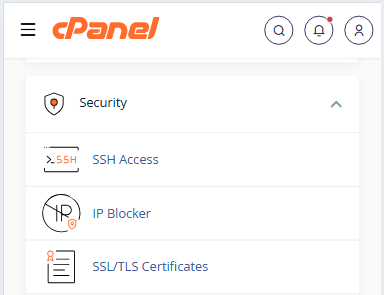
At 11:30 AM, Miguel receives a reminder notification on his phone about his SSL certificate. Rather than ignoring it, he opens his hosting dashboard using only his phone's browser.
He checks his SSL status in seconds. Everything looks good—his security certificate is valid for another 6 months. The task takes 2 minutes from his phone. No laptop needed. Just opens the dashboard, confirms everything is secure, and moves on.
📱 Mobile Friendliness: ★★★★★
Set phone reminders for SSL certificate expiration dates. Checking once every few months takes seconds from your phone and prevents catastrophic downtime.
Before
Ignore SSL notification, hope it renews automatically.
↓
After
Check SSL status immediately from phone while at client meeting.
📱 2:00 PM — Handling a Quick Website Issue
At 2:00 PM, Miguel receives a message from a customer: "The 'Add to Cart' button isn't working on product page #47." This is urgent.
Instead of waiting until evening, Miguel logs into his file manager using only his phone. He identifies the issue quickly—a recently uploaded plugin had a minor conflict. Using his phone, he deactivates the problematic plugin.
He tests the page using only his smartphone browser. The button works again. The customer is notified within 10 minutes. Crisis averted, using only a phone.

📱 Mobile Friendliness: ★★★☆☆
For complex file management, your computer is still better. But for quick fixes and basic troubleshooting, phone access means you don't lose an entire afternoon waiting to get home.
Before
Site breaks mid-afternoon, customer unhappy, must wait until evening to fix.
↓
After
Identify and fix issue in 10 minutes using phone, customer satisfied.
📱 4:30 PM — Creating a Website Backup
At 4:30 PM, Miguel schedules a full website backup using only his phone. He opens his hosting control panel's backup wizard through his phone's browser.
He selects "Full Website Backup" and initiates the process. The backup runs in the background while Miguel attends to other business tasks. Later, he'll download it to his phone for safe storage. One-click backup management, zero laptop involvement.

📱 Mobile Friendliness: ★★★★☆
Backup your website weekly from your phone. It takes 30 seconds and protects your business from data loss. For Philippine online sellers, website data is your most valuable asset.
Before
Keep meaning to backup website, never actually do it.
↓
After
Schedule weekly backups from phone in 30 seconds, never worry again.
📱 6:00 PM — Checking Visitor Activity
At 6:00 PM, Miguel checks his website analytics using only his phone. He opens his analytics dashboard through his browser and scrolls through visitor statistics.
He sees which products attracted the most visitors today, which blog posts his customers are reading, and which traffic sources are performing best. This information helps him understand what's working for his business—all reviewed from his phone while sitting at a café.

📱 Mobile Friendliness: ★★★★★
Reviewing analytics once daily—even for just 2 minutes—helps you understand what your customers want. This daily awareness guides your content strategy and product decisions.
📱 8:00 PM — Updating a Redirect
At 8:00 PM, Miguel realizes that an old product URL needs to redirect to a new page. Rather than making a note to handle it later, he logs into his hosting control panel using only his phone.
He navigates to the Redirects section and creates a 301 redirect from the old product page to the new one. The task takes 3 minutes. His customers will never see a broken link, and his search engine rankings for that product page are preserved.

📱 Mobile Friendliness: ★★★★★
Handling small tasks like redirects immediately prevents them from becoming problems. What takes 3 minutes today could become a SEO issue if ignored for weeks.
Before
Make a note about redirect, forget about it, have broken links for weeks.
↓
After
Create redirect immediately from phone, maintain SEO value.
📱 9:30 PM — End of the Day
By 9:30 PM, Miguel's day of website management is complete. He's handled customer emails, published new content, checked SSL certificates, fixed website problems, backed up his data, reviewed visitor activity, and updated redirects.
His laptop remained closed.
Just like Miguel, many small business owners in the Philippines accomplish an entire day of website management using only their smartphone. This isn't exceptional anymore—it's the new normal for entrepreneurs who need flexibility.
hfThe difference between Miguel's workflow and struggling entrepreneurs? The right tools and understanding what's actually possible with modern Web Hosting platforms.
Ready to get started with mobile website management? Visit our Support Center for step-by-step guides →
What Miguel Didn't Need Today
Throughout this entire day—8+ hours of website management—notice what Miguel didn't use:
f- ❌ A laptop — Every task worked perfectly on a smartphone
- ❌ FTP software — File managers work through the browser on any device
- ❌ Coding knowledge — Modern hosting dashboards handle everything visually
- ❌ A developer or IT person — Miguel managed everything independently
This is the real transformation in Web Hosting. Five years ago, many of these tasks required technical expertise or desktop software. Today, modern Web Hosting platforms have made website management accessible to anyone with a smartphone and internet connection.
For Philippine entrepreneurs, this accessibility changes everything. You're not limited to managing your business from an office. You can update your website from anywhere—during breaks between client meetings, while waiting in traffic, or even while at a family gathering.
Security Considerations for Mobile Management
Managing your website from a phone is entirely practical, but security matters. Here's what Miguel does every time:
Use Strong Authentication
Miguel enables two-factor authentication on his hosting dashboard. This means even if someone gets his password, they can't access his website without a second verification.
Connect Through Secure Networks
When Miguel accesses his dashboard at a café, he uses his phone's mobile data, not public WiFi. This prevents hackers from intercepting his login credentials.
Keep Your Phone Software Updated
Every time Miguel gets a system update notification, he installs it immediately. These updates patch security vulnerabilities that could put his website at risk.
Log Out When Finished
After managing his website, Miguel logs out completely. This prevents unauthorized access if someone else gains his phone.
Frequently Asked Questions
Can I really do all my website management from just my phone?
Miguel did today. Most routine tasks—responding to customer inquiries, publishing updates, checking analytics, fixing small problems, scheduling backups—work perfectly on a smartphone. Complex design projects or bulk media uploads are still better on a computer. Think of it this way: phone management handles 80% of daily tasks, with computer time reserved for occasional big projects.
What if I'm running WordPress? Can I manage it from my phone?
Yes. The WordPress mobile app is specifically designed for phones and handles most daily tasks. You can write posts, upload images, moderate comments, and check analytics directly from your phone. The app works so well that many WordPress users do most of their updates on phones now, using computers only occasionally for major changes.
What about security? Is phone management safe?
Yes, if you follow basic practices like Miguel does: use two-factor authentication, connect via mobile data instead of public WiFi, keep your phone software updated, and log out when finished. These precautions make phone management as secure as desktop management—often more secure because phones generally have better built-in security than shared computers.
Can I handle website problems from my phone?
For many common problems—disabled plugins, minor configuration issues, broken redirects—yes. Miguel fixed a cart button problem in 10 minutes from his phone. However, for serious technical issues requiring code editing or server configuration, you may need a computer. Always have your hosting provider's support contact ready if something complex arises.
Won't I get distracted by other phone notifications while managing my website?
This is real. Many business owners use "Focus Mode" or "Do Not Disturb" settings while managing their website to avoid interruptions. Set aside 10-15 minutes without distractions. You'll accomplish more in 15 focused minutes on your phone than in an hour of interrupted computer work.
Getting Started with Mobile Website Management
Follow Miguel's approach: start with the simple tasks first. Check your email, publish quick updates, review analytics—these are your entry point to phone-based management. As you become comfortable, you'll naturally expand to more complex tasks.
Install the mobile app for your website platform (especially if you use WordPress Hosting). Spend a few days just exploring—familiarize yourself with where everything is. What feels awkward now will become second nature within a week.
Set aside 10-15 minutes each morning to check your website using only your phone. This becomes part of your business routine, just like checking email. Within a month, you'll look back and wonder how you ever needed a laptop to manage these daily tasks.
Conclusion
Can you manage your website using only your phone?
Miguel just did.
From 7:30 AM to 9:30 PM, he replied to customers, published new content, checked SSL certificates, fixed website problems, backed up his site, reviewed visitor activity, and updated redirects.
His laptop stayed closed all day.
This isn't a theoretical exercise or a marketing claim. It's what thousands of Philippine entrepreneurs, online sellers, and home-based business owners do every day. Mobile website management is real, practical, and increasingly the default way to run an online business.
The question isn't whether you *can* manage your website from your phone. The real question is: why would you stay tied to a desk when modern Web Hosting makes it this easy to manage your entire online presence from anywhere?
Ready to Manage Your Website With Ease?
Get reliable Web Hosting designed for entrepreneurs who need flexibility. Manage your site from your phone, desktop, or anywhere in between. Your business shouldn't be tied to a desk.