
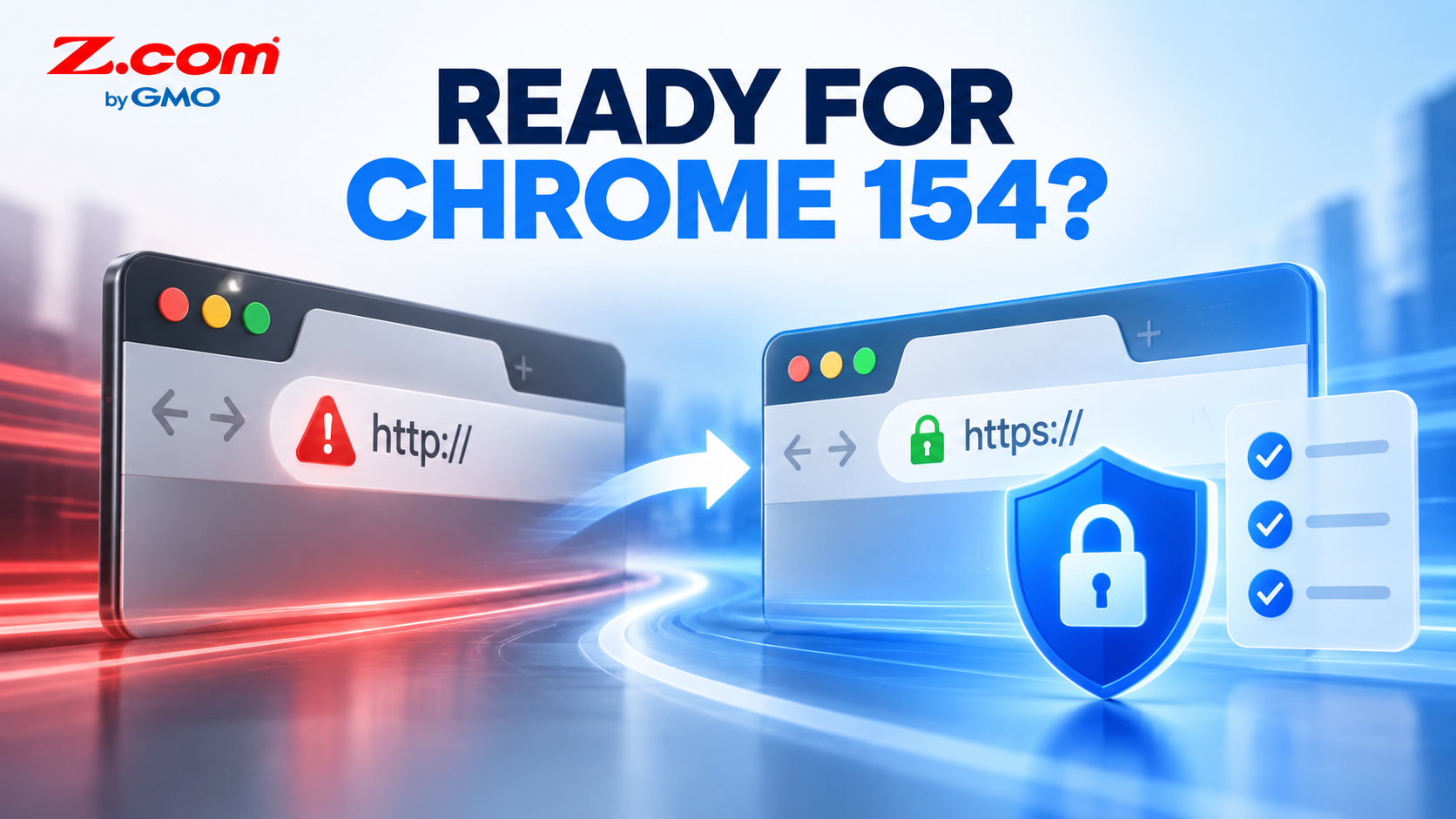
Preparing Your Website for Chrome's New HTTPS Warning
In This Article:
- ✓ Chrome 154 will warn before loading public pages that aren't available over HTTPS
- ✓ Mixed content is a separate, older issue also worth checking
- ✓ A quick checklist keeps your website ready for both
Chrome is preparing to change how it treats public websites that aren't available over HTTPS. Google plans to enable "Always Use Secure Connections" by default for public sites in October 2026, during the Chrome 154 rollout: Chrome will first try to upgrade an HTTP page to HTTPS, and show a bypassable warning if that fails. Many business websites already use HTTPS, so this particular warning may not affect them directly. Mixed content — a secure page that still loads images, scripts, or embeds over unencrypted HTTP — is a separate, older issue also worth checking, even on a site that already has a certificate. This guide separates the two issues, then walks through a practical checklist for both.
Last verified: September 11, 2026. This article may be updated if Google changes the rollout schedule.
Quick Answer: In October 2026, Google plans to make "Always Use Secure Connections" the default for public sites during the Chrome 154 rollout — warning visitors before they reach a site that's only available over HTTP, not before every page with mixed content. Test your plain http:// address, confirm HTTPS and redirects work, and check your certificate's hostname coverage. Mixed content — HTTP resources loading inside an HTTPS page — is a separate, older issue also worth auditing.
Table of contents
What Chrome Is Changing This October
"Always Use Secure Connections" isn't a brand-new feature — Chrome has offered it as an opt-in setting since 2022, and a version limited to public websites was introduced more recently. Chrome now ships on a two-week release cycle, and Chrome 154 itself reaches stable release in late September 2026; Google's plan to turn the public-sites variant on by default for everyone is separately scheduled for October 2026, during that rollout. Once enabled, Chrome will try to upgrade every navigation to HTTPS first; if a public page is only reachable over HTTP, visitors will see a bypassable warning. The planned default excludes private destinations like local IP addresses and intranet hostnames, so it targets public sites still serving pages over plain HTTP.
Mixed content is a separate browser mechanism, not the trigger for this particular warning. A site can hold a valid certificate and serve every page over HTTPS, yet still load an individual element — an image, a script, an embedded video — over HTTP. Chrome handles that case differently: it can silently upgrade some passive resources to HTTPS but normally blocks insecure active resources outright, rather than showing the same top-level warning Chrome 154 introduces. Both matter, but they call for separate checks.
Why Full HTTPS Coverage Still Slips
Most websites that run into this issue were not built carelessly. They simply grew over time, sometimes across several redesigns, hosting moves, or plugin changes, and a few older elements were never updated to match the rest of the site.
Common Sources of Mixed Content
Embedded Facebook or YouTube widgets added years ago, product photos uploaded before a site moved to HTTPS, third-party chat buttons, and page-builder templates that hardcode a link starting with "http://" instead of "https://" are the usual culprits. A Facebook-first seller who added a Messenger chat widget when first setting up their site, for example, may never have revisited that embed code since.
Old Pages and Forgotten Subdomains
Landing pages built for a past sale event, a staging or test subdomain left online after a project wrapped up, or a printed QR code on packaging and social posts that still points to an old address can quietly keep serving HTTP content long after the main site was secured. Agencies managing several client sites ahead of the Ber-months sale season are often the ones who catch this first, simply because they're reviewing every page at once.
How to Check Your Site's Security
Diagnosing this takes a few minutes and doesn't require technical training. Work through the checklist below for your homepage and a handful of older pages.
- Preview the planned behavior now: in Chrome, go to Settings → Privacy and security → Security → Always use secure connections, and turn on the option that warns you on insecure public sites.
- Type your site's plain
http://address into Chrome and see what happens — Chrome should upgrade the connection to HTTPS automatically, with no warning, if HTTPS is available for that hostname. - Check the www and non-www versions of your domain, plus any public subdomains, the same way.
- Click the site-information icon at the left of the address bar to confirm the connection is secure and the certificate covers the hostname you're viewing.
- Review internal links, old QR codes, and campaign URLs for any that still start with
http://. - Open Chrome DevTools (right-click the page, choose Inspect, then the Issues or Security tab) and reload the page — mixed content is listed there with the exact file causing it.
- Test older landing pages, embedded widgets, forms, login pages, and checkout pages, since these are the most likely spots for a leftover HTTP link.
If every page you check redirects cleanly to HTTPS and shows no mixed content warnings, you're likely in good shape. This audit is about catching the exceptions, not assuming the worst about your site.
Fixing Mixed Content and HTTP Links
Once you've found the source, the fix is usually straightforward, but a few precautions keep it safe. For a WordPress site, a search-and-replace plugin or a direct database search for "http://yourdomain.com" can update hardcoded links in one pass — but only after backing up the full site, testing on staging if possible, and using a WordPress-aware tool that handles serialized data correctly rather than a raw SQL replacement. A WordPress Hosting environment with built-in backups makes this safer; afterward, check pages, media, widgets, forms, and login and checkout flows. For embedded widgets, check whether the provider offers an updated embed code that defaults to HTTPS, since most do.
It's also worth confirming that your SSL certificate itself is valid, correctly installed, and covers every hostname you use. GlobalSign SSL is available as a certificate option that can simplify the certificate side of this setup, but a valid certificate doesn't rule out mixed content or redirect issues on its own — those are still worth checking separately.
Keeping Your Website Secure Long-Term
Treat this less like a one-time fix and more like a habit worth keeping. Before publishing a new page or adding a new embed code, a quick glance at the address bar confirms nothing insecure slipped in. Keeping plugins, themes, and page builders updated also matters, since outdated tools are one of the more common sources of HTTP links reappearing on an otherwise secure site.
Hosting also plays a supporting role here. Z.com Web Hosting includes SSL with active hosting, which can simplify the certificate side of HTTPS setup. Site owners should still periodically re-check redirects, hostname coverage, and mixed content, since a certificate alone doesn't cover every part of the checklist above.
Key Takeaway: Chrome 154's new warning targets public pages that are only reachable over plain HTTP — it isn't triggered by mixed content. Mixed content is a separate, older issue worth checking at the same time: old images, embeds, or scripts still loading over HTTP inside an otherwise secure page. Working through the checklist above — testing your http:// address, confirming certificates and redirects, and scanning for mixed content in DevTools — covers both before the update reaches your visitors.
Frequently Asked Questions
Will Chrome's update affect my website if I already have an SSL certificate?
Having a valid SSL certificate helps, but it isn't automatically enough. Chrome first tries to upgrade an HTTP navigation to HTTPS, so a normal redirect doesn't by itself mean visitors will see the warning. A hostname that isn't directly reachable over HTTPS and relies on an HTTP-only entry point — for example, a certificate missing a hostname you use — may still trigger it. Once HTTPS is confirmed everywhere, mixed content is separate: individual elements on an otherwise secure page, like an old image or embed, that still load over HTTP.
What exactly counts as mixed content?
Mixed content happens when a page loaded over HTTPS also loads a resource — an image, script, video embed, or stylesheet — over the older, unencrypted HTTP protocol. Depending on the resource type, Chrome may upgrade it to HTTPS automatically or block it outright rather than loading it insecurely; either way, the browser may flag the page as not fully secure. It's typically caused by hardcoded links left over from before a site moved to HTTPS, or third-party embed codes that were never updated.
How do I check for HTTP elements without reviewing every page manually?
Start with your homepage, top product or service pages, and any older landing pages built for past promotions, since these are the most common sources. Chrome's DevTools Console will list the exact mixed content warnings for whichever page is open. For a larger site, a web developer or your hosting provider can run a broader scan across all pages at once, which is faster than checking each one individually.
Will visitors be blocked from my site if they see the warning?
No. Chrome's planned warning is a bypassable warning, so visitors can still choose to continue to the page. That said, an unfamiliar security warning can understandably make some visitors hesitate, particularly on a page where they're expected to enter payment or contact details. Making sure the page is properly reachable over HTTPS — and separately, checking for mixed content — keeps that decision from coming up for your visitors.
Chrome's move toward flagging public HTTP pages by default is a reasonable next step toward a fully encrypted web, and many business websites with HTTPS already in place are well positioned for it. The practical task before October is the checklist above: confirm your http:// address upgrades to HTTPS cleanly, check your certificate's hostname coverage, and separately scan your main pages for mixed content. None of this requires rebuilding your website — just a closer look at details that are easy to overlook once a site has been live a while.
Keep your website fully secure, from your certificate to every page on it.
Check your current SSL setup or get a properly configured certificate today.
Secure Your Website Today