
A Simple Guide to Stronger WordPress Login Security
In This Article:
- Audit who still has admin access
- Add login limits and two-factor login
- Turn hardening into a habit
Every WordPress site, from a home-based online shop to a growing service business, depends on one thing working correctly: the login page. It is easy to focus on backups, page speed, or the next feature to add, and forget to ask a simpler question: who can actually log in to your site right now?
In August 2026, WordPress announced a Core Security Initiative to speed up how vulnerabilities are found and patched, in response to a sharp rise in security reports across the WordPress ecosystem. This trend is a reminder that a strong login matters just as much as a patched plugin.
The good news is that WordPress login security is one of the easier things to improve, and it does not require technical expertise. This guide walks through a simple access audit, stronger password habits, login attempt limits, and two-factor authentication, so you can strengthen your site's foundation a little at a time.
Quick answer: Securing a WordPress login means auditing who has admin access, removing unused accounts, enforcing strong unique passwords, limiting login attempts, and adding two-factor authentication — steps any small business owner can complete without technical help.
Table of contents
Start With an Access Audit
Before adding any new protection, it helps to know exactly who can already log in. Many Philippine business websites are built with help from a web developer, a design agency, or a virtual assistant, and it is common for those accounts to stay active long after the project ends. A quick access audit is a simple, positive first step, not a sign that anything is currently wrong with your site.
List Everyone With Admin Access
In your WordPress dashboard, go to Users, then All Users, and look at every account with the Administrator role. For a small business site, this list is often shorter than expected, maybe you, a part-time VA who manages product listings for your online shop, and the developer who launched the site last year. Note the account name and role for each one so you have a clear picture before making any changes. WordPress core does not show a last-login date on this screen by default; if your site uses a security, activity-log, or hosting-dashboard plugin that tracks logins, record that date too.
Remove or Downgrade Old Accounts
If a freelancer or agency no longer works on your site, remove their account, or ask them to confirm it has already been deleted. For team members who only update content, like a VA posting new products or a social media manager writing posts, consider changing their role to Editor or Author instead of Administrator. This way, they can still do their job, but a single compromised account cannot change your site's core settings or install anything new.
Strengthen Every Login You Use
Once you know who has access, the next step is making sure every one of those logins is hard to guess. A strong, unique password, generated and stored in a password manager rather than reused across accounts, is still one of the most effective protections available, and it costs nothing to put in place.
This matters even more when a site is managed by more than one person. If your VA, bookkeeper, or social media manager all log in to the same WordPress dashboard, each person should have their own account and their own password, never a single shared login passed around by chat message or written on a sticky note. Shared logins also make it impossible to know, later, which person's account was actually used if something does go wrong.
Limit Login Attempts Automatically
Attackers rarely guess a password by hand. Automated tools quietly try large numbers of username-and-password combinations against a login page, often using passwords already leaked from unrelated breaches elsewhere, hoping one matches a password you have reused. This approach does not need to guess correctly on the first try. It only needs one match out of thousands of attempts.
Limiting how many login attempts are allowed before a temporary lockout makes this kind of automated guessing far less practical, without adding any extra steps for you or your team during normal use. Many login-security and firewall plugins include this feature as a standard option, and it pairs well with protection built into your hosting environment. Z.com's Web Hosting plans include firewall and malware-detection tools on most plans, helping filter out this kind of suspicious login activity before it reaches your WordPress dashboard; check current plan details to confirm exactly what's included on your plan.
Add Two-Factor Authentication Today
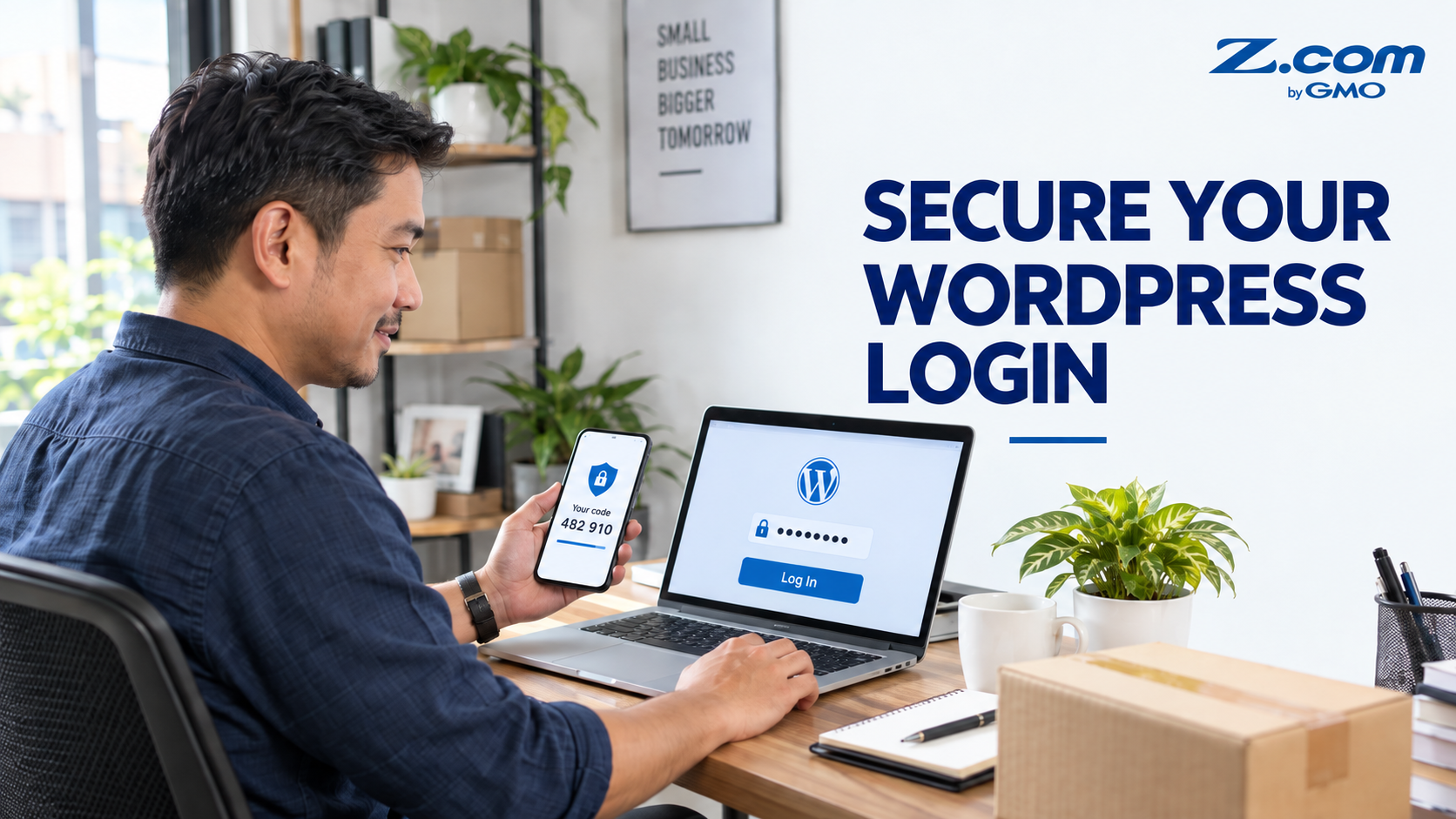
Two-factor authentication, or 2FA, adds a second check after your password, usually a short code from an app on your phone. WordPress does not include login-page 2FA in its core software, so it is added through a reputable plugin from the official WordPress.org Plugin Directory. Once it is set up, even a leaked or correctly guessed password is not enough on its own to log in, because the attacker would also need access to your phone or authenticator app at that exact moment.
Choosing a Verification Method
Most 2FA plugins support more than one way to receive your verification code. The right choice usually depends on how you and your team already work.
| Verification Method | Best For | Main Advantage |
|---|---|---|
| Authenticator app | Most small business owners | Works without phone signal |
| SMS text code | Owners new to 2FA | Familiar, no app needed |
| Security key or passkey | Larger teams, higher-risk sites | Hardest method to phish |
An authenticator app is a good default for most home-based and mobile-first businesses, since the codes it generates keep working even in areas with weak or unreliable mobile signal.
Build a Recurring Security Habit
Login security works best as a repeatable habit, not a one-time fix. Set a reminder every few months to repeat the access audit, especially after a VA, developer, or agency relationship ends, and confirm that two-factor authentication is still active for every remaining admin account.
If you are planning to test a new security plugin, a staging environment lets you try it safely before it touches your live site; this is included on Z.com's Business Hosting plans. And if you would rather have core updates and day-to-day hardening handled for you, WordPress Hosting plans are built specifically around keeping a WordPress site current and protected.
A strong WordPress login is not about one perfect tool. It is a short, repeatable habit: know who has access, limit login attempts, and require two-factor authentication for every administrator.
WordPress Login Security FAQs
What's the easiest first step to secure my WordPress login?
Start with the access audit described above by opening Users, then All Users, and reviewing every account with Administrator access. This takes only a few minutes and often reveals an old developer or agency account that should have been removed months ago. Once your access list is accurate, adding a unique password and two-factor authentication for each remaining account gives you the strongest improvement for the least effort.
Does WordPress have built-in two-factor authentication?
No. WordPress core includes a related feature called Application Passwords, which is used for connecting outside apps to your site through its API. It is not the same as two-factor authentication for your login screen. To add 2FA to your actual login page, you will need a plugin from the official WordPress.org Plugin Directory, most of which support authenticator apps, SMS codes, or security keys.
How many admin accounts should a small business site have?
As few as your business actually needs. Many Philippine small business sites only need one or two Administrator accounts, typically the owner and, if used, a trusted developer during active project work. Team members who only add products, write posts, or answer customer inquiries usually only need an Editor or Author role, which still lets them do their job without the ability to change site-wide settings.
Will login security slow down how I manage my site?
It adds one small step, usually entering a short code from your phone, but the process stays quick once it becomes part of your routine. Most business owners find this extra step far less disruptive than dealing with a compromised site later. Choosing an authenticator app instead of SMS also keeps this step working even when mobile signal is unreliable, which many home-based businesses appreciate.
Your WordPress login page is one of the smallest parts of your site to manage, and one of the most important to protect. Starting with a simple access audit, confirming exactly who can log in, removing accounts that no longer need access, and requiring a unique password and two-factor authentication for everyone who remains, gives your business a stronger foundation without adding real complexity to your day. None of this requires technical expertise or a large time investment. It is a habit you can build in an afternoon and revisit every few months. As your team grows and more people help manage your site, that same habit keeps working, so your WordPress login stays as trustworthy as the business it protects.
Build a WordPress site that is protected from the moment it launches. Z.com's WordPress Hosting plans help manage updates, backups, staging, and server-side security, so you can focus on your business — while account access controls and two-factor authentication remain in your hands as the site owner.
View WordPress Hosting Plans