
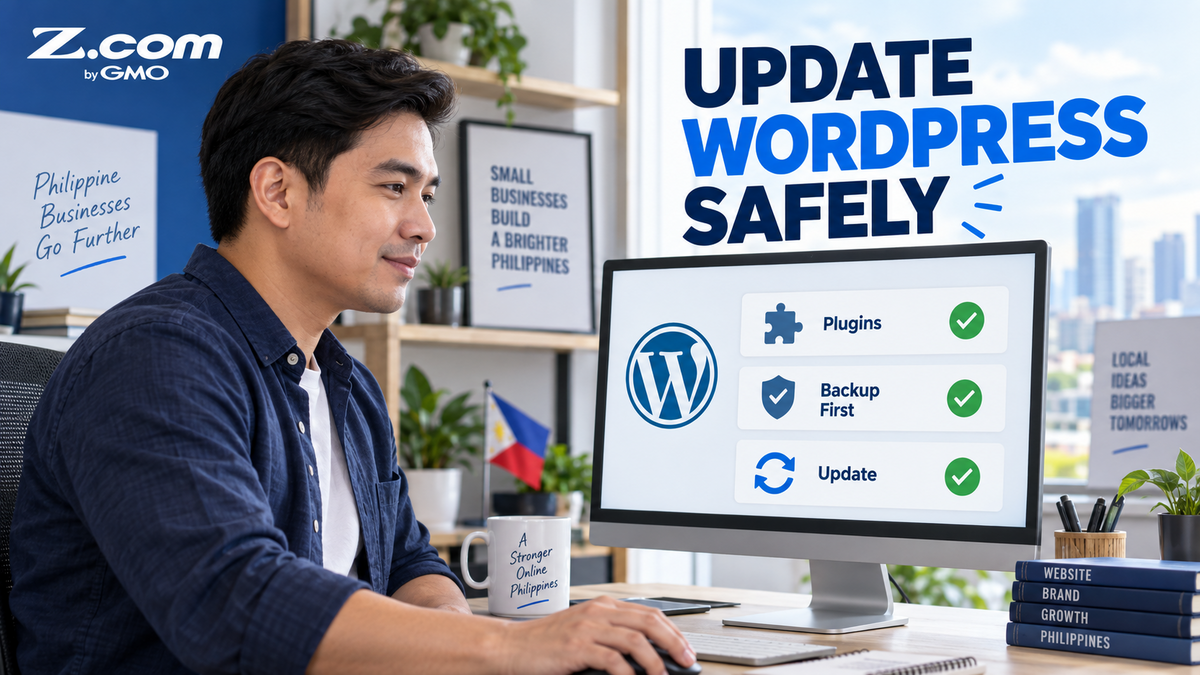
How to Update WordPress Plugins Safely Every Month
In This Article:
- Why update timing matters more than speed
- A repeatable routine anyone can follow
- Which updates to automate safely
Keeping a WordPress site current is easy to postpone. The dashboard shows a small badge, six plugins are waiting, and the last time someone clicked Update Now, part of the homepage briefly stopped looking right. So the badge waits another week.
That hesitation is understandable, and it is also where most of the risk quietly sits. In August 2026, Wordfence disclosed a high-severity, unauthenticated SQL injection vulnerability in All-in-One WP Migration and Backup, a WordPress backup and migration plugin used on more than five million sites. The developer shipped a fix in version 7.110 on August 20. The injected payload would only execute once a site administrator later performed an export followed by an import or archive restore, but Wordfence still urged everyone running the plugin to update as soon as possible.
Nothing was missing from that patch. What was missing was the few minutes between its release and someone clicking update. Routine maintenance can wait for a scheduled slot, but a security release like this one cannot: it deserves attention as soon as you notice it, not on your next monthly date. The routine below keeps the two separate, so ordinary upkeep gets a fixed monthly slot while security fixes get applied the moment you see them.
Table of contents
Why Update Timing Matters
An available patch and a protected site are two different things. Once a fix is published, the details of the original weakness usually become public too, which makes older versions easier for automated scanners to identify and target, and is why known security updates should be prioritized. Server-level protection helps here: Z.com's Web Hosting plans include an advanced firewall and malware detection as standard, so a share of that scanning is filtered out before it ever reaches WordPress.
This is less about technical skill and more about whose job it is. On a typical Philippine business site, a developer launched it, a virtual assistant now adds new product listings, and the owner handles everything else, so plugin updates end up belonging to nobody in particular. A named routine solves that, because the task moves from "someone should do this" to a specific twenty-minute slot on a specific day.
Updates also carry ordinary improvements worth having. Newer versions keep your plugins compatible with current PHP releases, fix small layout issues, and often load faster than the versions they replace.
Prepare Before You Click Update
Most update anxiety disappears once you know you can undo the result. WordPress already helps here: since version 6.3, if a manual plugin or theme update fails partway through, WordPress restores the previous version automatically so your site keeps working. It is a useful safety net, though it only covers failed updates, not a successful update you later decide you dislike. That is what a backup is for.
Confirm You Have a Working Backup
Before update day, check two things: what your hosting plan backs up automatically, and how far back those copies go. Then confirm you actually know how to restore one, because a backup you have never tested is only a rough guess. Most owners find the answer reassuring, since daily automated backups are standard on many hosting plans, including every Z.com WordPress Hosting plan.
Update One Thing at a Time
When six updates are waiting, the tempting move is to select all and update everything at once. The problem is diagnosis. If something looks off afterward, you cannot tell which of the six caused it. Updating in small batches, then glancing at your site between batches, turns a confusing afternoon into a two-minute fix.
A Simple Monthly Update Routine
Here is the routine itself. Pick a quiet day, not the morning of a big promo, and work through it in order.
- Open your plugins list and read the notes. Each pending update links to a changelog. You are only looking for two words: "security" or "fix."
- Update anything marked as a security release first. These are the ones where timing matters most, so they should never wait for the rest of the batch.
- Update your remaining plugins in groups of two or three. Check your homepage and one important page, such as your product or contact page, after each group.
- Review compatibility notes before updating your theme and WordPress core. Check each item's changelog and minimum WordPress/PHP requirements first, since the safest order depends on your specific mix of plugins and theme rather than one fixed sequence. If your site is business-critical, test the update on a staging copy first.
- Note the date somewhere you will see it. A recurring calendar reminder is enough to keep the habit alive.
If your site handles payments or bookings, testing first is worth the extra step. A staging environment gives you a private copy of your site to update and check before anything reaches your customers, and every Z.com WordPress Hosting plan includes a staging site feature for exactly this.
Automate the Low-Risk Updates
WordPress has quietly handled some of this for years. Automatic background updates arrived in WordPress 3.7. Standard WordPress installations enable automatic minor core updates by default, although site or hosting configuration can change this behavior, and minor releases are where most security patches for WordPress itself appear. Plugin and theme updates, however, are not automatic by default, apart from rare emergency patches pushed by the WordPress security team.
You can change that per plugin from the Plugins screen. Before you automate any plugin, check four things: it is still actively maintained, it is compatible with your current WordPress and PHP version, it has nothing to do with checkout, bookings, membership, or page layout, and it is covered by a backup you actually check. A plugin that passes all four is a reasonable candidate for automatic updates; keep a human eye on anything else.
| Update Type | Recommended Setting | Why |
|---|---|---|
| Minor WordPress core releases | Leave automatic | Mostly security and maintenance fixes |
| Simple utility plugins | Turn automatic on, if maintained and backed up | Rarely affect page appearance |
| Page builders, themes, checkout plugins | Update manually | Visible changes deserve a quick check |
Control panels built specifically for WordPress can take this further. WP Squared, the control panel included with Z.com's managed WordPress plans, enables automatic updates by default and lets you switch them on or off, so patches can land without waiting for update day.
Check Your Site After Updating
A two-minute review catches almost everything that matters. Open your site on your phone rather than only on a laptop, since most Filipino customers will see it that way first.
- Load your homepage and one product or service page
- Submit your contact or inquiry form with a test message
- Add one item to the cart if you sell online, and check that your GCash or card option still appears
- Confirm images and your logo still display correctly
Schedule updates away from your busiest hours. During the ber months and the 9.9 to 12.12 sale period, a mid-week morning is a far better moment to make changes than the night before a promo goes live.
Safe updating is not about technical skill. It is a habit: back up first, apply security releases immediately, update in small groups, and spend two minutes checking the result.
WordPress Update FAQs
How often should I update WordPress plugins?
Once a month is a reasonable rhythm for routine updates, with one exception: apply anything described as a security release as soon as you notice it, rather than waiting for your scheduled day. The gap between a patch being published and being applied is when sites are most exposed, so security updates are worth interrupting your week for. Everything else can comfortably wait for your monthly slot.
Is it safe to turn on automatic plugin updates?
For many plugins, yes, and WordPress lets you enable it individually rather than for everything at once. Automatic updates work well for simple utility plugins that are actively maintained, do not touch checkout or page layout, and are covered by a backup you check regularly. Keep manual control over page builders, themes, and anything involved in checkout, since those are the plugins where a visual change is worth seeing before your customers do.
What if my site breaks after an update?
Start by identifying the last thing you changed, which is much easier if you updated in small groups. If you can still reach your WordPress dashboard, deactivating the suspected plugin often resolves the issue and helps confirm the cause. If the dashboard is not accessible, WordPress Recovery Mode may email you a link that lets you disable the faulty plugin without a full login; otherwise, use your hosting control panel to disable the plugin, restore a recent backup, or contact your host's support. If a manual update fails midway, WordPress 6.3 and later restore the previous version on their own.
Do I need a staging site to update safely?
Not for a simple brochure or portfolio site, where a backup plus a quick post-update check is usually enough. Staging becomes genuinely valuable once your site earns money directly, such as an online store with a payment gateway or a clinic taking appointment bookings. In those cases, testing a private copy first means a surprise never reaches a paying customer.
Updating WordPress safely comes down to sequence rather than expertise. Confirm you have a backup you know how to restore, apply security releases without waiting for your monthly slot, work through the rest in small groups after checking compatibility notes, and spend two minutes afterward looking at your own site the way a customer would. None of those steps require a developer, and together they take less time than most owners spend worrying about the update badge. Set a recurring reminder, keep the routine short enough that you will actually repeat it, and your site quietly stays current, faster, and better protected, month after month, while you get on with running the business.
Spend less time managing updates and more time on your business. Z.com's WordPress Hosting plans include automatic updates, daily backups, and a staging site for testing changes, so your site stays current without adding another task to your week.
View WordPress Hosting Plans