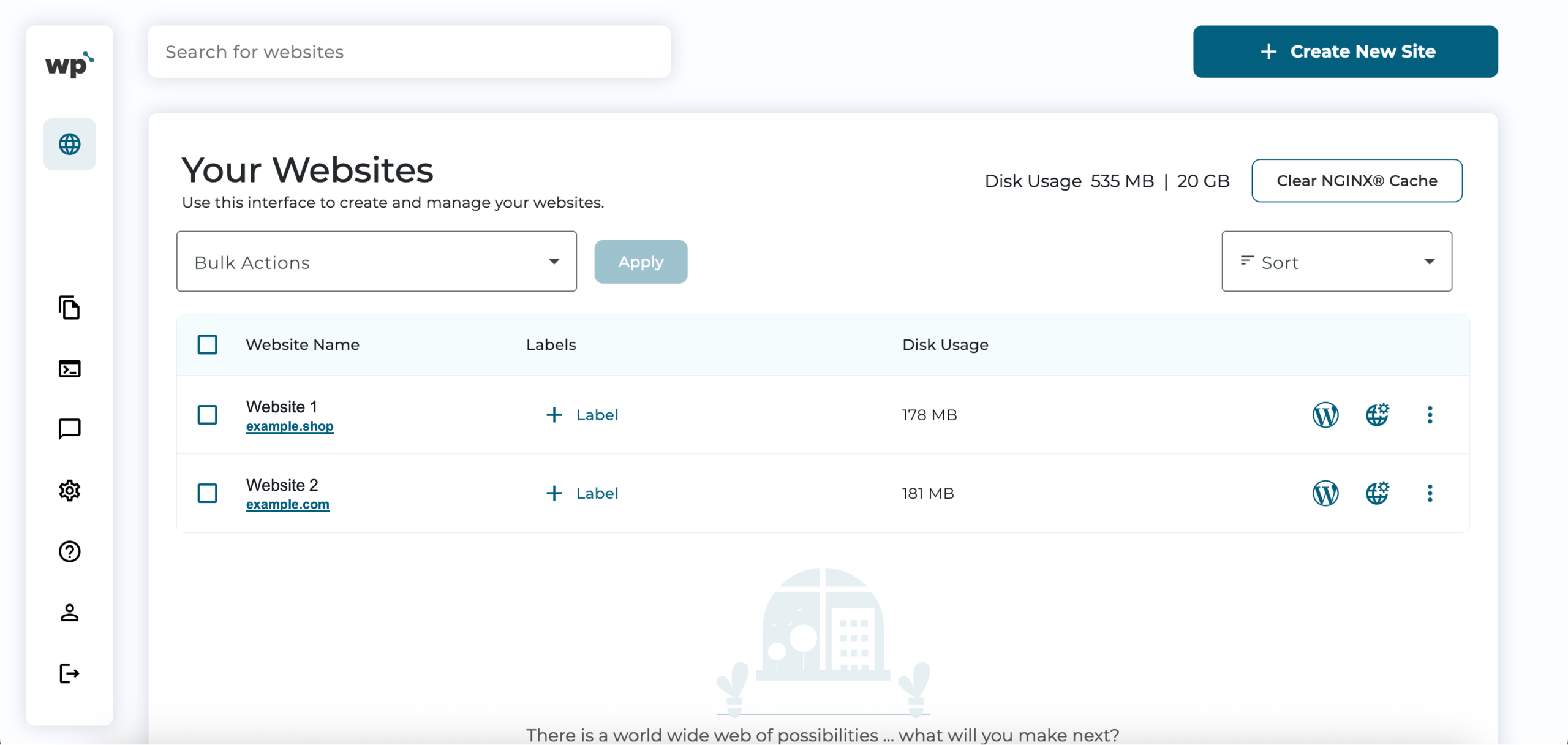
Example :
How to set up an email or change my account settings.
- Help Center
- WordPress Hosting
- Getting Started
- How to log in to WP Squared?
How to log in to WP Squared?
WP Squared is a WordPress management tool used by Z.com’s WordPress Hosting, allowing you to access and manage your WordPress websites in one place easily. You can log in directly to your WordPress admin dashboard through WP Squared and manage backups, SSL, staging websites, and other hosting features without using cPanel.
Logging in to WP Squared is simple and can be done directly through your Z.com Client Area. Once logged in, you can quickly open your WordPress admin dashboard with a single click, making it easier to manage your website content, themes, and plugins.
Note: WP Squared is available only for websites hosted under Z.com’s WordPress Hosting plans. If you are using shared hosting, you will manage your WordPress websites through cPanel instead.
1. Go to our Sign-in page.
2. Enter your Email Address and Password, and proceed to log in.
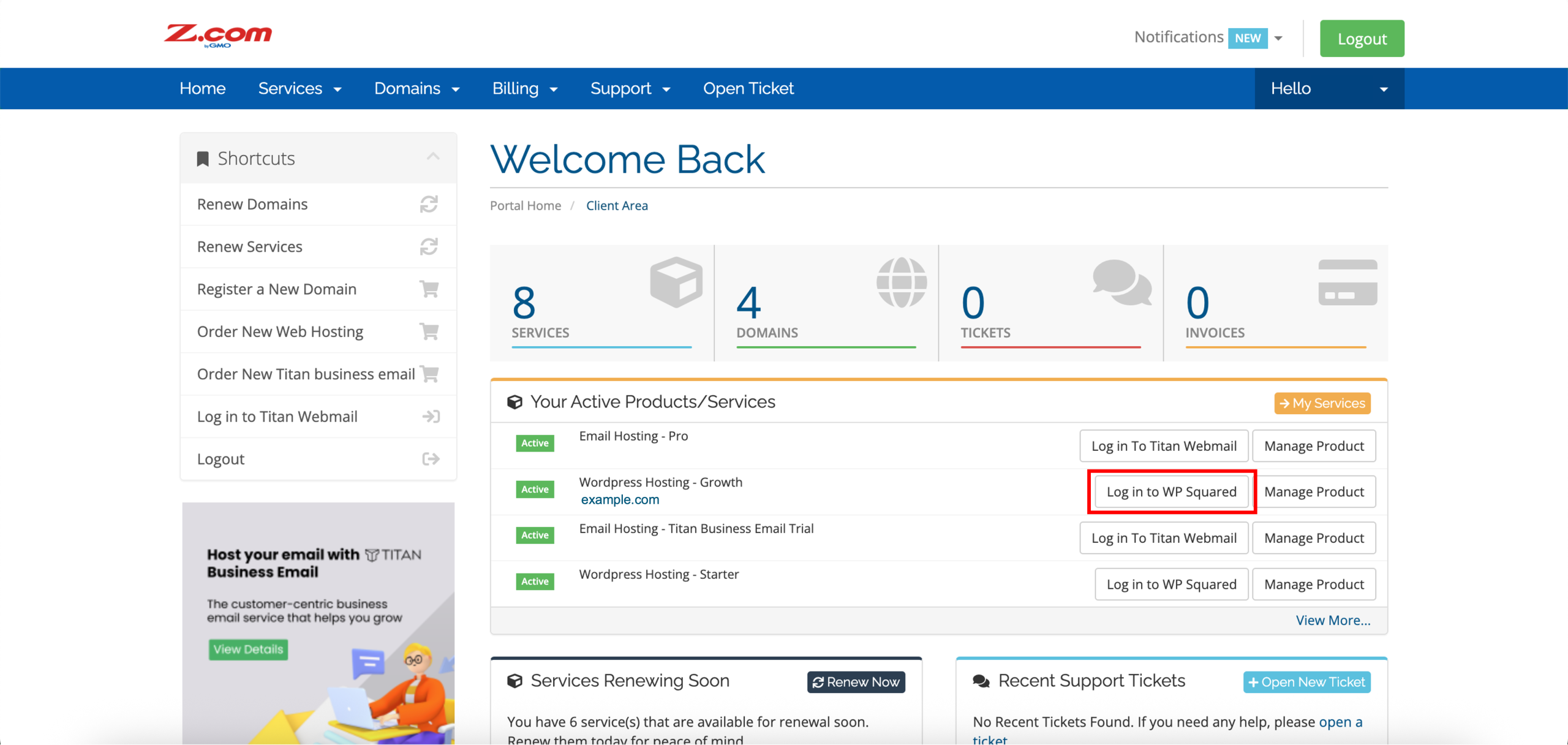
3. Aligned with your WordPress Hosting service, click Log in to WP Squared. A new tab will open, directing you to the WP Squared dashboard. Kindly refer to the screenshot in step 4 below.
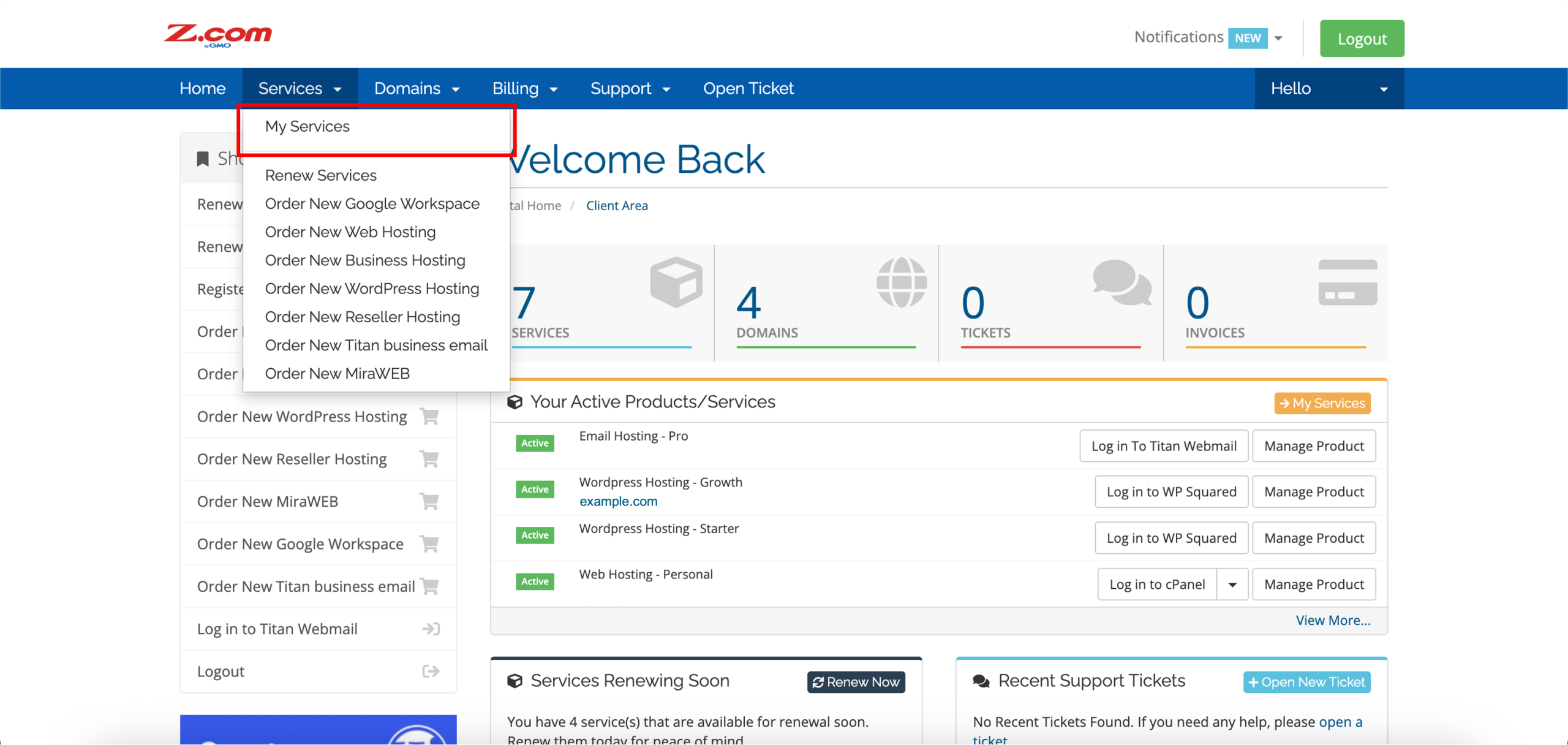
*Alternatively, you can also access WP Squared through a different route by clicking the Services drop-down menu at the top.
On your Z.com Client Area, Services drop-down menu > My Services.
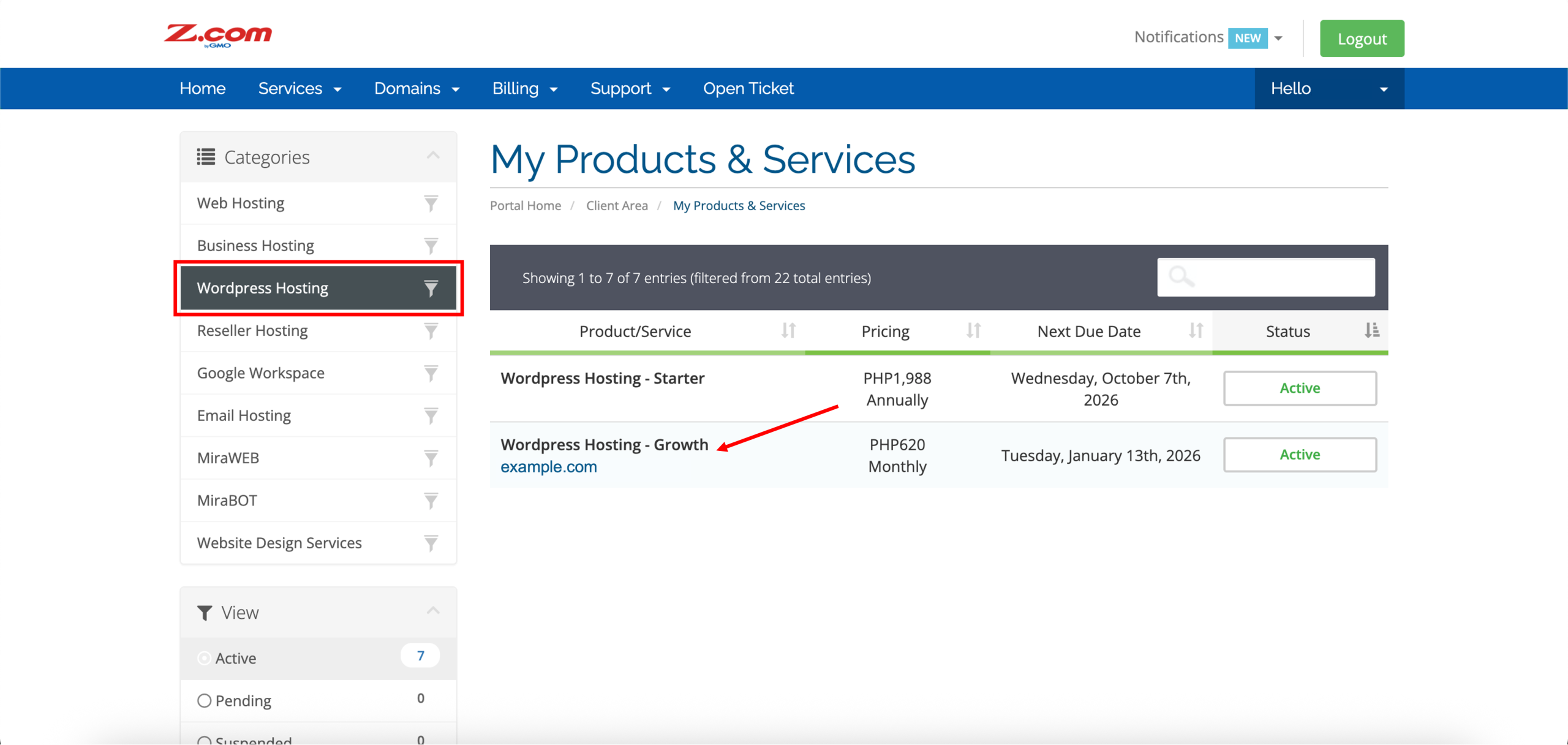
Filter WordPress Hosting under Categories and click on your WordPress Hosting service or the Active button to be redirected to the WordPress Hosting service overview.
Click Manage WordPress Site under Actions or Package/Domain. A new tab will appear, redirecting you to the WP Squared dashboard.
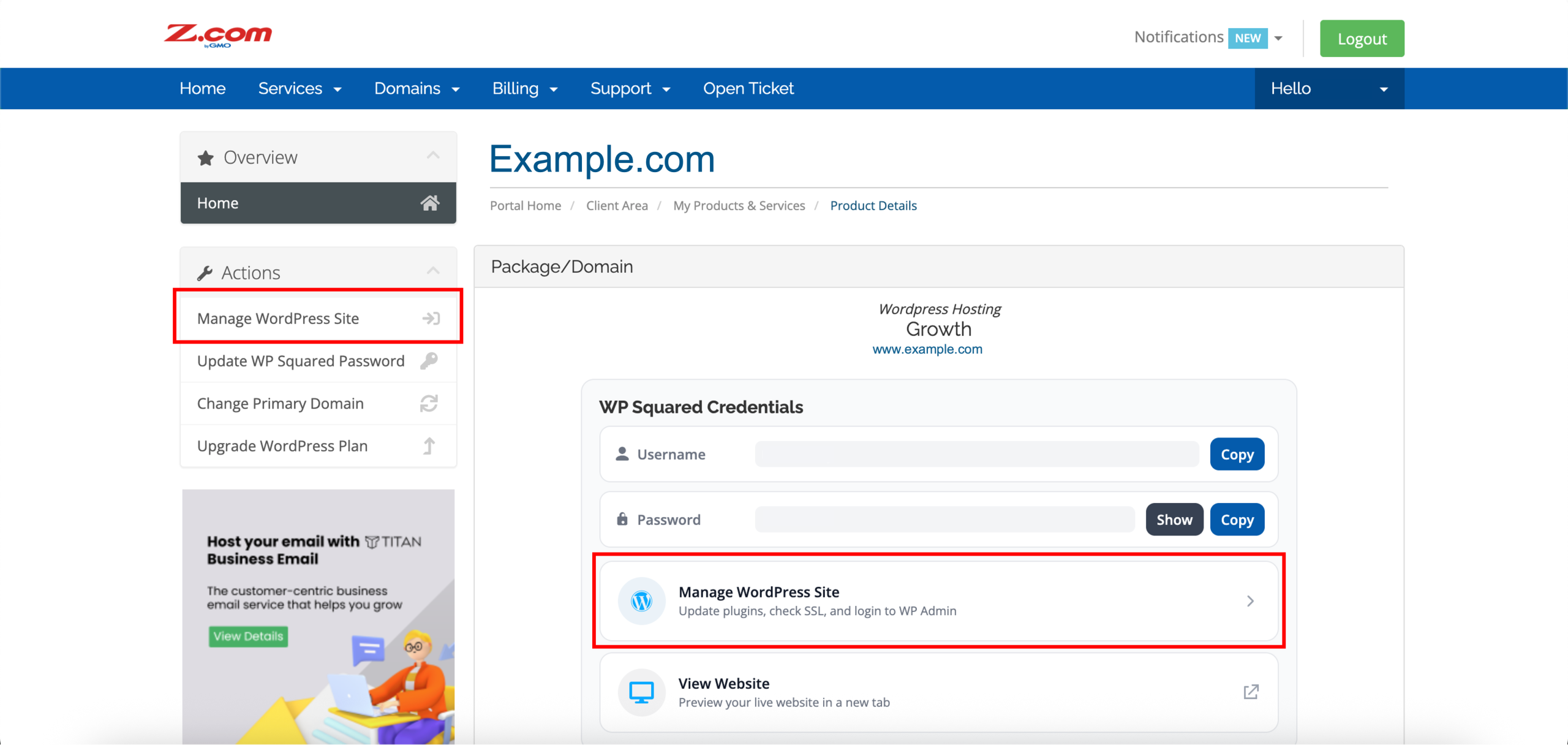
4. Done! A new tab will appear, redirecting you to the WP Squared dashboard.