
Example :
How to set up an email or change my account settings.
- Help Center
- WordPress Hosting
- Getting Started
- How to check your WordPress storage usage and available space
How to check your WordPress storage usage and available space
Monitoring your WordPress storage usage helps you understand how much space your website uses and how much remains available in your hosting plan.
In the WP Squared dashboard, storage usage is displayed at two levels: your overall WordPress hosting account and each individual WordPress website. This lets you quickly check your total disk usage and see which website is using the most space.
This guide shows you where to find both views and how to understand the information shown in the WP Squared dashboard.
Note:
• WP Squared displays storage usage at both the account-level (total storage used across all WordPress websites) and the website-level (storage used by a specific WordPress website).
• Account-level disk usage reflects how much space you are using out of your hosting plan’s total storage.
• Website-level disk usage is broken down into files (themes, plugins, media uploads) and database (posts, pages, settings).
• The storage used by individual WordPress websites contributes to the total disk usage of your hosting account.
• Storage limits vary depending on your hosting plan.
1. Upon reaching your WP Squared dashboard, you will see an overview of your WordPress hosting account.
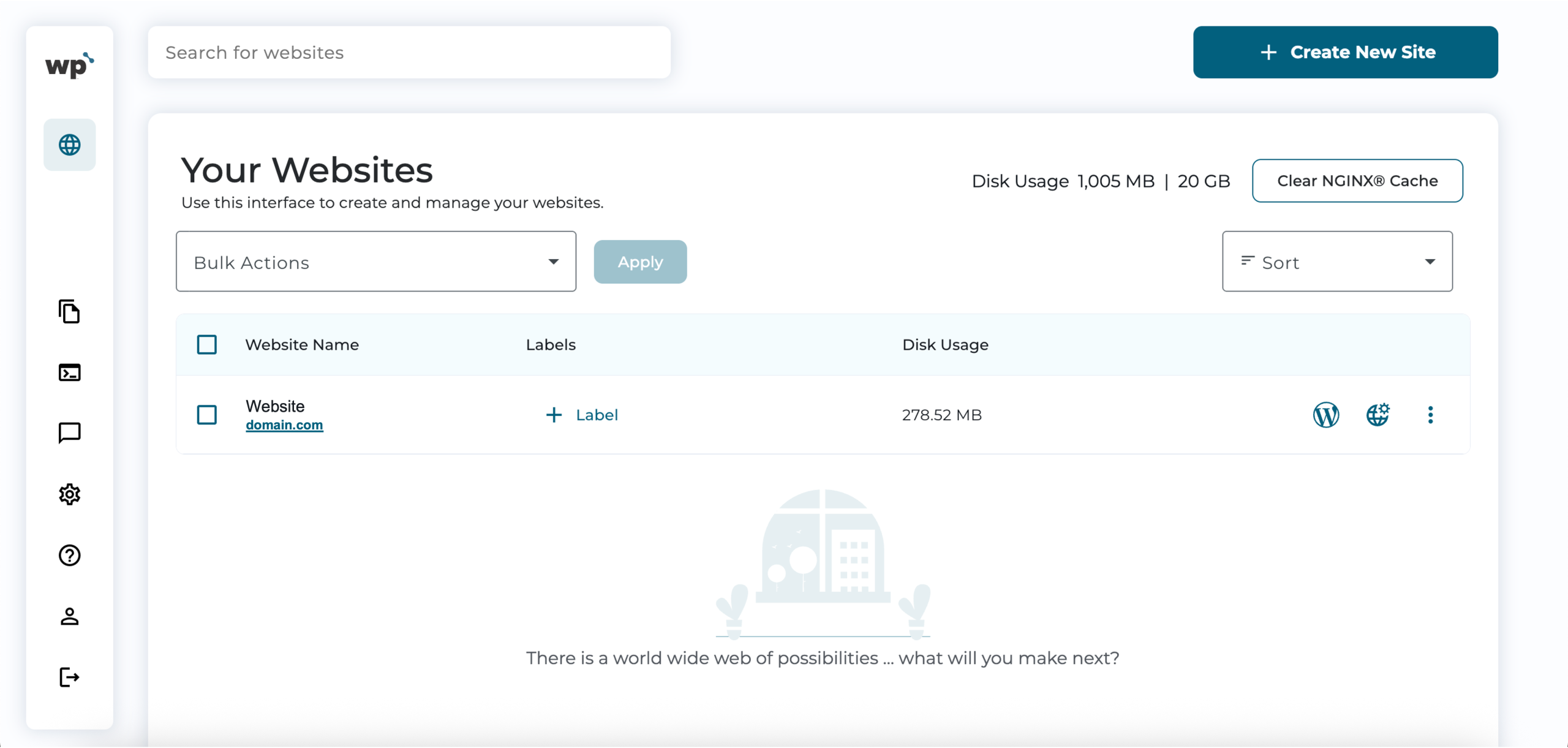
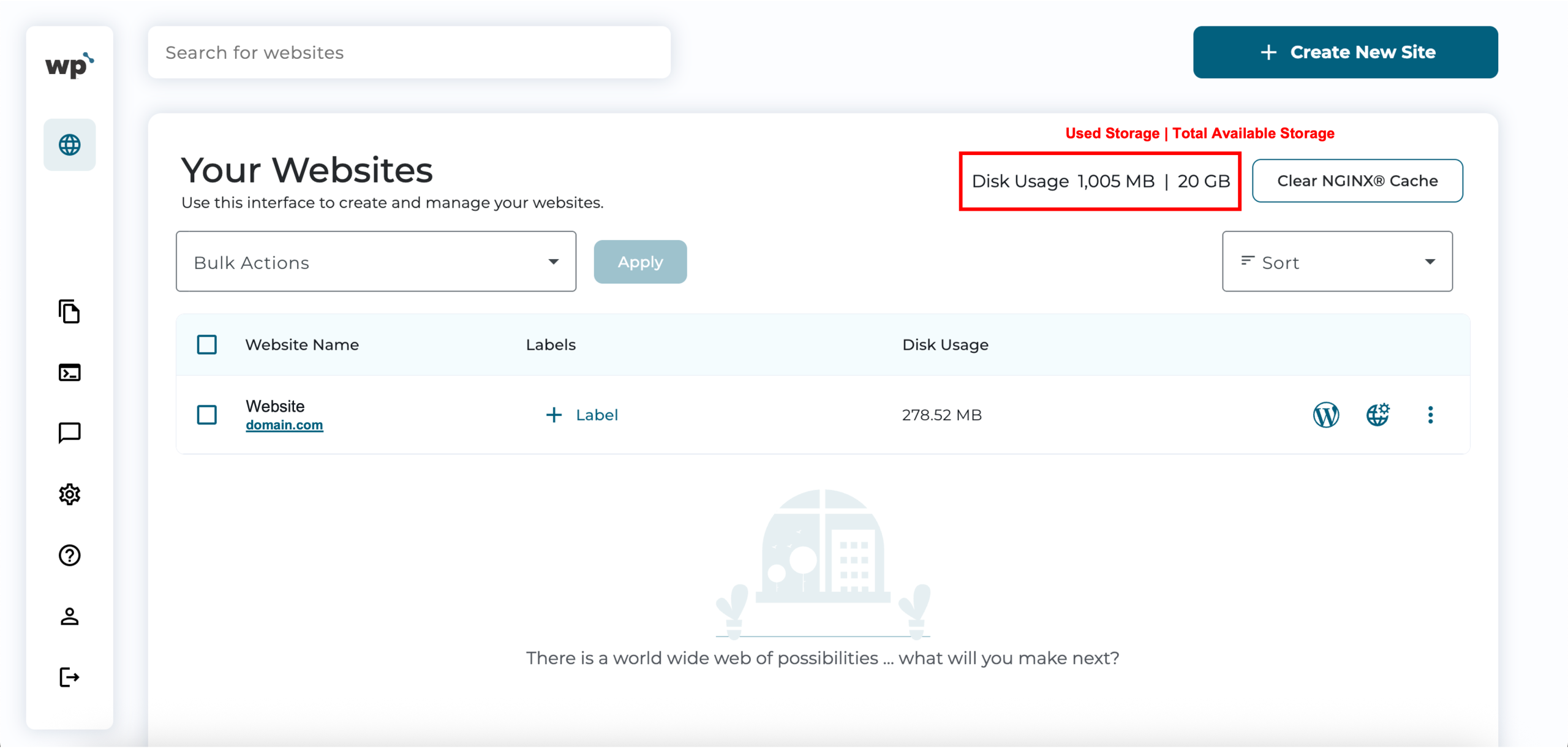
2. Check your account-level storage usage by locating it in the top-right corner of the WP Squared dashboard. You will see your total disk usage, displayed as Used Storage | Total Available Storage. Using the following screenshot as an example, the used storage is 1,005 MB, and the total available storage is 20 GB.
*This shows how much storage is used across all WordPress websites under your hosting plan.
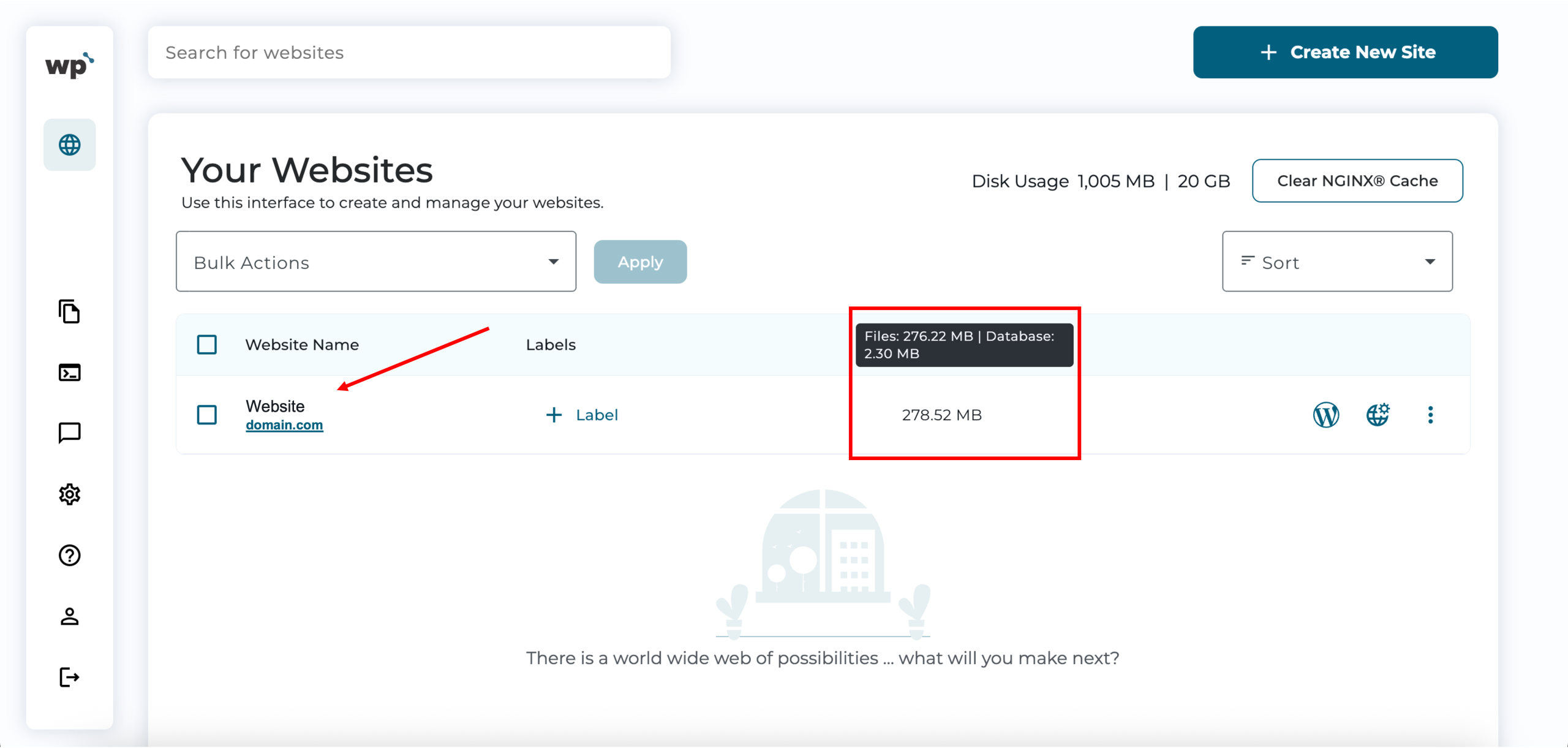
3. Check storage usage for an individual WordPress website by hovering over the website you want to check, under Disk Usage. Storage usage will be displayed, with a breakdown of File and Database usage. Using the following screenshot as an example, Files: 276.22 MB | Database: 2.30 MB.
*This helps you understand which website is using more space and where the usage comes from.
Tip: If your storage usage is close to the limit, consider removing unused themes, plugins, backups, or media files to free up space.