Example :
How to set up an email or change my account settings.
- Help Center
- WordPress Hosting
- Getting Started
- Reset your WP Squared password
Reset your WP Squared password
If you have forgotten your WP Squared password or simply want to update it for security reasons, there are several easy ways to regain access to your account.
WP Squared offers multiple password reset options so you can choose the method that is most convenient for you, whether you are already logged in to your Z.com Client Area, managing your WP Squared profile, or accessing your dashboard directly via the login page.
In this guide, we will walk you through three methods to reset your WP Squared password, step by step:
Table of contents
1. Reset from the Z.com Client Area ★recommend
*Ideal if you can access your Z.com dashboard.
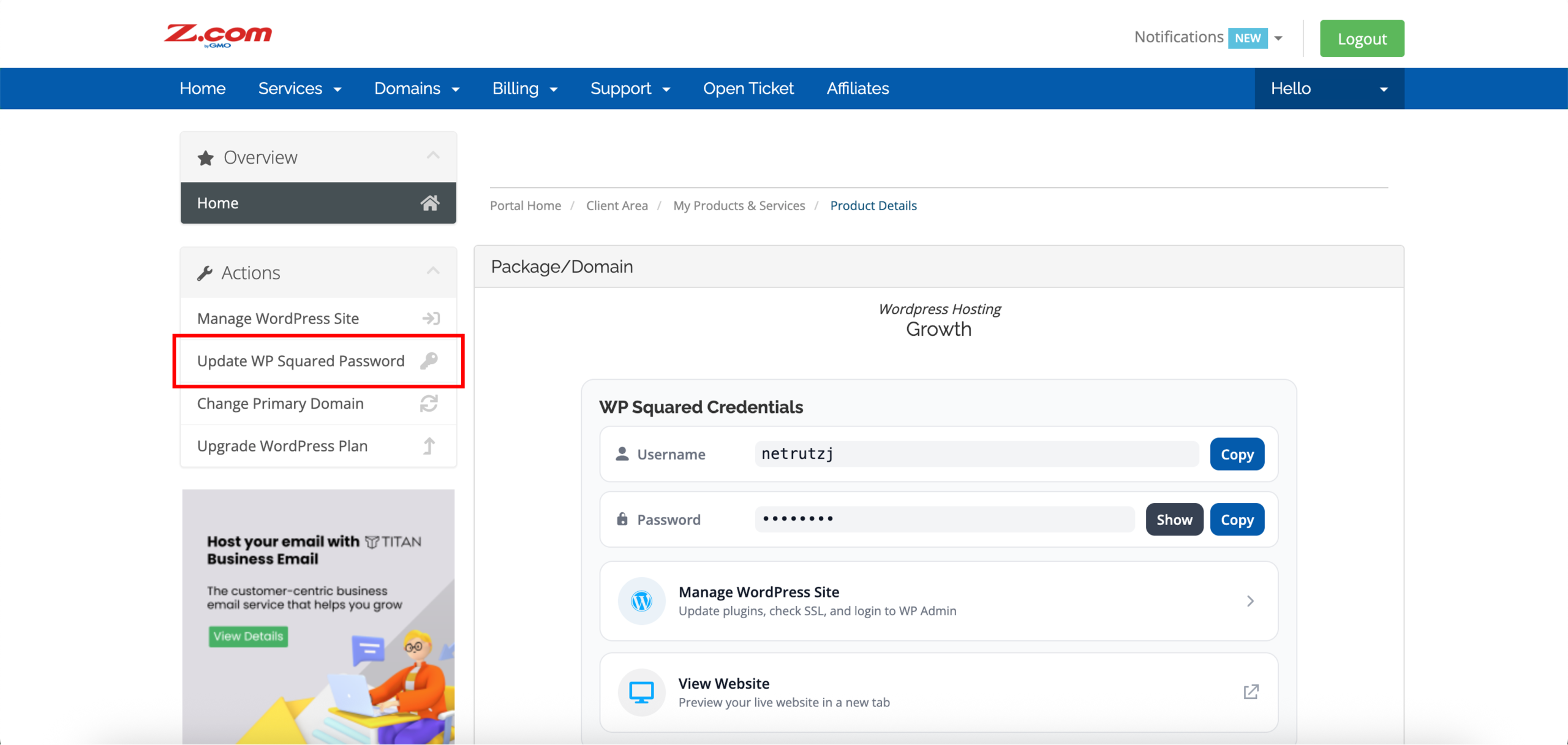
Note: We recommend using this method to reset your WP Squared password because it automatically updates your password in your Z.com dashboard (see the screenshot in step 4 below). This ensures the credentials you see on your Z.com dashboard are always correct and avoids any confusion later.
1. Go to our Sign-in page.
2. Enter your Email Address and Password, and proceed to log in.
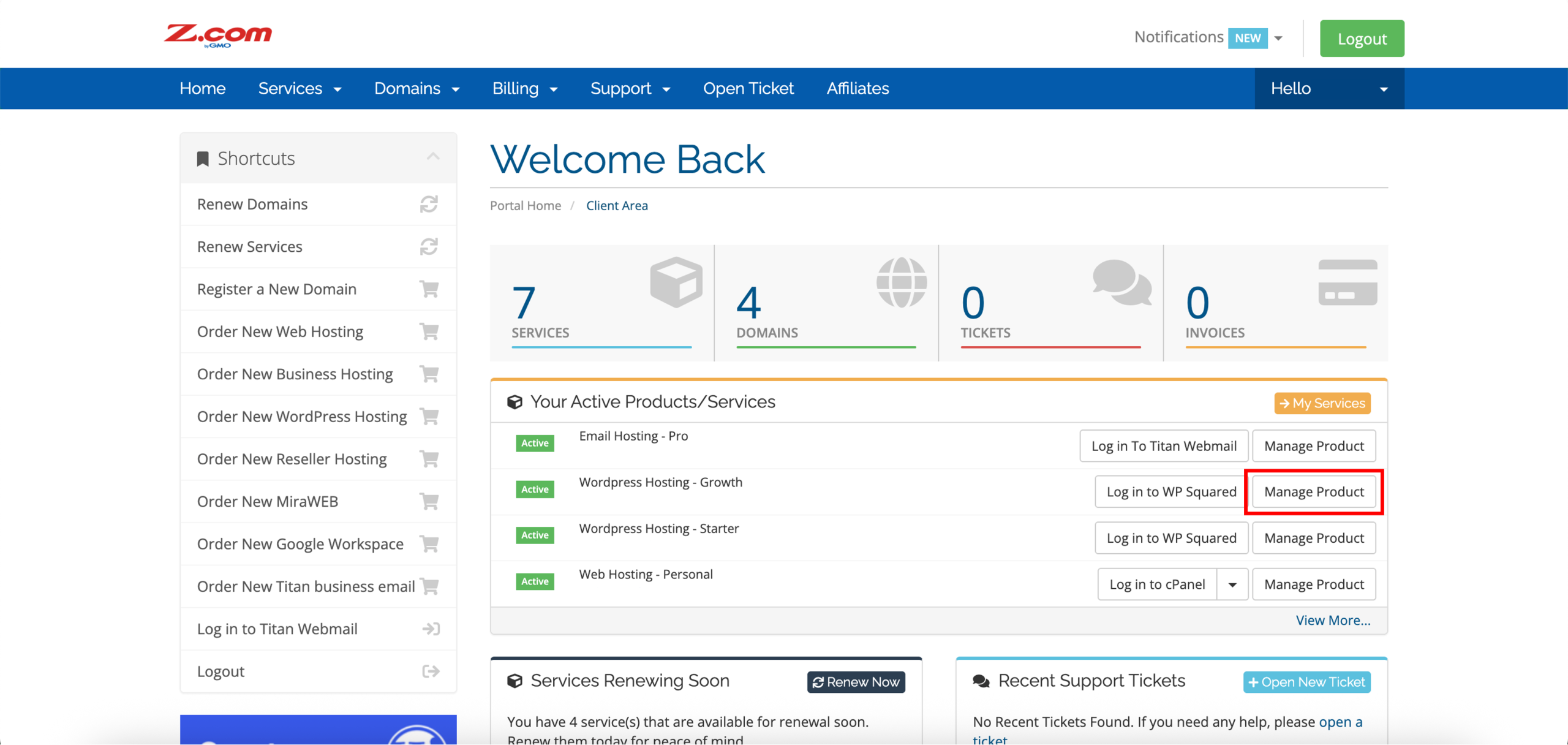
3. Aligned with your WordPress Hosting service, click Manage Product.
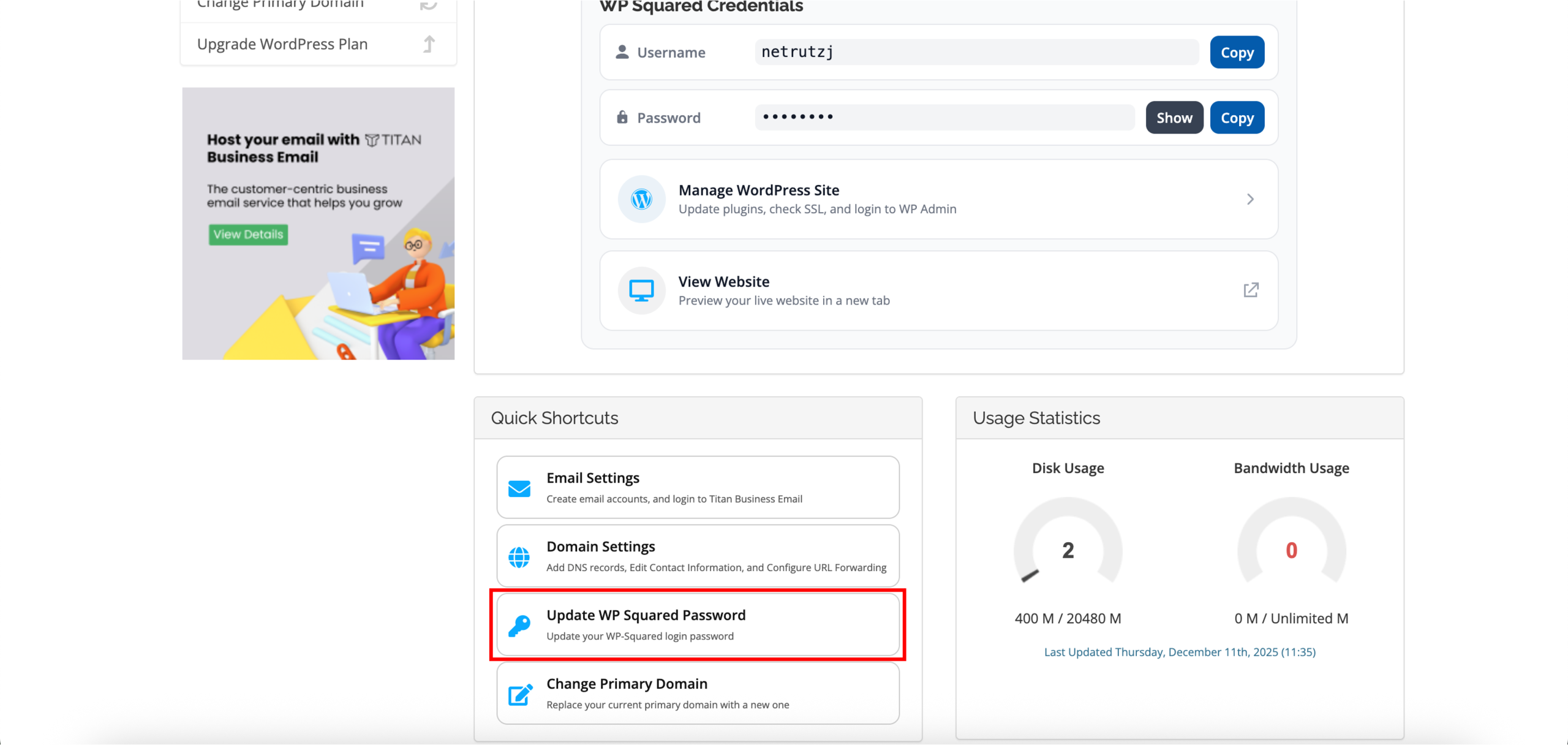
4. You can choose to click Update WP Squared Password from either Actions or Quick Shortcuts.
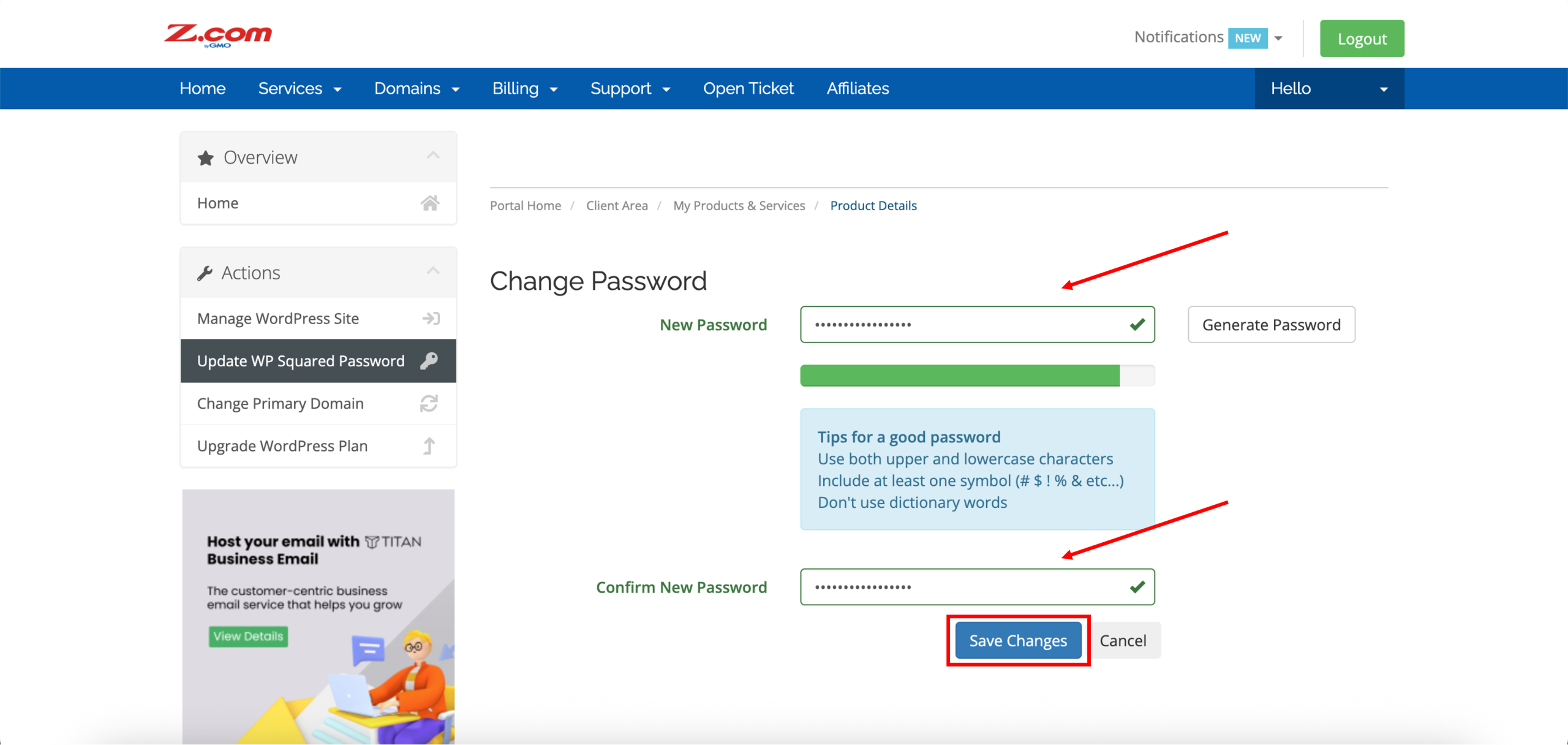
5. Once redirected to the Change Password page, enter your New Password and Confirm New Password once again before proceeding to click Save Changes.
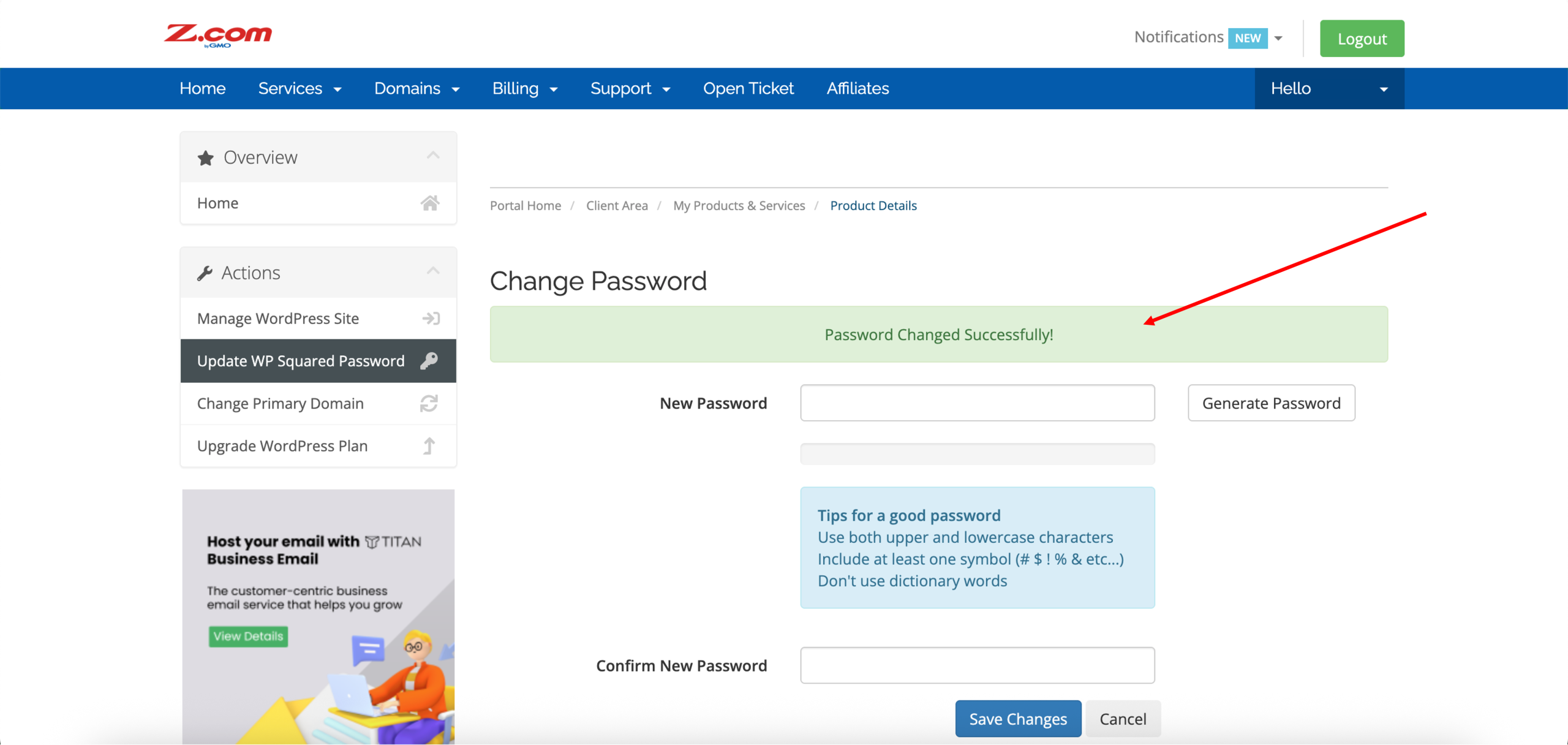
6. Done! Successfully updating your WP Squared password should look like the following, with the password changed successfully prompt.
2. Reset from your WP Squared Account Profile
*Perfect for users who are already logged in to WP Squared.
Note: If you reset your password using this method, it will not be automatically updated or reflected in your Z.com dashboard. Please save your new password securely, as the credentials shown in your Z.om dashboard may not match it.
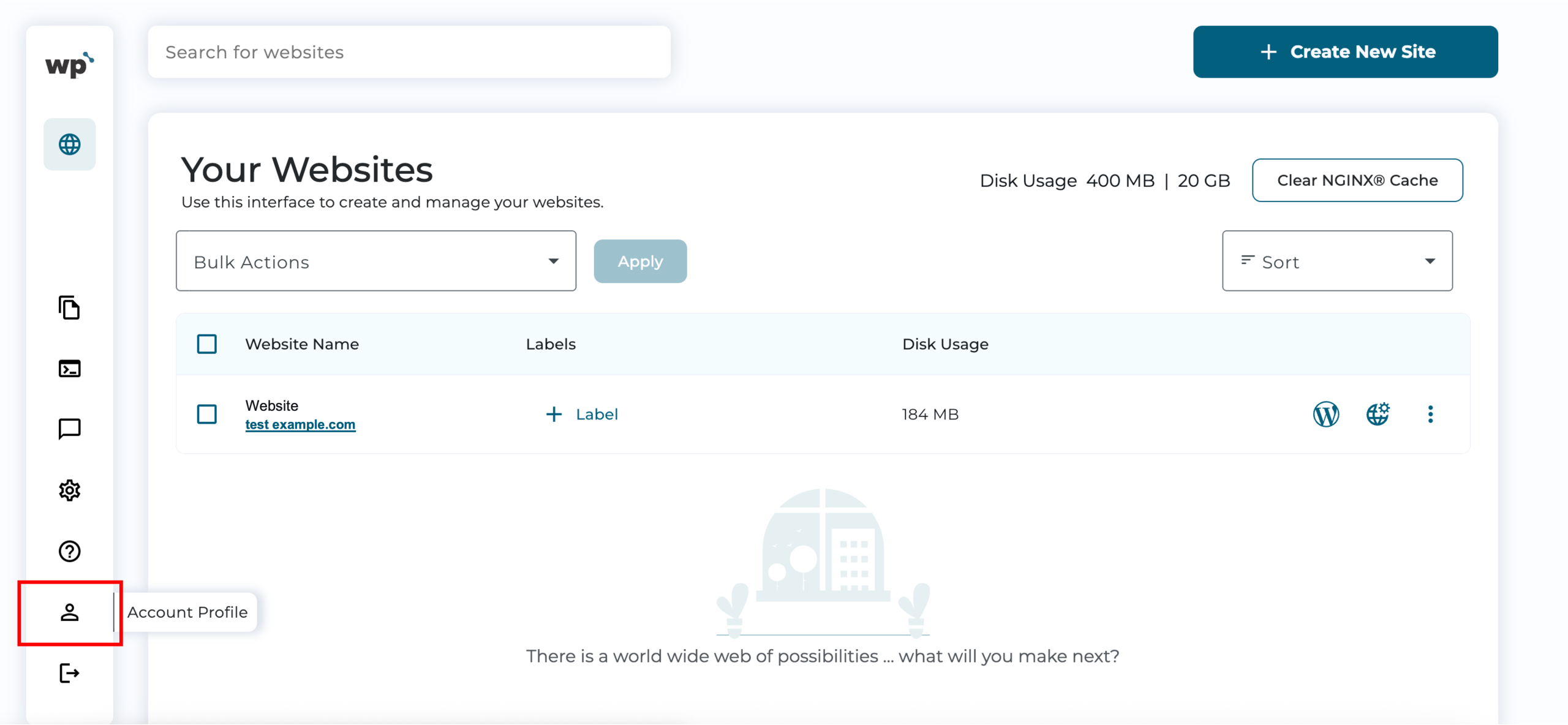
1. Upon reaching your WP Squared dashboard, click Account Profile from the left sidebar.
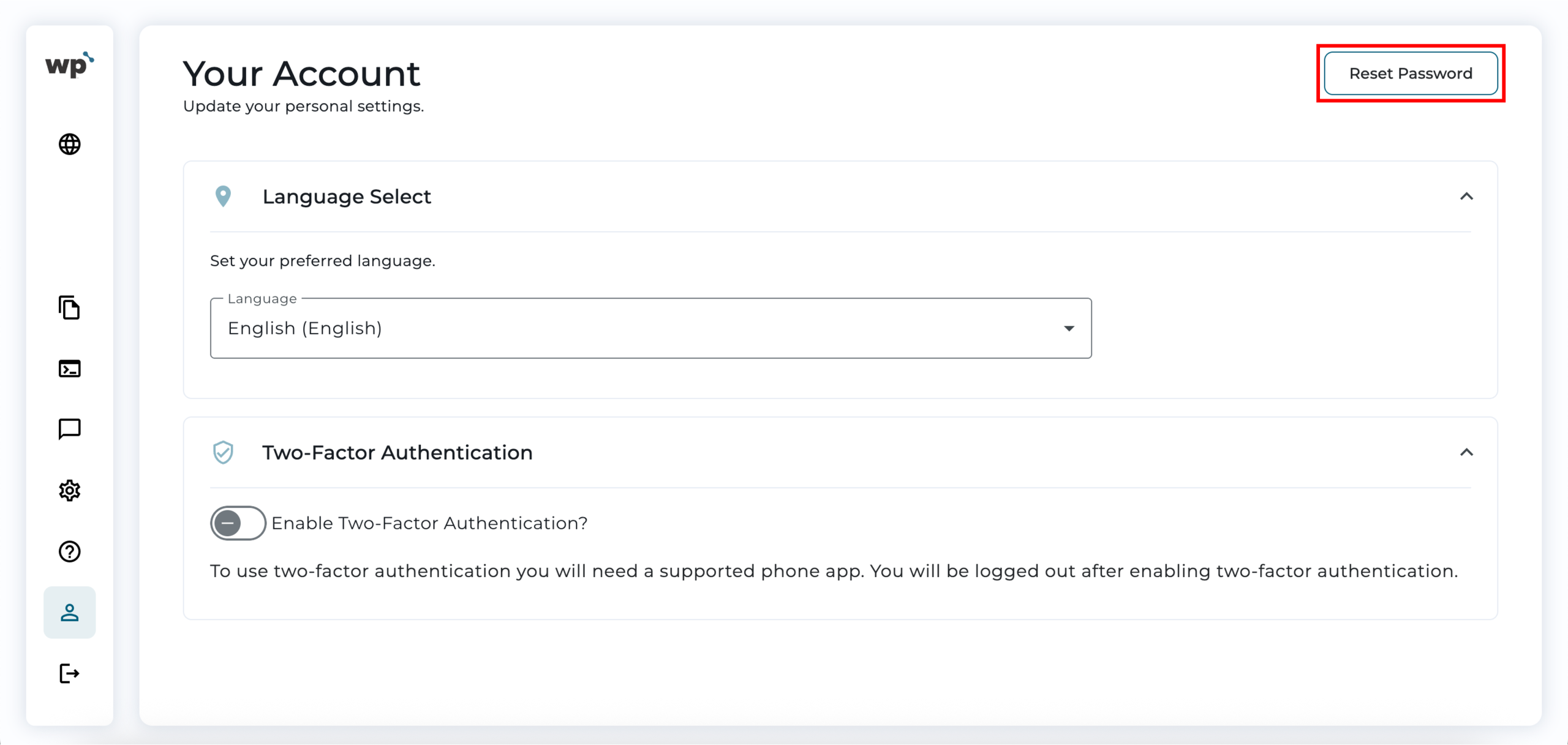
2. Click Reset Password on the page’s upper right.
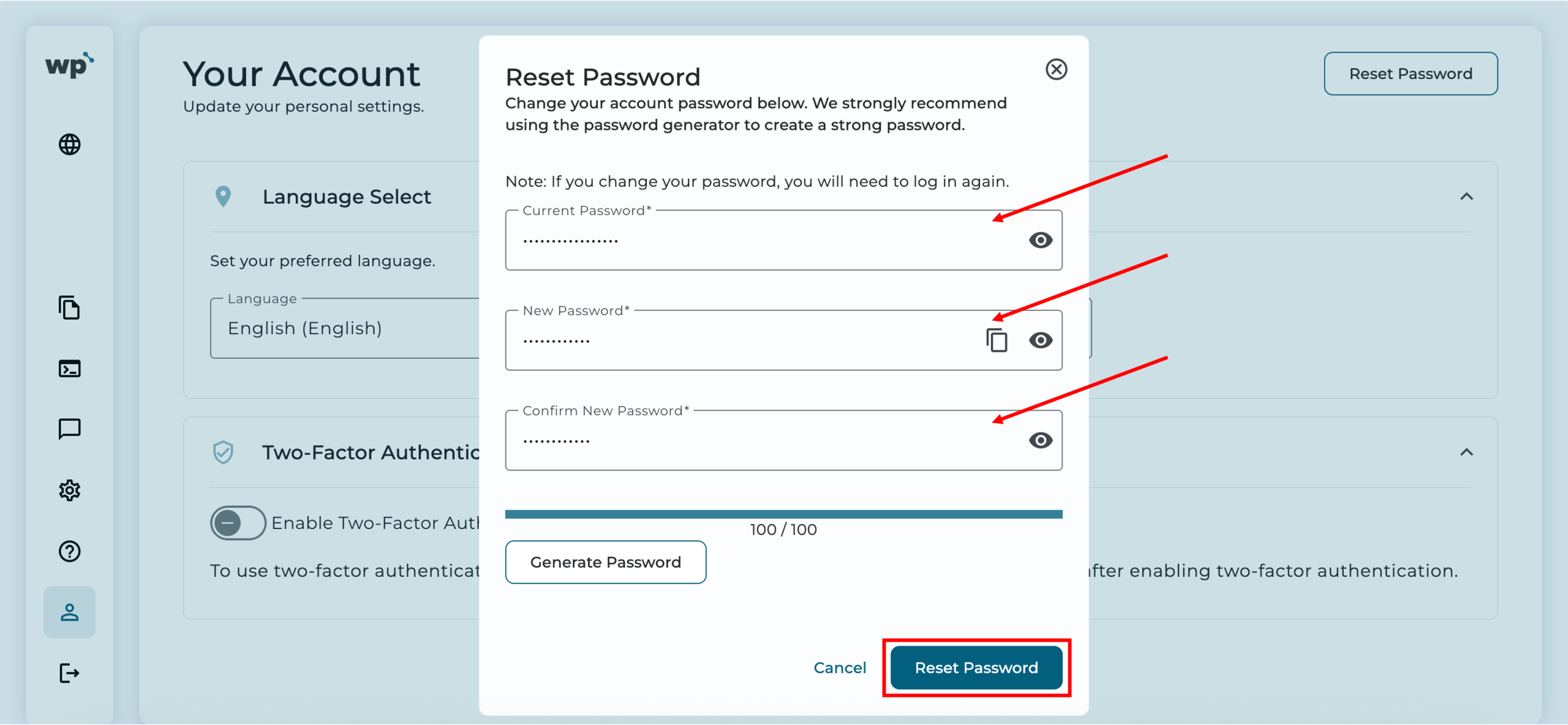
3. Fill in the fields with your Current Password, New Password, and Confirm New Password once again before proceeding to click Reset Password. You may also use the password generator to create a strong password.
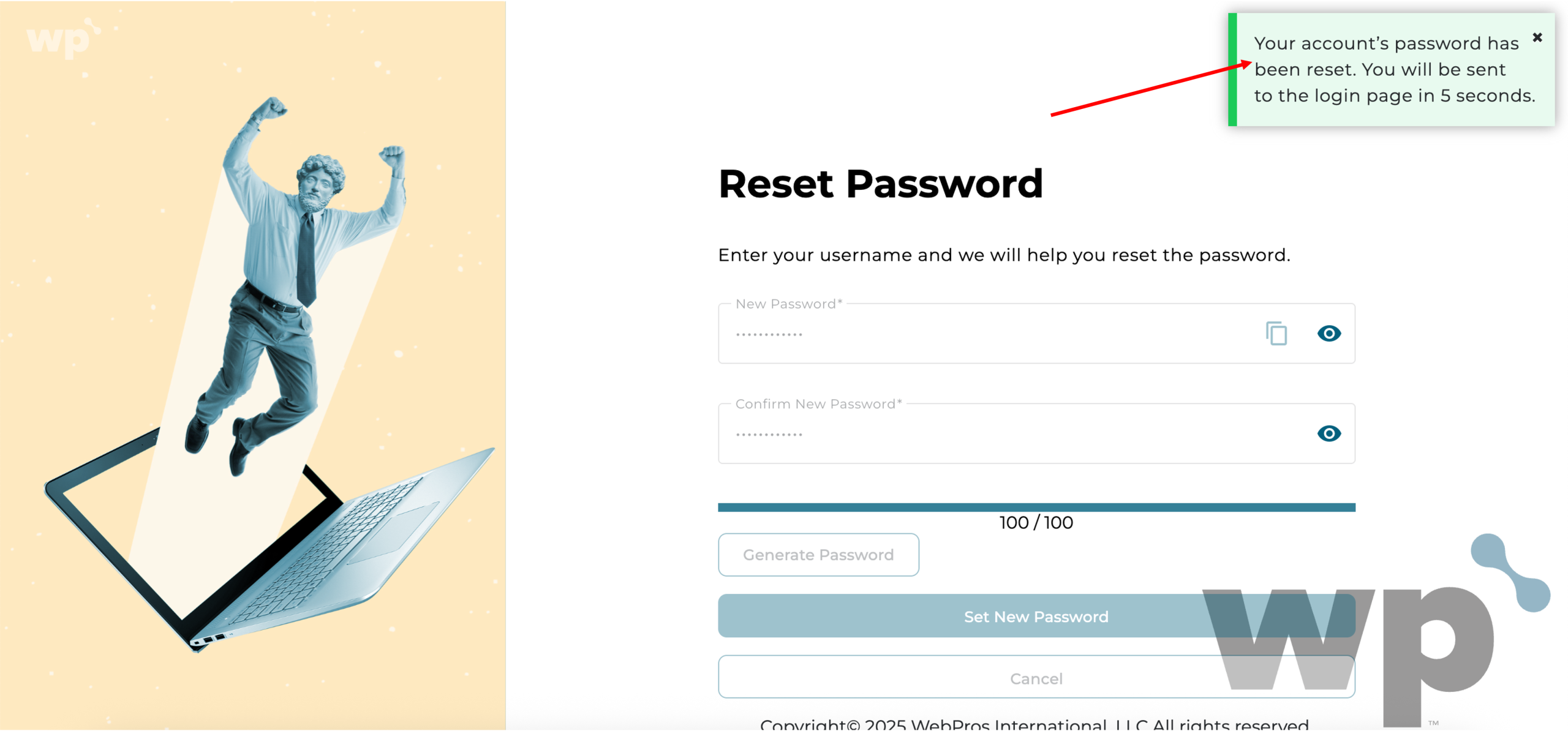
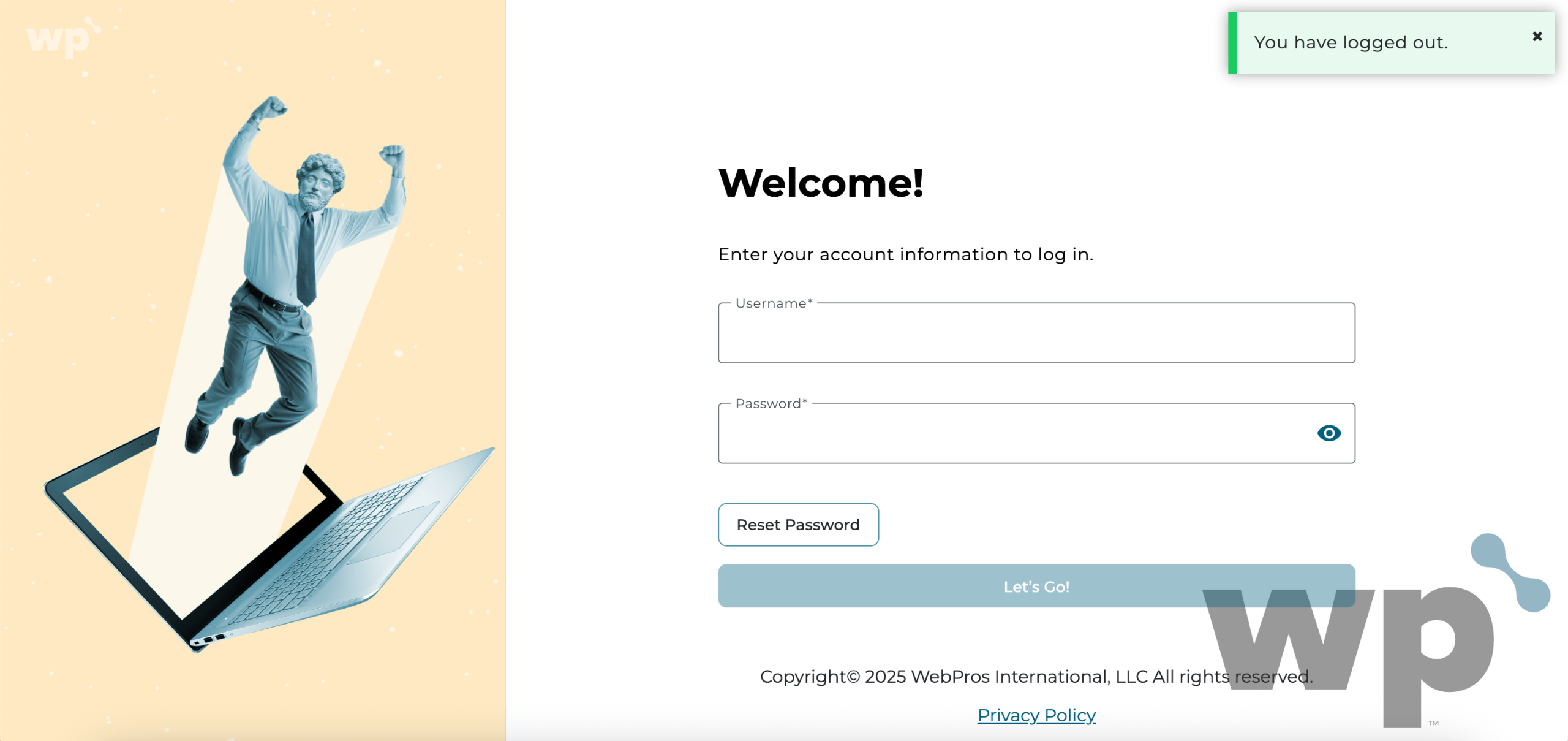
4. Done! After resetting your WP Squared password, you should be redirected to the WP Squared Login page, where you can log in with the new password.
3. Reset from the WP Squared Login page
*Best when you are logged out and cannot remember your password.
Note: If you reset your password using this method, it will not be automatically updated or reflected in your Z.com dashboard. Please save your new password securely, as the credentials shown in your Z.om dashboard may not match it.
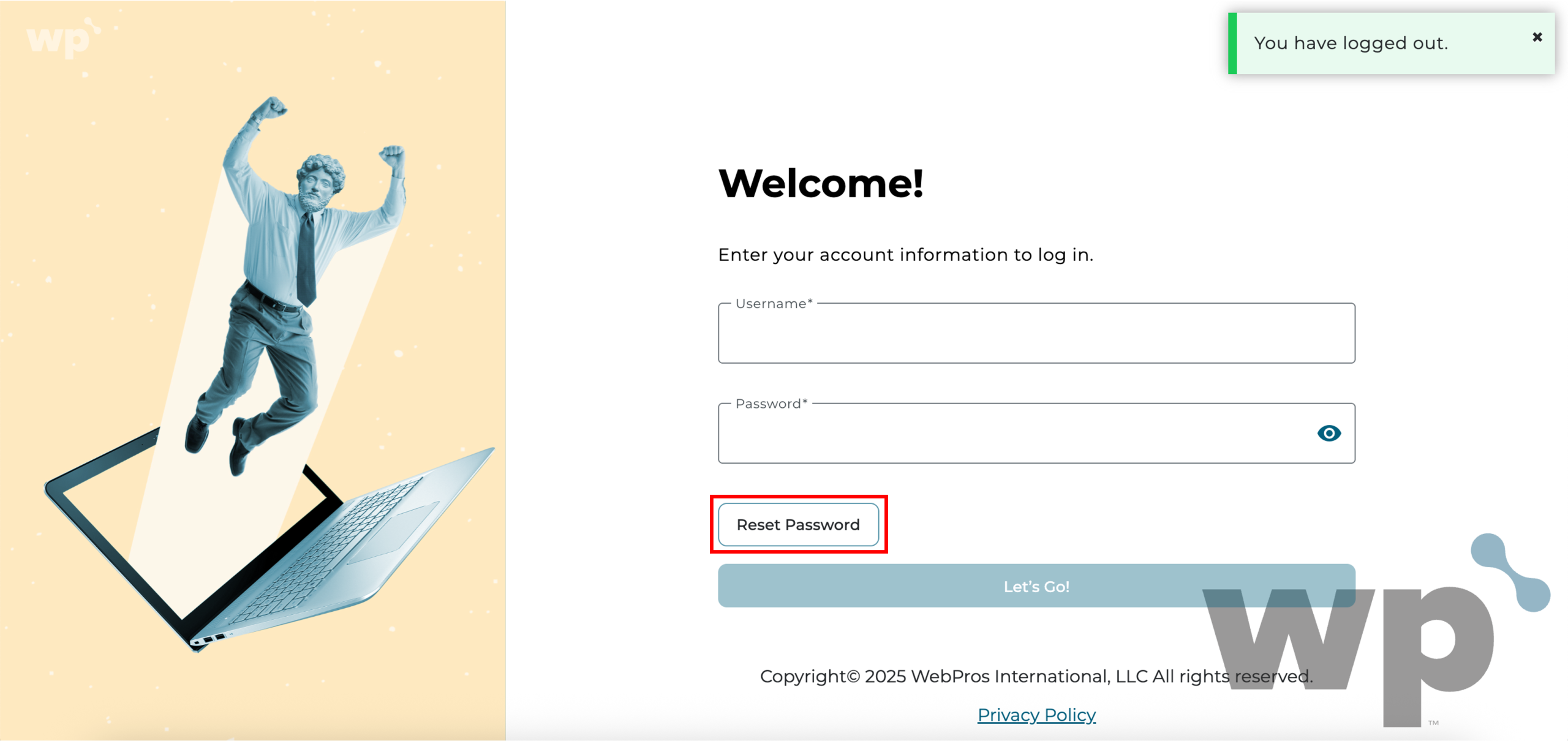
1. Similar to the final step in part 2, on the WP Squared Login page, click Reset Password.
 ‘
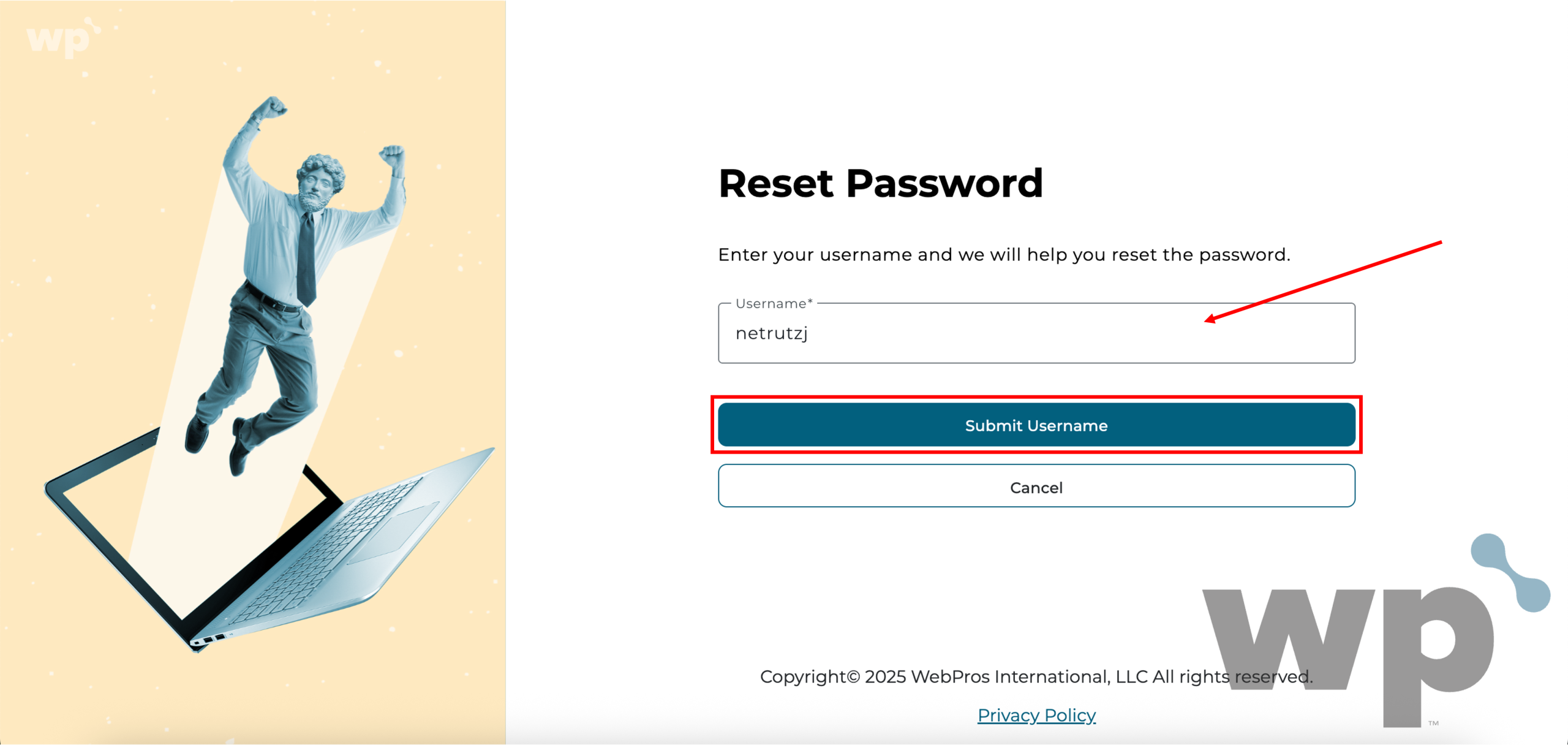
‘2. Enter your Username and click Submit Username once done. If you are unsure of your WP Squared username, refer back to step 4 in part 1, where you can locate your WP Squared Credentials. You can Copy and paste the Username in the Username field.
Note: The preassigned username is autogenerated during service activation and cannot be changed.
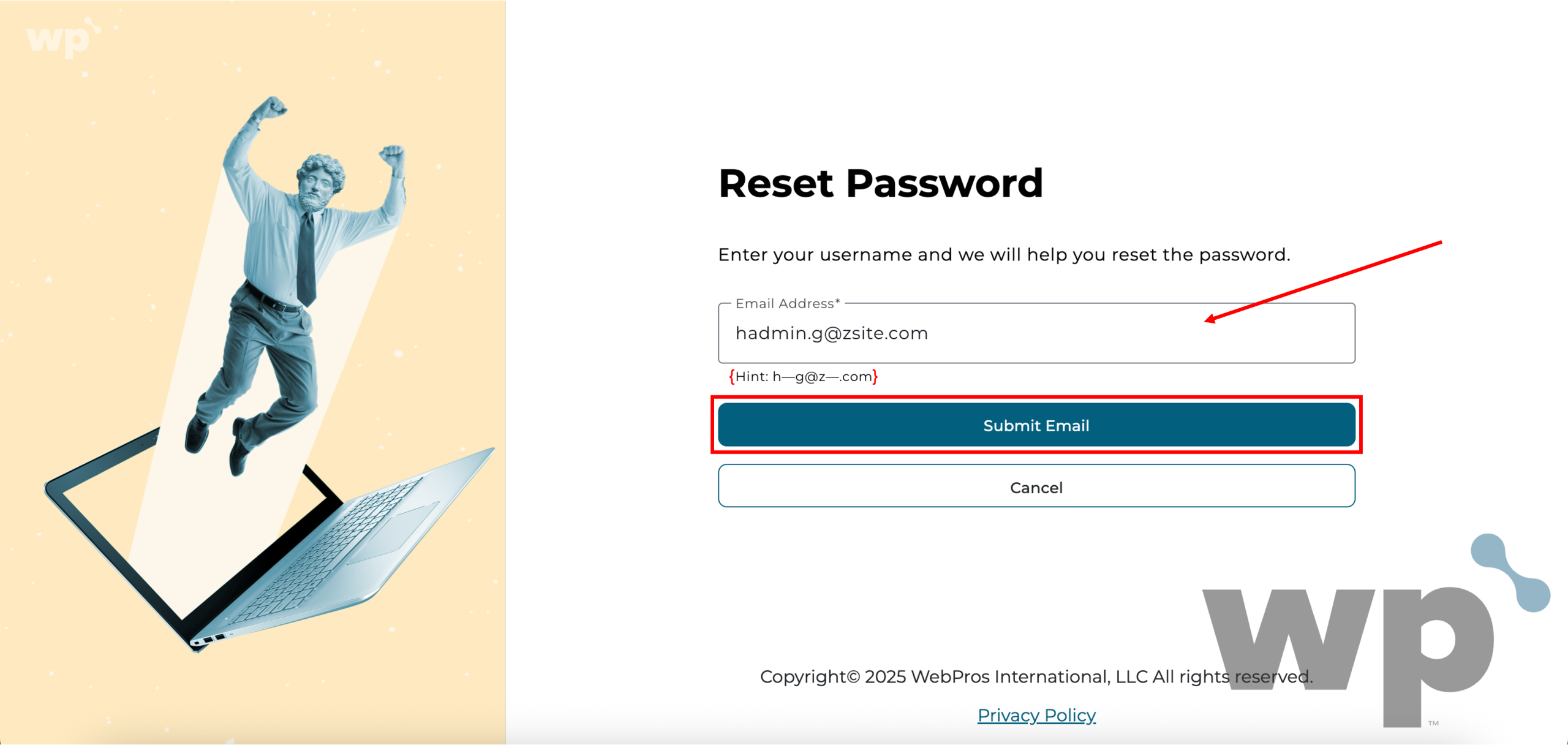
3. Enter your Email Address and click Submit Email once done. The email address should match the hint below the field.
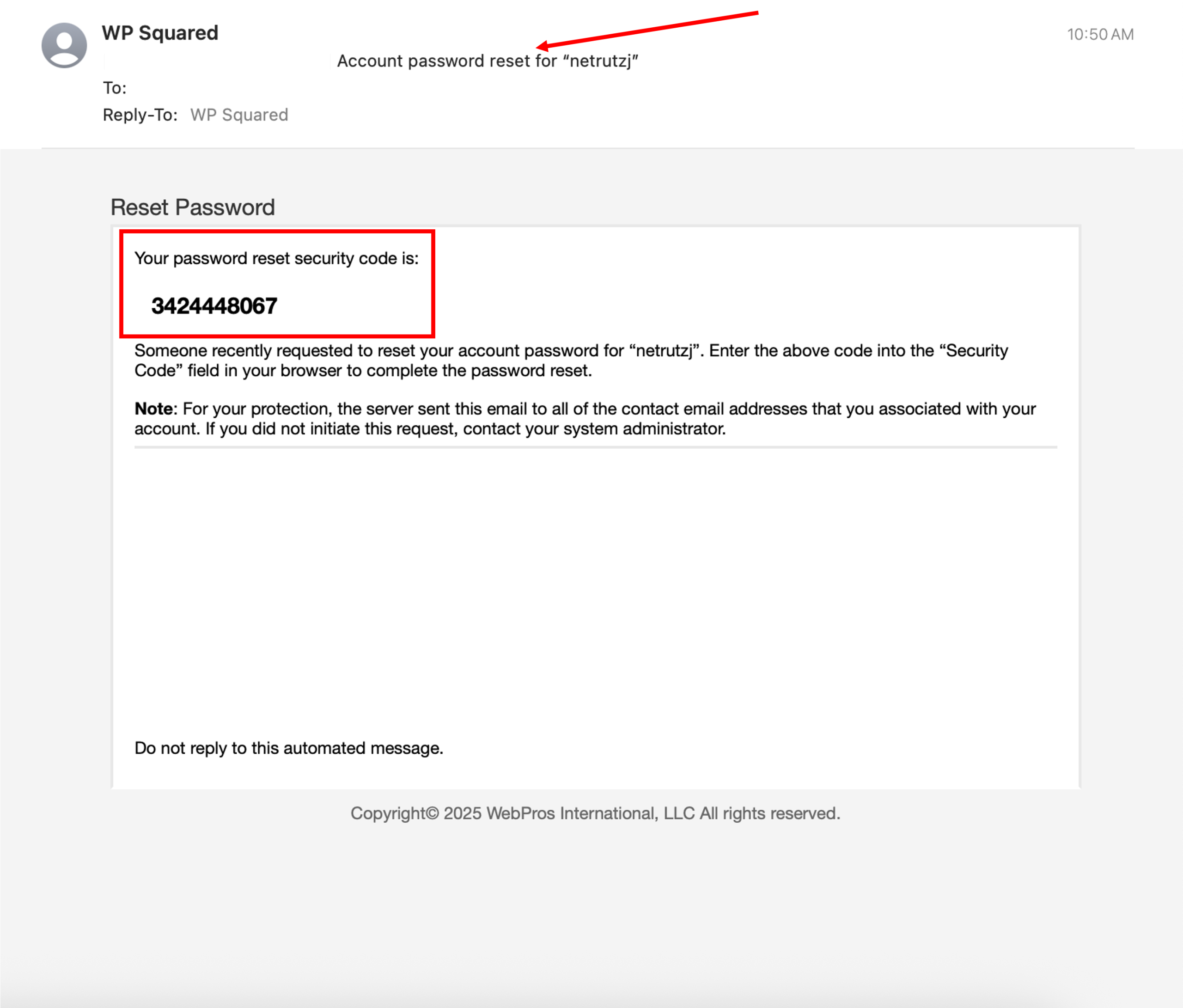
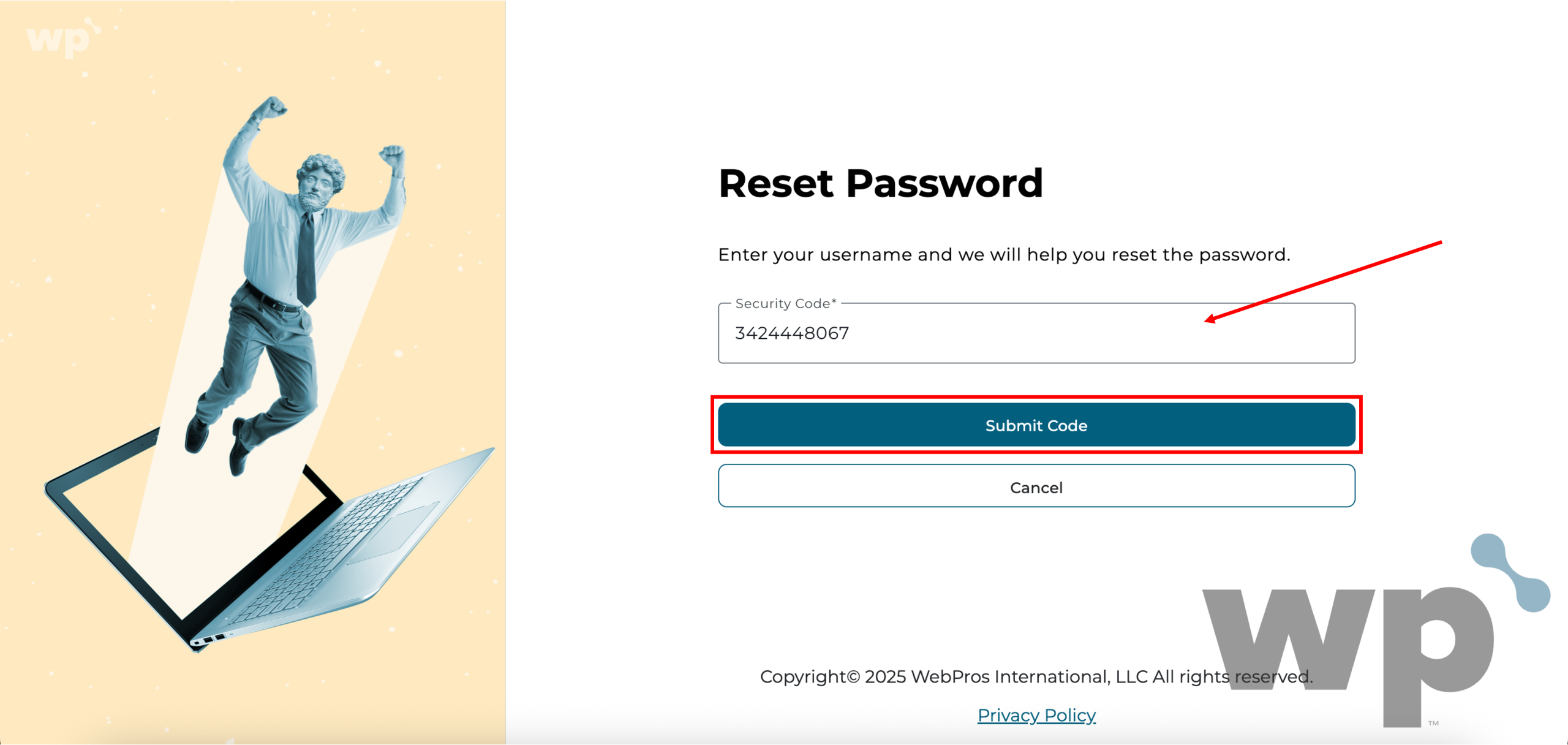
4. Check your email for the Security Code. You should receive an email with the Subject: [domain.com] Account password reset for “WP Squared Username” (domain.com). Once done, click Submit Code.
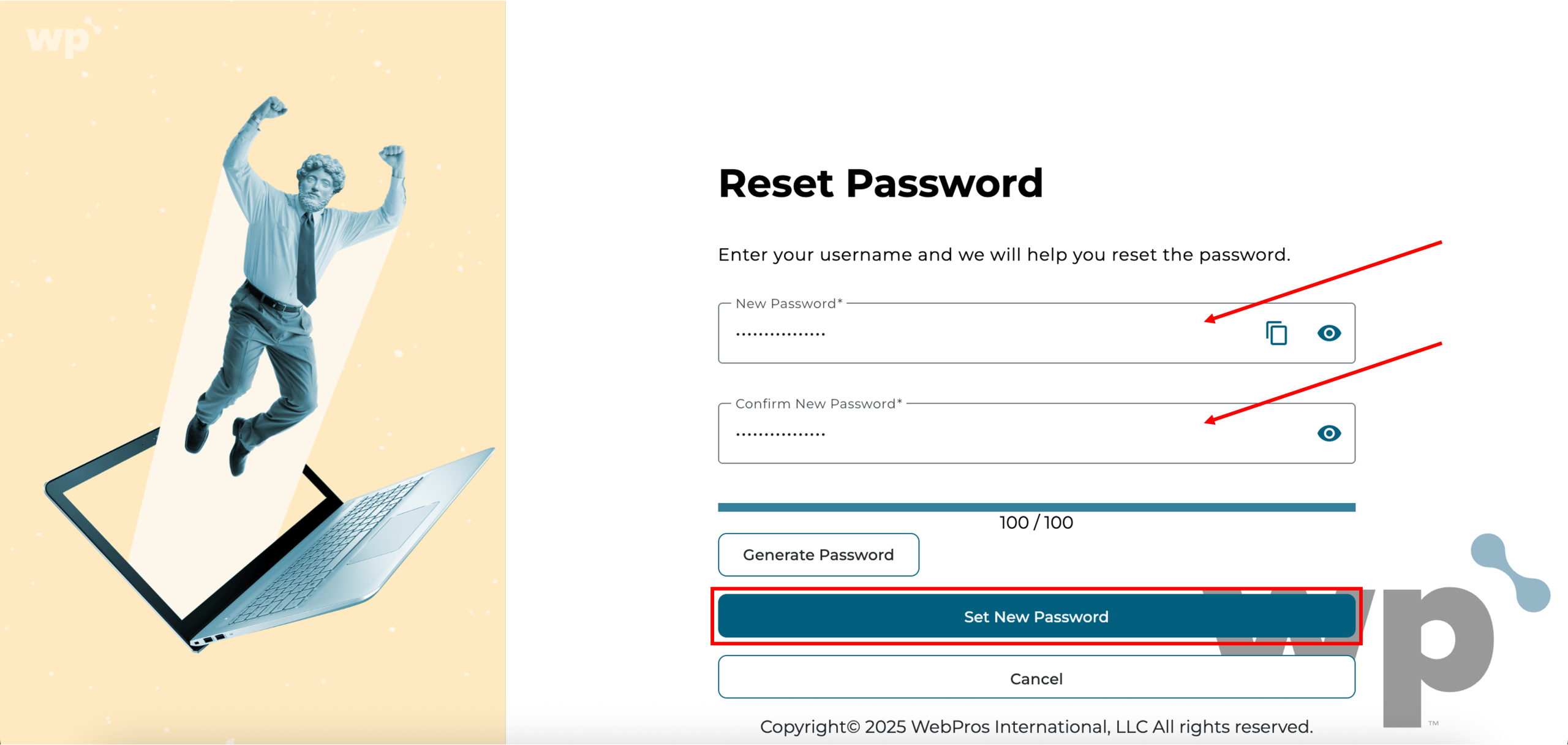
5. Fill in the fields with your New Password and Confirm New Password once again before proceeding to click Set New Password. You may also use the password generator to create a strong password.
6. Done! After resetting your WP Squared password, you should be redirected to the WP Squared Login page, where you can log in with the new password.