Example :
How to set up an email or change my account settings.
- Help Center
- AI Powered Website Builder
- AI Powered Website Builder
- How to log in to AI Powered Website builder management page directly?
How to log in to AI Powered Website builder management page directly?
To access the AI Powered Website builder management page directly, you will first need to retrieve your login credentials from the Z.com Client Area. These login credentials let you access the management page without having to navigate through the Client Area each time.
Once you have your username and password, you can access the login page directly and manage your website more conveniently.
This guide explains how to retrieve your login credentials and log in to the AI Powered Website builder management page.
Note:
• Ensure that you have an active AI Powered Website Builder plan before proceeding. If not, you can compare available plans on our AI Powered Website builder page and choose the one that best suits your needs.
• Updating your login password is optional and can be done via the Z.com Client Area before accessing the management page. This process is outlined in the steps below.
• If you are unable to log in, verify that the login credentials entered are correct.
• For security purposes, do not share your login credentials with others.
Table of contents
1. Retrieve login credentials (optional: update password)
1. Go to our Sign-in page.
2. Enter your Email Address and Password, and proceed to log in.
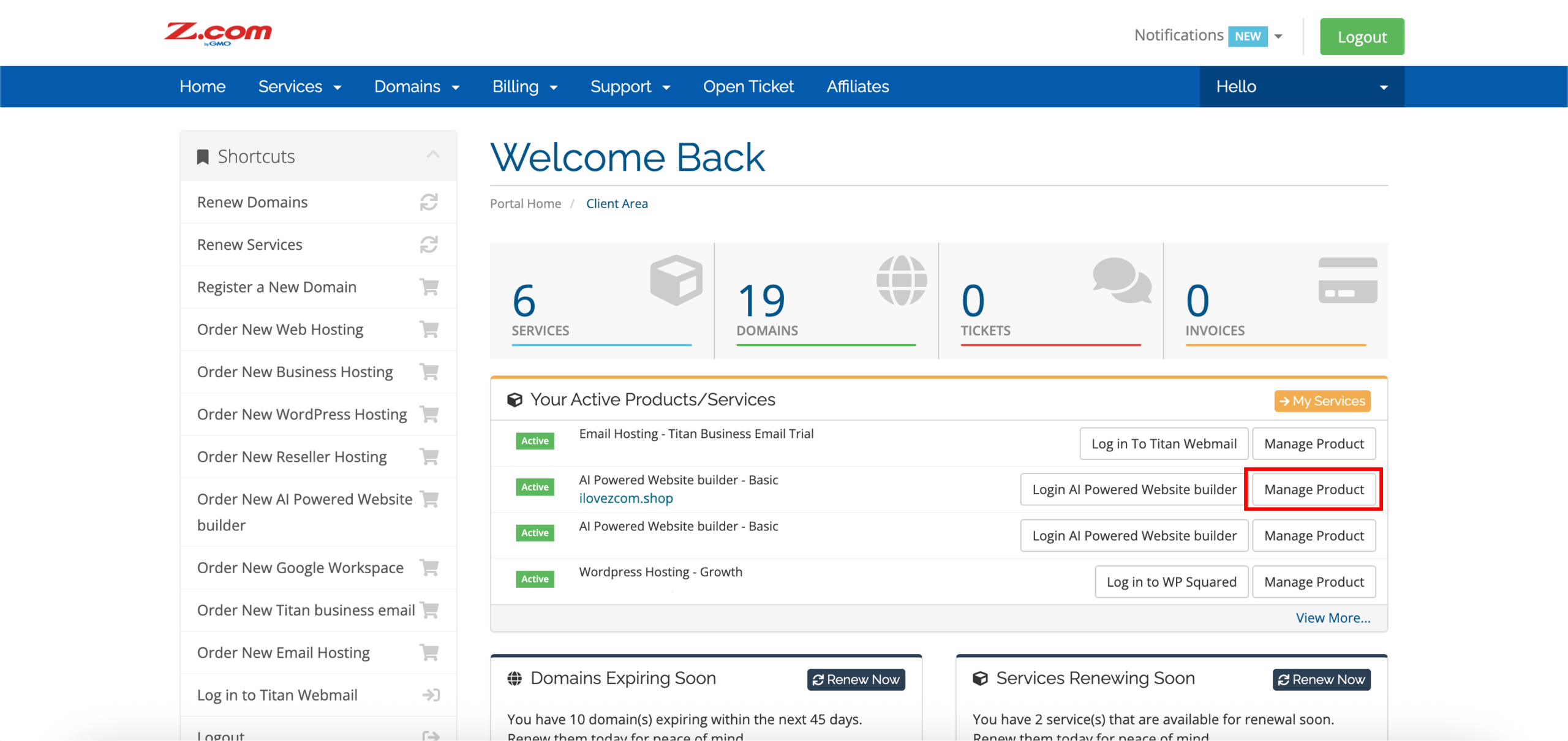
3. Aligned with your AI Powered Website builder service, click Manage Product.
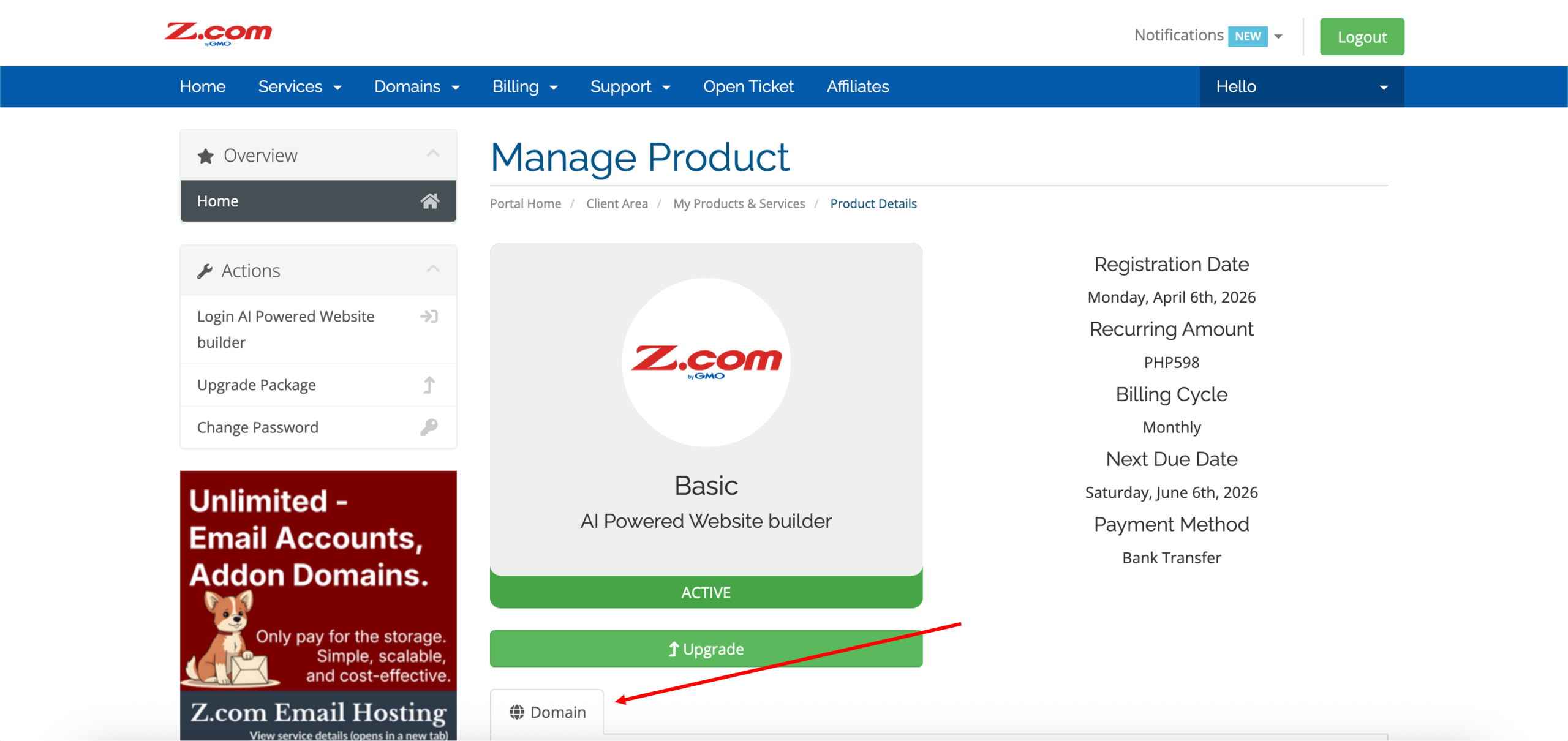
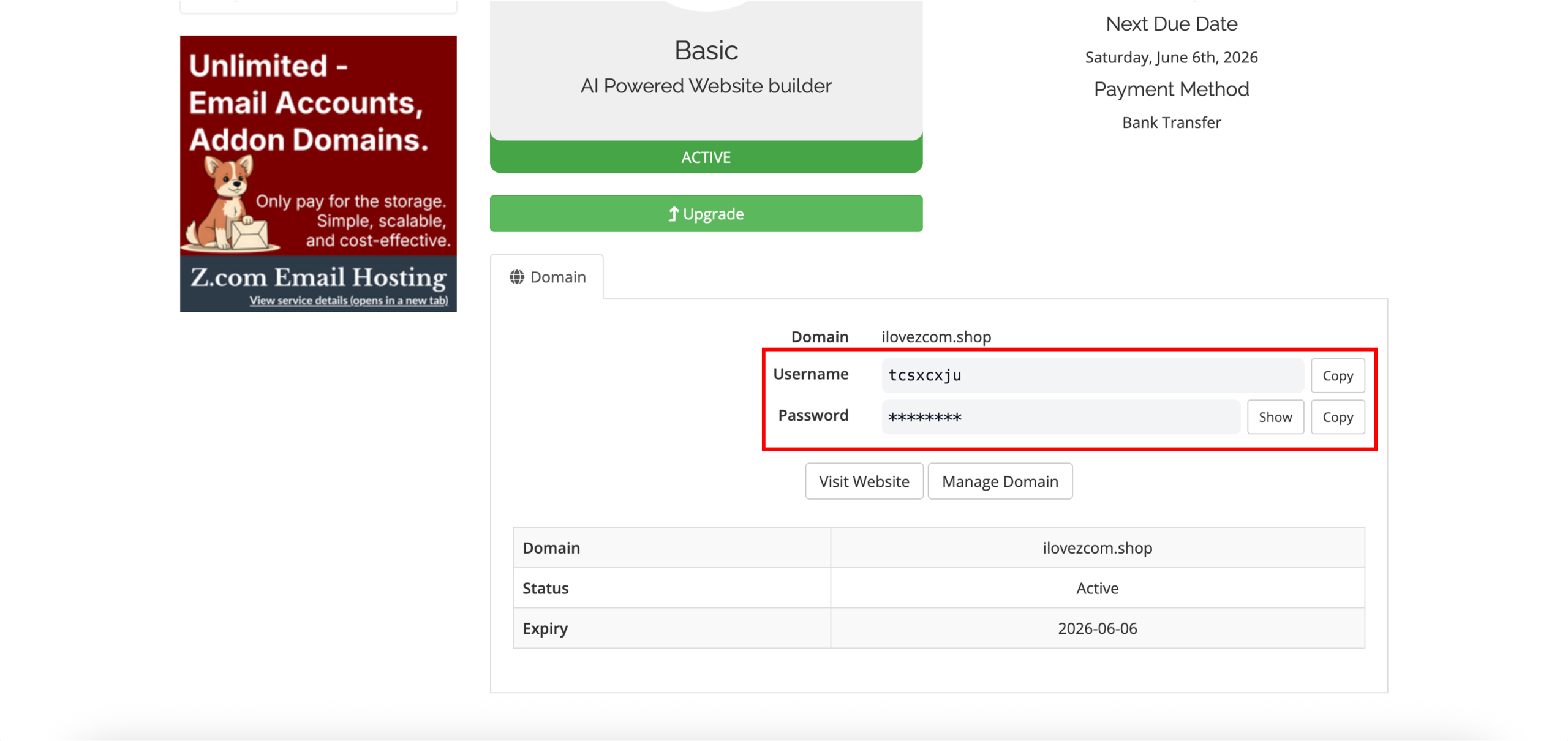
4. Once redirected to the Manage Product page, scroll down to the Domain tab to locate the Username and Password, which are the login credentials.
*Click Copy next to each field and save the details securely. This allows you to log in to your AI Powered Website builder management page without returning to the Z.com Client Area each time.
(Optional: update password)
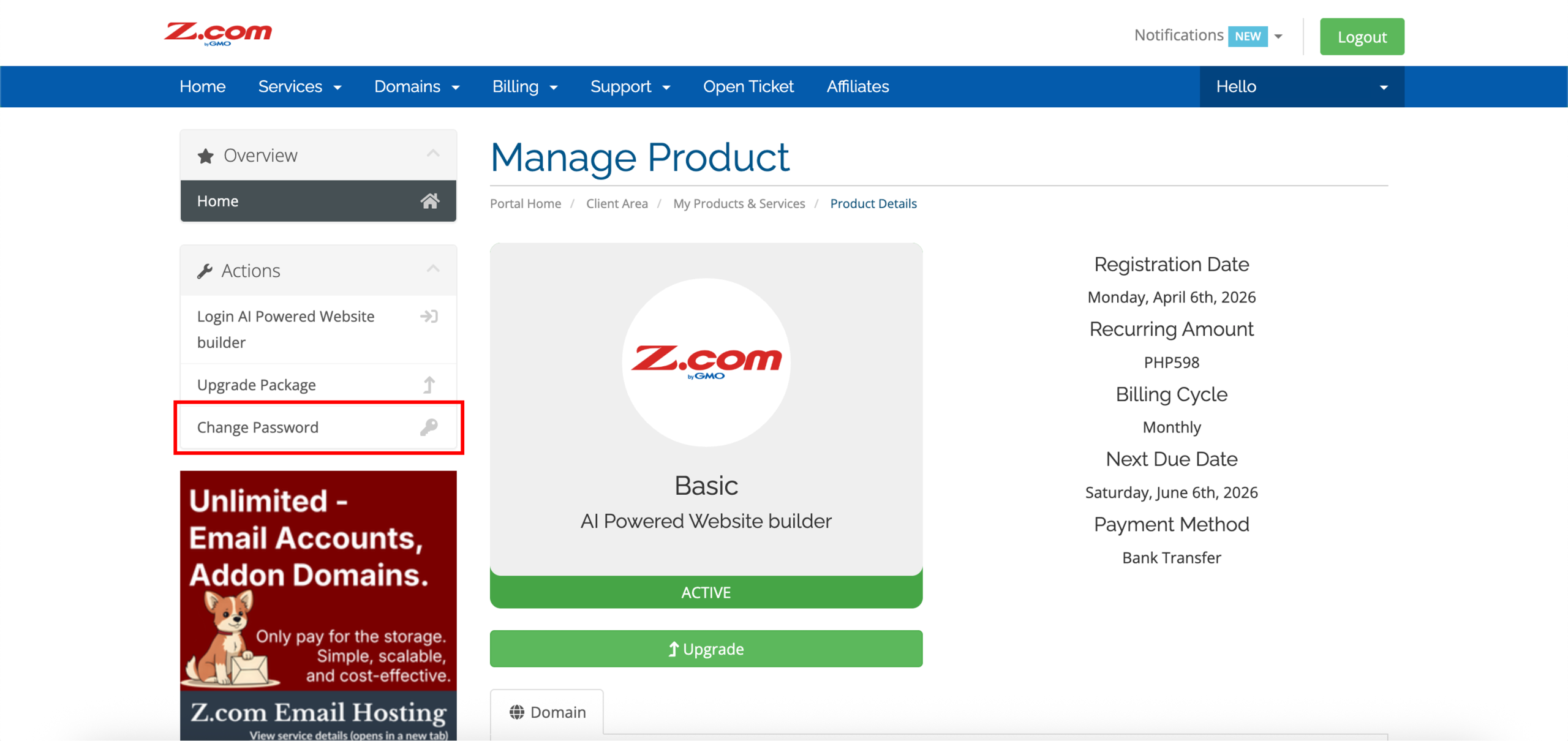
5. Scroll back up to the Manage Product page, then click Change Password on the left under Actions.
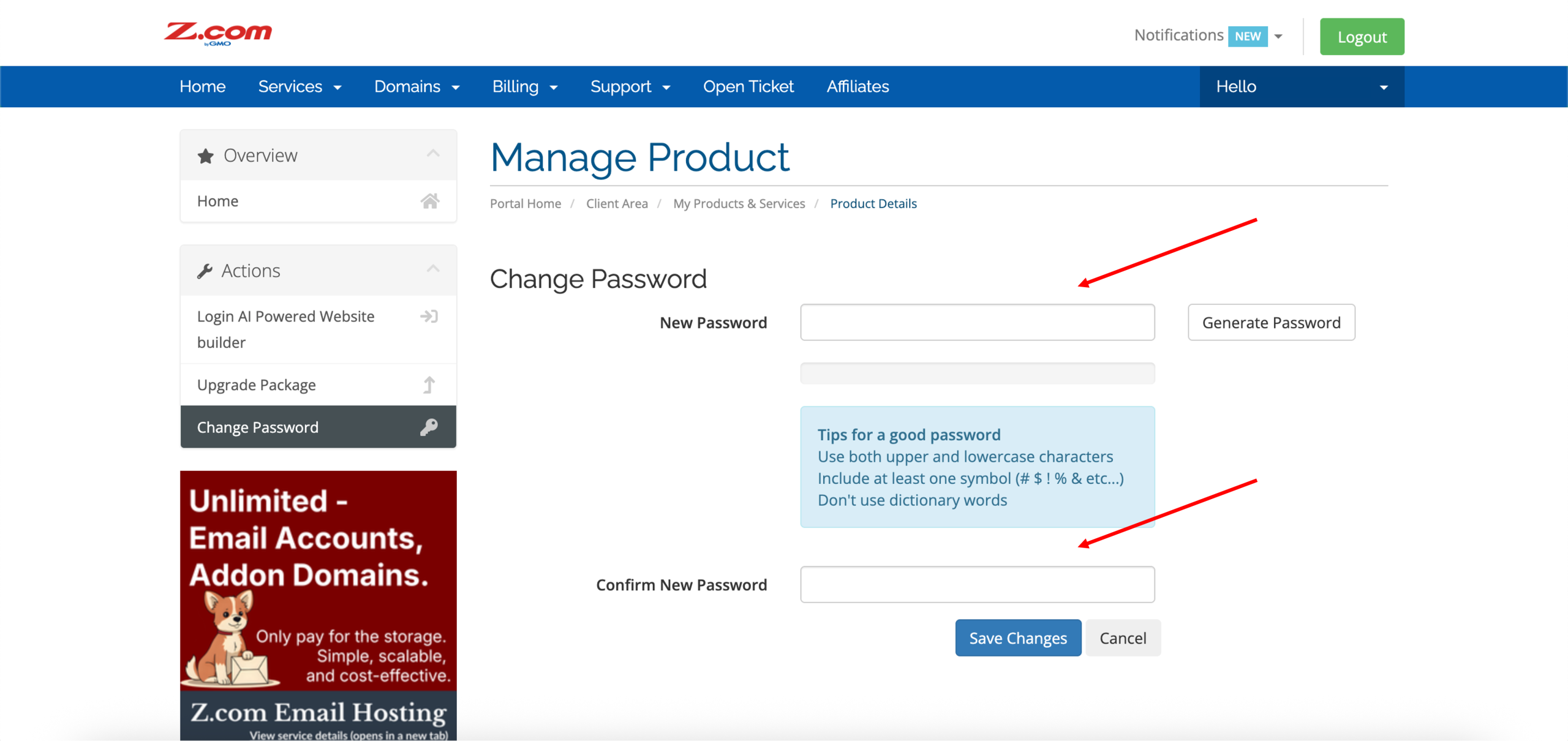
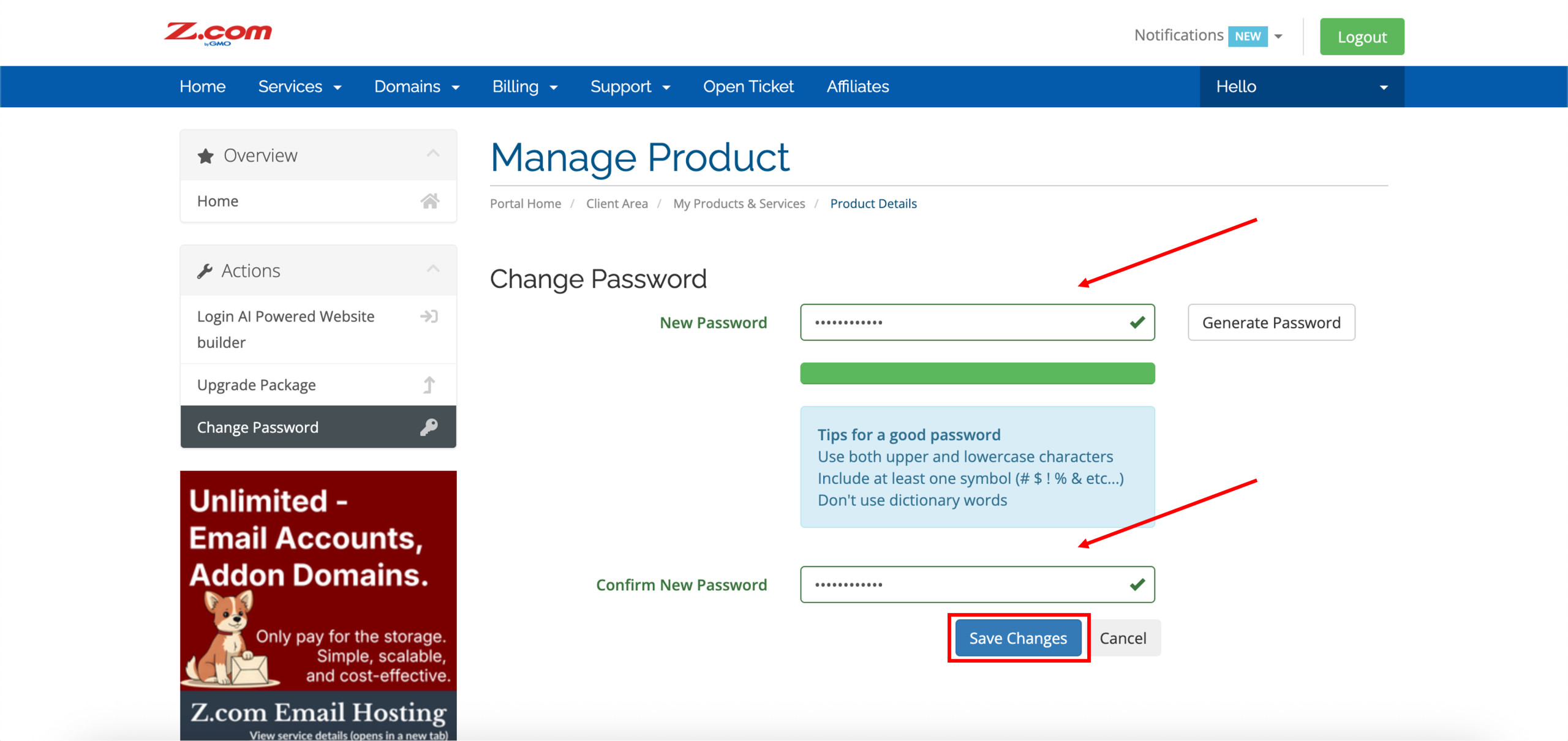
6. Once redirected to the Change Password page, enter your New Password and Confirm New Password once again before proceeding to click Save Changes.
*You may use the Generate Password option to create a strong and secure password automatically. Be sure to save it securely for future use.
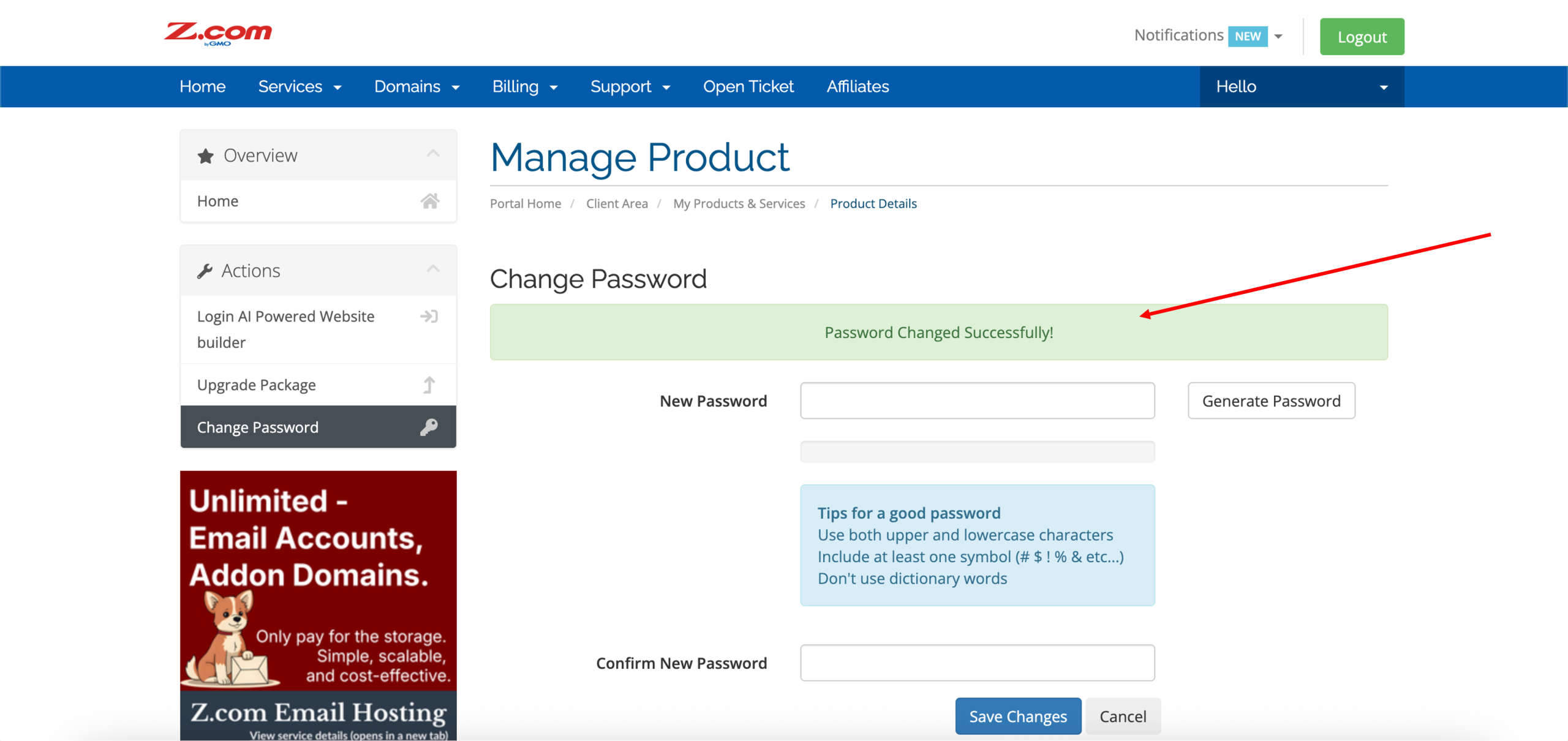
7. Done! Successfully changing the password will look like the following, with the password changed successfully prompt.
2. Access the AI Powered Website builder management page directly
1. Access the AI Powered Website builder management page directly here. You may bookmark this page for quick access in the future.
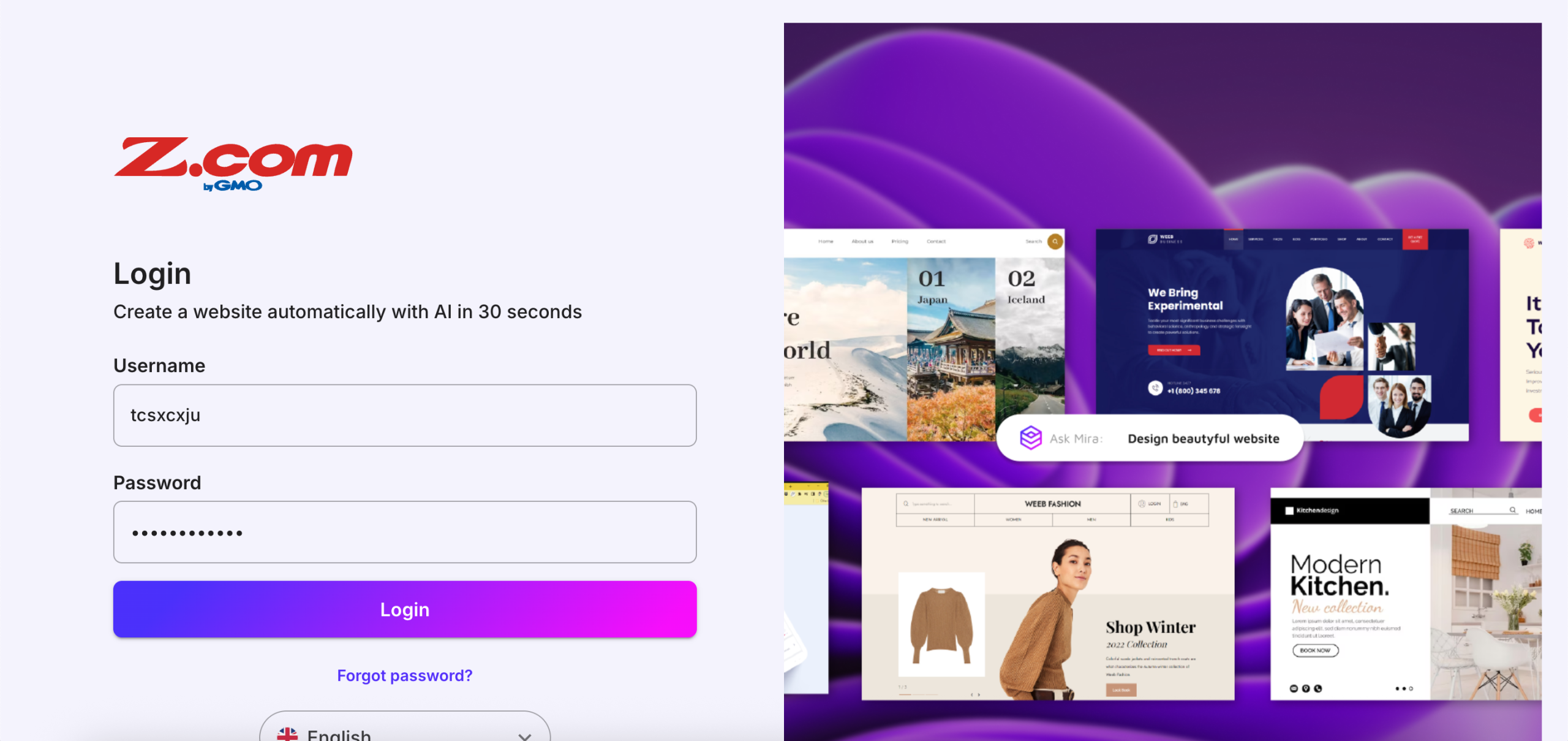
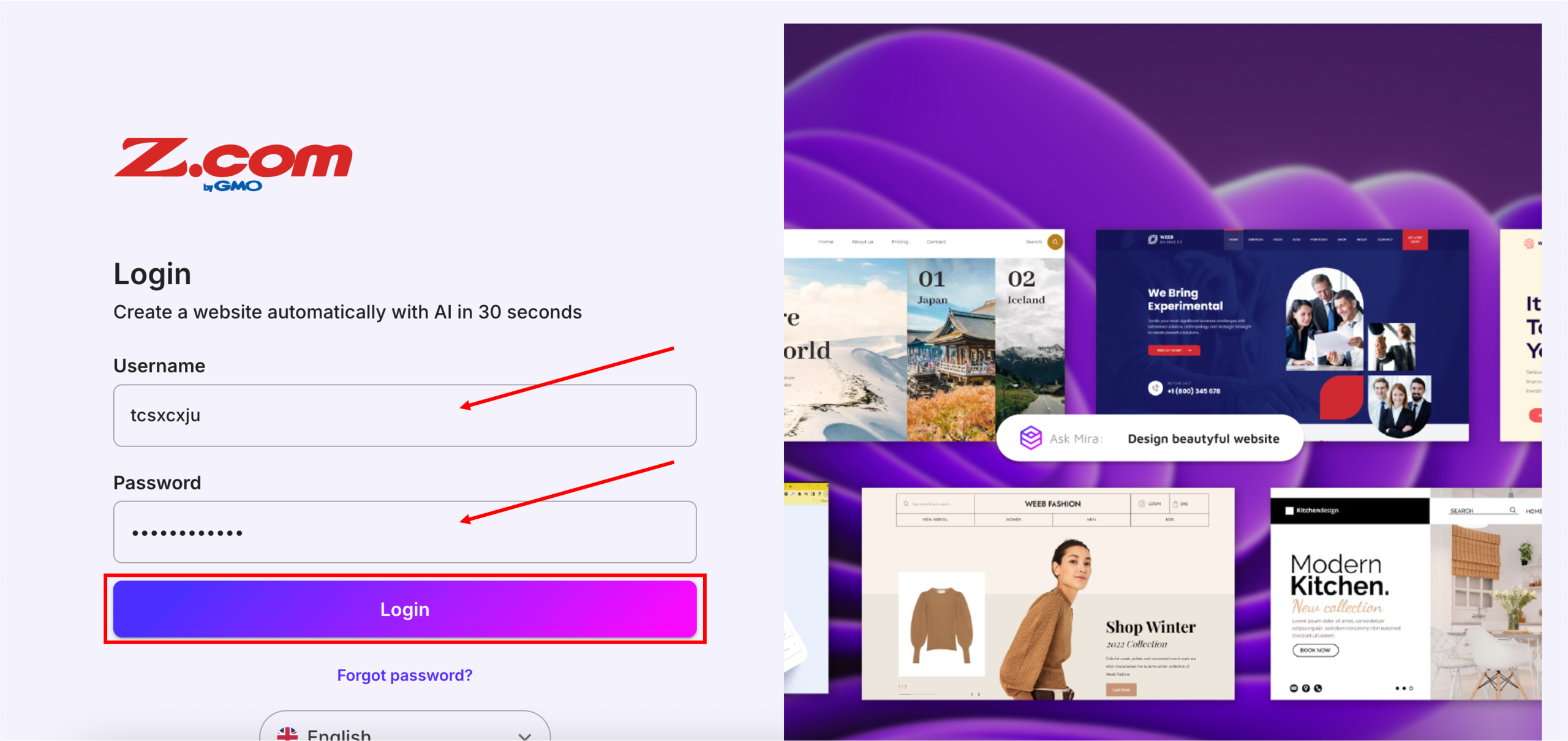
2. Enter your Username and Password, then click Login.
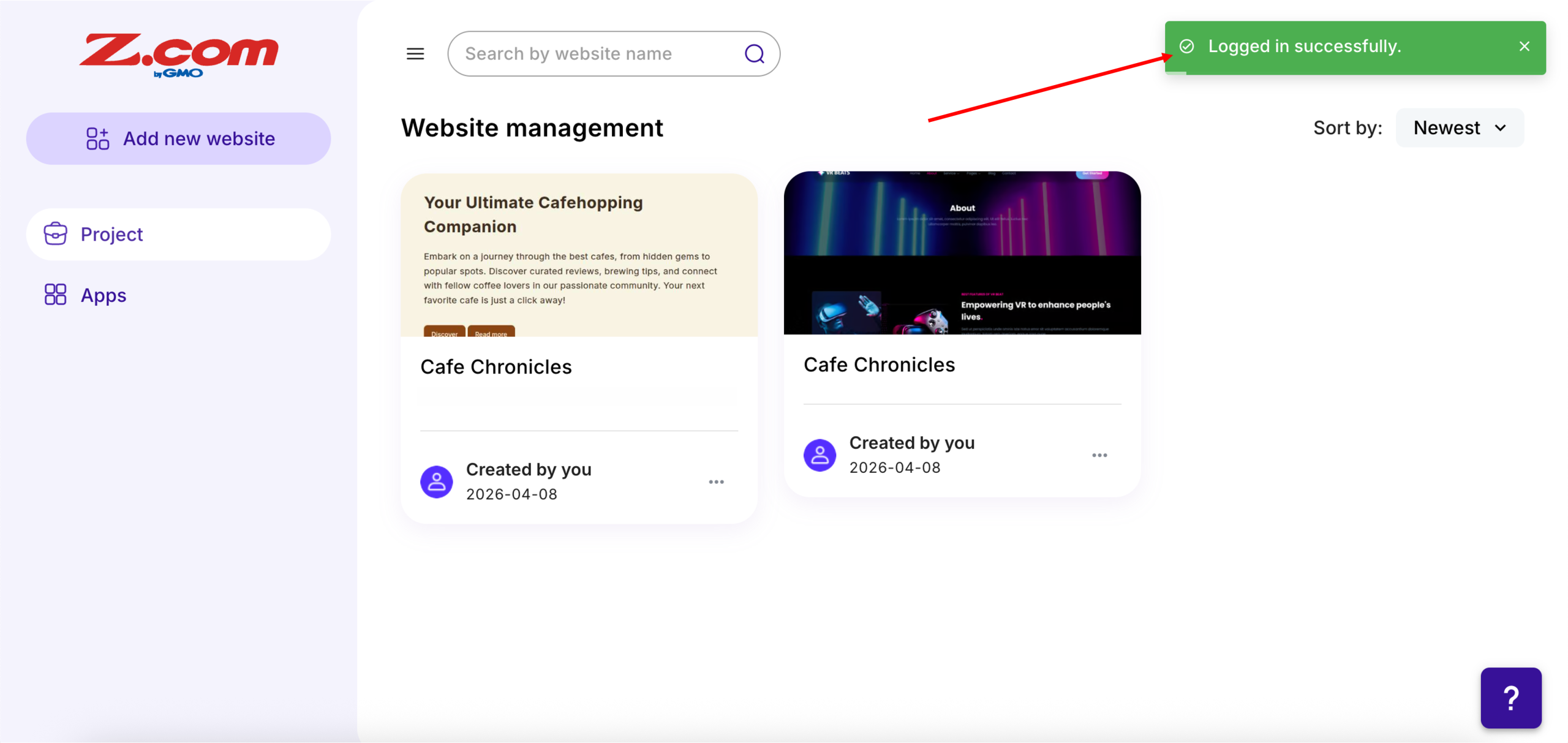
3. Done! You should be redirected to your AI Powered Website builder Website List (Website management) page, which is also the homepage.