
Example :
How to set up an email or change my account settings.
- Help Center
- Unlimited Email Hosting
- Getting Started
- How to Create or Add a New Email Account
How to Create or Add a New Email Account
Setting up a new email address on your domain, whether it’s for a new hire, a new department, or just for yourself, is quick and easy. Here are 2 ways to do it in under a minute.
Both methods do the same thing on the same backend, so use whichever one you’re already working in.
Note:
• Your domain must be active and properly connected before you start. If your domain is registered with another provider, see our guide on how to set up your DNS records
• Unlimited Email Hosting plans support unlimited email accounts, so there’s no need to worry about hitting a limit.
Table of contents
Method 1: Create Email Address via cPanel
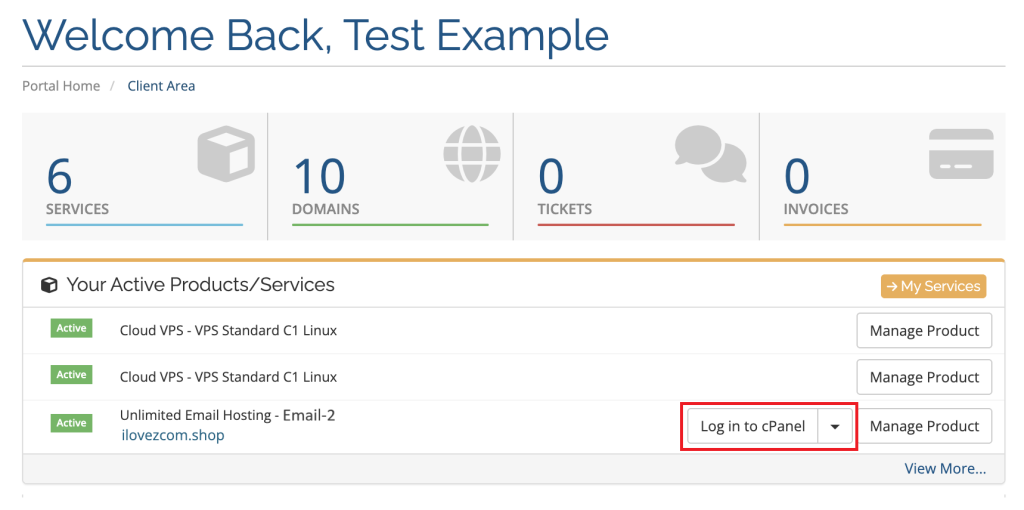
1. In your Z.com client dashboard, go to “Your Active Products/Services,” find your unlimited email hosting plan, and click Log in to cPanel
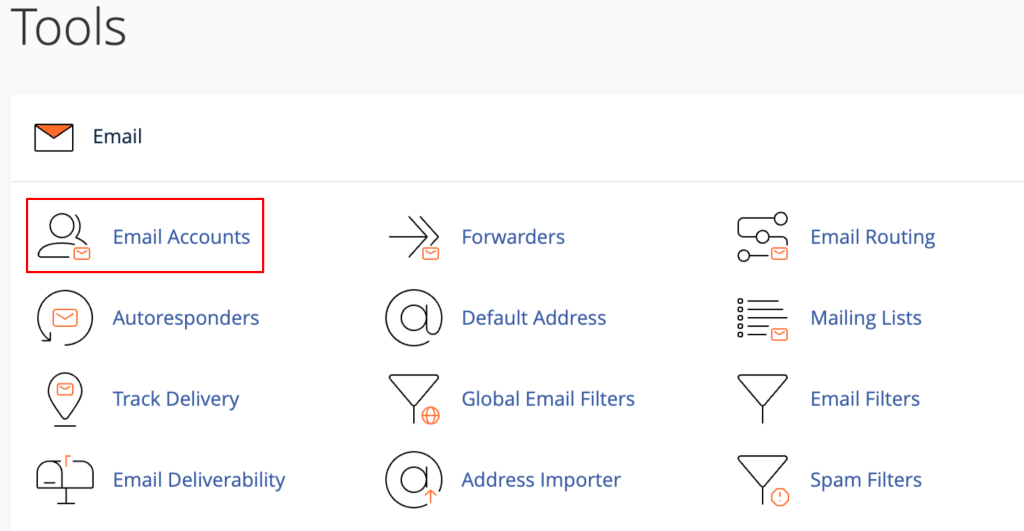
2. Under Email section, click Email Accounts.
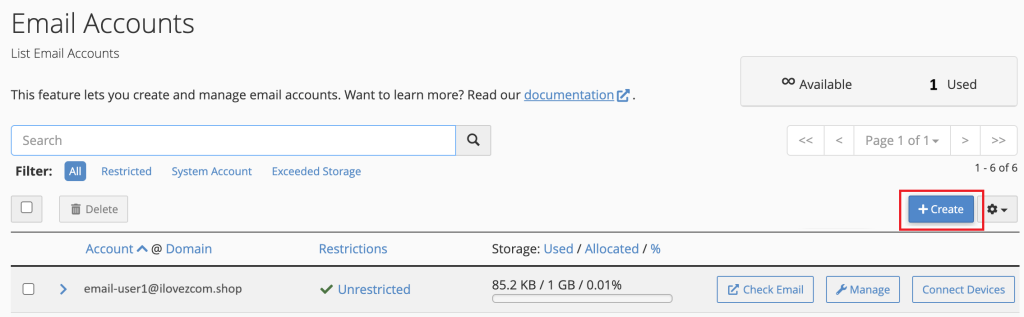
3. Click + Create near the top right of the page.
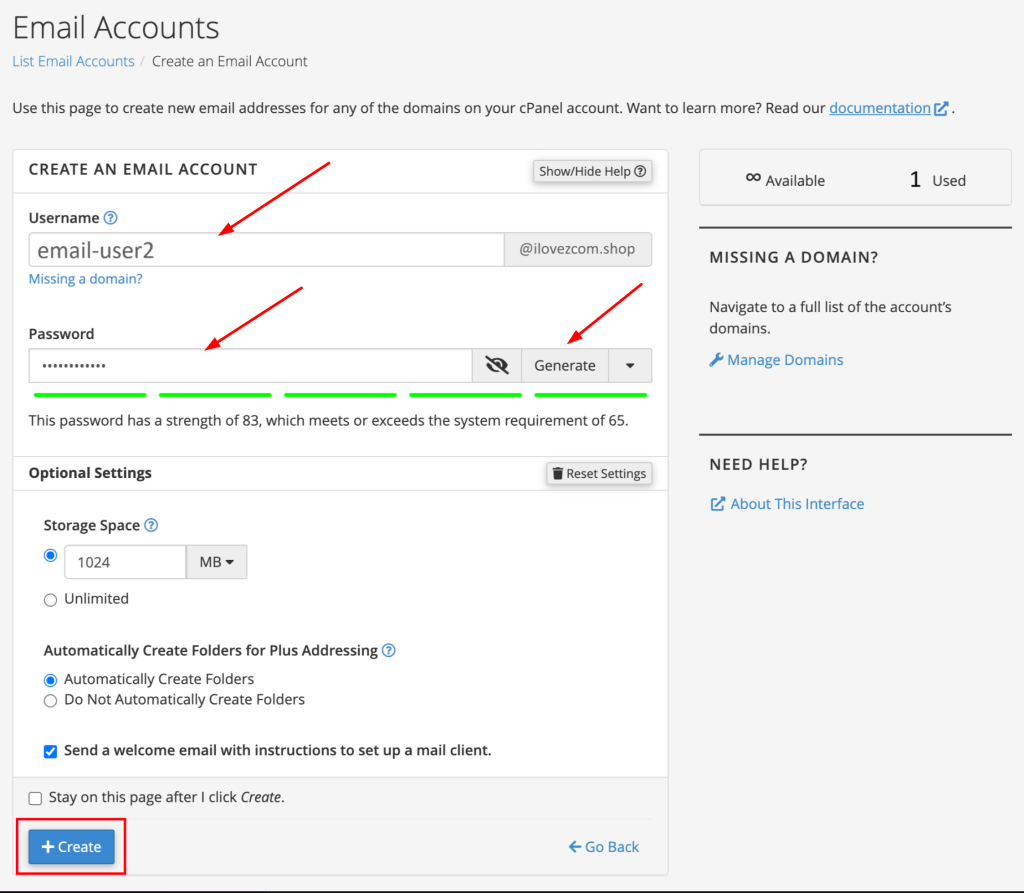
4. Fill in the following, then click + Create to add email address.
• Username — Enter the name you want to use for the email account. This will appear before @yourdomain.com.
• Password — click Generate for a strong password, or set your own.
• Optional Settings — Configure storage space, plus addressing, and a welcome email with email client setup instructions. If you are unsure, you can keep the default settings.
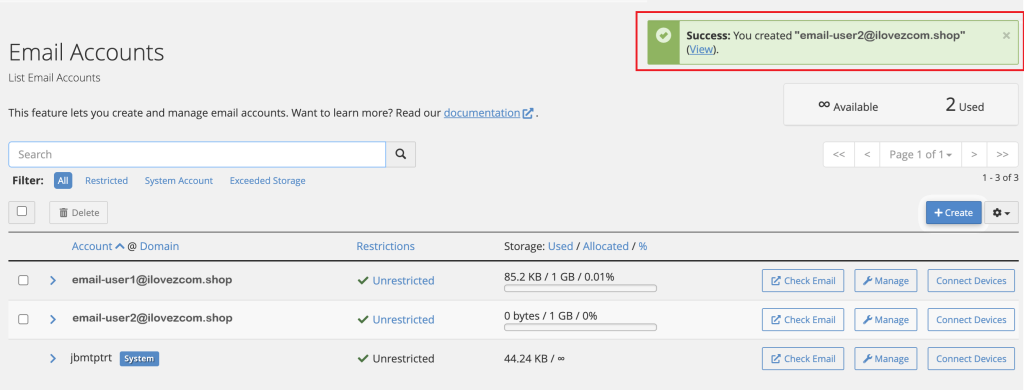
5. Done, you’ll see a confirmation message, and the new email account will appear in the list.
Method 2: Create Email Address via Z.com Client Area
1. Sign in to your Client Area.
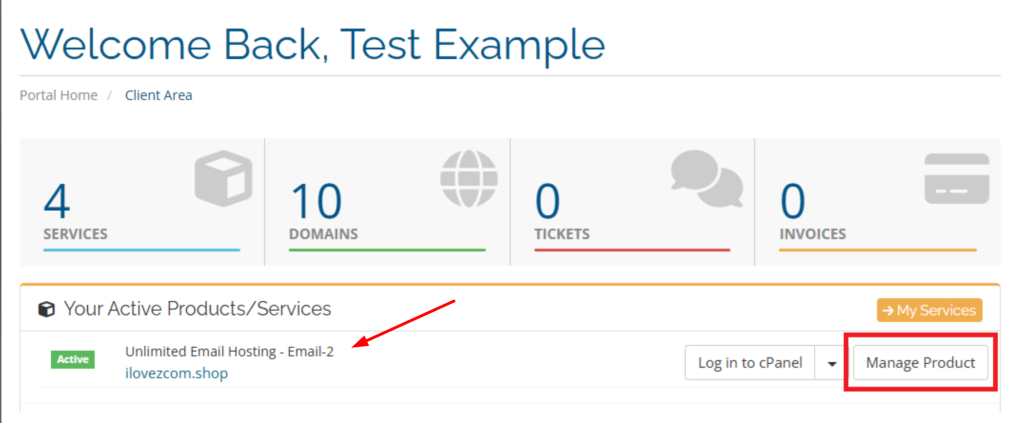
2. Find your Unlimited Email Hosting service and click Manage Product.
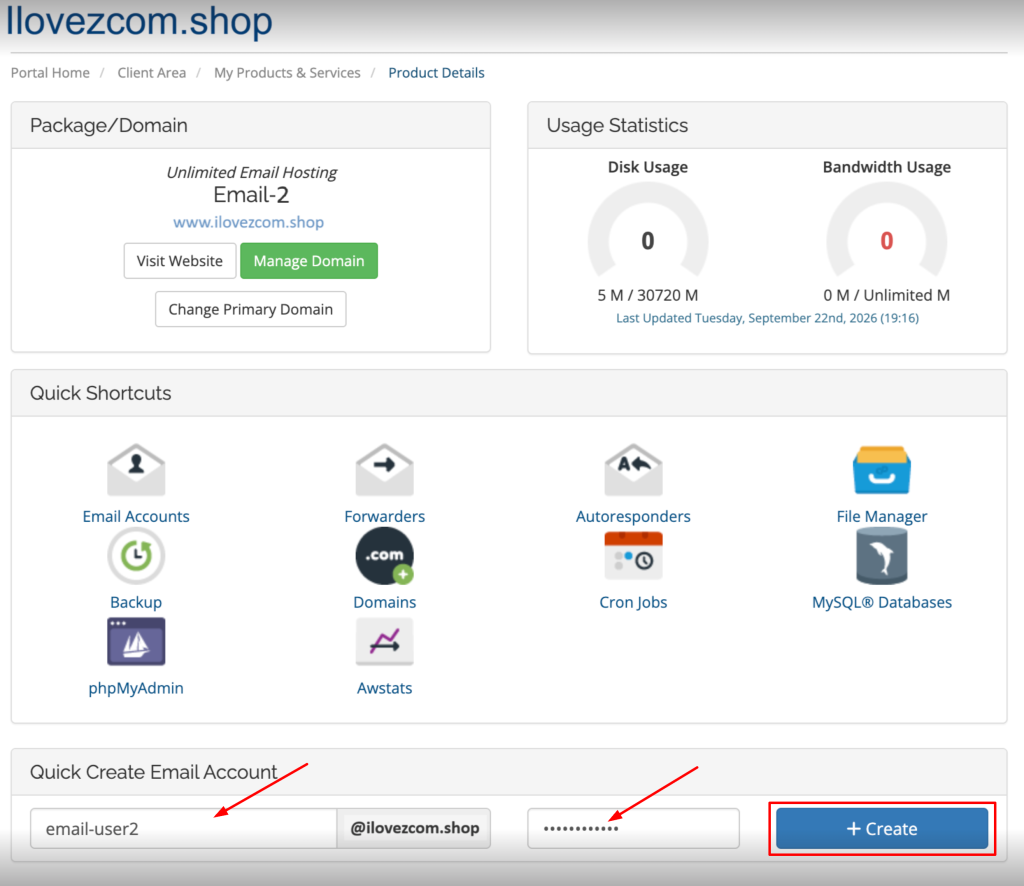
3. Scroll down to Quick Create Email Account section. Enter a name and password, then click + Create to add email account.
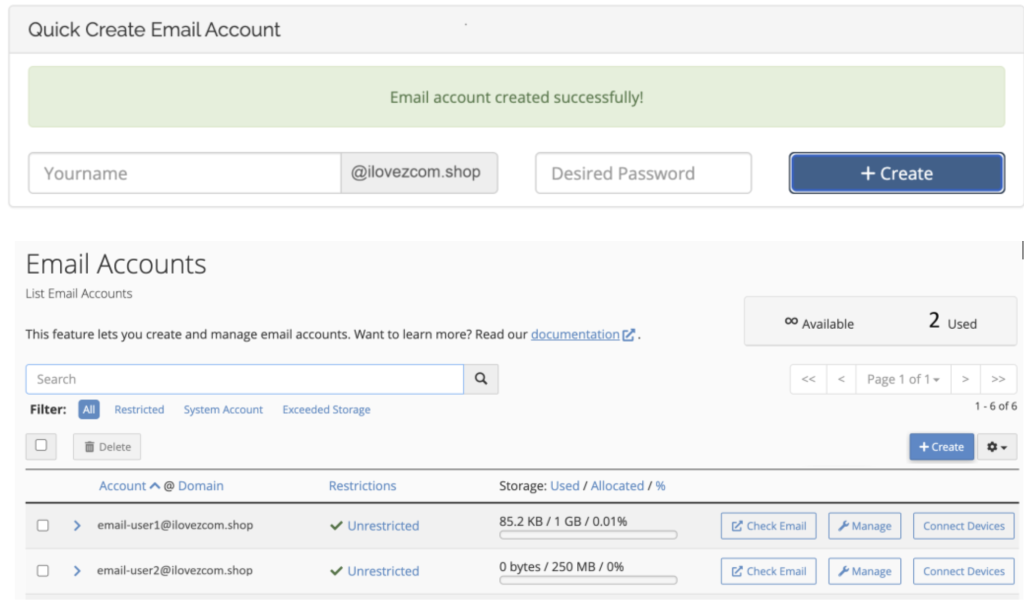
4. Done, you’ll see a confirmation message, and the new email account will appear in the list.
Quick Tips
Note:
• Both methods create the email account in the same system, so you can use whichever interface is more convenient for you.
• Forgot your password later? Reset it from the same Email Accounts / Manage Product screen — no need to recreate the account.
• Setting up on iPhone, Outlook or another client? Check out our mail client configuration guide