Example :
How to set up an email or change my account settings.
- Help Center
- WordPress Hosting
- Getting Started
- How to locate your WordPress Admin login details (Username, Email, Password Setup)
How to locate your WordPress Admin login details (Username, Email, Password Setup)
When you activate your WordPress hosting service, your WordPress admin account is automatically created for you, with a preassigned username and default email address. However, these details are not shown immediately during the signup process, so new users may be unsure how to log in for the first time or update their account information.
This guide will help you locate your WordPress admin username and login email, update the default email address to one you prefer, and complete your initial password setup so that you can access your WordPress admin dashboard smoothly and securely.
Note:
• The default WordPress admin username and email address are auto-generated during service activation.
• The default email address does not automatically exist as a real mailbox. For security and reliability, we recommend updating it to an active email you use.
• You must set your own WordPress admin password before logging in for the first time.
Table of contents
1. Locate your WordPress username or email address
Your WordPress admin username and default login email are available from your WP admin dashboard.
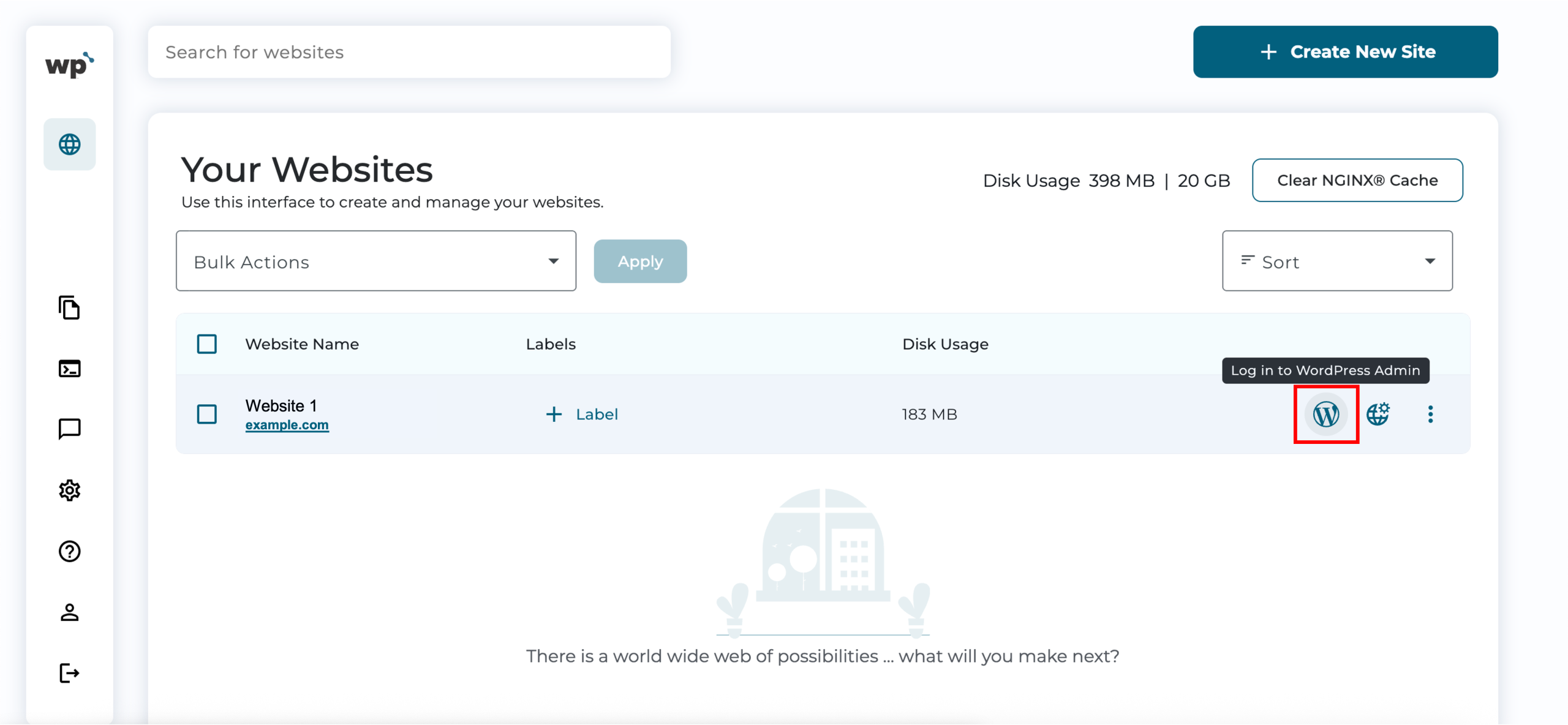
1. Upon reaching your WP Squared dashboard, click Log in to WordPress Admin.
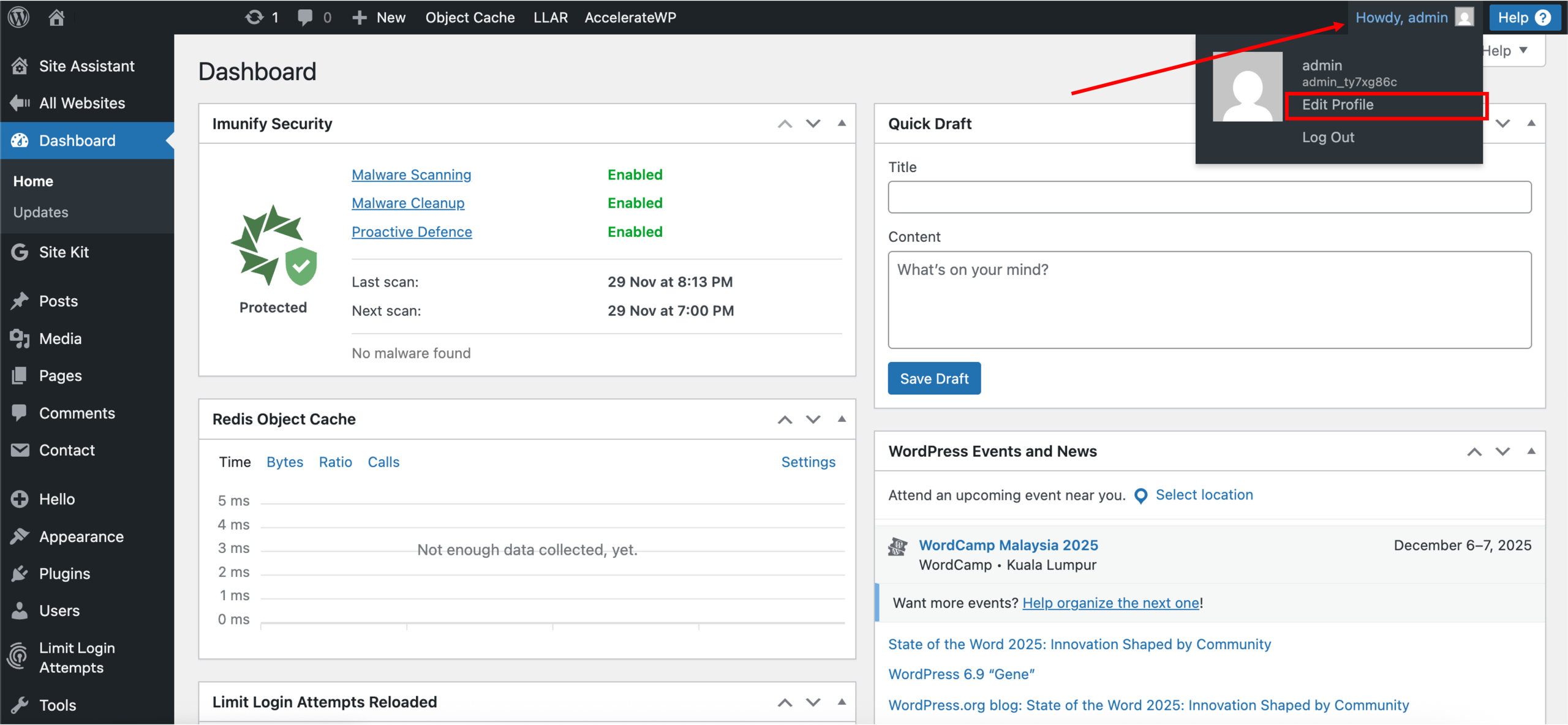
2. A new tab will appear, redirecting you to your WordPress admin dashboard. Click Edit Profile on the page’s upper right.
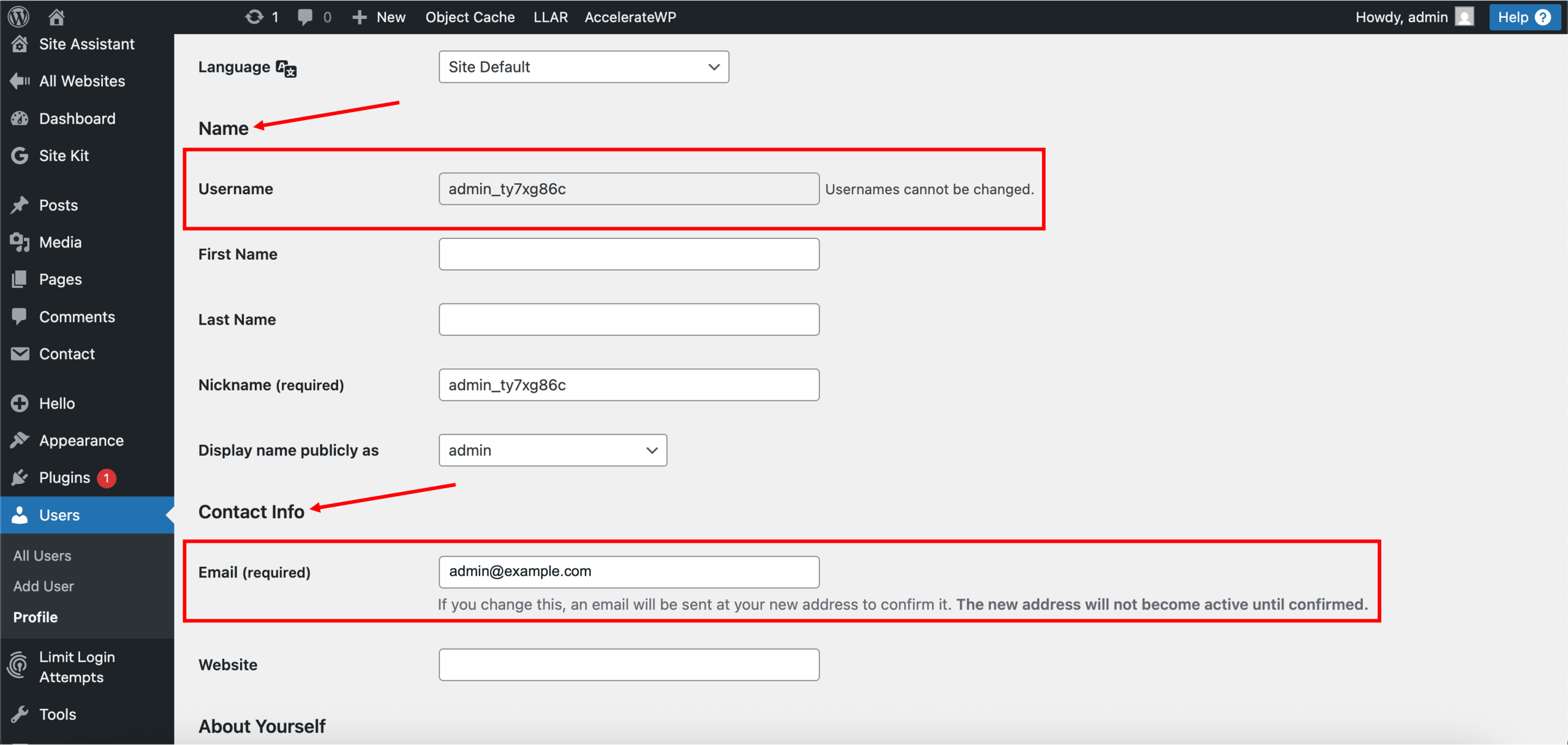
3. Once redirected to the Profile page, scroll down to the Name and Contact Info sections. Here, you will find your WordPress admin Username and WordPress admin Email address (default auto-generated email).
2. Update the default email address
Since WordPress generates a placeholder email by default, we recommend changing it to your actual email to receive password reset links, notifications, and security alerts.
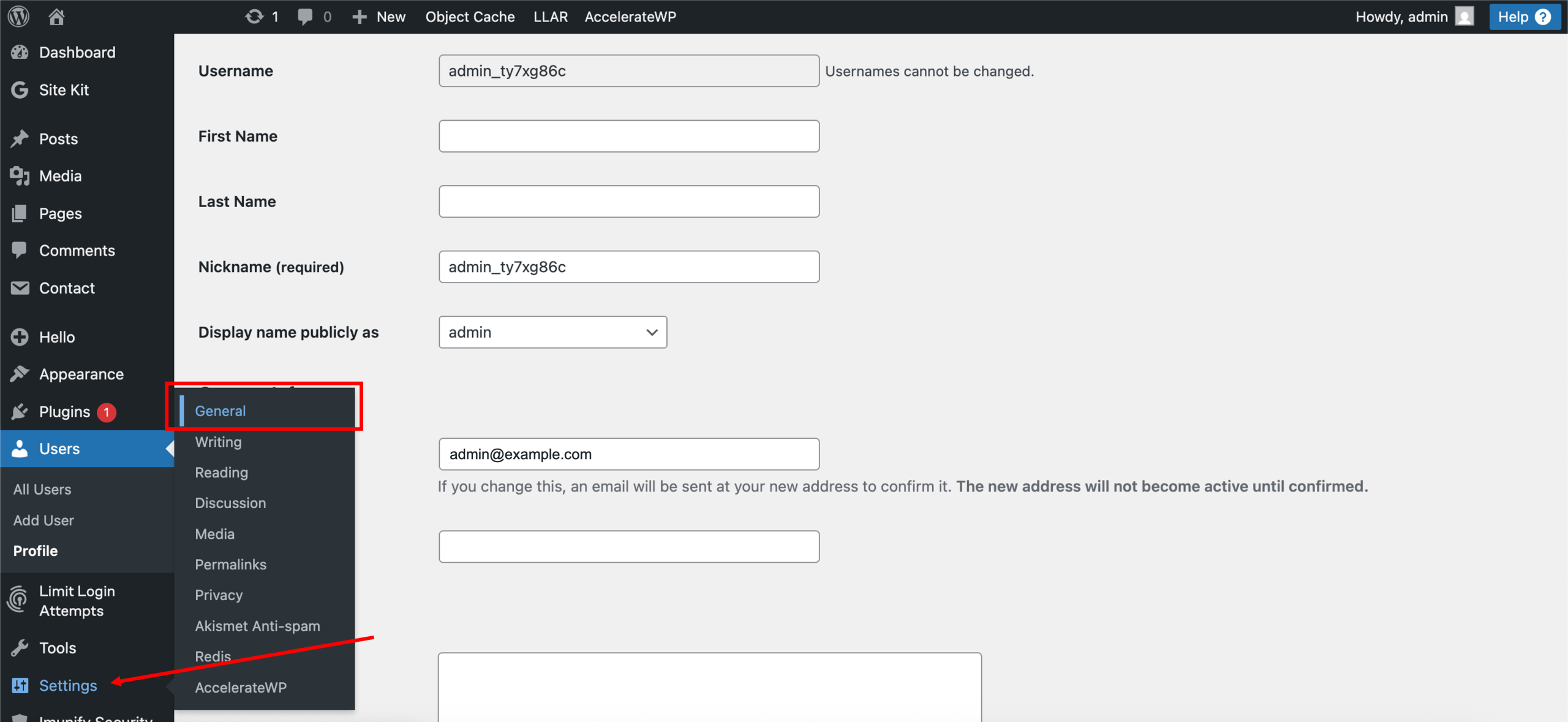
1. Continuing from part 1, click Settings > General from the left sidebar.
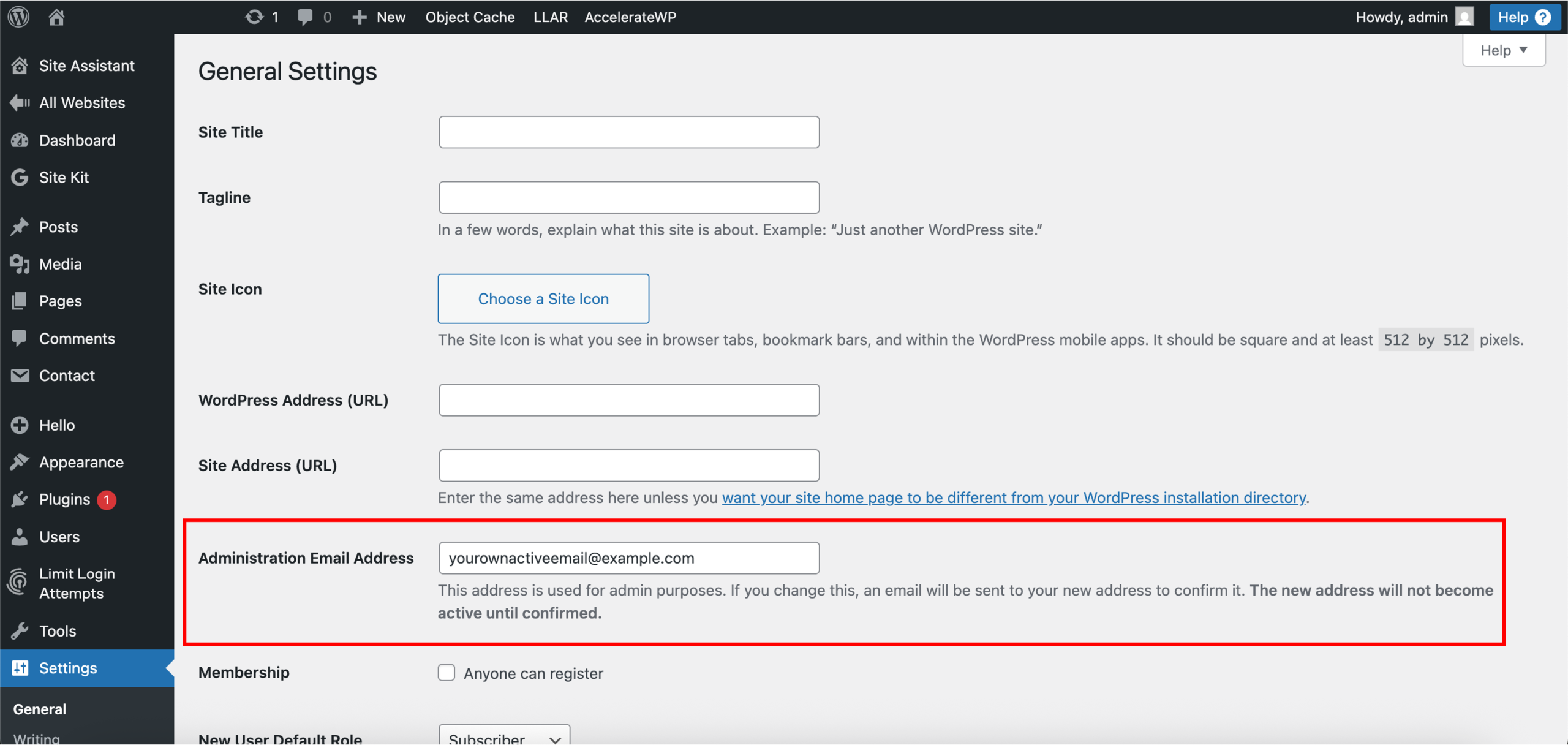
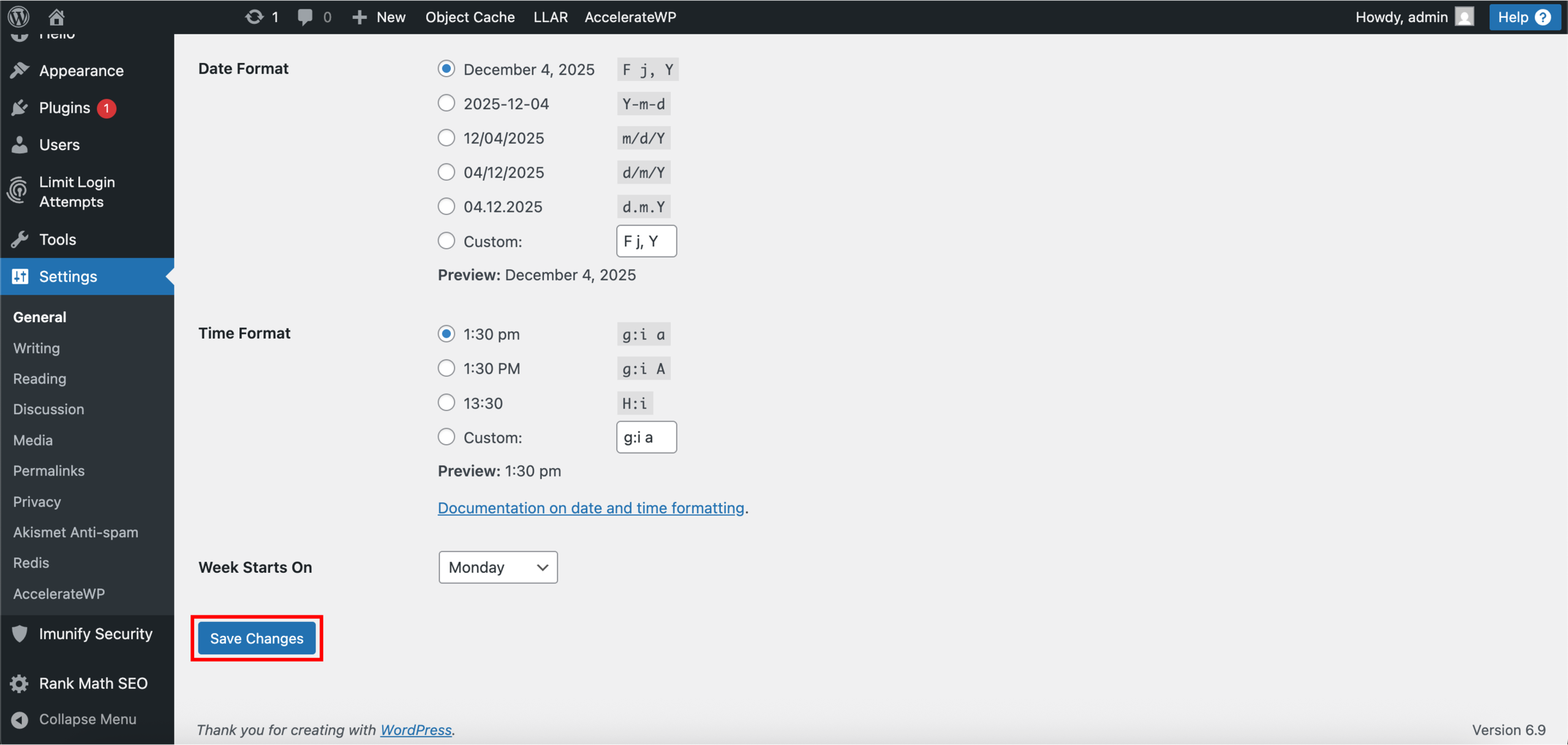
2. Once redirected to the General Settings page, locate the Administration Email Address field. Replace the default email with your own active email. Once done, scroll down and click Save Changes.
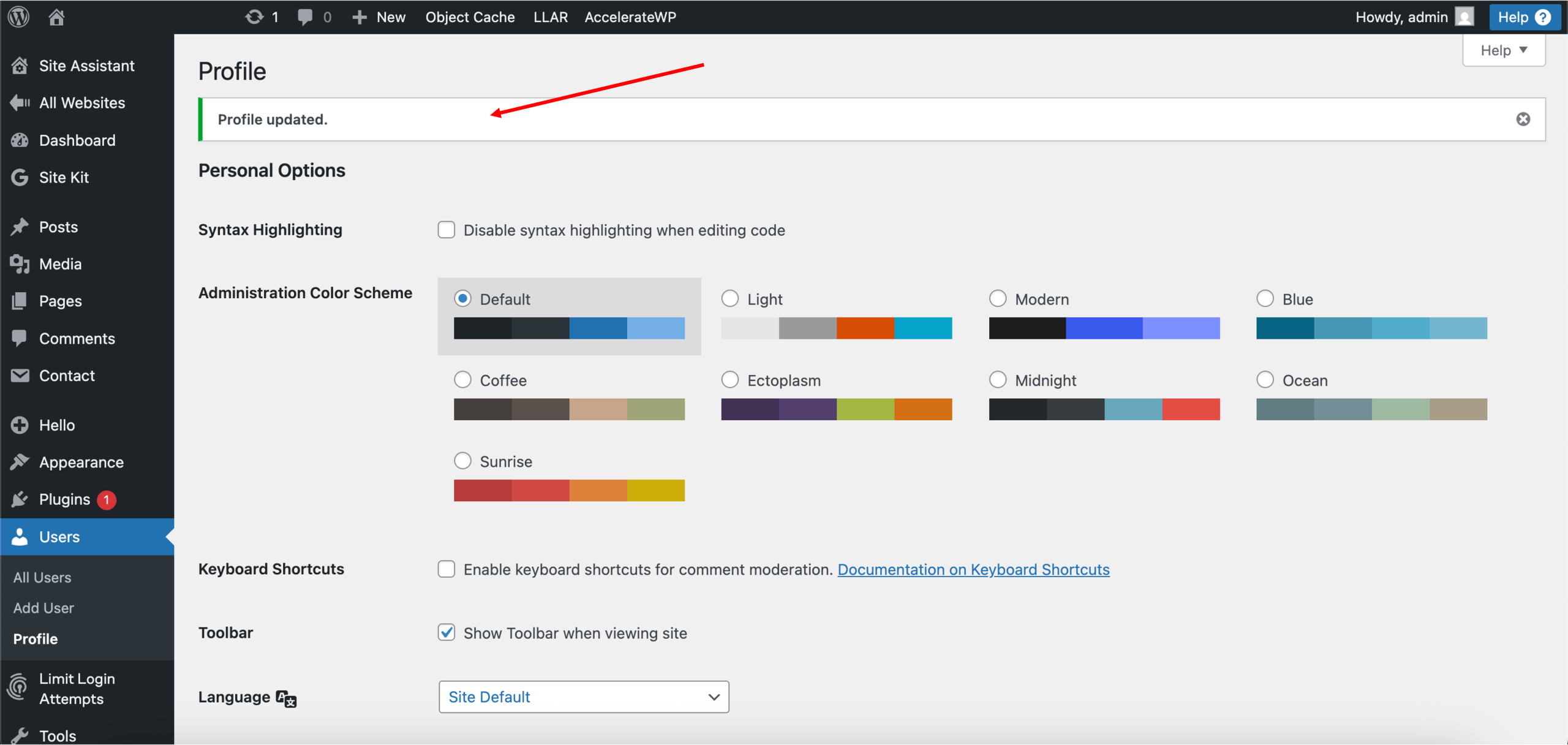
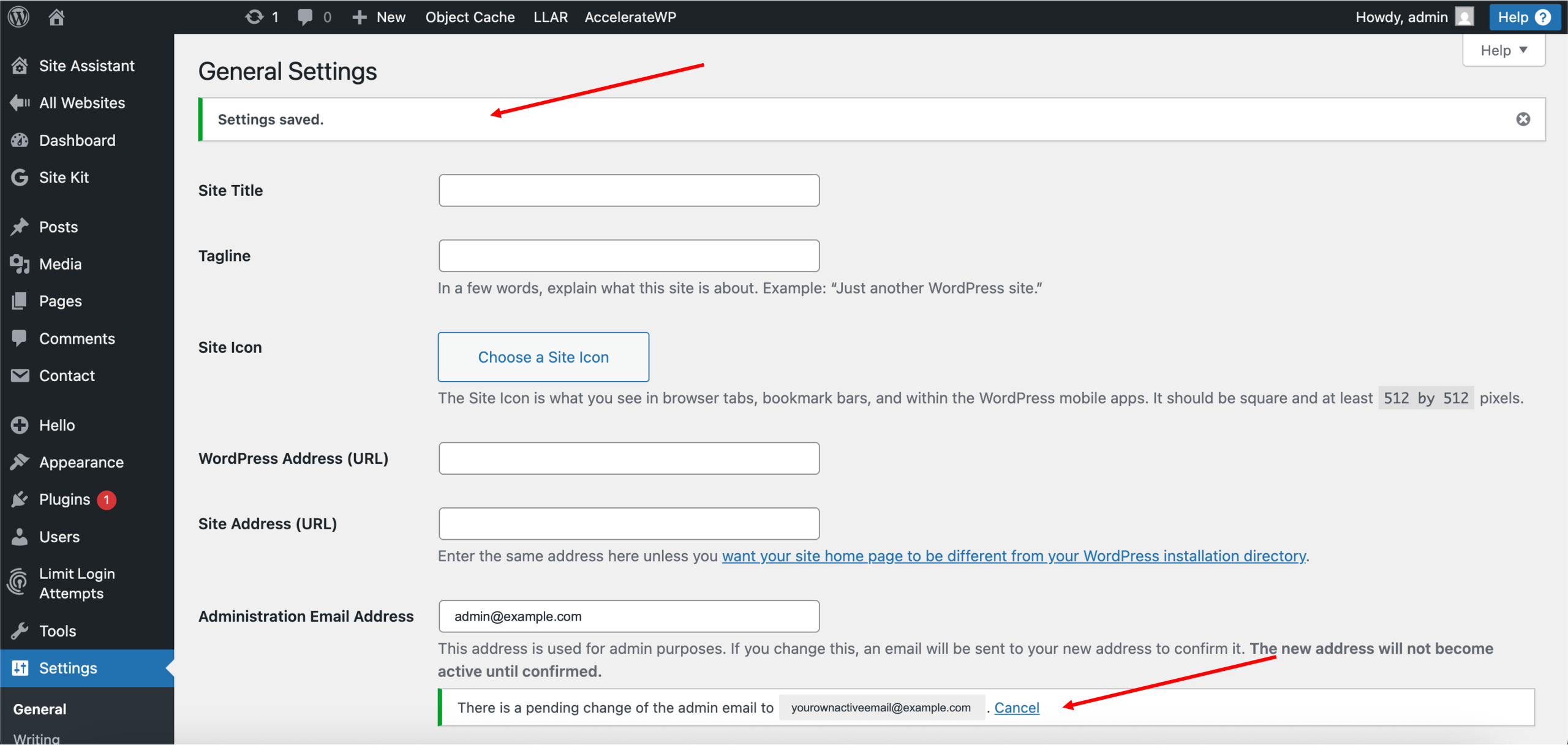
3. Done! Successfully updating the default email address to your own active email should look like the following, with the settings saved and pending change of the admin email prompts.
4. WordPress will send a confirmation email to the new address. Your update will only take effect after you approve the confirmation. You should receive an email from WordPress with the Subject: [Email Change Request].
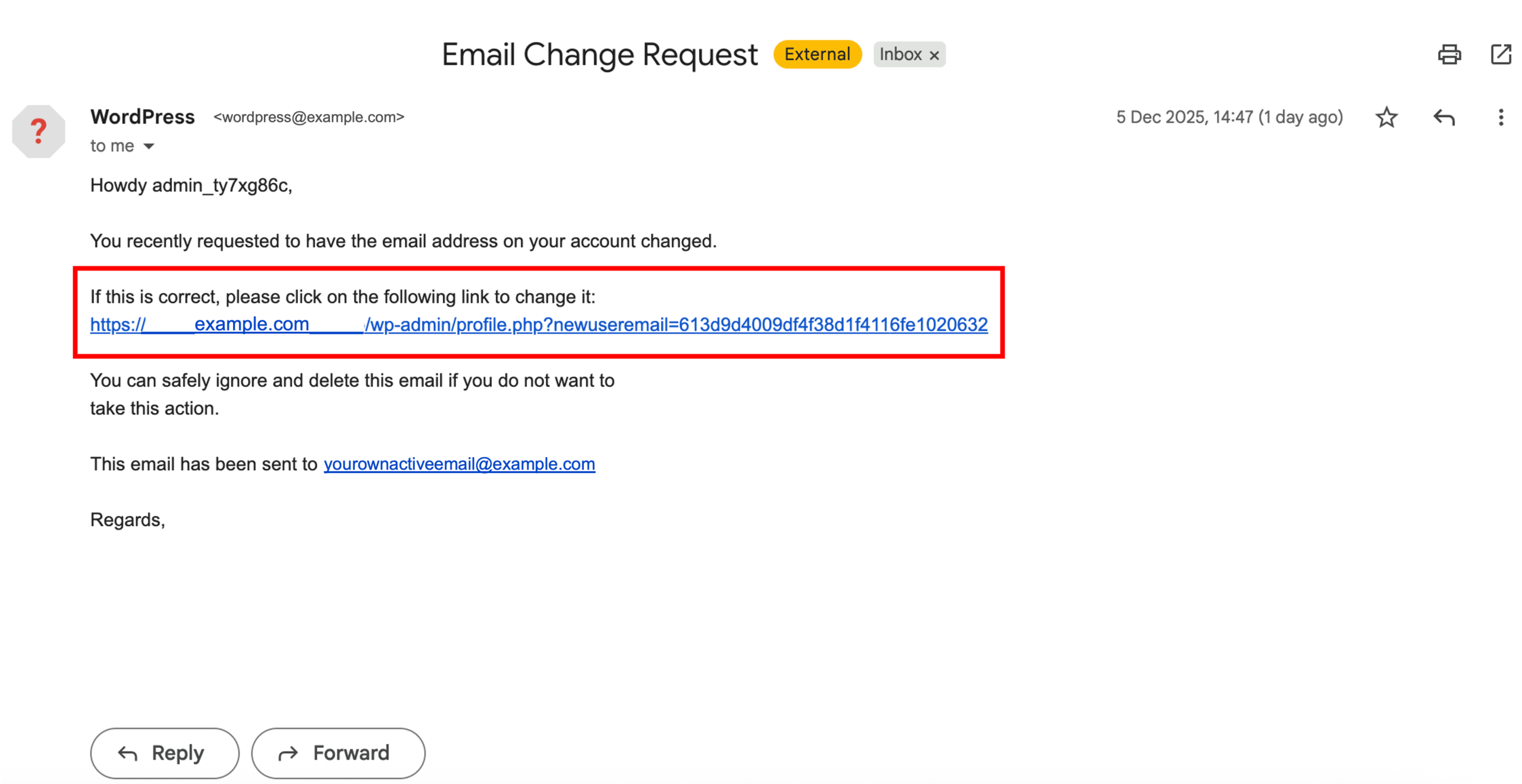
Note: To approve the confirmation, click on the provided link.
• If you are redirected to the WordPress admin dashboard, the verification has been completed successfully, and the email update is applied.
• If you are redirected to the WordPress login page, please log in using your previous admin email address or username to complete the verification process.
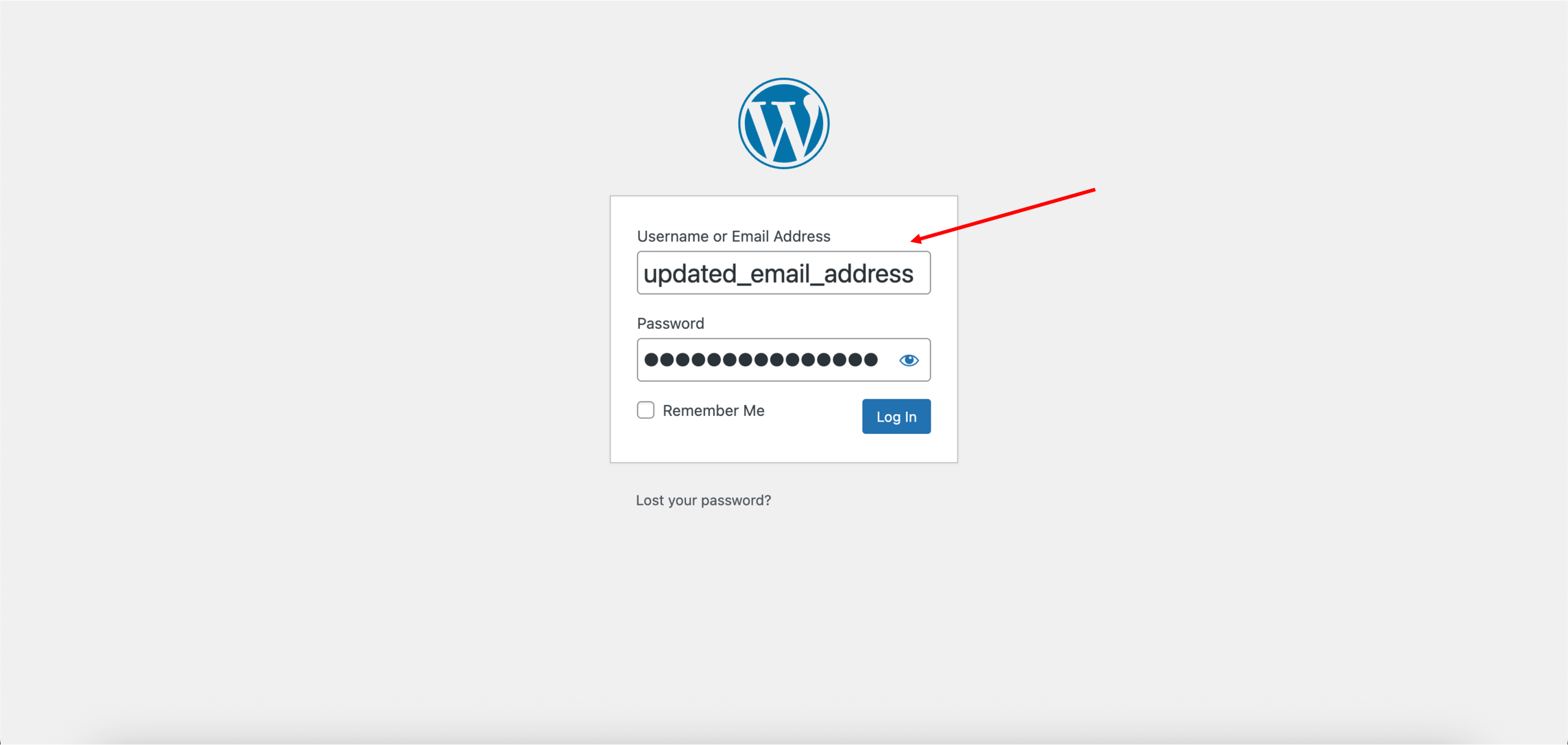
3. Set your WordPress password
A password must be set before your first login. You can do this through your WordPress admin dashboard.
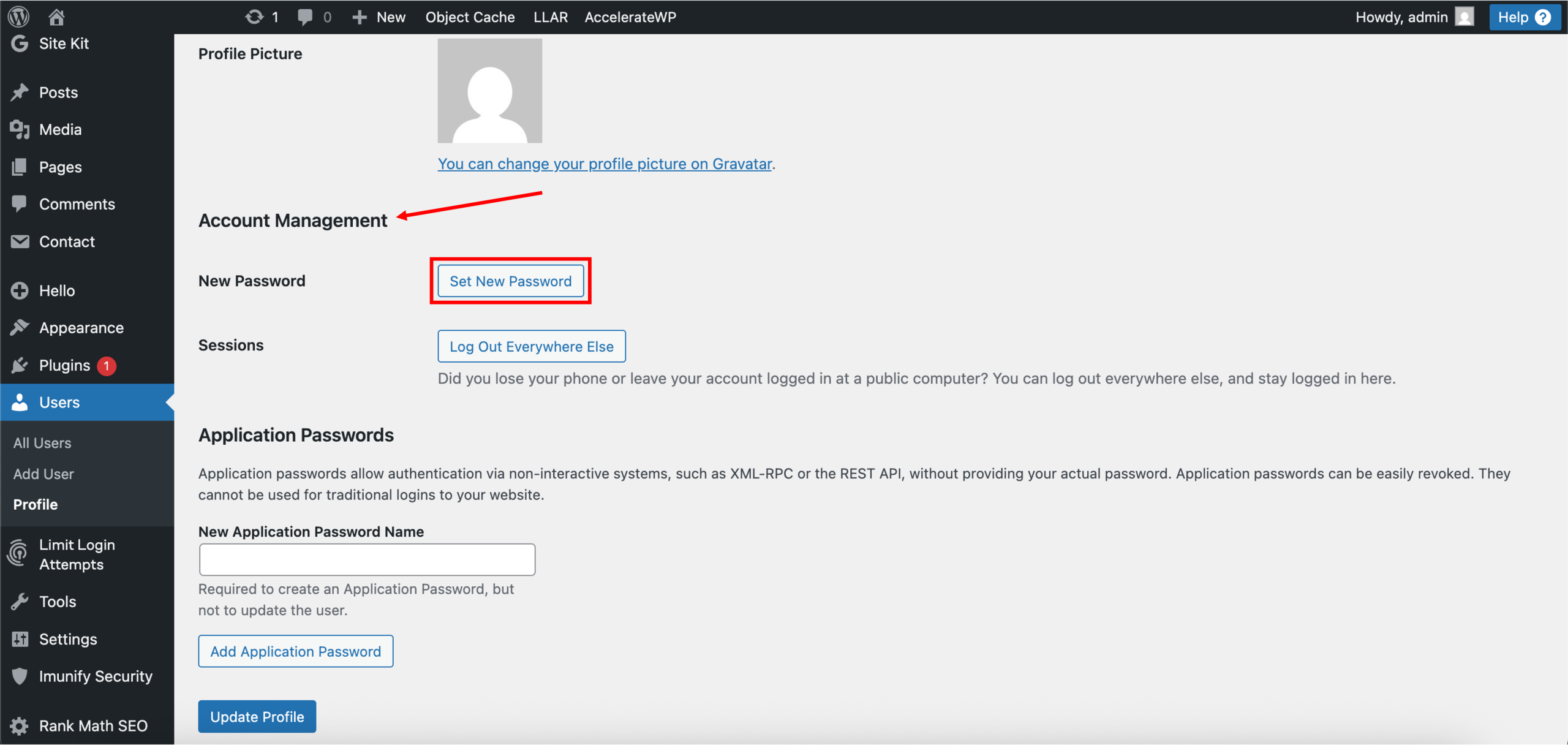
1. Similar to part 1, on the Profile page, scroll down to the Account Management section. Here, you will find the option to Set New Password.
2. Enter your new password in the field. Once done, click Update Profile.
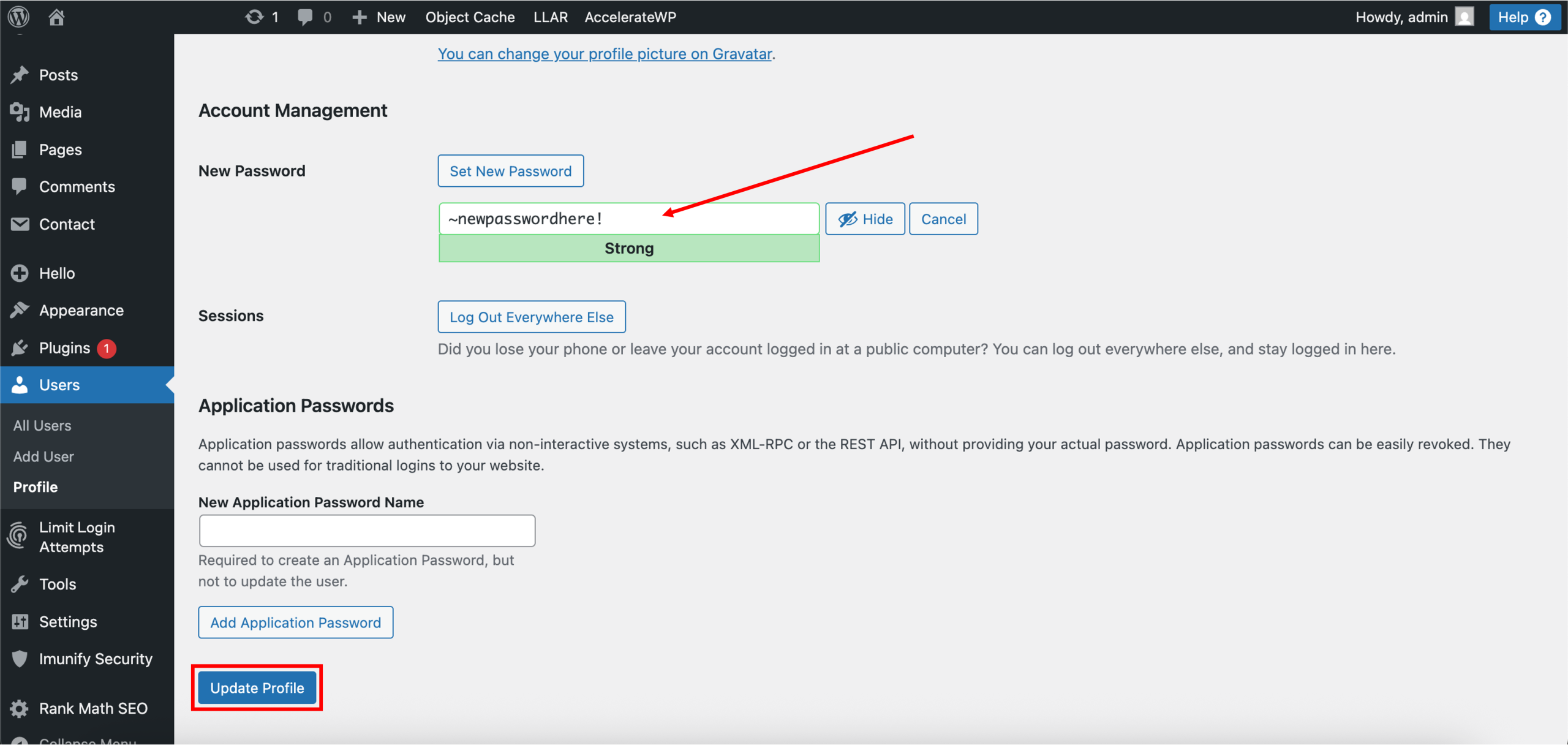
3. Done! Successfully setting your WordPress password should look like the following, with the profile updated prompt.