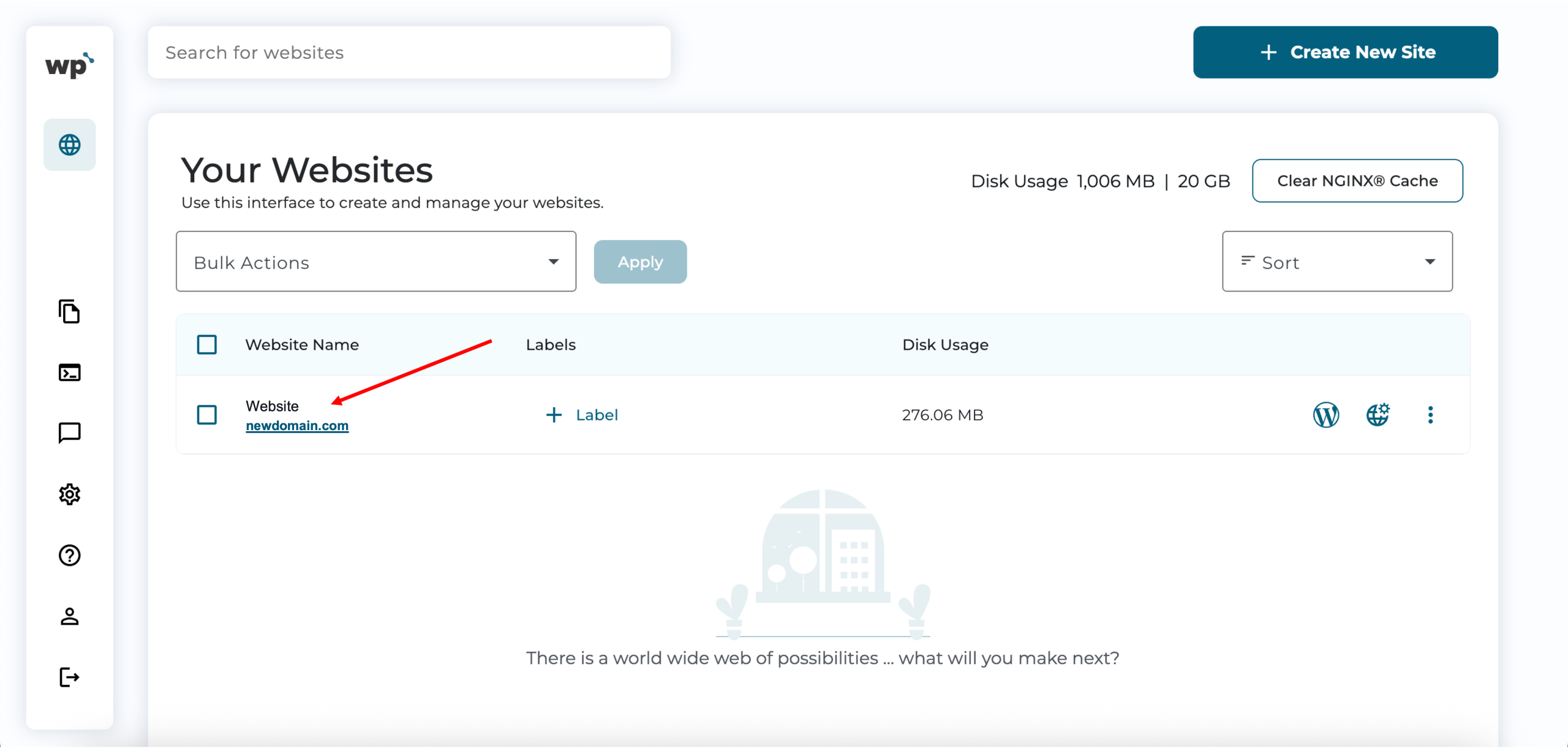
Example :
How to set up an email or change my account settings.
- Help Center
- WordPress Hosting
- Getting Started
- How to change the domain name for your WordPress website
How to change the domain name for your WordPress website
Changing the domain name of your WordPress website lets you replace the current domain with a new one, such as when rebranding or switching to a different domain you own.
This guide explains how to change the domain name linked to your WordPress website using the WP Squared dashboard, and what to expect before and after making the change.
Note:
• The primary domain of your WordPress website cannot be deleted. Instead, it will be replaced with a new domain.
• The new domain must already be owned by you and correctly set up before changing it in WP Squared. Ensure that the domain’s nameservers are set to ns-wh1.web.z.com and ns-wh2.web.z.com.
• Changing the domain updates how visitors access your website, but does not create a new WordPress installation.
• After changing the domain, you may need to allow some time for the change to take effect.
1. Go to our Sign-in page.
2. Enter your Email Address and Password, and proceed to log in.
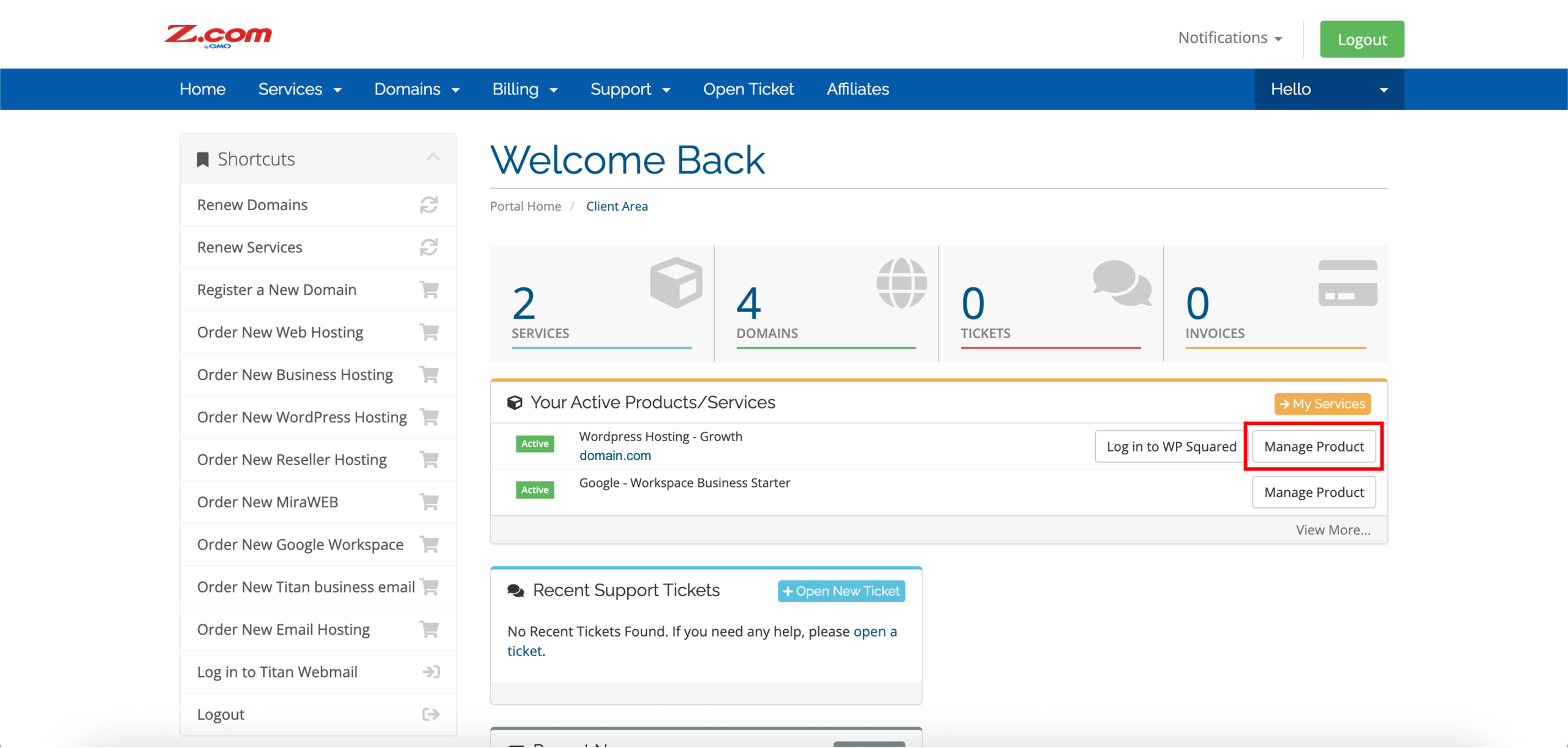
3. Aligned with your WordPress Hosting service, click Manage Product.
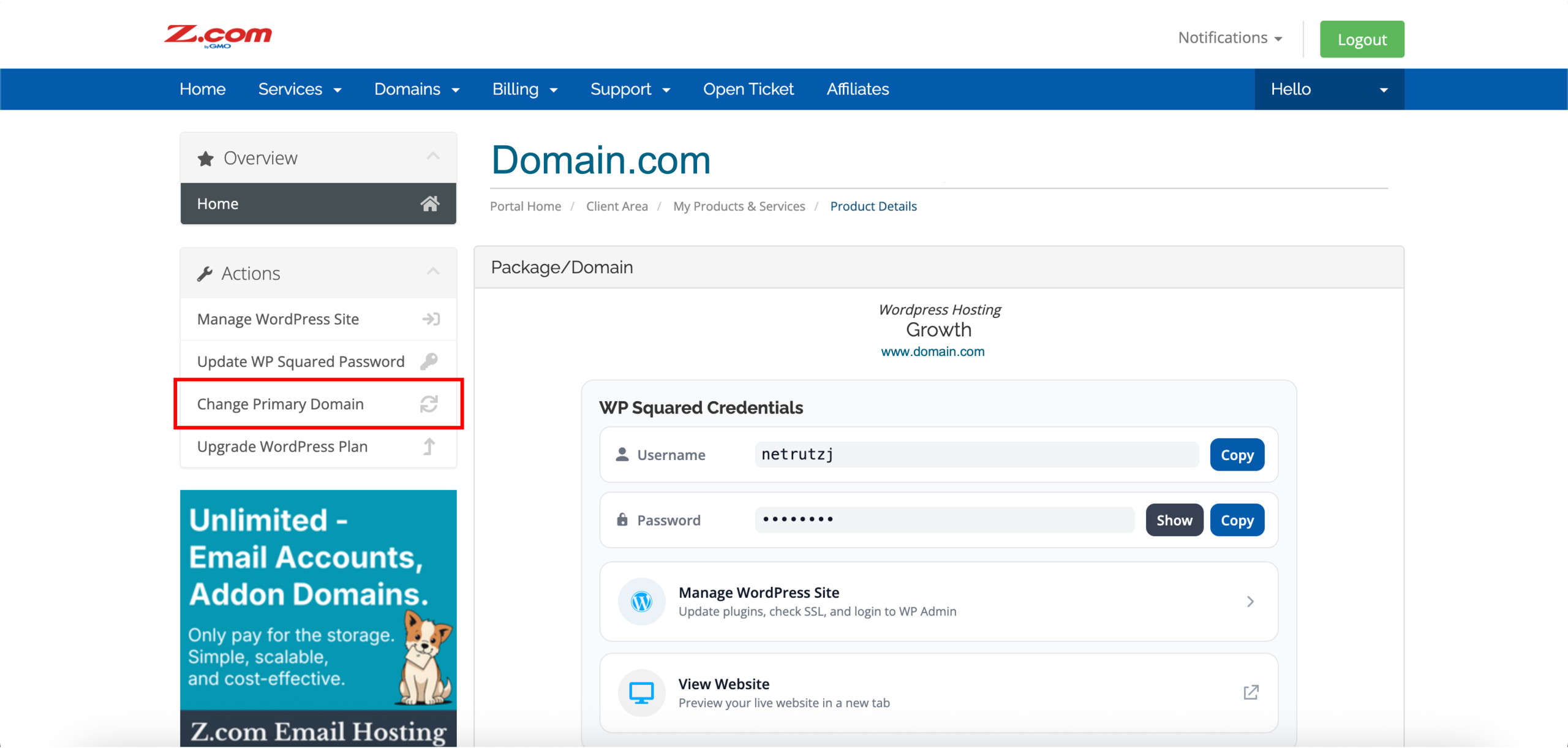
4. Click Change Primary Domain on the left side under Actions. A new tab will appear, redirecting you to the WP Squared dashboard.
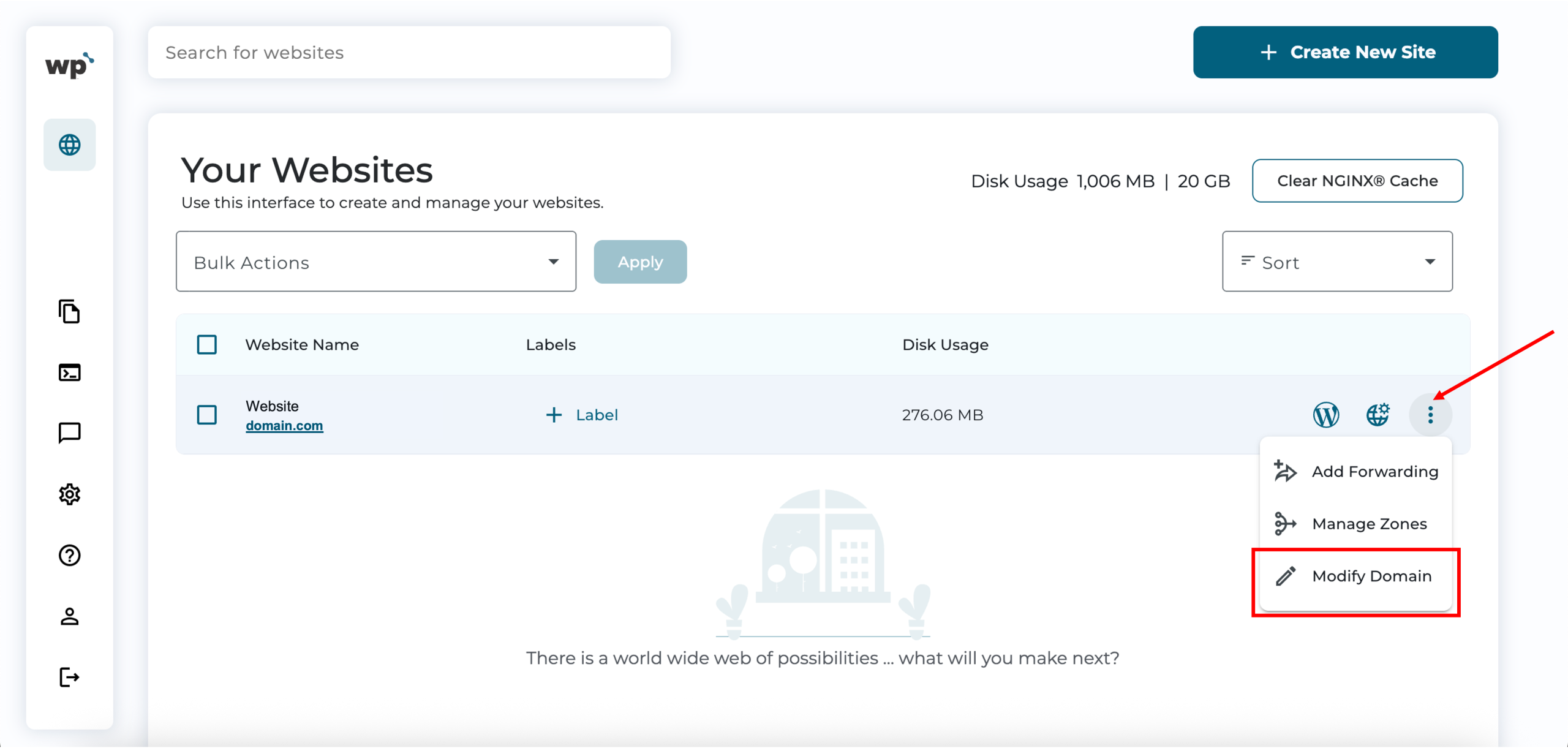
5. Select the vertical ellipsis (⋮) option next to the website you wish to change the domain name for, then click Modify Domain.
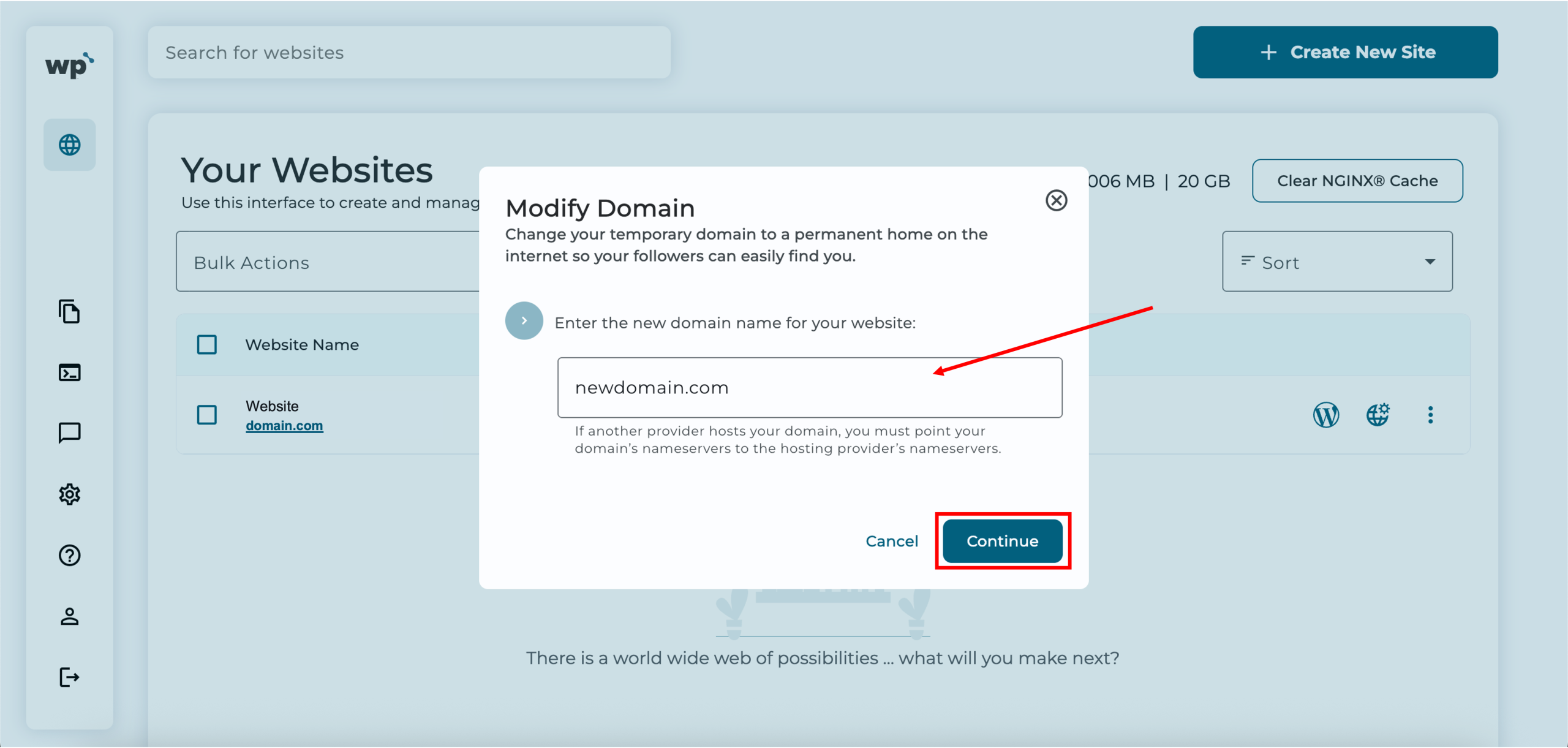
6. Enter the new domain name for your website. Once done, click Continue.
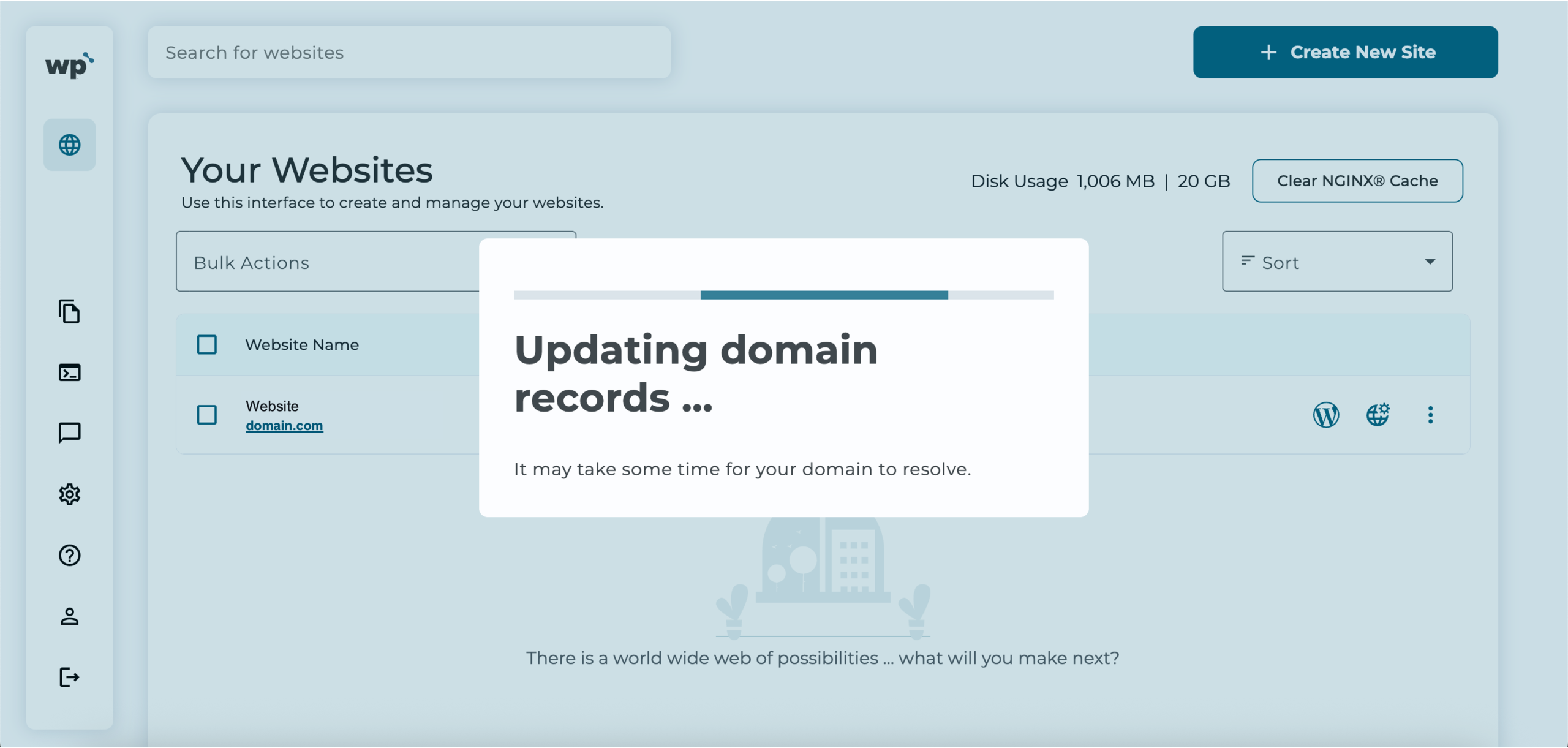
7. Done! Successfully changing the domain name will look like the following, with the new domain name listed under the WordPress website linked to it.