
Example :
How to set up an email or change my account settings.
- Help Center
- WordPress Hosting
- Getting Started
- Exploring WP Squared Dashboard
Exploring WP Squared Dashboard
The WP Squared Dashboard puts all the essential tools and features for managing your WordPress website in one convenient place. From handling plugins and themes to managing DNS settings or restoring backups, it makes website management faster, simpler, and more efficient. This article will help you get familiar with the most commonly used features and tools.
Table of contents
1. One-click login
Instantly access your WordPress admin without entering credentials.
What it is:
One-click login is a feature that lets you access your WordPress admin dashboard instantly without having to enter your username or password each time.
Why it is useful:
It saves time and makes website management more convenient, especially if you manage multiple websites. You will not have to remember or type credentials, reducing the risk of mistyping and login errors.
How to use it:
1. Log in to your WP Squared dashboard.
2. Locate the website you want to access in your website list.
3. Click the Log in to WordPress Admin option next to that website.
4. You will be taken directly to the WordPress admin dashboard, no credentials needed.
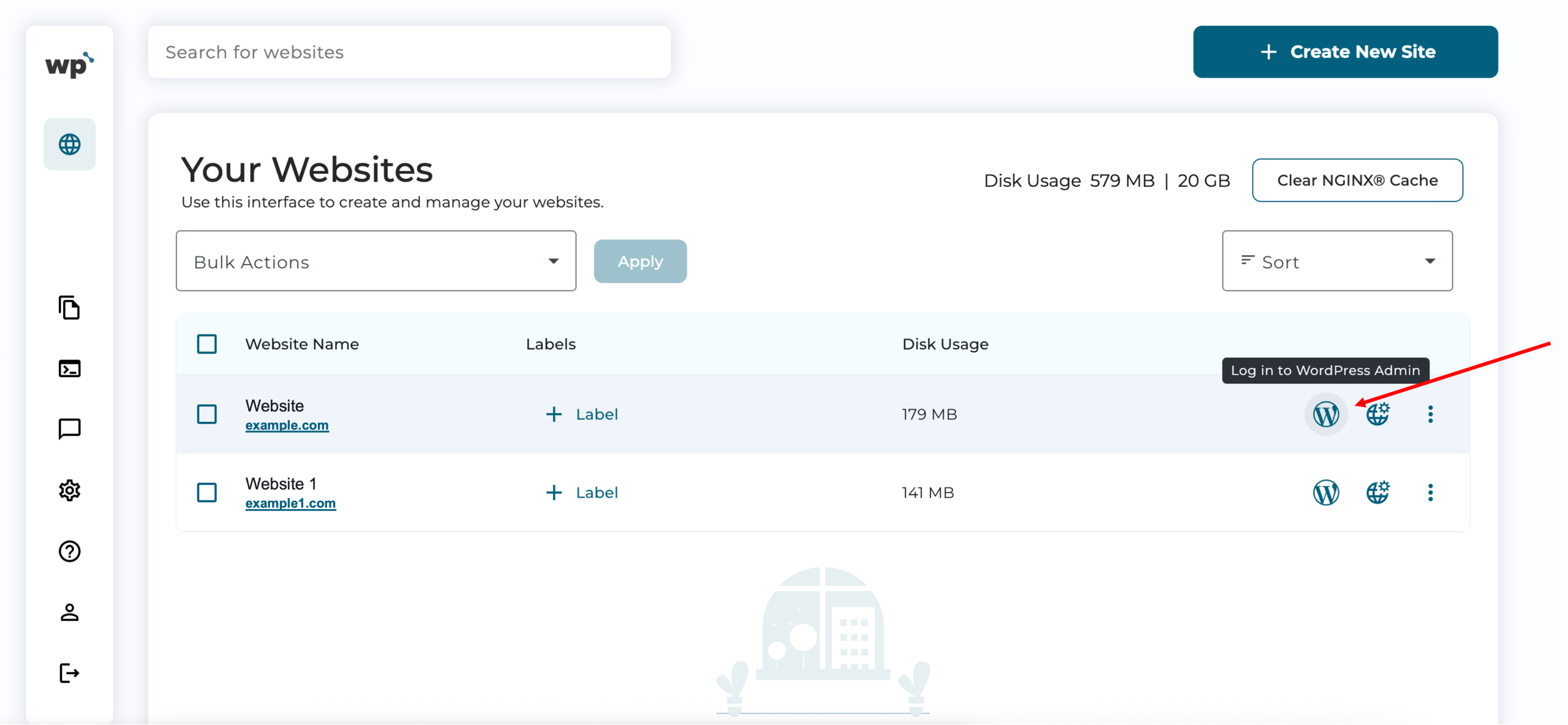
You can also click here for a guide on how to access your WordPress admin dashboard.
*Tip: Make sure you are using a secure device, since one-click login bypasses the standard login form for convenience.
2. Maintenance mode
Temporarily display a maintenance message to visitors while you work on your website.
What it is:
Maintenance mode is a feature that allows you to temporarily replace your website content with an “under maintenance”, “in development”, or “coming soon” landing page while you make updates, perform maintenance, or redesign parts of it. Visitors will see a friendly message instead of your regular website content.
Why it is useful:
It prevents visitors from seeing unfinished changes, reduces confusion, and ensures your website looks professional even while updates are in progress.
How to use it:
1. Log in to your WP Squared dashboard.
2. Locate the website you want to manage in your website list.
3. Click the Manage Website option next to that website.
4. Click the Maintenance Mode option next to the website title.
5. Customise the maintenance message if needed.
6. Activate it. Your visitors will now see the maintenance page until you disable it.
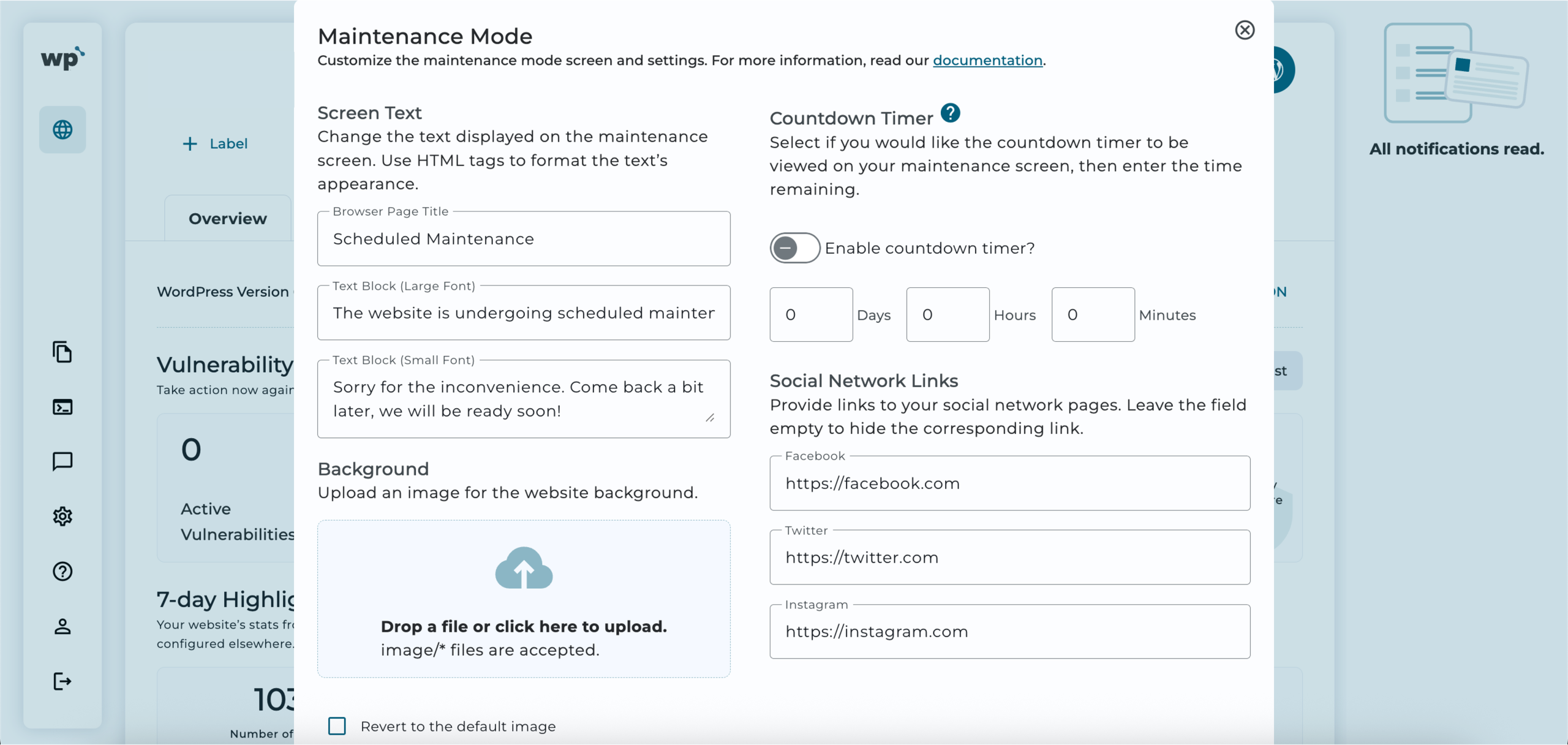
*Tip: Remember to turn off maintenance mode once your updates are complete so your website is visible to visitors again.
3. Manage plugins and themes
Easily install, update, and manage your plugins and themes.
What it is:
This feature lets you handle all your WordPress plugins and themes from the WP Squared dashboard. You can install new ones, update existing ones, or deactivate and delete them as needed without having to log in to your WordPress admin every time.
*Note: Plugins and themes are provided by third-party companies or developers. You may choose to use either the free or paid versions.
Why it is useful:
Keeping plugins and themes up to date improves your website’s performance, security, and appearance. Managing them from the dashboard saves time and keeps everything organised in one place.
How to use it:
1. Log in to your WP Squared dashboard.
2. Locate the website you want to manage in your website list.
3. Click the Manage Website option next to that website.
4. Click Theme or Plugins accordingly.
5. From here, you can:
• Install new plugins or themes.
• Update existing ones.
• Activate, deactivate, or delete plugins and themes.
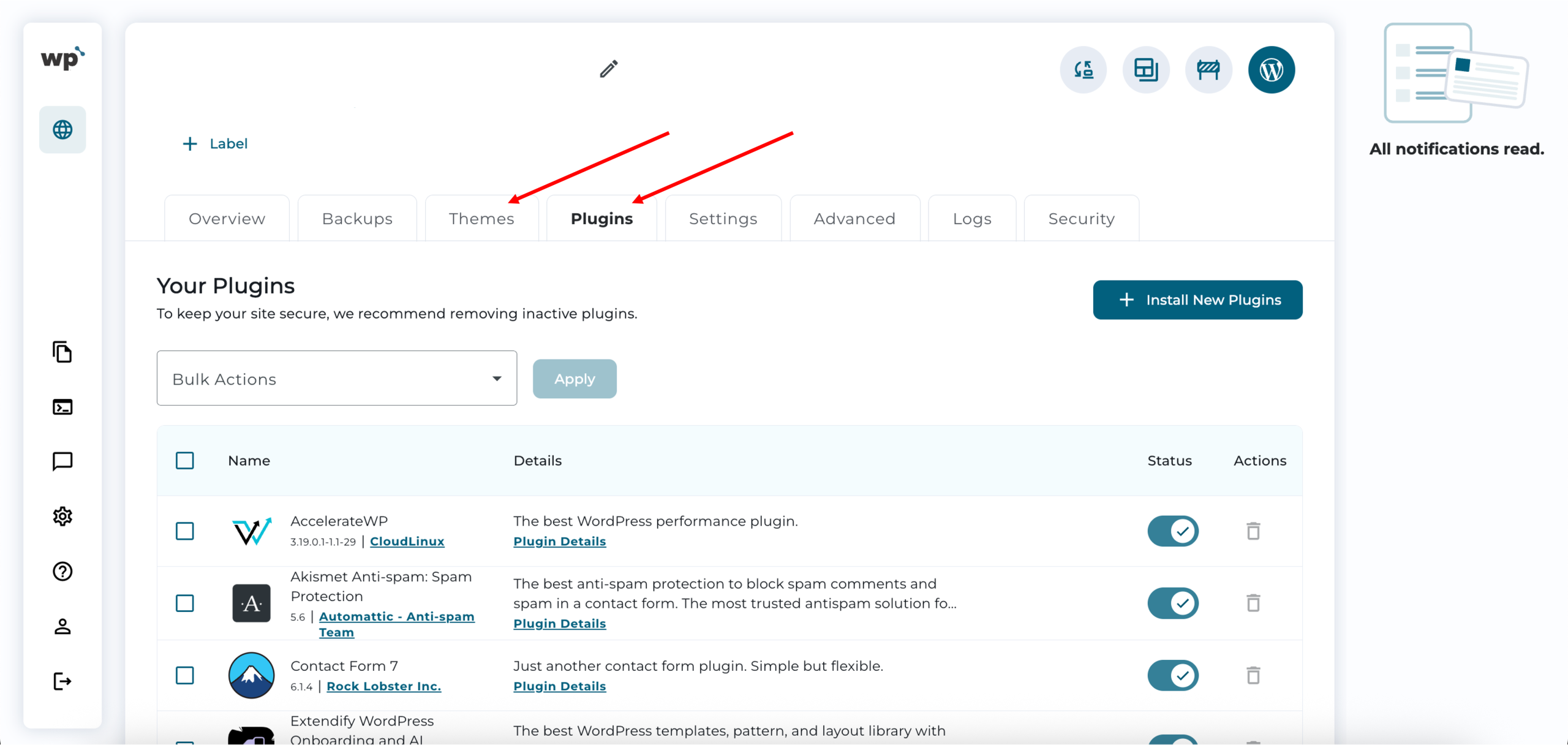
*Tip: Regularly update your plugins and themes to keep your website secure and running smoothly.
4. DNS editor and management
Configure and manage your domain settings directly from the dashboard.
What it is:
The DNS editor lets you manage your domain name settings, such as A records, CNAMEs, MX records, and more, all from the WP Squared dashboard. This means you can control where your domain points and how your email or website functions.
Why it is useful:
Proper DNS management ensures your website is accessible, your emails work correctly, and any domain-related changes take effect quickly. Managing DNS from the dashboard saves time and reduces the chance of errors.
*Note: DNS management in this area applies only to addon domains under our Growth and Pro plans. To update DNS records for the main domain, please use the DNS Management section in your Z.com Client Area. You can also refer to our guide on editing your domain’s DNS.
How to use it:
1. Log in to your WP Squared dashboard.
2. Locate the website you want to manage in your website list.
3. Click the Manage Website option next to that website.
4. Click Advanced.
5. Click Zone Editor.
6. Make the necessary changes to your DNS records (e.g., add, edit, or remove records).
7. Save your changes. DNS updates may take some time to propagate globally.
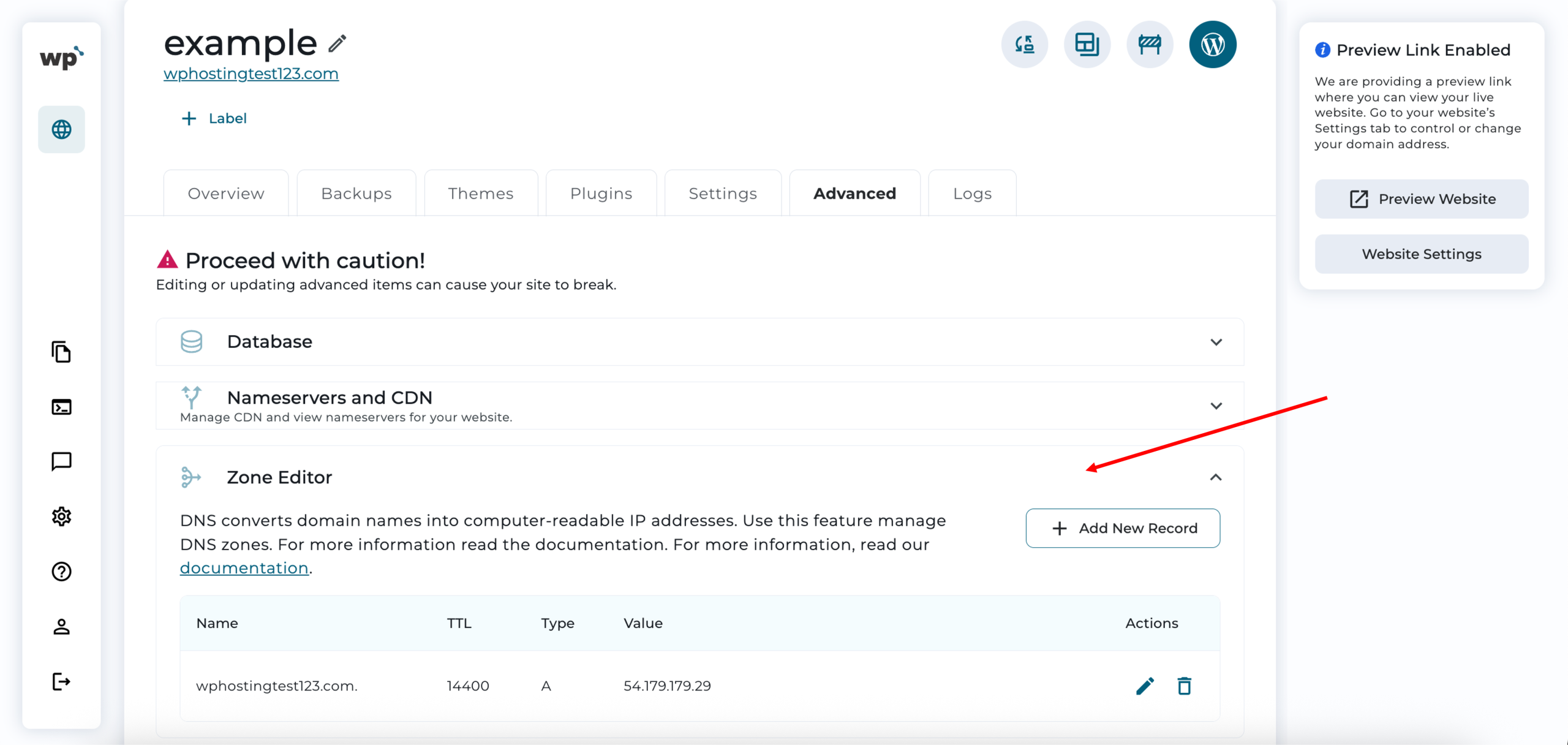
*Tip: Only make changes to DNS records if you are familiar with domain management, or consult your domain provider for guidance to avoid website downtime.
5. Create a new WordPress website (available on higher plans)
Quickly set up additional WordPress websites.
What it is:
This feature lets you create a new WordPress website directly from your WP Squared dashboard. You can choose the website name, domain, and basic setup options without manually installing WordPress.
Why it is useful:
It saves time and simplifies website creation, especially if you manage multiple websites or want to launch a new project quickly. No technical installation steps are required.
How to use it:
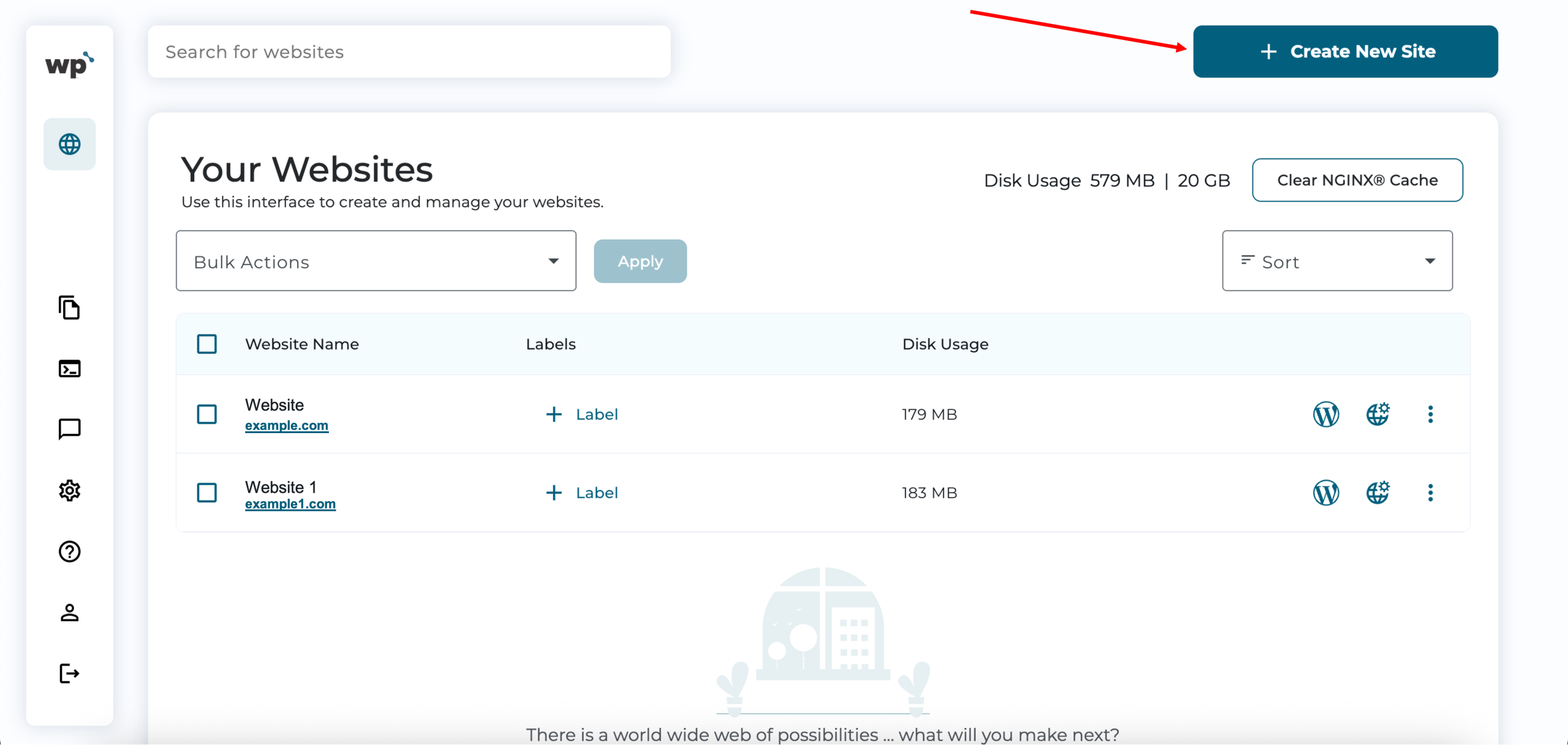
1. Log in to your WP Squared dashboard.
2. Click + Create New Site.
3. Select the Choose a domain later option or enter a domain you would like to use.
4. Name your website.
5. Choose a template.
6. Click Continue. Your new WordPress website will be ready in a couple of minutes.
*Tip: Make sure your plan allows creating additional websites, and check your domain settings if using a custom domain.
6. Uploading database
Import your database efficiently to your WordPress website.
What it is:
The upload database feature lets you upload a database file (commonly .sql) directly from your WP Squared dashboard. This is useful when migrating a website or restoring content from a backup.
Why it is useful:
It simplifies database management by allowing you to import your website’s data without external tools. This ensures a smooth migration or recovery process.
How to use it:
1. Log in to your WP Squared dashboard.
2. Locate the website you want to manage in your website list.
3. Click the Manage Website option next to that website.
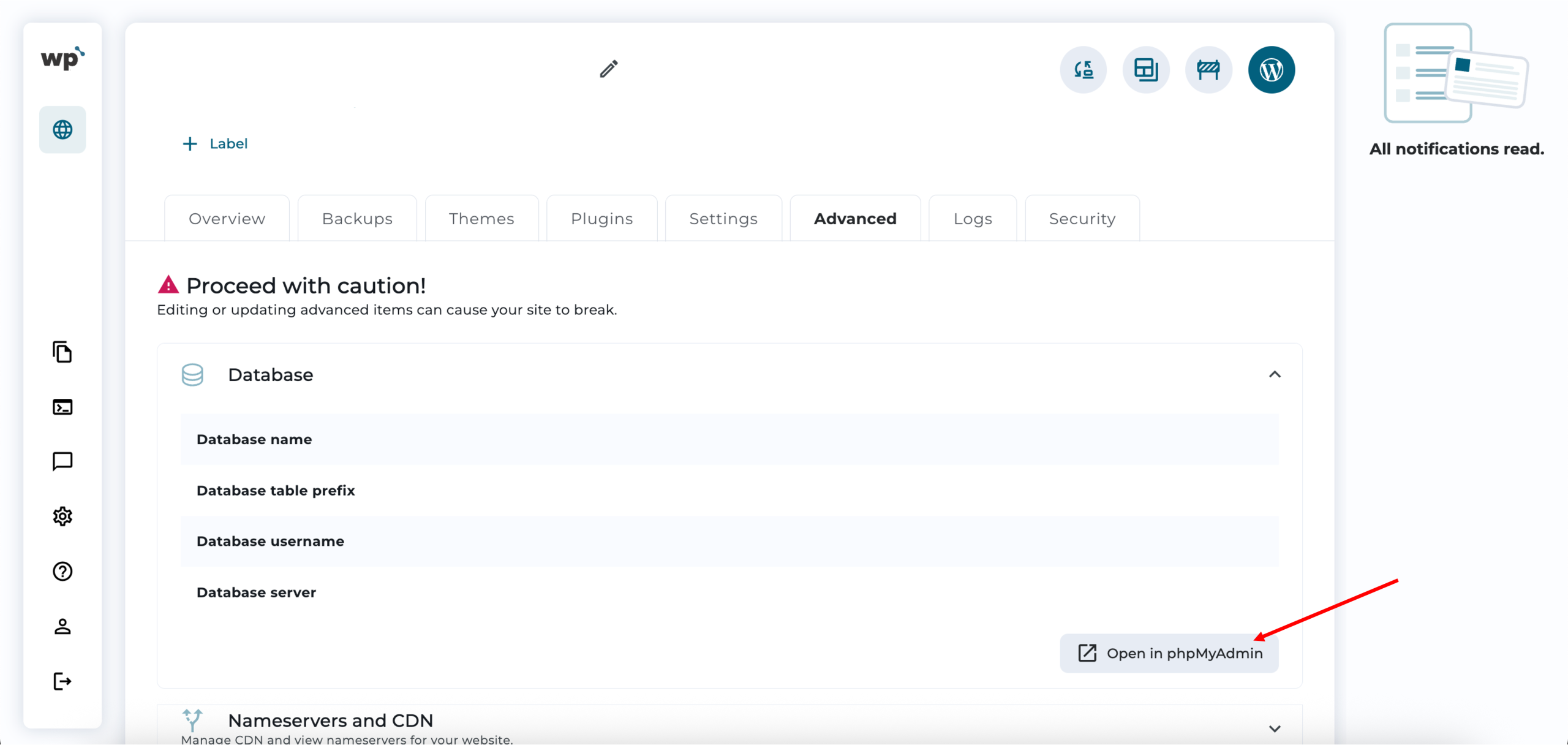
4. Click Advanced.
5. Click Database.
6. Click Open in phpMyAdmin.
7. In phpMyAdmin, select the database associated with your WordPress website from the left-hand panel.
• Note: If you are importing a new database to an existing website, consider whether you need to empty the existing database tables first to avoid conflicts.
8. Click Import at the top of the phpMyAdmin interface and choose the database file from your computer.
9. Confirm the upload and wait for the process to complete.
*Tip: Always back up your current database before uploading a new one to prevent accidental data loss.
7. Restore backup
Quickly restore your website to a previous state using a backup.
What it is:
The restore backup feature lets you restore your WordPress website to a previous state using an existing backup. This includes all your website content, plugins, themes, and database settings.
Why it is useful:
It provides a safe, reliable way to recover your website in the event of errors, failed updates, or data loss, without manually handling database files.
How to use it:
1. Log in to your WP Squared dashboard.
2. Locate the website you want to manage in your website list.
3. Click the Manage Website option next to that website.
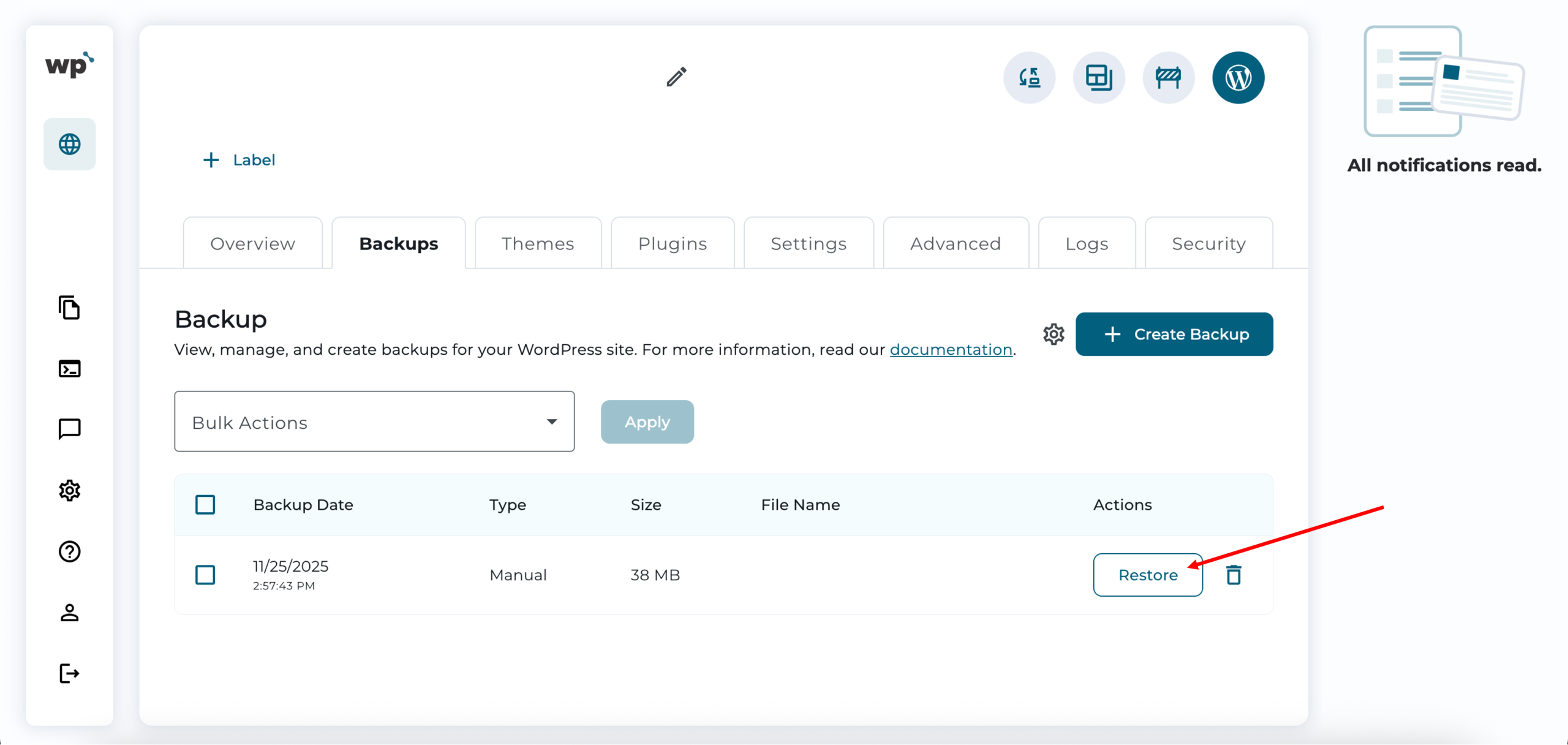
4. Click Backups.
5. Select a backup from the list (by date and time) and click Restore.
6. Wait for the process to complete. Your website will now be restored to that backup state.
*Tip: Always back up your current website before restoring an older backup to avoid losing recent changes.
Conclusion
The WP Squared dashboard makes managing your WordPress websites easier, faster, and more convenient. From one-click login to backup restoration, these tools and features give you the control you need without the technical headaches. Explore each feature, get familiar with the dashboard, and enjoy a smoother WordPress experience!
Ready to get started?
If you do not have a WordPress website yet or want to try WP Squared for yourself, check out our WordPress hosting plans page. We offer three different plans to suit beginners and advanced users alike, so you can choose the one that fits your needs and start building your website in minutes, enjoying the full WP Squared experience.