
Example :
How to set up an email or change my account settings.
- Help Center
- Cloud VPS
- Getting Started
- How to Create an Auto-Generated SSH Key
How to Create an Auto-Generated SSH Key
An SSH key is a safer way to log in to your server without using a password. You keep a private key file on your computer, and the server keeps a matching public key that only your private key file can unlock.
To generate your SSH key, follow the steps below.
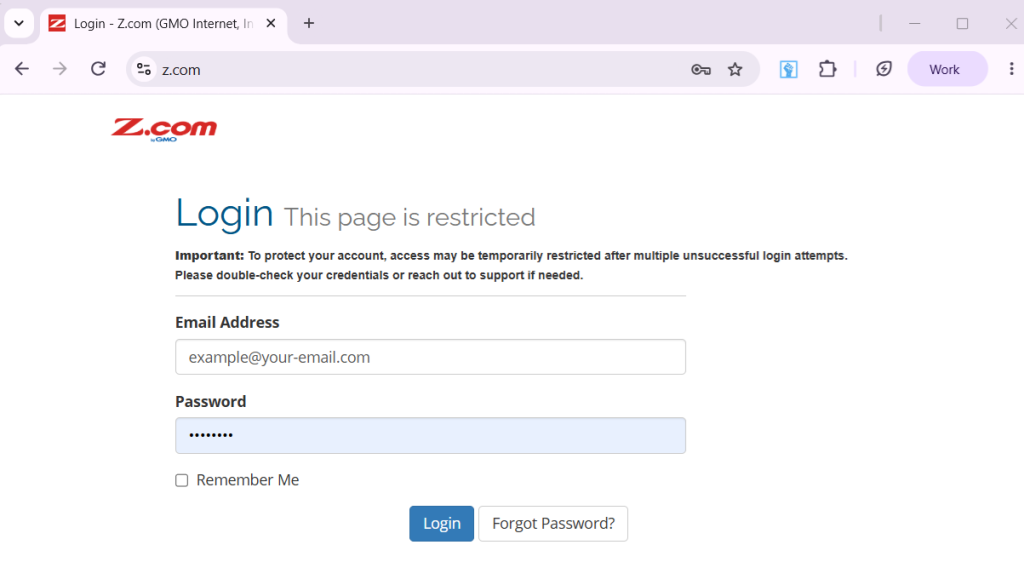
1. Access your account through our Sign-in page, then enter your Email Address and Password and proceed to log in.
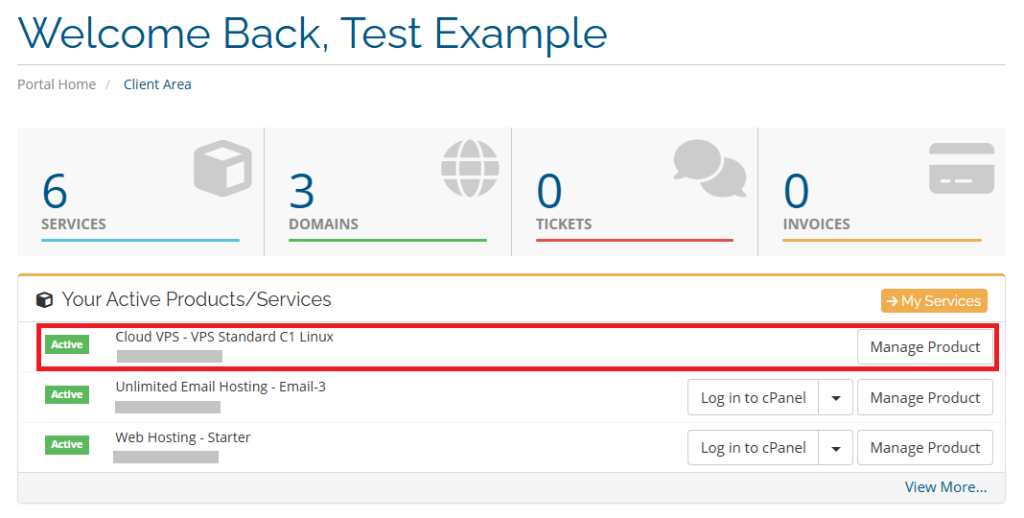
2. In the client area, go to Your Active Products and Services, then click Manage Product beside your Cloud VPS to open it.
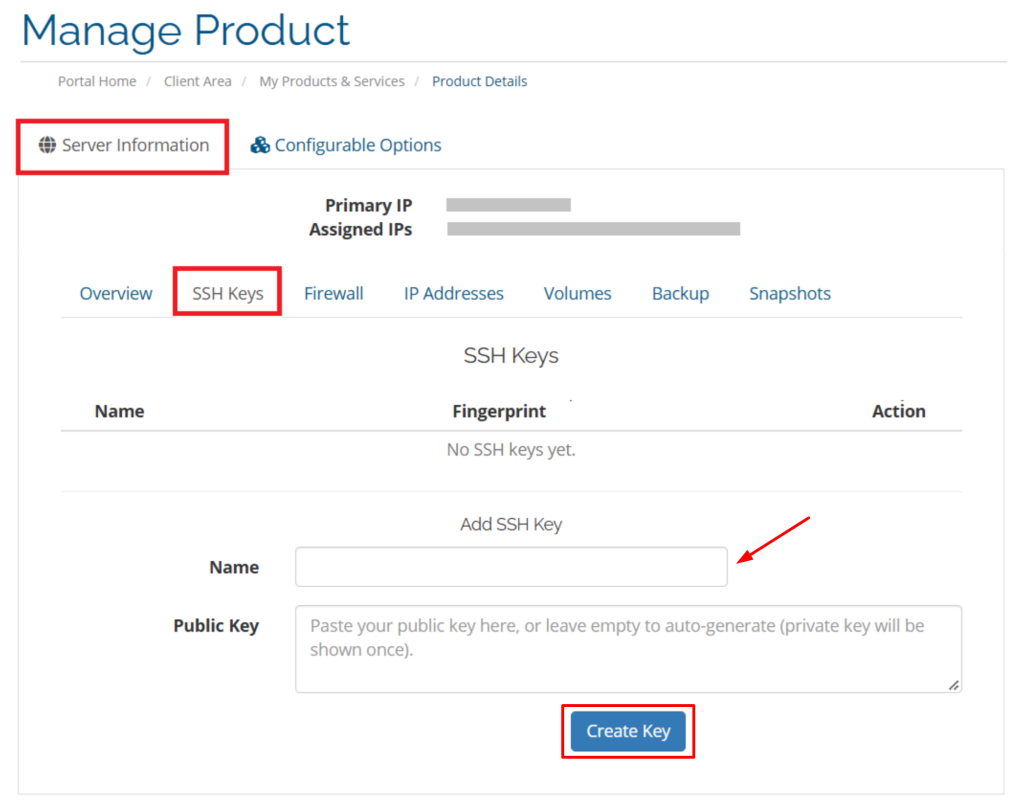
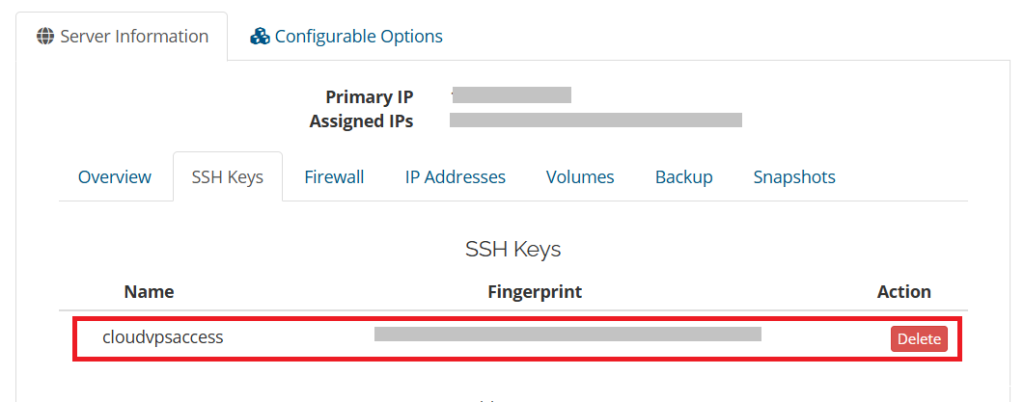
3. On your VPS Manage Product area, under Server Information, click the SSH Keys tab.
Enter any Name for your SSH key. Leave the Public Key field empty, then click Create Key to auto-generated automatically.
4. You will received confirmation once the Private key has been generated.
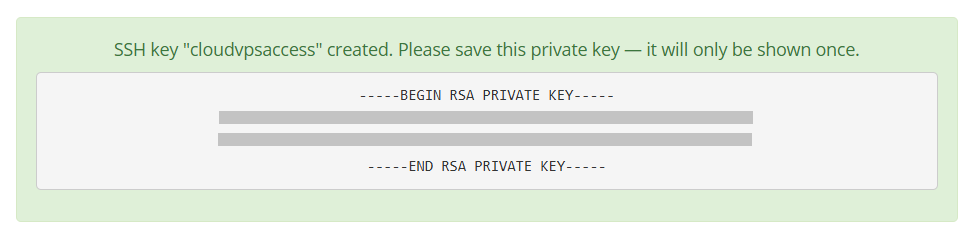
5. Your new SSH key will now appear in the list, and your private key will be shown once.
Note:
• Your private key is shown only once. Copy and store it in a safe place immediately — you won’t be able to view it again after leaving this page.