
Example :
How to set up an email or change my account settings.
- Help Center
- Cloud VPS
- Getting Started
- How to Reset Root Password on Alma Linux 9.x OS
How to Reset Root Password on Alma Linux 9.x OS
This article explains how to reset the root password on a VPS running AlmaLinux 9.x through the console when you can’t log in with your original password. The process uses the GRUB boot menu and recovery mode.
Watch the video below, or follow the written step-by-step guide underneath.
1. Log in to your Client Area and go to your VPS’s management page by clicking Manage Product, then click >_Open VNC Console.
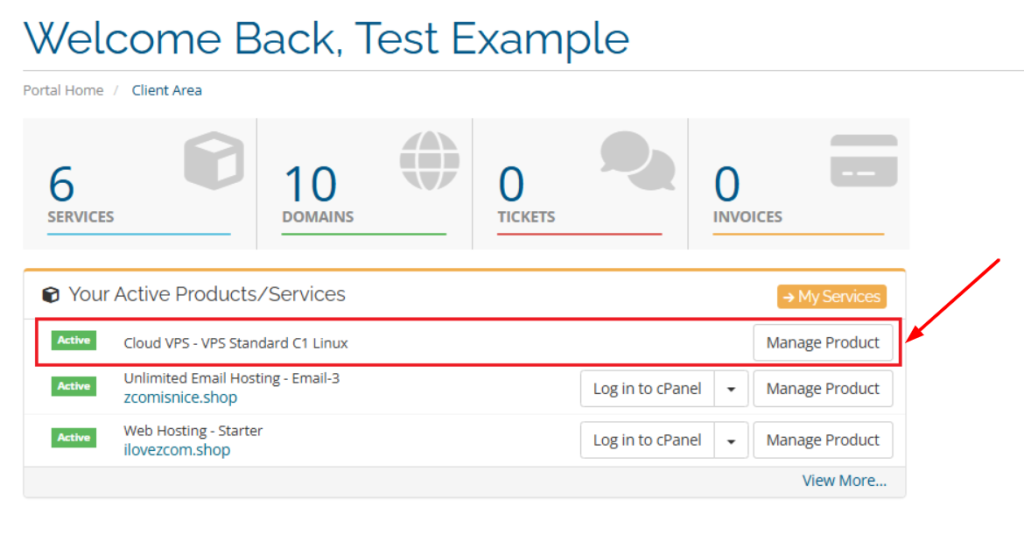
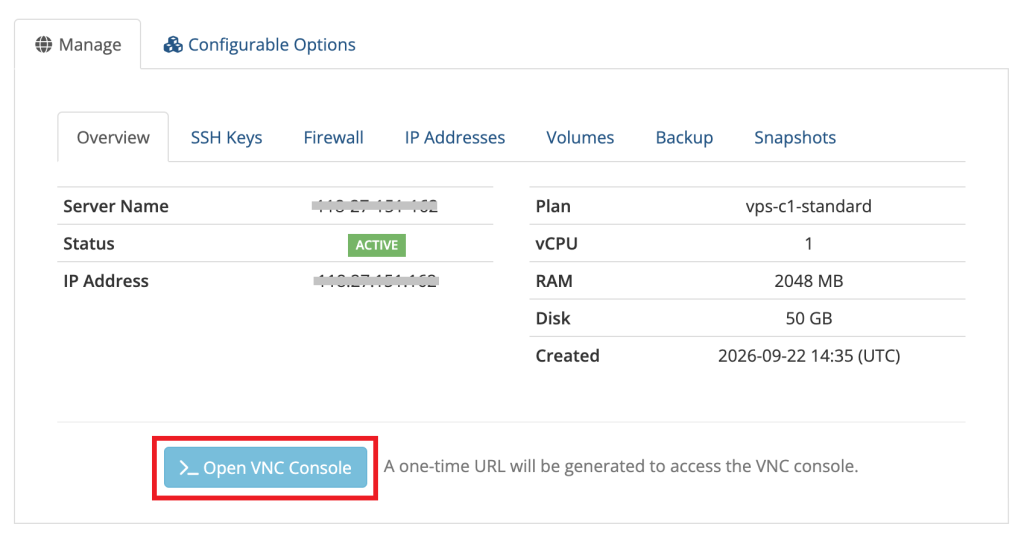
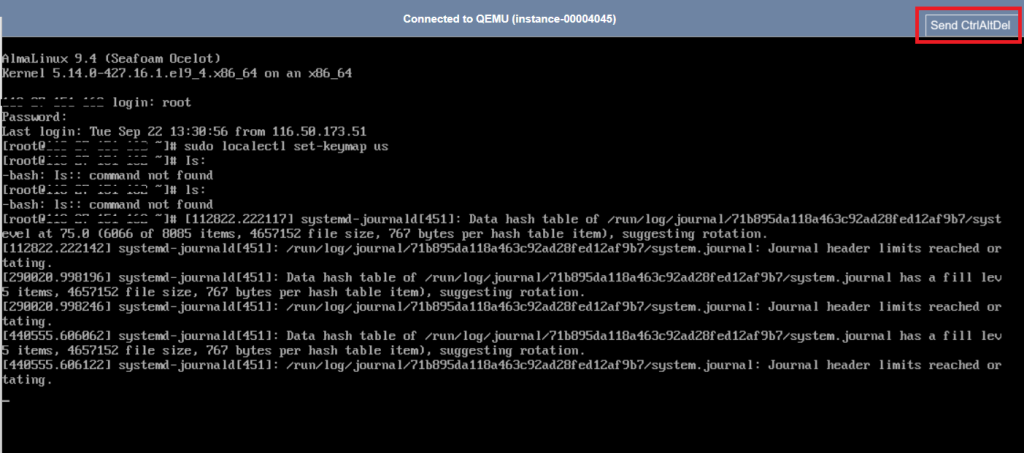
2. On the upper right side Click Ctrl+Alt+Del to restart the server and access the GRUB page.
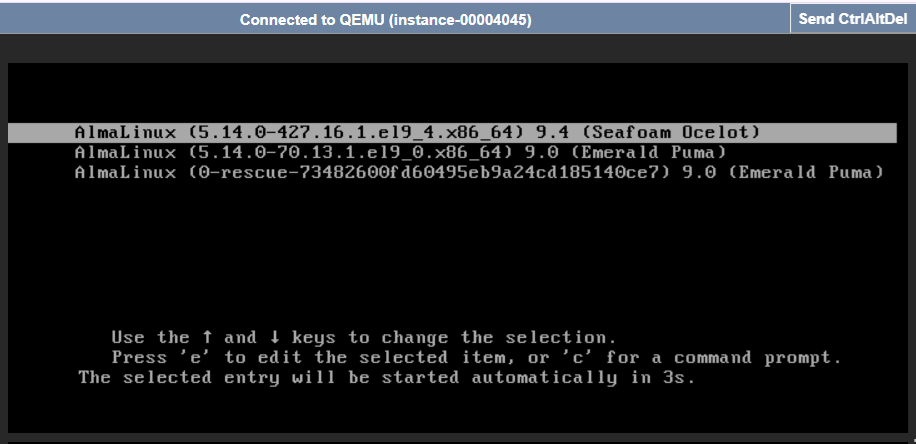
3. Once the server reaches the GRUB interface, use the arrow keys to highlight the kernel entry you want to boot, then press the e key on your keyboard to edit the boot parameters.
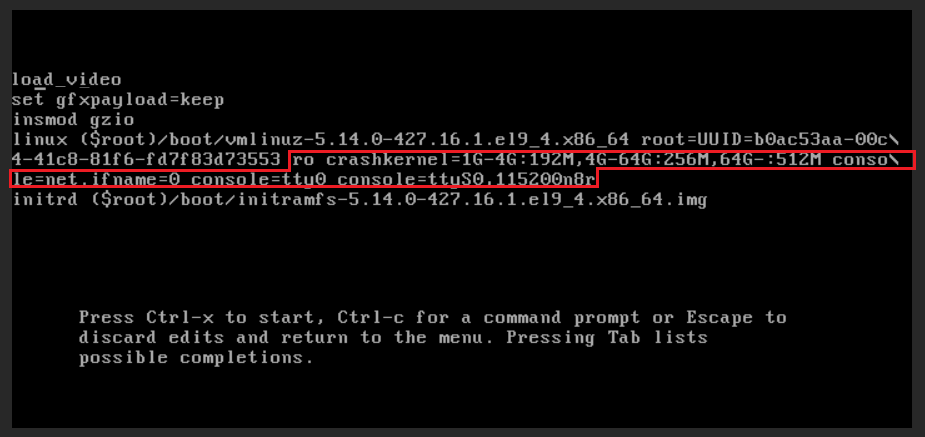
4. Find the line that starts with linux, and delete the text that starts with ro shown boxed in red below.
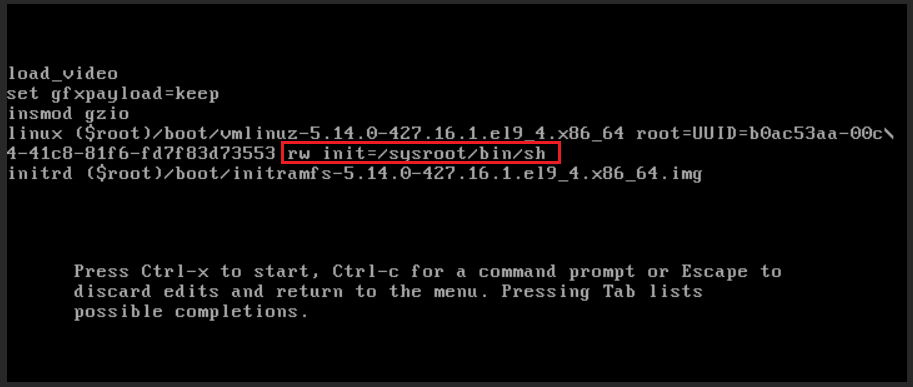
5. Add the following code to the end of the line. Once done press Ctrl + X to boot into the recovery shell.
6. Once you’re in the shell, run the following commands. In this step you will set a new password for the root user. We recommend using a complex password with a high level of security.
mknod -m 666 /dev/null c 1 3
passwd
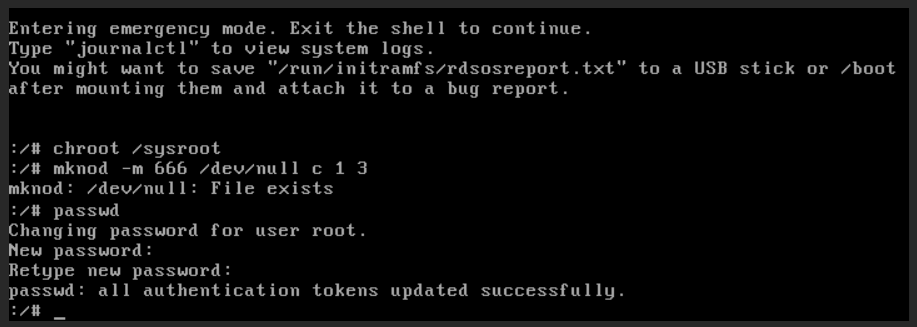
7. After successfully changing your password, run the following commands:
reboot

The system will restart, and you can log in immediately with your new password.
Note:
This method also works for AlmaLinux 8.x, as long as you have access to the Console and GRUB Menu.
Warning:
Incorrect modification of kernel parameters may prevent the system from booting. Please verify the modified values before proceeding.