
Example :
How to set up an email or change my account settings.
- Help Center
- Cloud VPS
- Getting Started
- How to Reset Root Password on Ubuntu 24.04
How to Reset Root Password on Ubuntu 24.04
This article explains how to reset the root password on a VPS running Ubuntu 24.04 through the Console, for cases when you can’t log in with your original password. This is done via the GRUB Boot Menu.
Watch the video below, or follow the written step-by-step guide underneath.
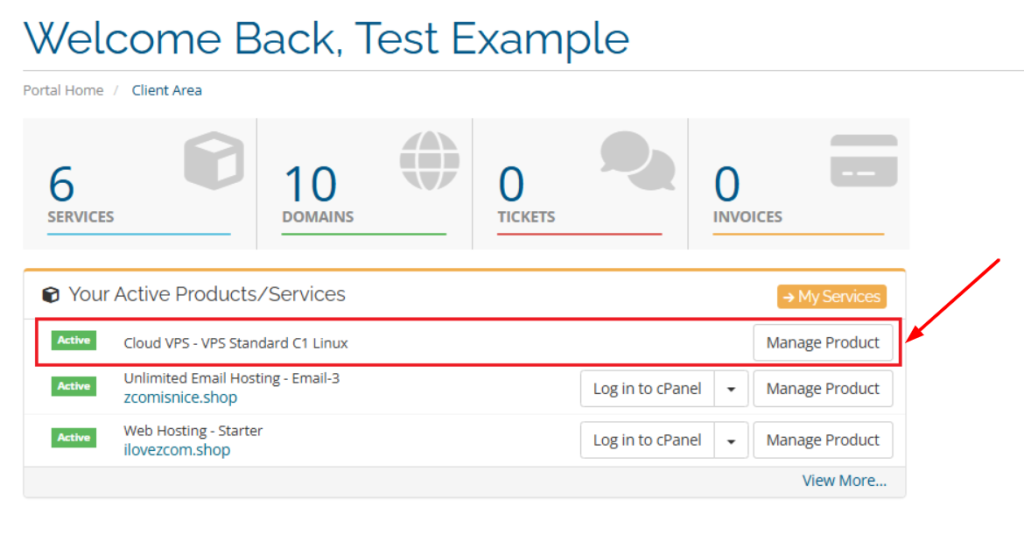
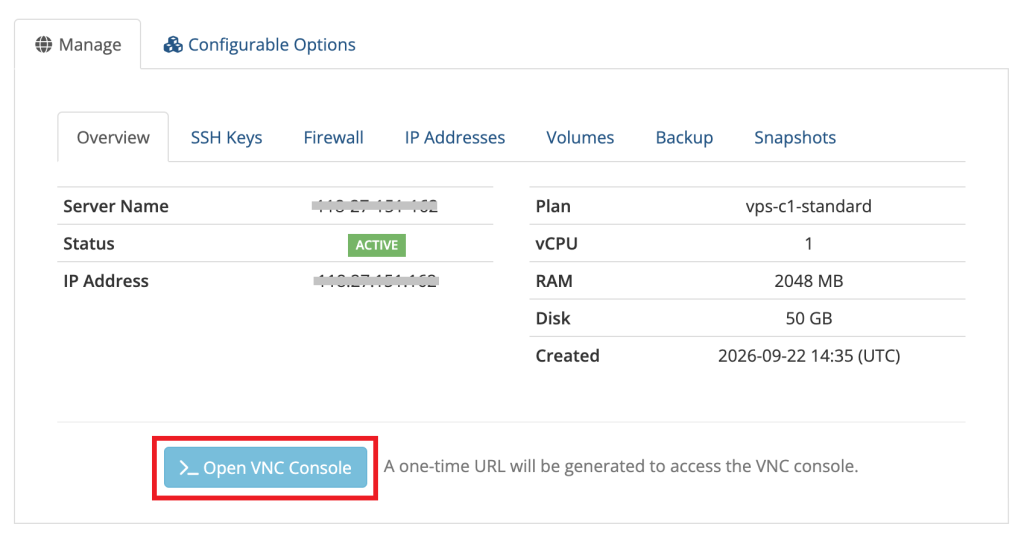
1. Log in to your Client Area and go to your VPS’s management page by clicking Manage Product, then click >_Open VNC Console.
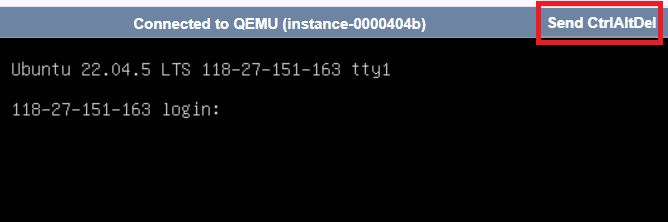
2. Once you reach the login page, click Ctrl+Alt+Del on the upper right side to restart the server and access the GRUB page.
3. Repeatedly press the Esc key on your keyboard until a black screen appears. Then press the E key to enter GRUB Menu edit mode.
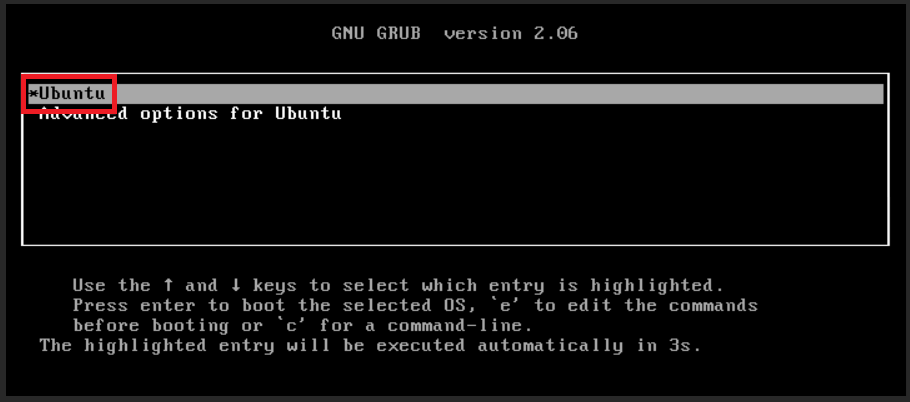
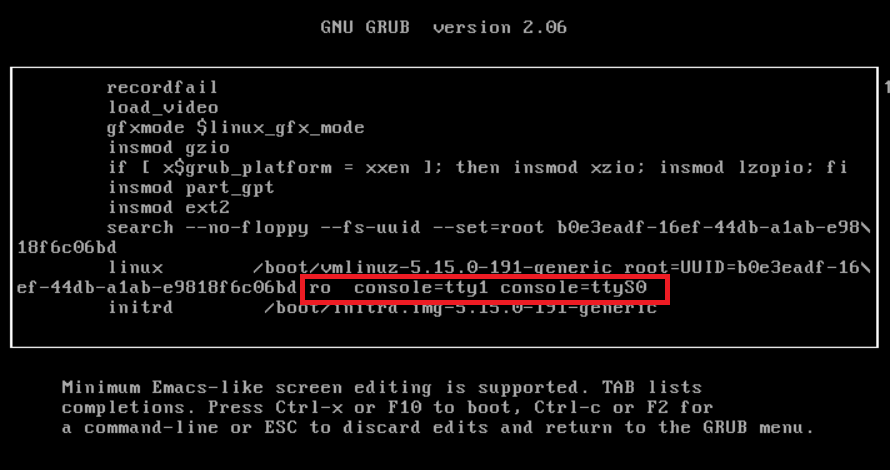
4. Use the up, down, left, and right arrow keys to search for the text within the red box, in the below image. Delete everything from 0 to ro.
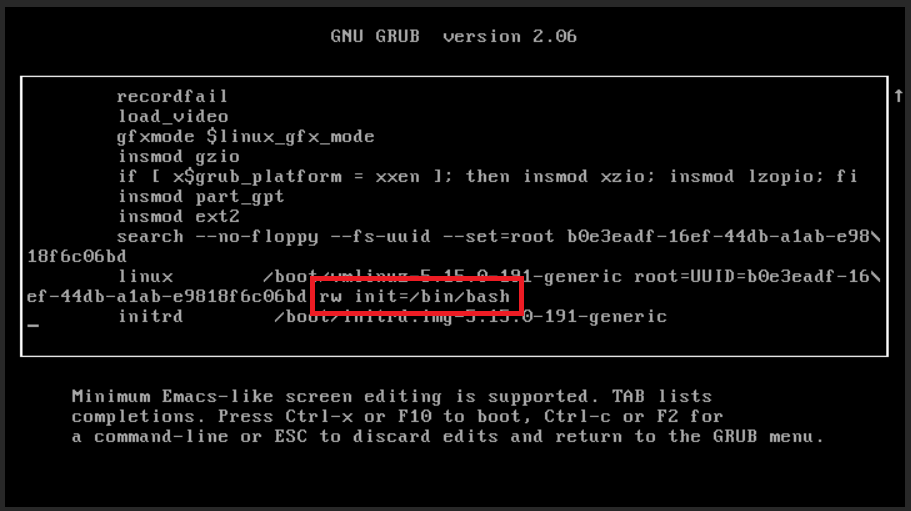
5. Type the following and add it to the end of the line, then press Ctrl + X on your keyboard to save changes.
6. Enter the following command and press Enter:
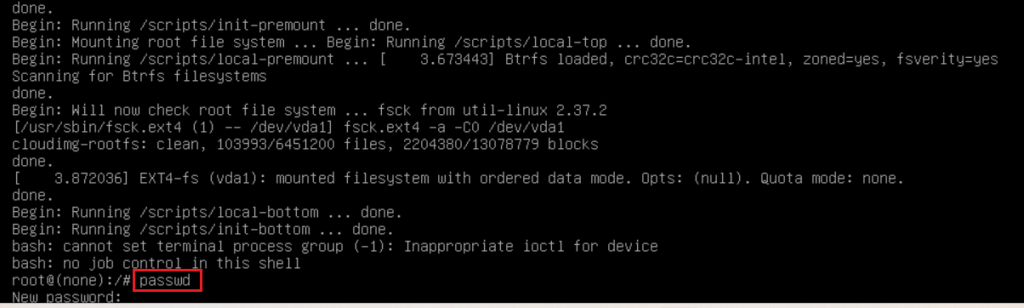
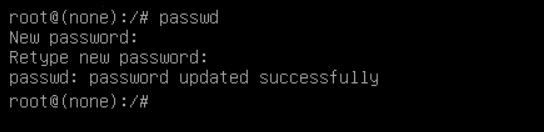
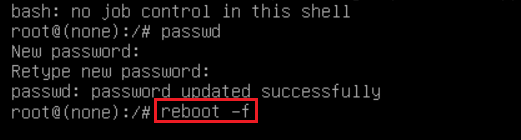
7. You’ll be prompted to set a new password and retype it. The system won’t show what you’ve typed. Once the change is complete, you’ll see passwd: password updated successfully.
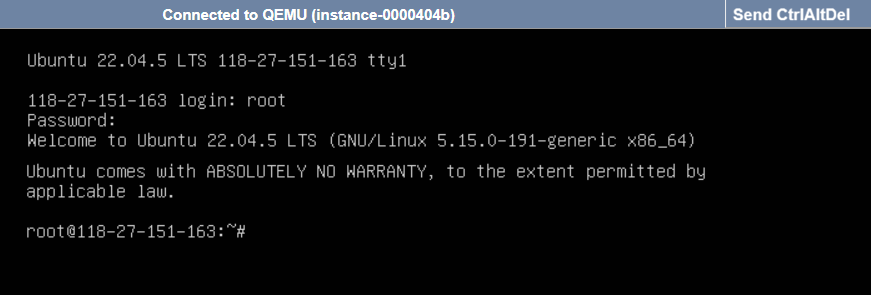
8. Type the following command to restart the server:
Note:
Resetting the password on Ubuntu 24.04 LTS requires accessing GRUB or Recovery Mode. The operator must have access rights to the server’s console or KVM.