
Example :
How to set up an email or change my account settings.
- Help Center
- Cloud VPS
- Getting Started
- How to Start, Reboot, or Stop Your VPS?
How to Start, Reboot, or Stop Your VPS?
One of the biggest advantages of a VPS is its flexibility. Manage your VPS with ease and stay in control of your server at all times.
Aside from using the server console, you can also start, reboot, or stop your VPS directly from your Client Area, giving you one click quicker and more convenient way to manage your server’s power state. Please see below for further assistance.
Login to your account
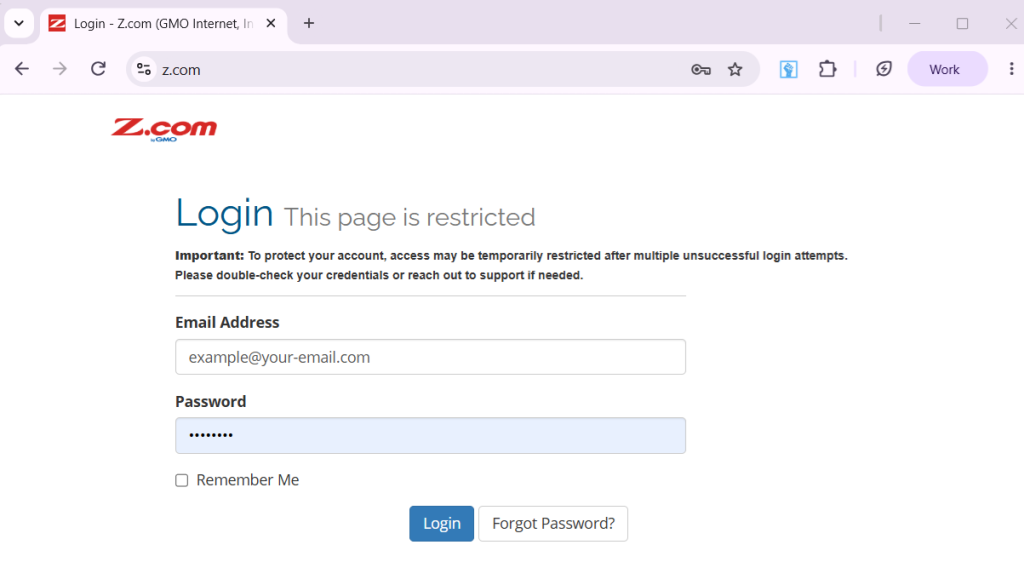
1. Access your account through our Sign-in page, then enter your Email Address and Password and proceed to log in.
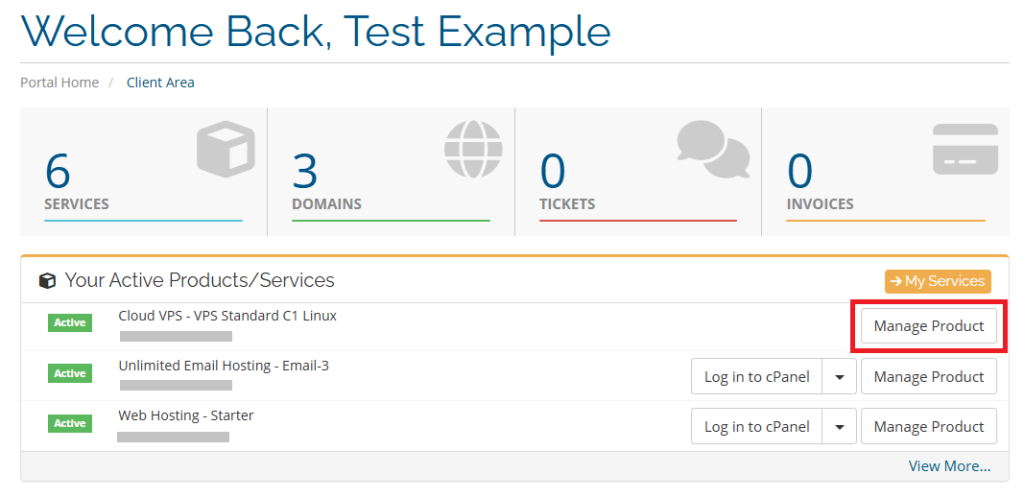
2. On your account dashboard, locateYour Active Products/Services and click Manage Product inline with your VPS
To Start Your VPS
Starting your VPS turns your server on so your remote access work again.
To proceed, on your Manage Product page, under the Actions menu on the left side. Click Start to power on your VPS.
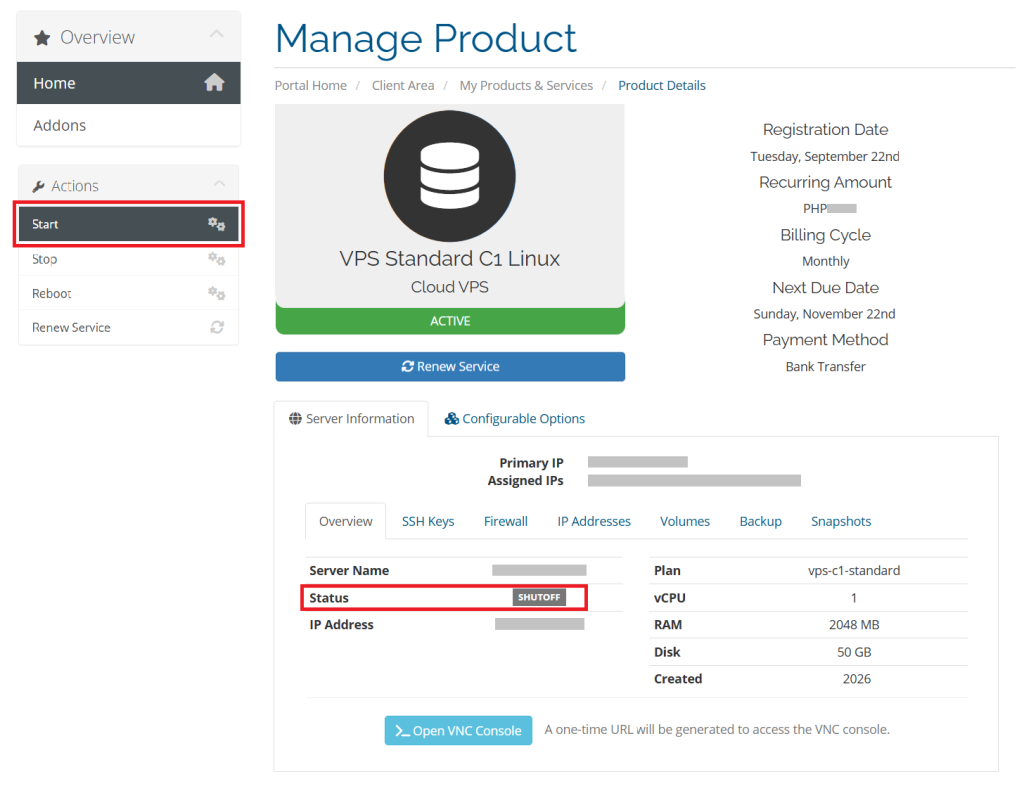
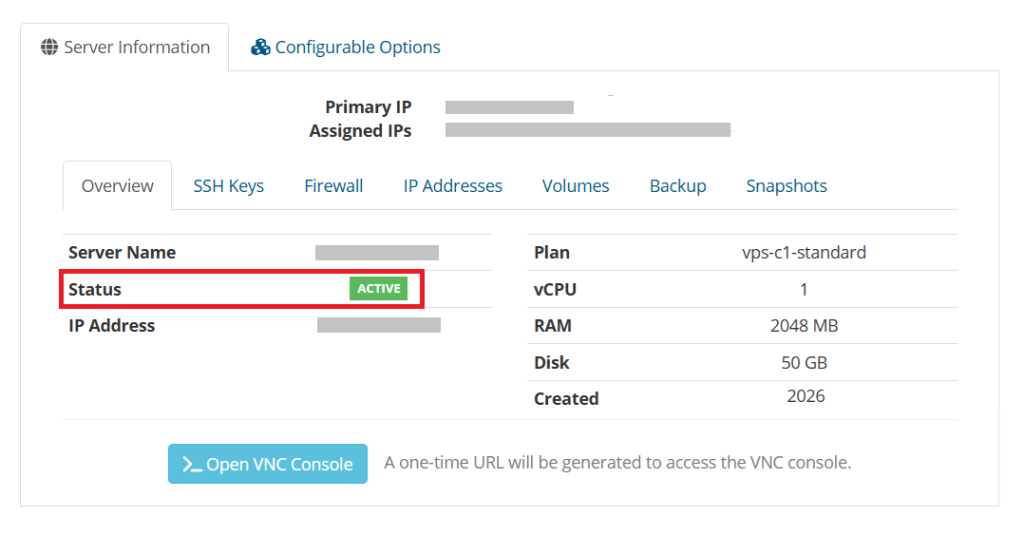
Once the VPS has started, the status under Server Information tab should change from SHUTOFF to ACTIVE. This means your VPS is running.
To Reboot Your VPS
If the VPS is already running but acting strangely, a reboot (restart) is usually the better choice than stopping and starting it. Rebooting your VPS restarts your server to refresh it and fix minor issues, with only a brief interruption.
To proceed rebooting your server, on the Manage Product page, under the Actions menu on the left side, click Reboot to restart your VPS.
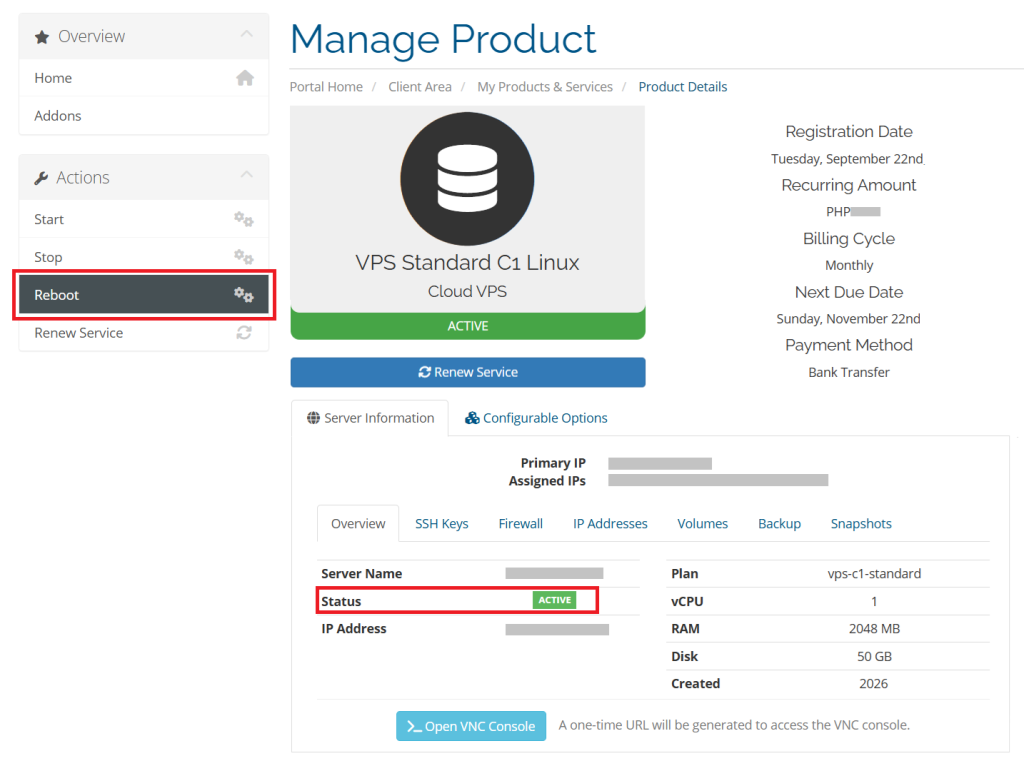
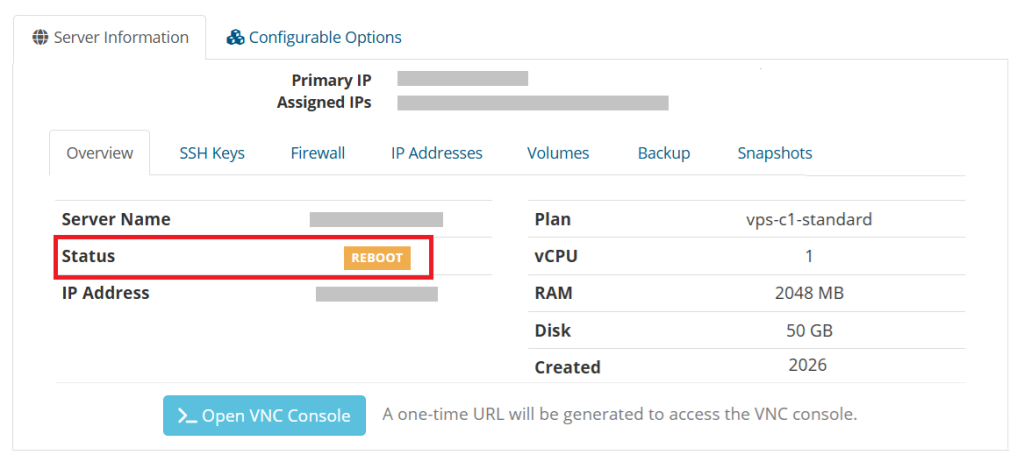
Once the reboot is complete, check the Status under the Server Information tab. It should show REBOOT, which means your VPS is running again.
To Stop Your VPS
Stopping your VPS turns your server off. If you are done with your tasks and you want to shut down your server. Stop your server from your VPS Manage Page, under the Actions menu on the left side. Click Stop to power off your VPS.
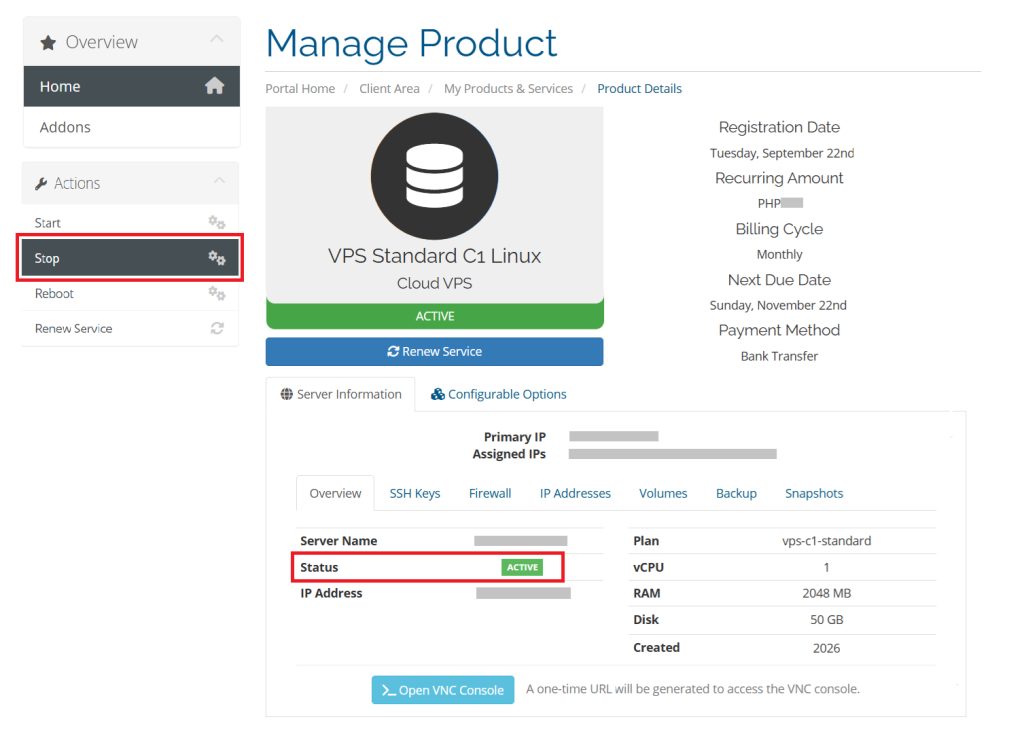
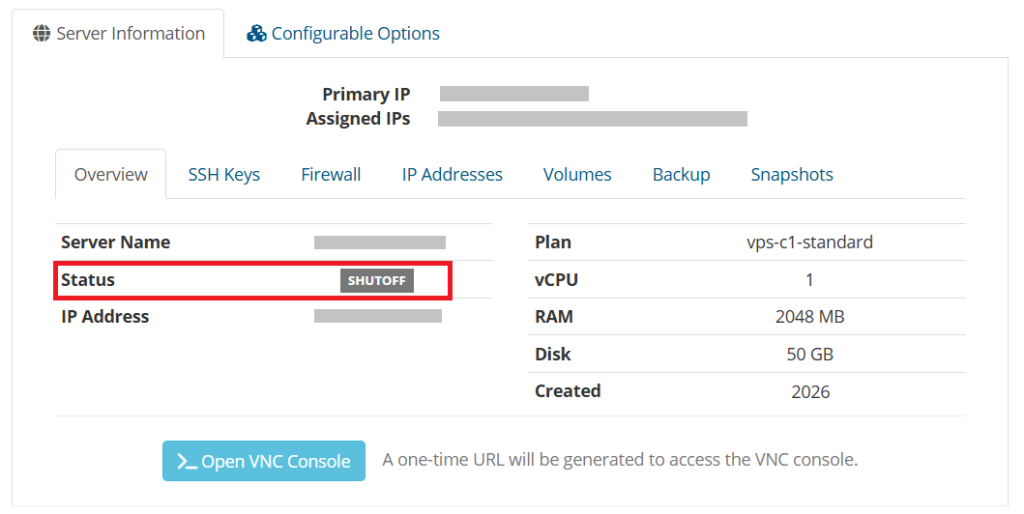
Once the stop is complete, check the Status under the Server Information tab. It should change from ACTIVE to SHUTOFF, which means your VPS is now powered off.
Note:
• Stopping or rebooting your VPS will interrupt any services running on it. Make sure to save your work before proceeding.