
Example :
How to set up an email or change my account settings.
- Help Center
- WordPress Hosting
- WordPress Management
- How to activate maintenance mode during website updates via WP Squared
How to activate maintenance mode during website updates via WP Squared
Maintenance mode lets you temporarily close your WordPress website while you perform updates, edits, or troubleshooting. When enabled in the WP Squared dashboard, visitors will see a maintenance notice instead of your live website, indicating the website is temporarily unavailable and will be back soon.
This feature is especially useful when your website is still under development or undergoing updates that could affect functionality or the user experience, helping you avoid showing incomplete content or broken pages to visitors.
*What happens when maintenance mode is enabled?
• Your website remains online in the background, but visitors will see a maintenance message.
• Website owners can still log in to WordPress admin and continue working on the website update.
• No content or settings are deleted or changed automatically.
*When should you use maintenance mode?
• Updating themes or plugins
• Editing layouts or content
• Performing troubleshooting or testing
• Preparing your website before a relaunch
Note:
• Maintenance mode can be turned on or off at any time in the WP Squared dashboard.
• Remember to turn off maintenance mode once your updates are complete so that visitors can access your website normally again.
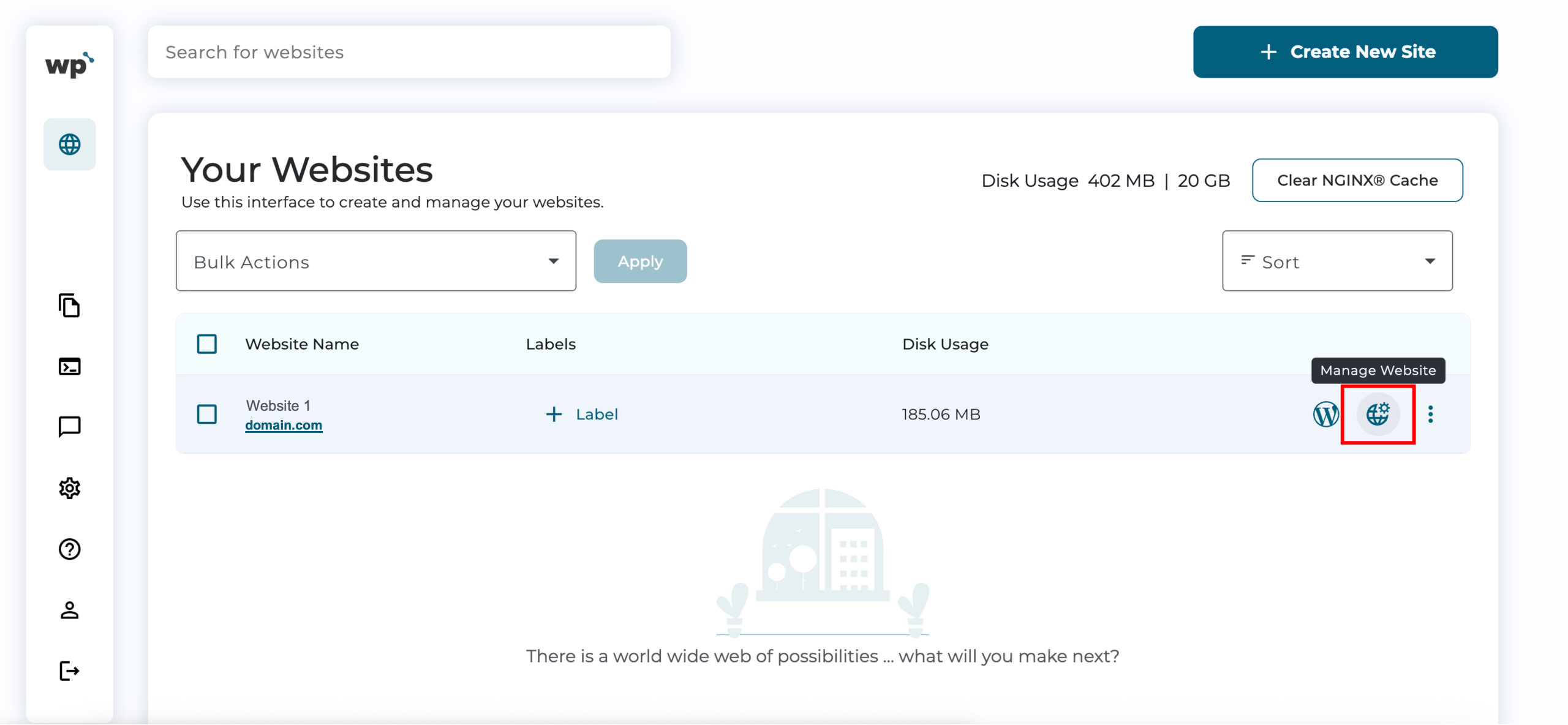
1. Upon reaching your WP Squared dashboard, click Manage Website next to the website you wish to enable maintenance mode for.
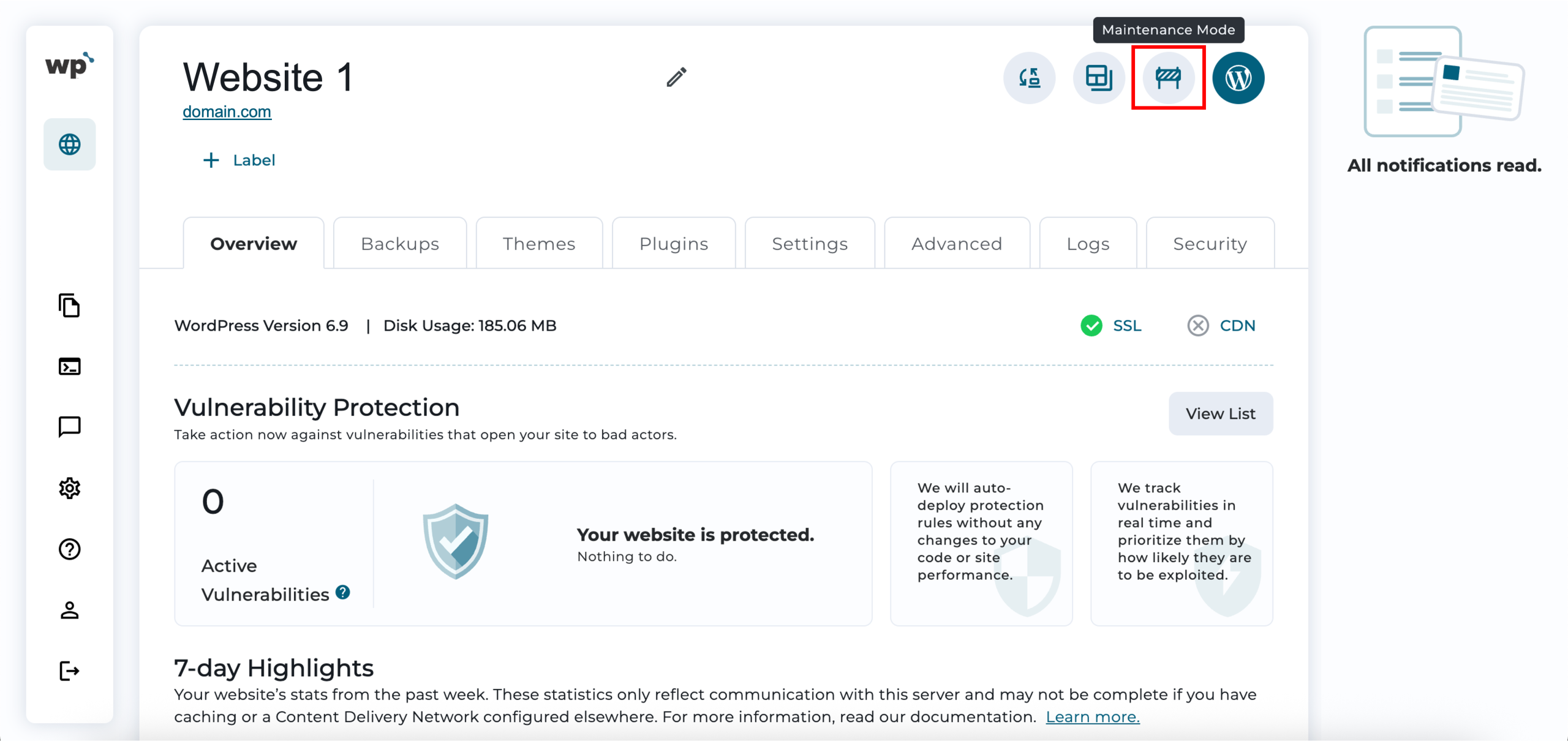
2. In the top-right corner next to the website title, click Maintenance Mode.
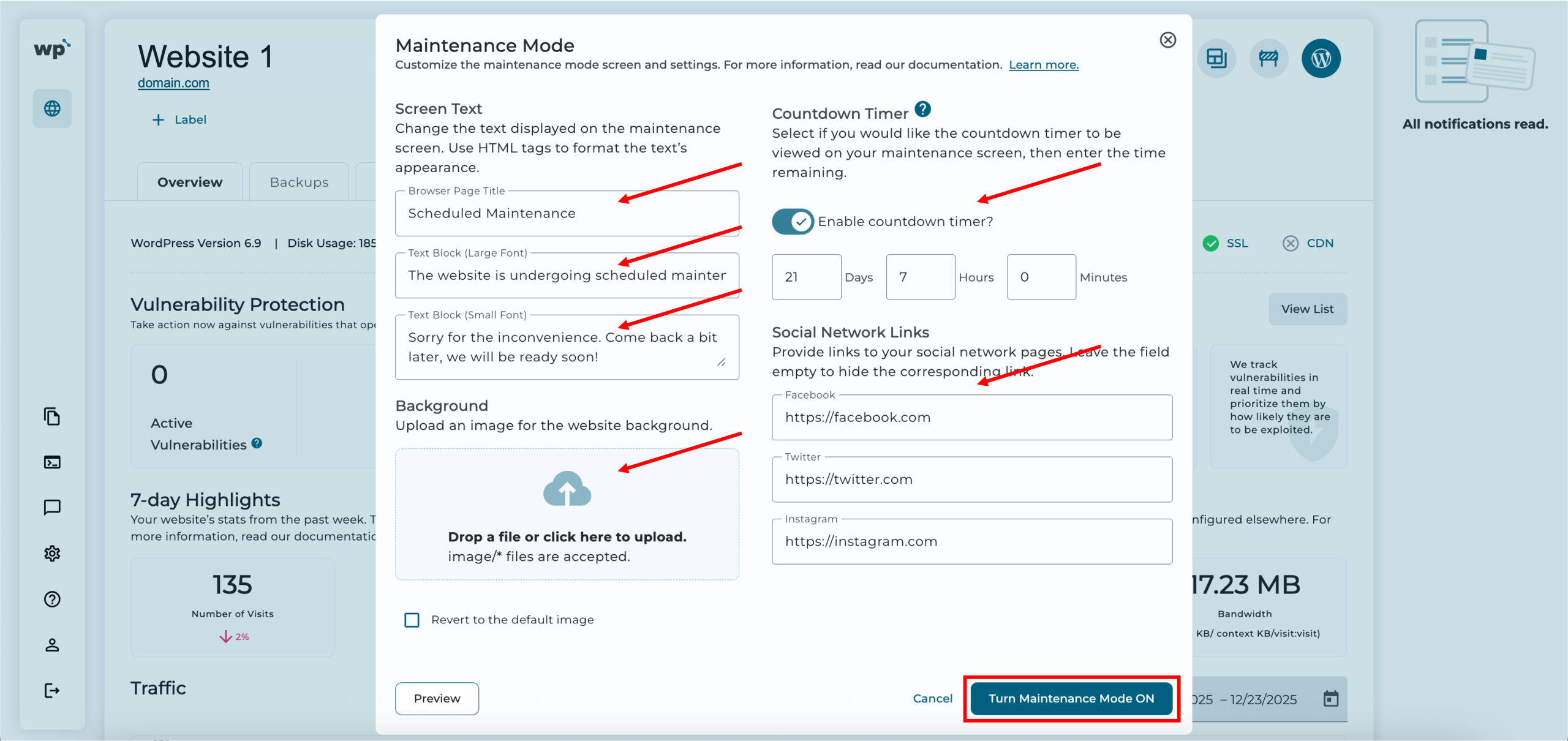
3. On the maintenance mode configuration page, there are several options available for you to customise the message visitors will see. You can fill in the fields as needed, upload an image for the maintenance mode page background, add a countdown timer, or include links to your social media pages. Once done, click Turn Maintenance Mode ON. You may also Preview the website with the customisations before you save changes.
4. Done! Successfully turning maintenance mode on will look like the following, with the maintenance mode toggle enabled.
Note: You can easily turn off maintenance mode by clicking the same toggle.


Note: This feature is available to all users of our WordPress hosting service who use the WP Squared dashboard. Maintenance mode can also be enabled directly from the WordPress admin dashboard. Please click here for the guide.