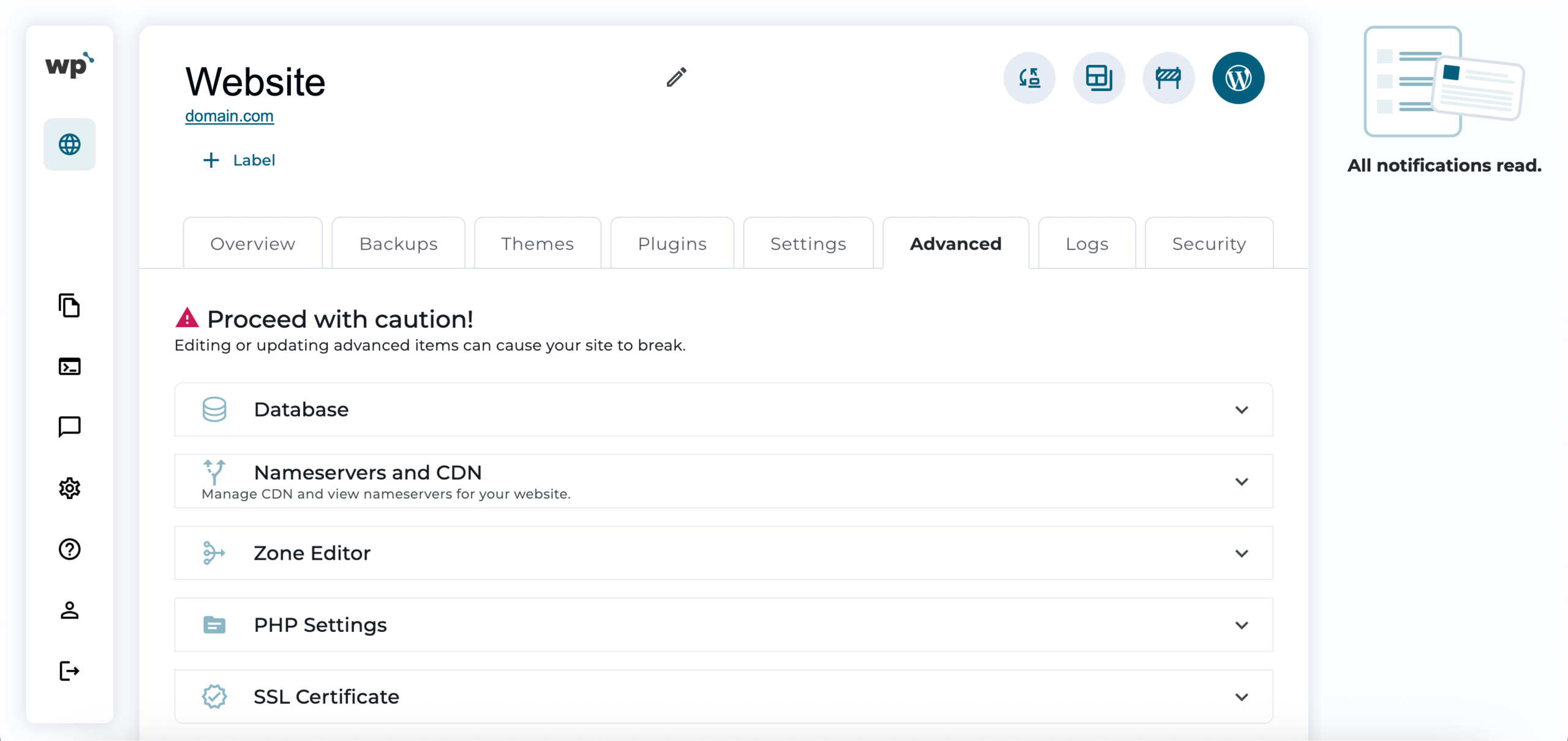
Example :
How to set up an email or change my account settings.
- Help Center
- WordPress Hosting
- WordPress Management
- How to update the PHP version for WordPress
How to update the PHP version for WordPress
Keeping your WordPress website running on an up-to-date PHP version is important for security, performance, and compatibility with plugins and themes. WP Squared makes updating PHP safe and straightforward with two options: manual update and the Smart PHP Update system.
The manual update allows you to select and apply your preferred PHP version directly. However, the Smart PHP Update system is recommended, as it automatically tests the new PHP version on a copy of your website in a safe staging environment. This ensures that updating PHP will not break your live website. After the test, you can review the results and decide whether to apply the update to your production website.
With WP Squared, updating PHP is straightforward, and you have complete control over testing and safely applying changes.
Note:
• WP Squared supports the latest stable PHP versions for optimal security and performance.
• The Smart PHP Update testing usually takes a few minutes, depending on your website size.
• If the test shows compatibility issues, you can adjust your PHP version before applying changes to your live website.
• Always consider backing up your website before performing any manual PHP updates.
Table of contents
1. Manual PHP version update
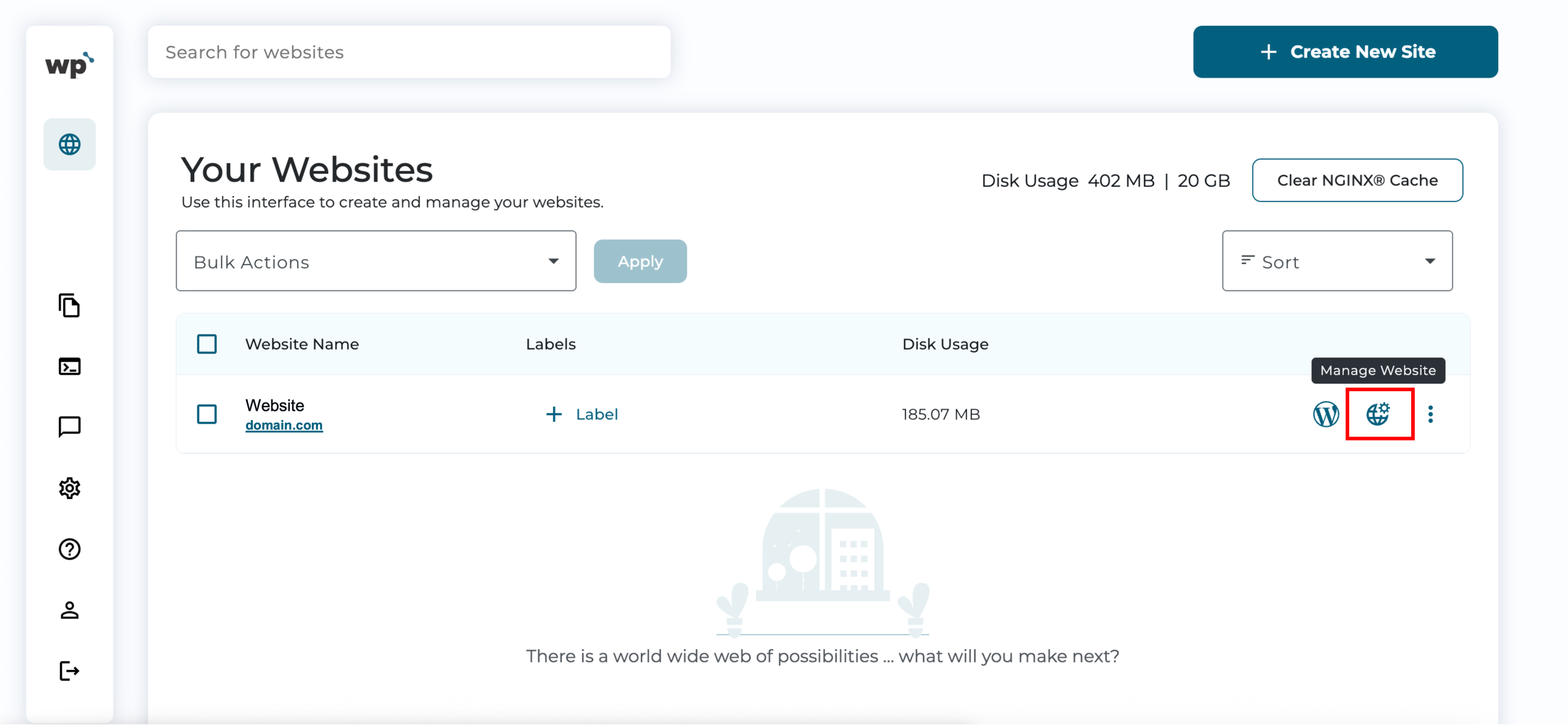
1. Upon reaching your WP Squared dashboard, click Manage Website next to the website you wish to update the PHP version for.
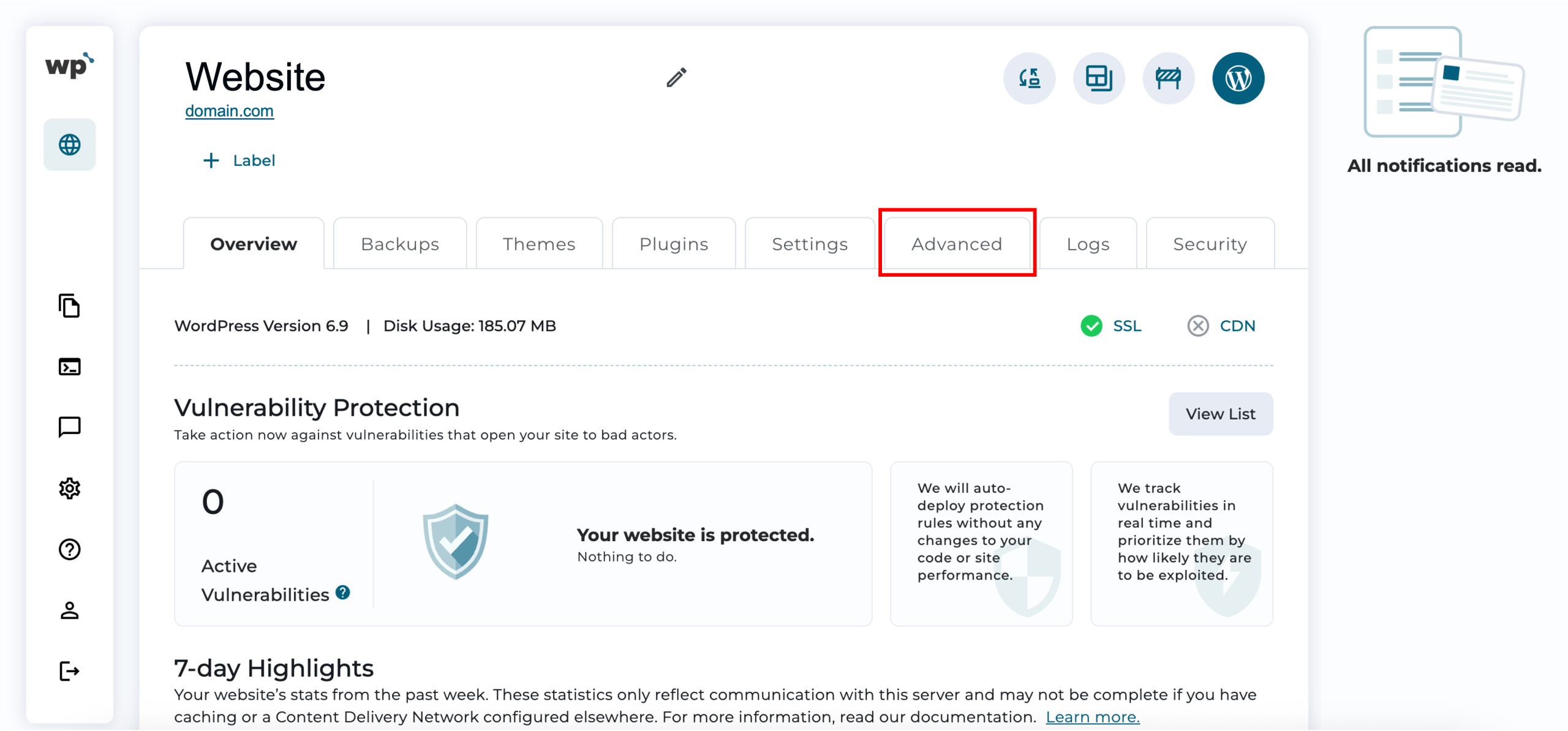
2. Click on the Advanced tab.
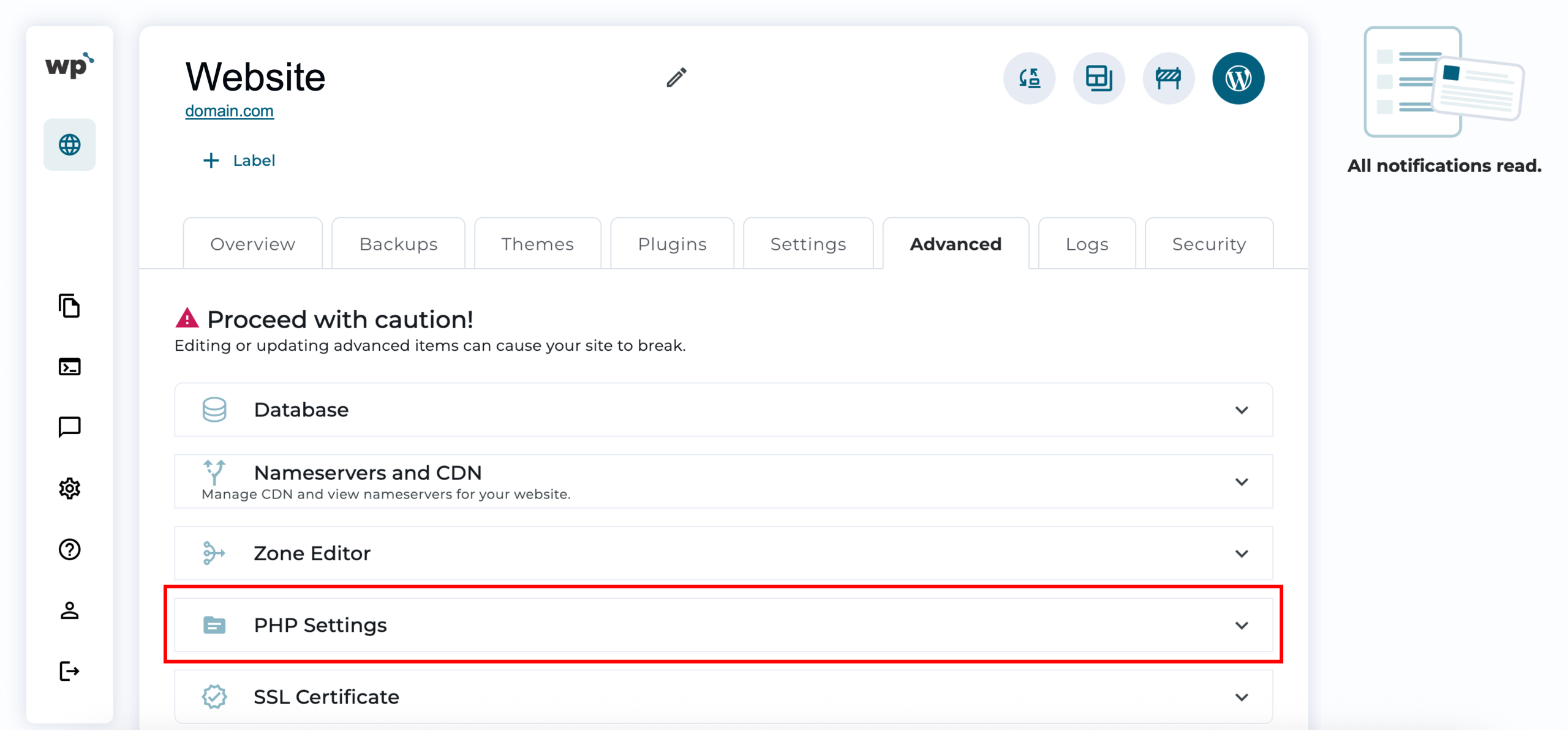
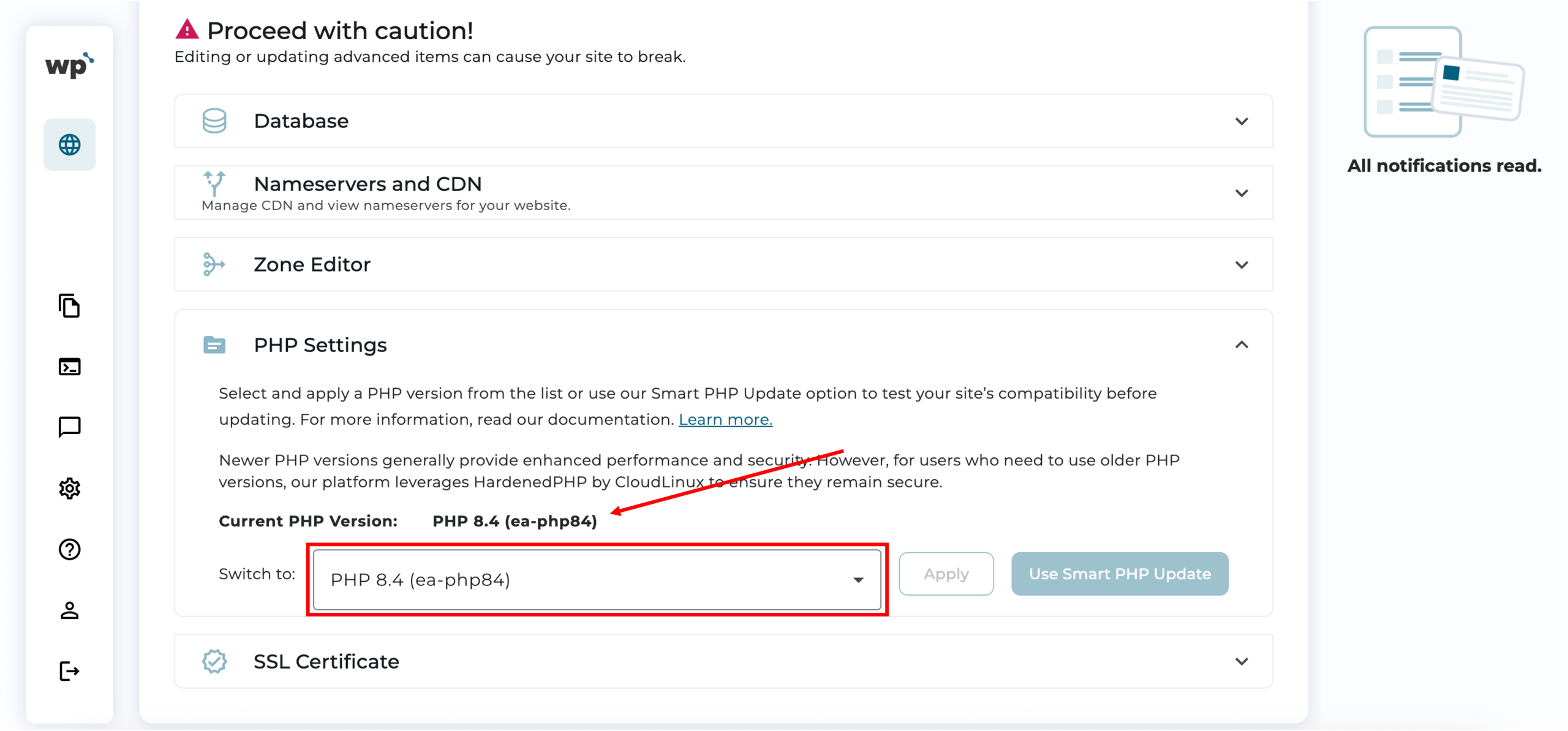
3. Click on the PHP Settings drop-down menu.
4. To change or update your current PHP version, click on the drop-down list of available PHP versions to manually select your preferred PHP version. Once done, click Apply.
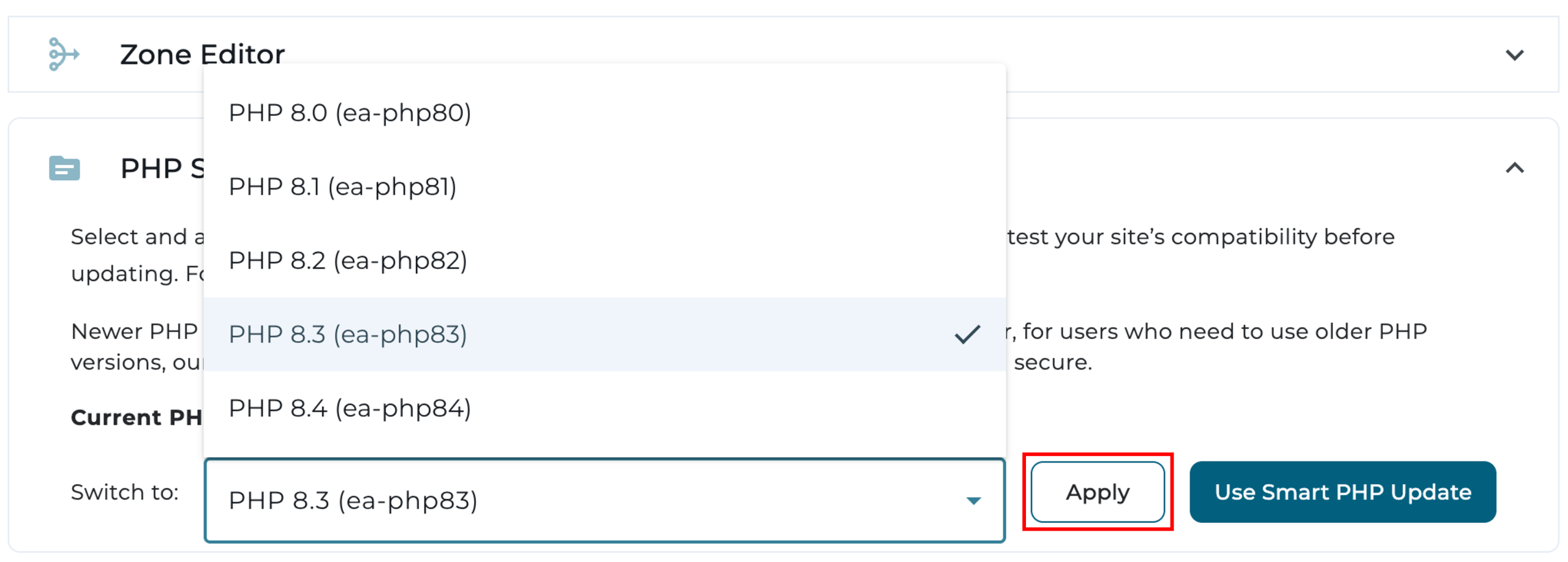
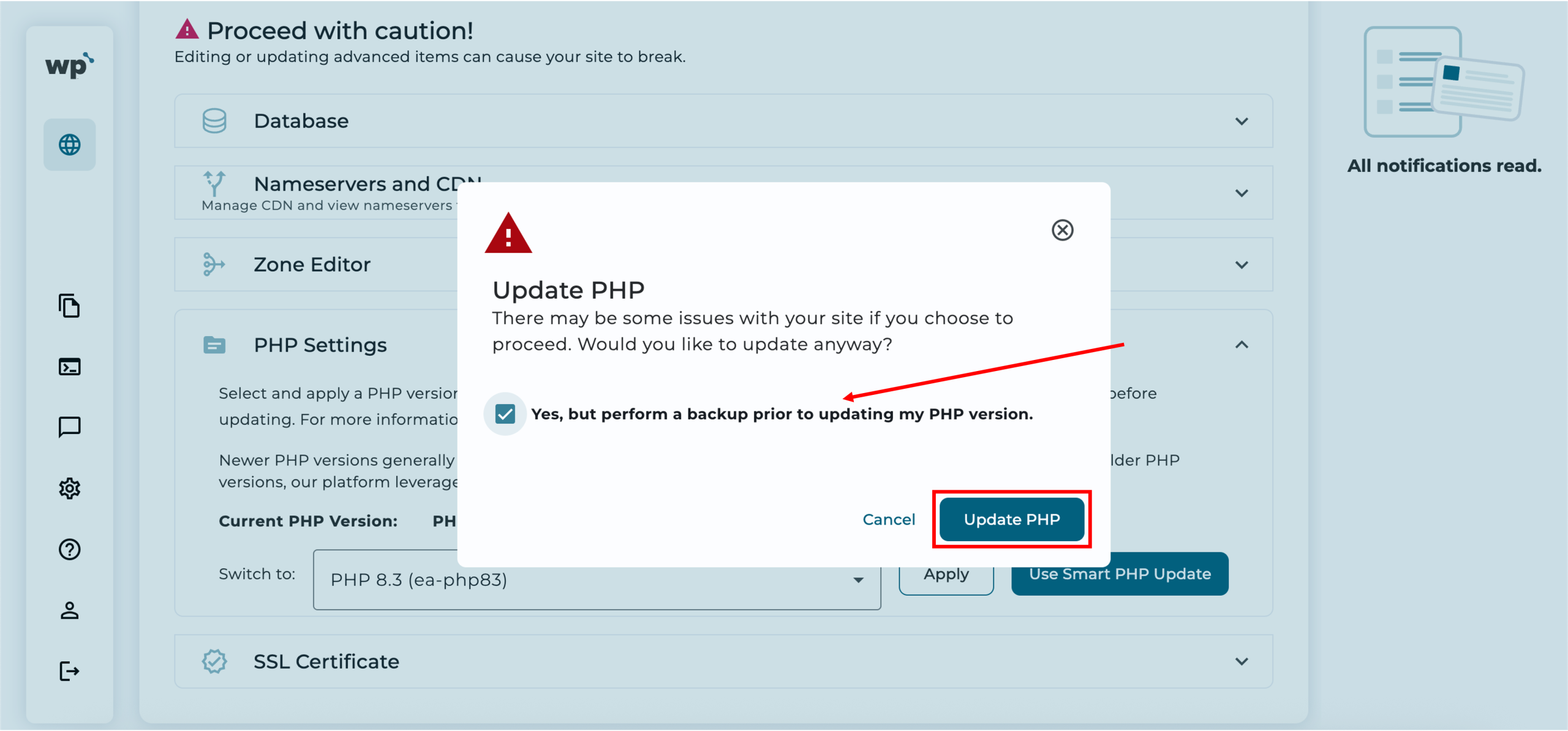
5. A prompt will appear, allowing you to run a backup before updating the PHP version or to proceed without one. As it is recommended to back up your website before performing any manual PHP updates, you can tick the option before clicking Update PHP.
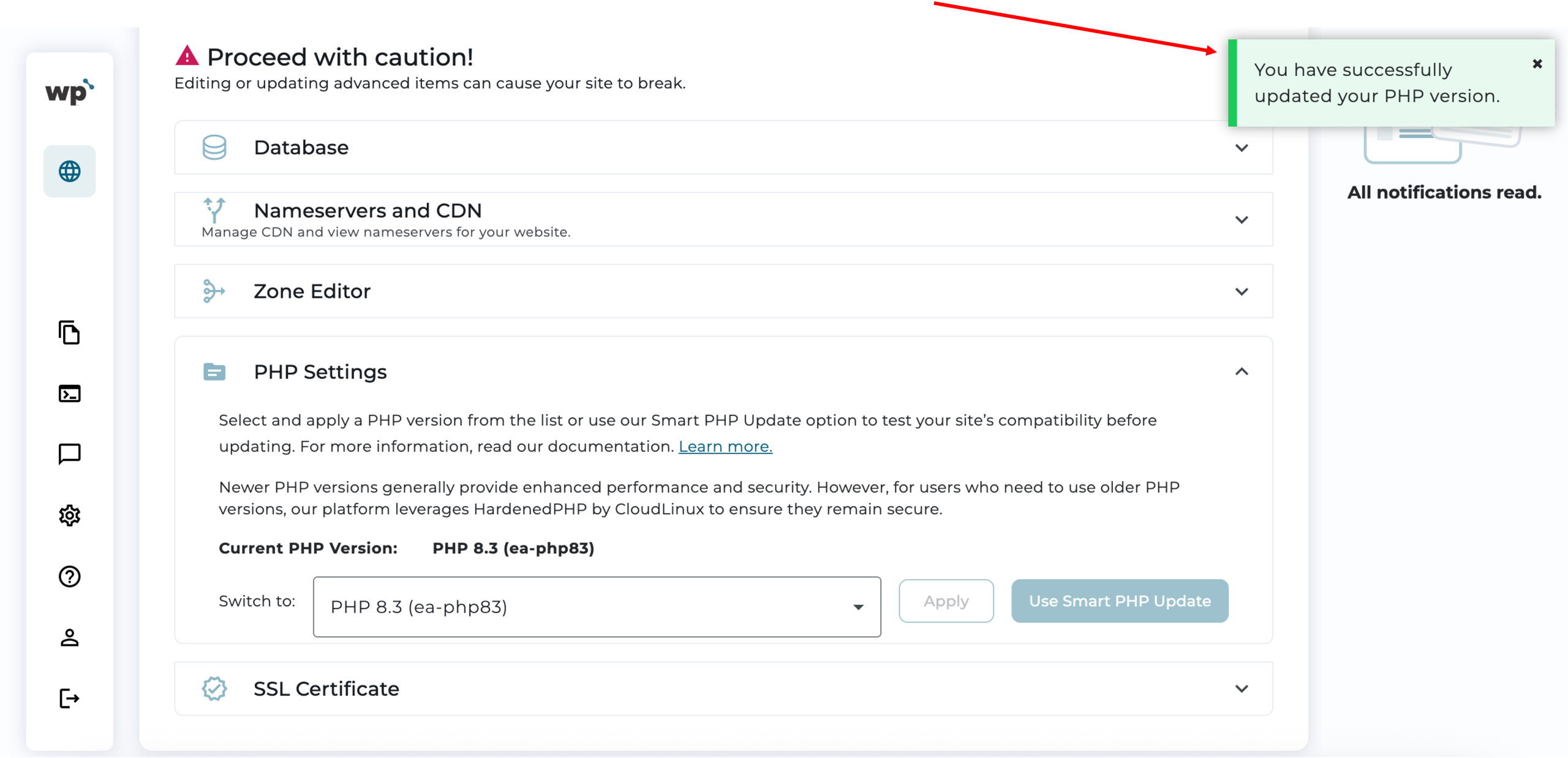
6. Done! Successfully updating the PHP version manually will look like the following, with the successfully updated prompt.
2. Smart PHP Update
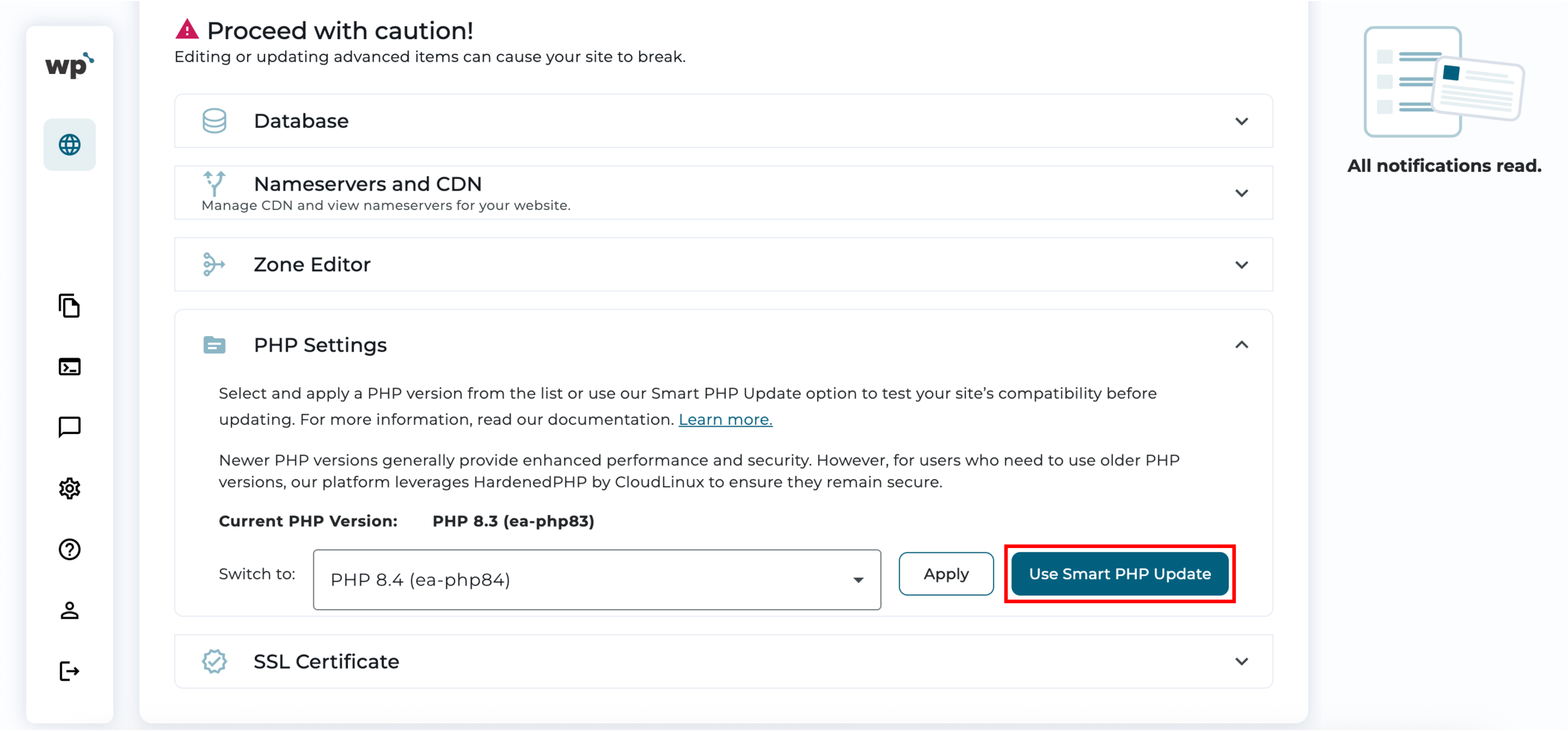
1. Up to step 4 in the first part, instead of clicking Apply, click Use Smart PHP Update after you have selected your preferred PHP version.
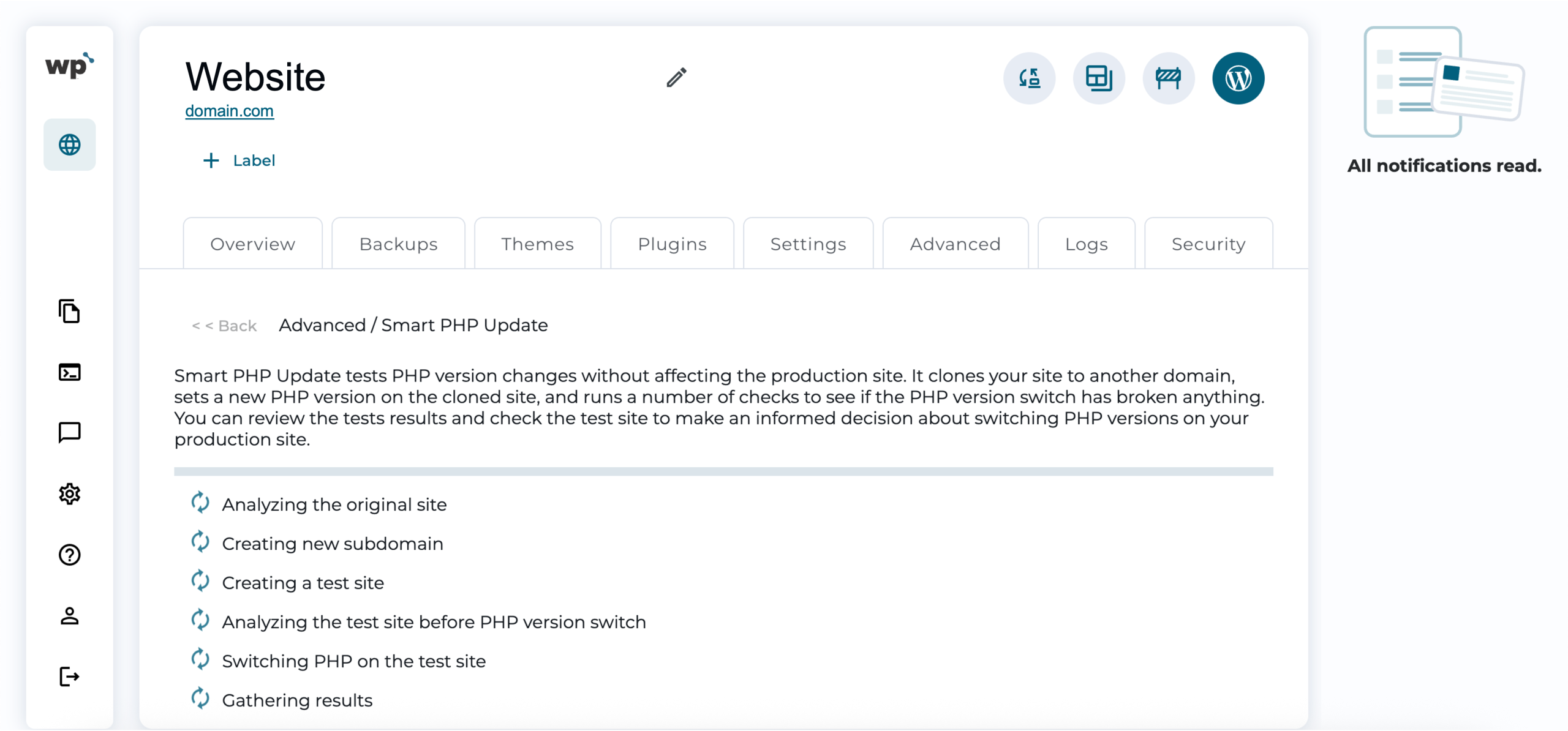
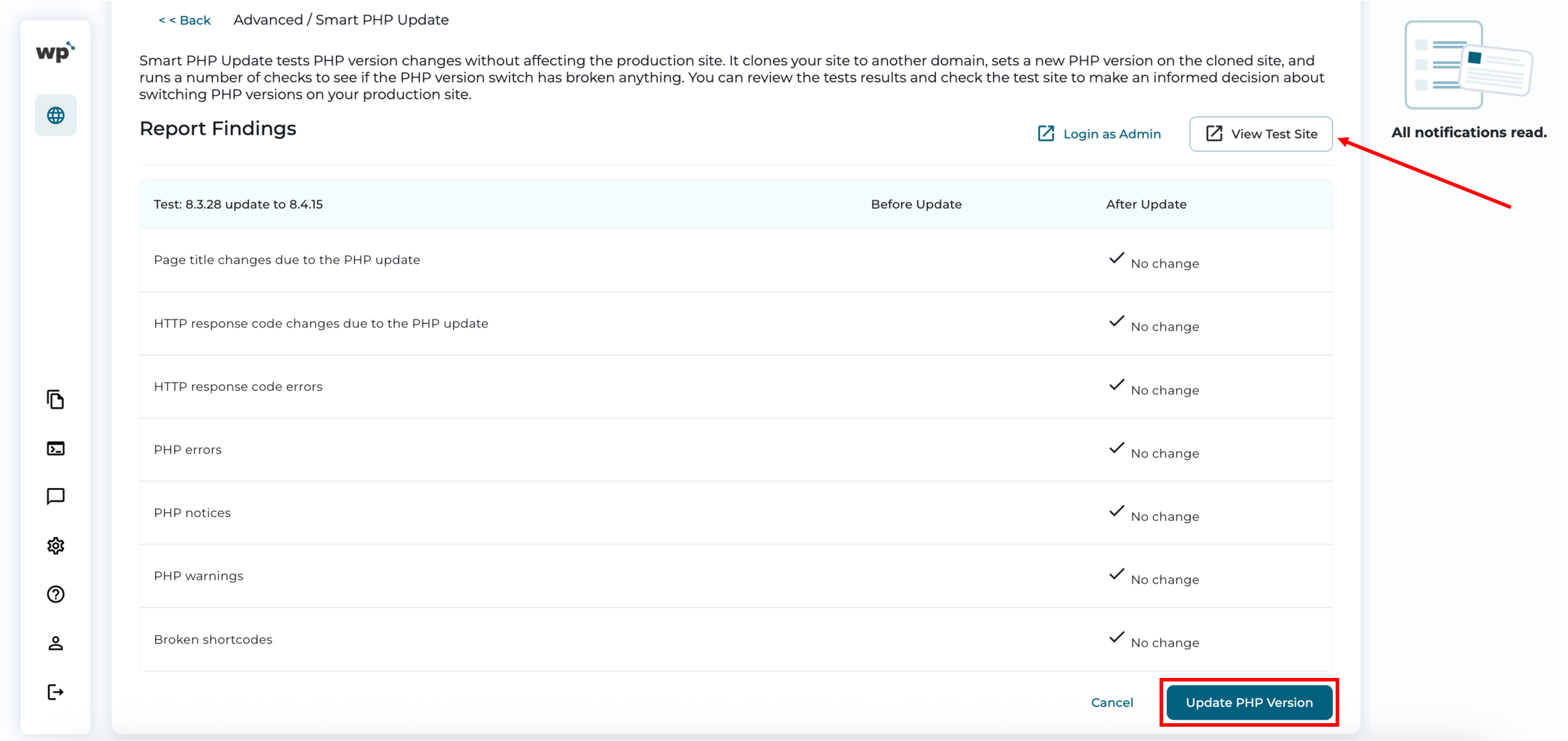
2. The system begins analysing your website using the selected PHP version. Once the analysis is complete, you can either View Test Site first or proceed with the update by clicking Update PHP Version.
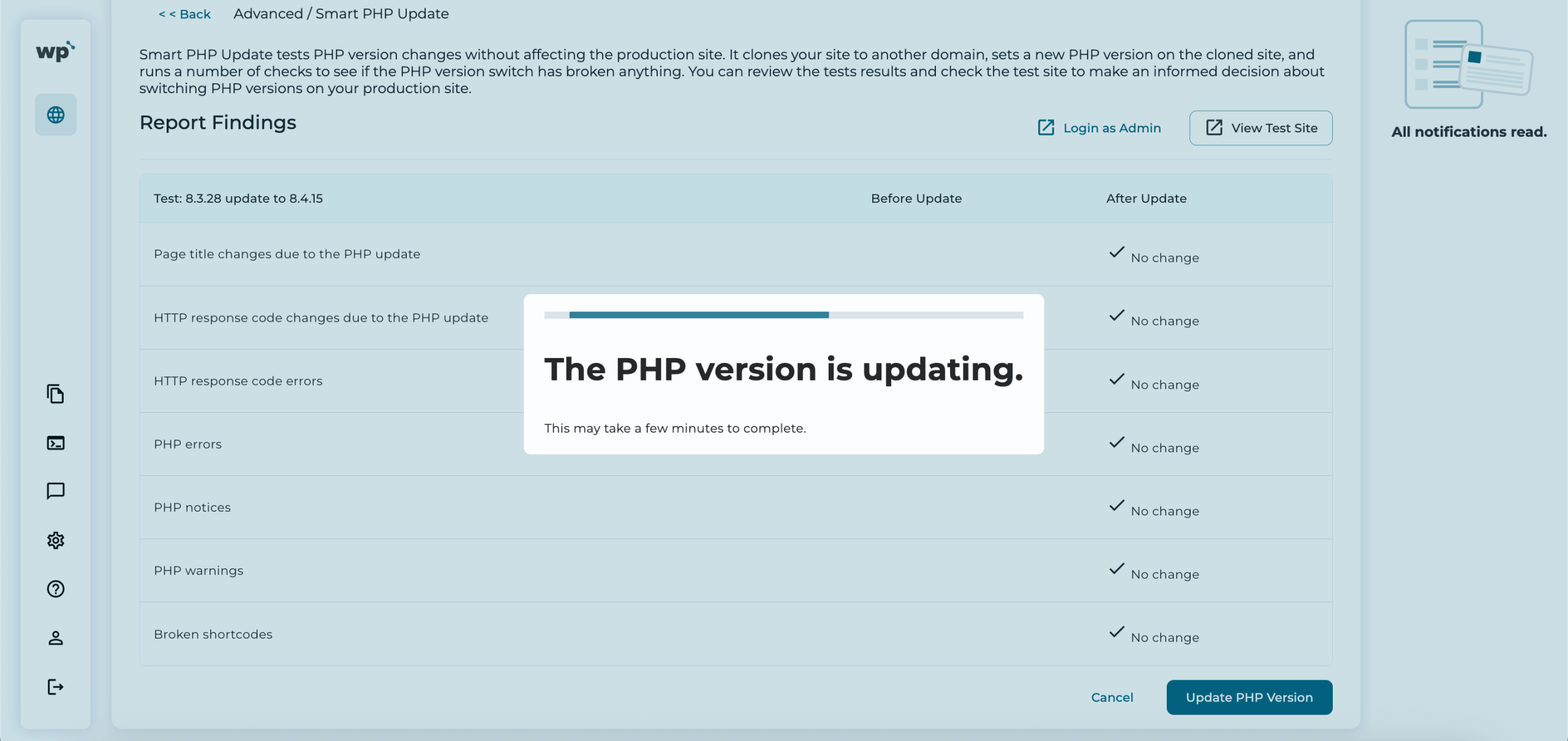
3. Done! Successfully updating the PHP version using Smart PHP update will redirect you back to the Advanced tab.