Example :
How to set up an email or change my account settings.
- Help Center
- WordPress Hosting
- WordPress Management
- How to clear server cache using the WP Squared dashboard
How to clear server cache using the WP Squared dashboard
Server caching helps improve your website’s loading speed by temporarily storing a saved version of your website’s content. However, after making changes such as updating content, changing themes, or adjusting plugin settings, you may not see the latest updates immediately.
Clearing the server cache removes the stored cached files and forces the server to load the most recent version of your website. This guide explains how to clear the server cache using the WP Squared dashboard.
*In WP Squared, server caching is managed through Nginx. Clearing the “Nginx cache” removes the server-level cached files and refreshes your website.
Note:
• Clearing the server cache does not delete your website content or files.
• This action only removes temporary cached data stored by the server.
• If you are using a CDN (such as Cloudflare), you may also need to clear the CDN cache separately.
• It may take a few moments for the website to fully refresh after clearing the cache.
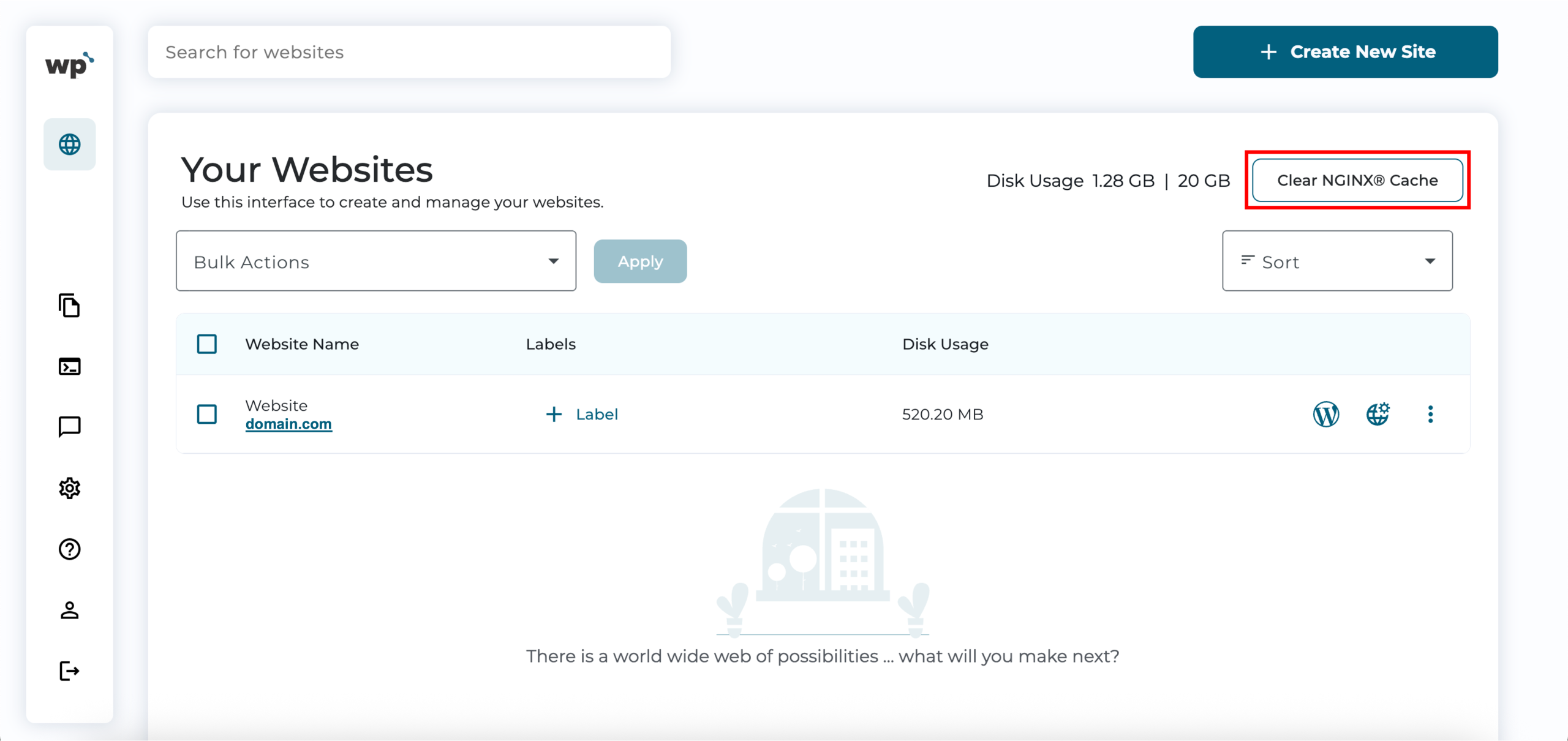
1. Upon reaching your WP Squared dashboard, click Clear NGINX® Cache in the top-right corner.
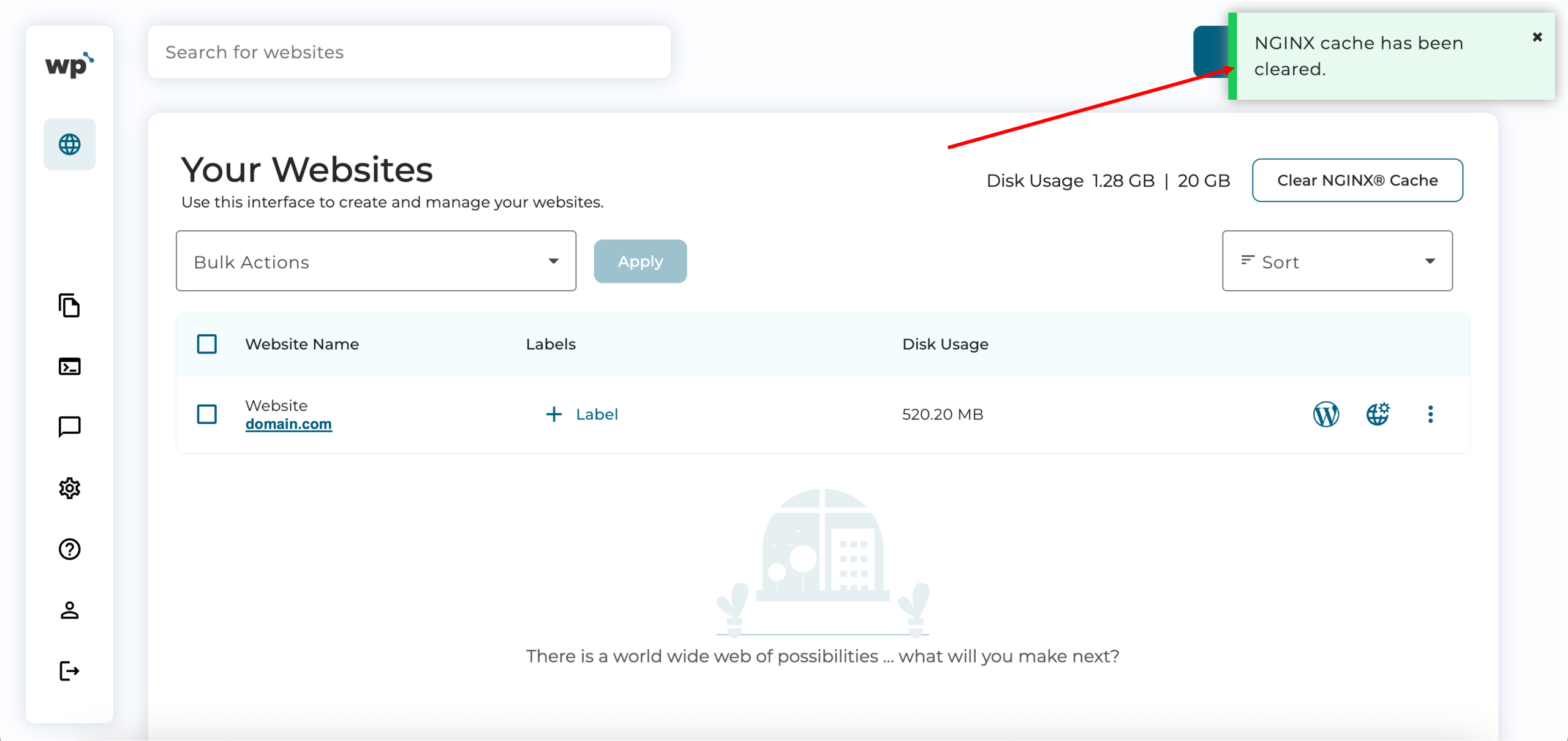
2. Done! Successfully clearing the server cache will look like the following, with the NGINX cache has been cleared prompt.