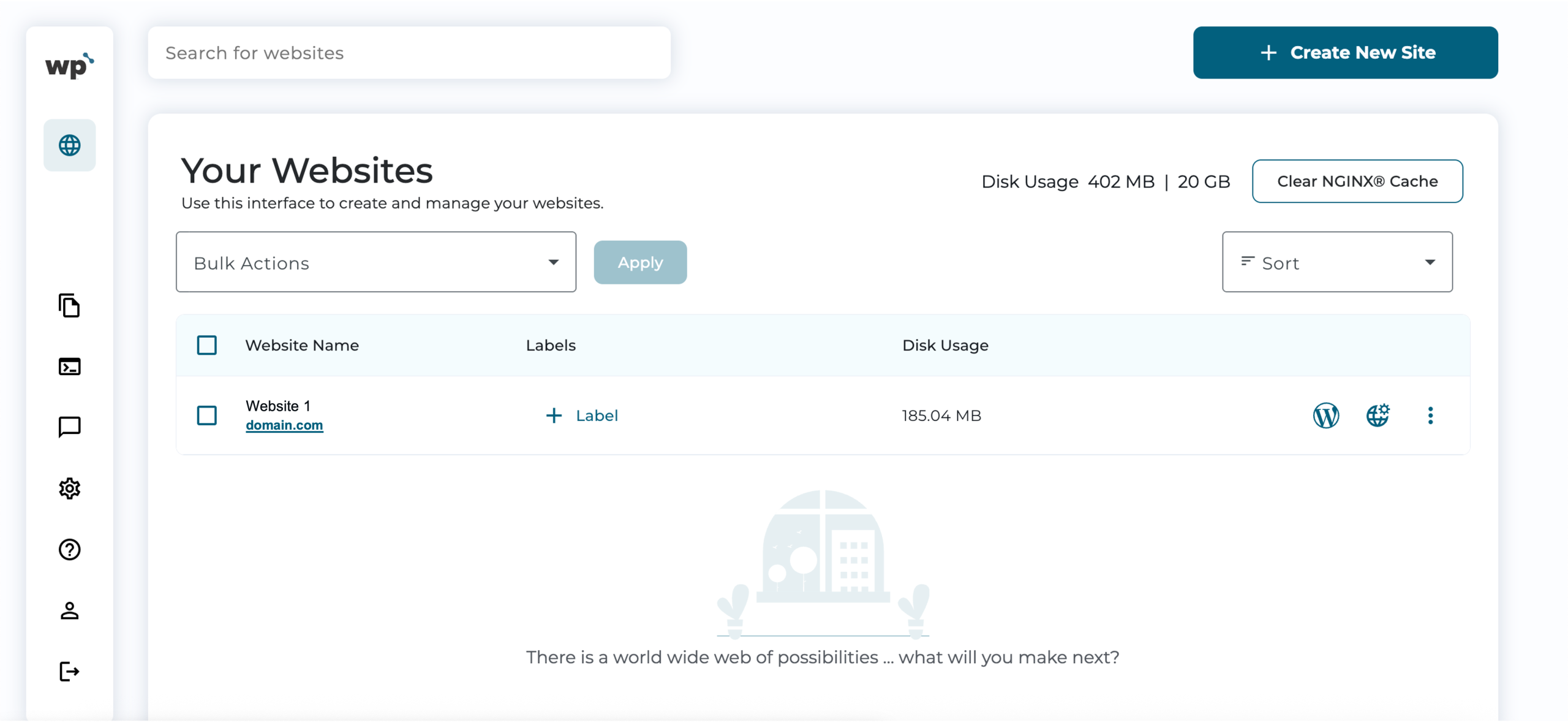
Example :
How to set up an email or change my account settings.
- Help Center
- WordPress Hosting
- WordPress Management
- How to set up domain forwarding to redirect your domain to your existing WordPress website
How to set up domain forwarding to redirect your domain to your existing WordPress website
Domain forwarding allows you to redirect an existing domain you already own to your active WordPress website. As a result, visitors who access the forwarded domain will automatically be sent to your WordPress website.
This guide explains how to set up and remove domain forwarding in the WP Squared dashboard, helping you manage multiple domains that point to the same WordPress website without creating separate websites.
Note:
• The domain you want to forward must use Z.com nameservers (ns-wh1.web.z.com, ns-wh2.web.z.com).
• All domain forwarding actions: adding and removing, are performed directly in the WP Squared dashboard.
Table of contents
1. How to add a forwarding domain
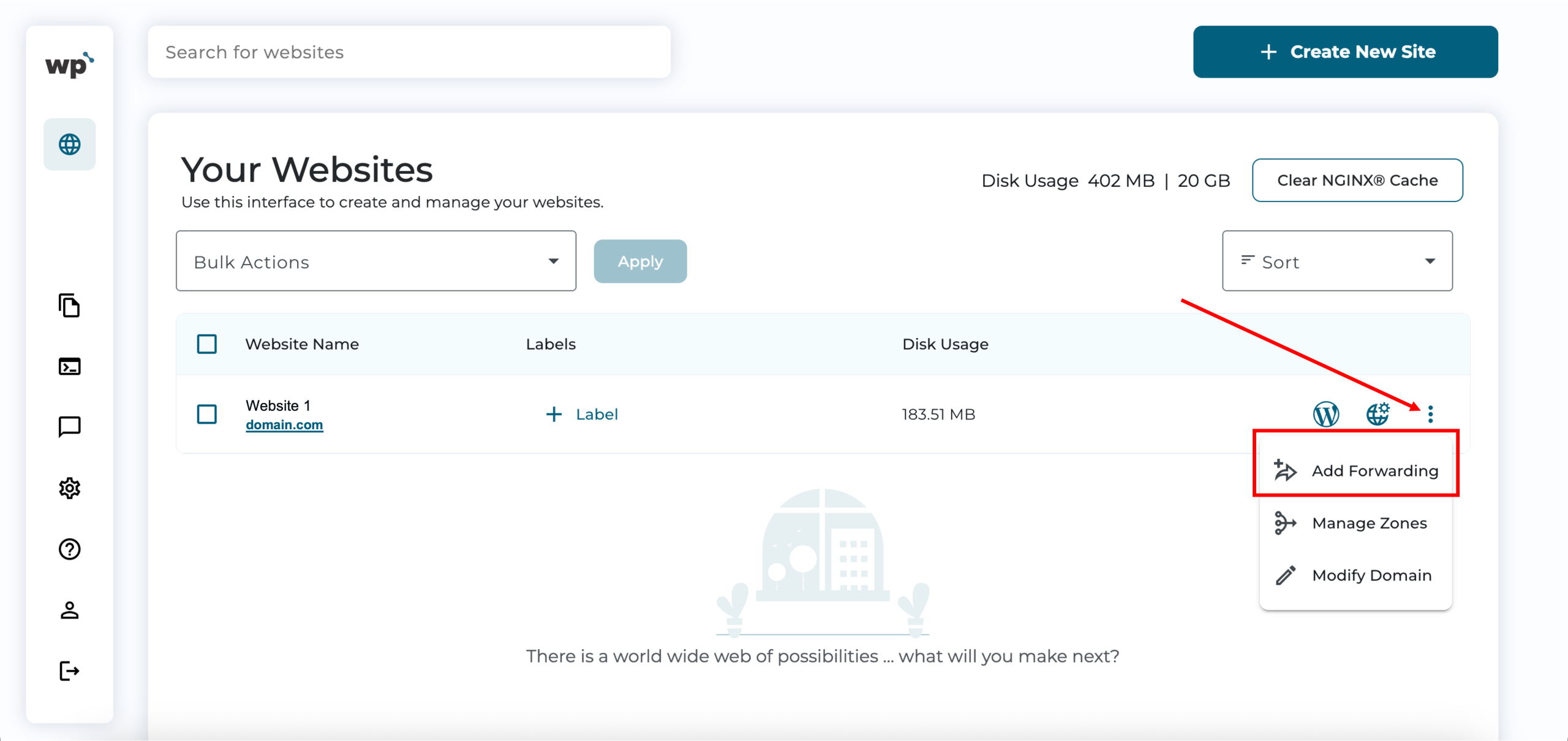
1. Upon reaching your WP Squared dashboard, select the vertical ellipsis (⋮) option next to the website you wish to add a forward, then click Add Forwarding.
2. To point an existing domain that you own to your WordPress website, select the Use a different domain that you own option and enter the domain you wish to use. Then, select the type of redirect you want to enable. Once done, click Add Domain.

Note: Domain forwarding in WP Squared lets you redirect visitors from your domain to your WordPress website. Please note that domain masking (where the forwarded domain remains visible in the browser address bar) is not available, meaning the website’s main domain will appear in the browser after redirection.
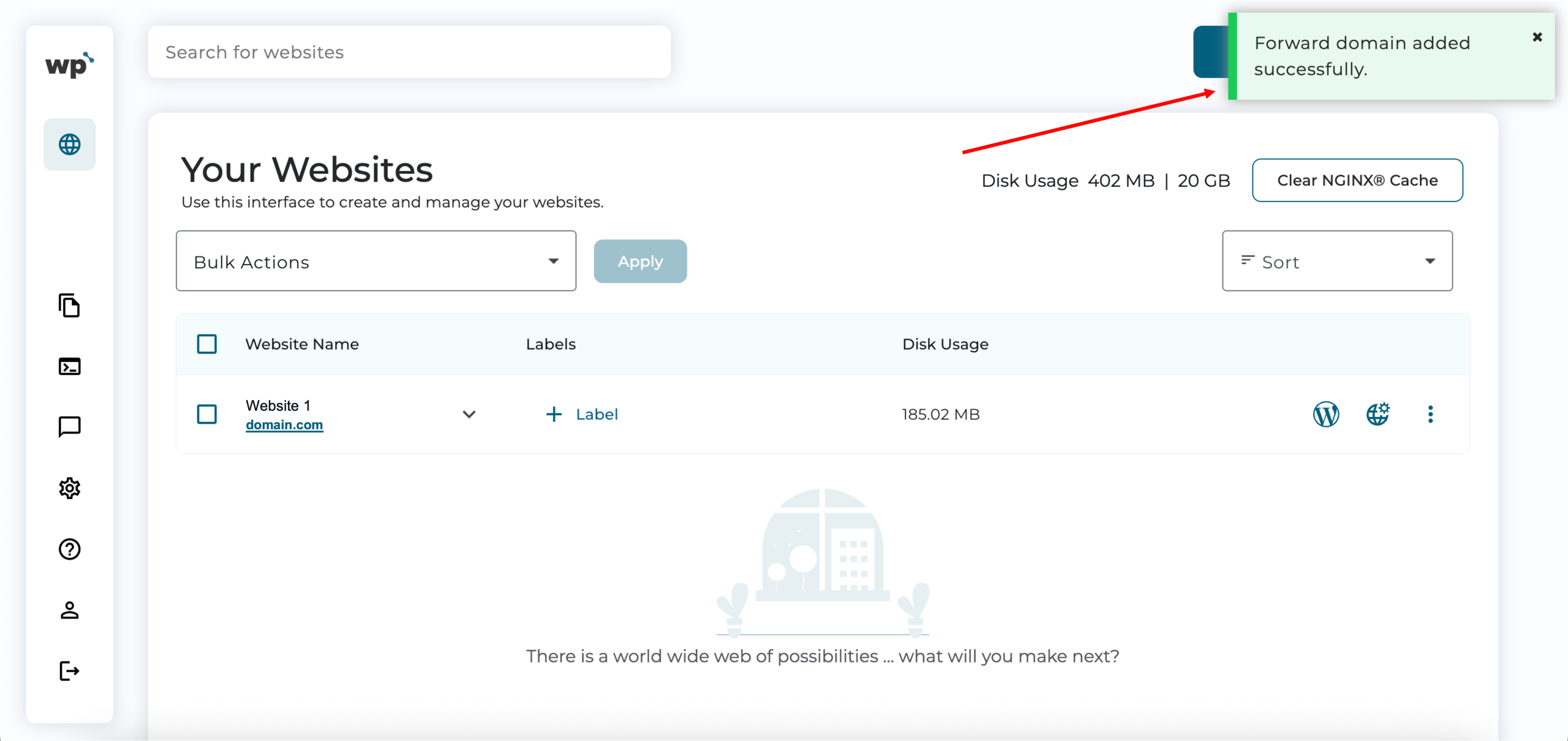
3. Done! Successfully adding of domain will look like the following, with the Forward domain successfully added prompt.
2. How to edit a forwarding domain
Note: You cannot change the forwarded domain itself once it is set up. To use a different domain, you will need to remove the existing forwarding and add the new domain. However, you can update the redirect type (e.g., 301 permanent or 302 temporary).
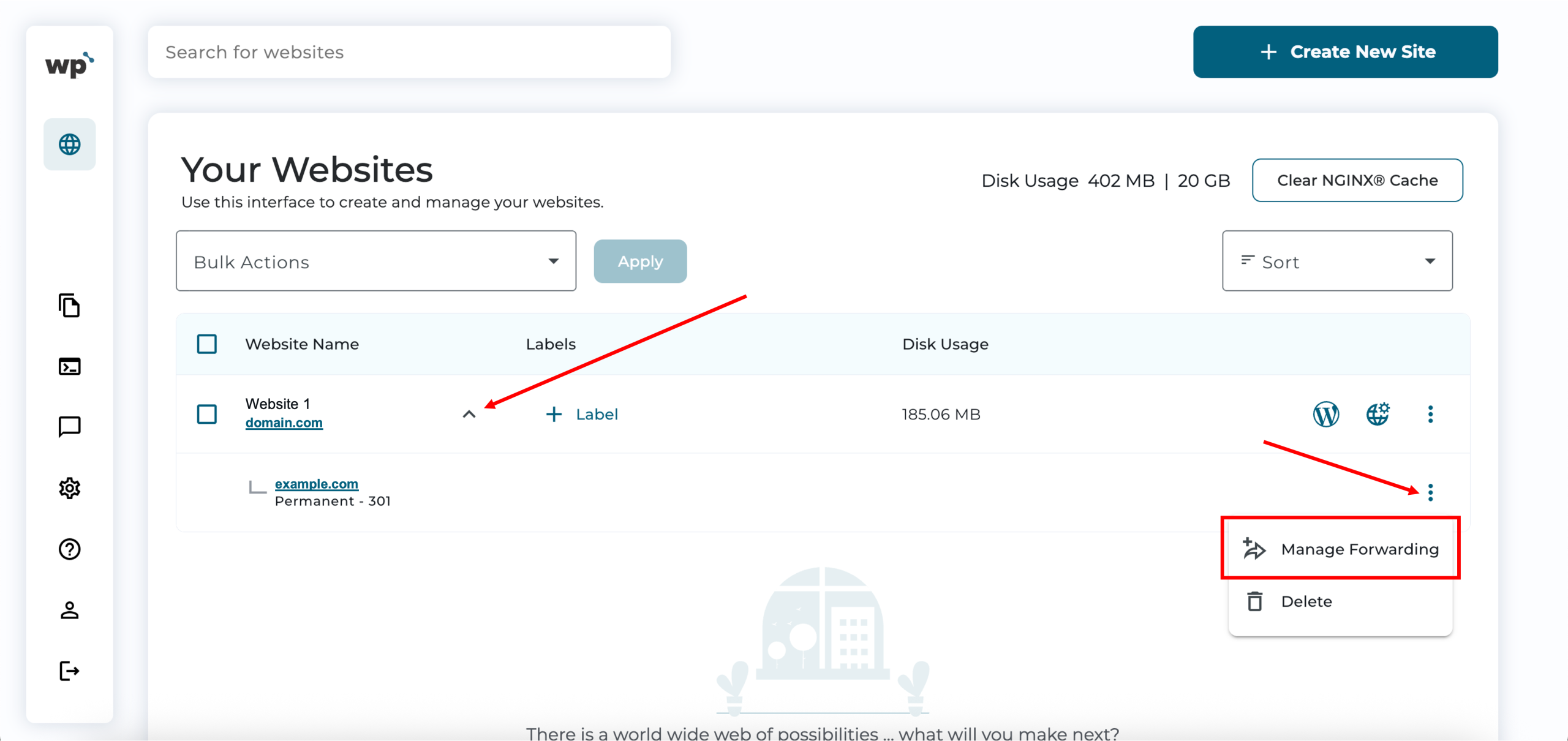
1. Upon reaching your WP Squared dashboard, select the drop-down arrow next to the website to view the current list of forwarded domains. Select the vertical ellipsis (⋮) option next to the forwarded domain and click Manage Forwarding.
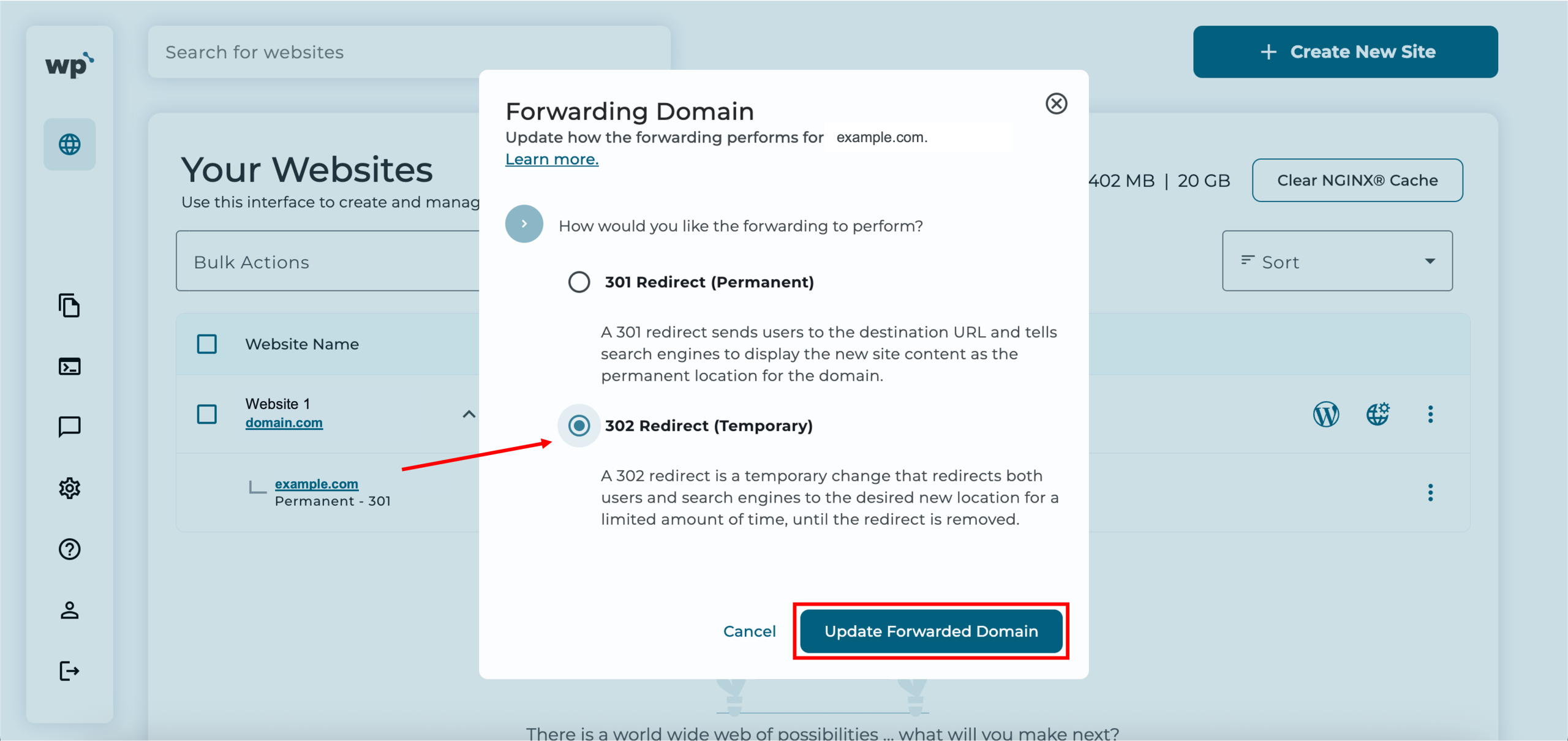
2. Select the desired redirect type, then click Update Forwarded Domain.
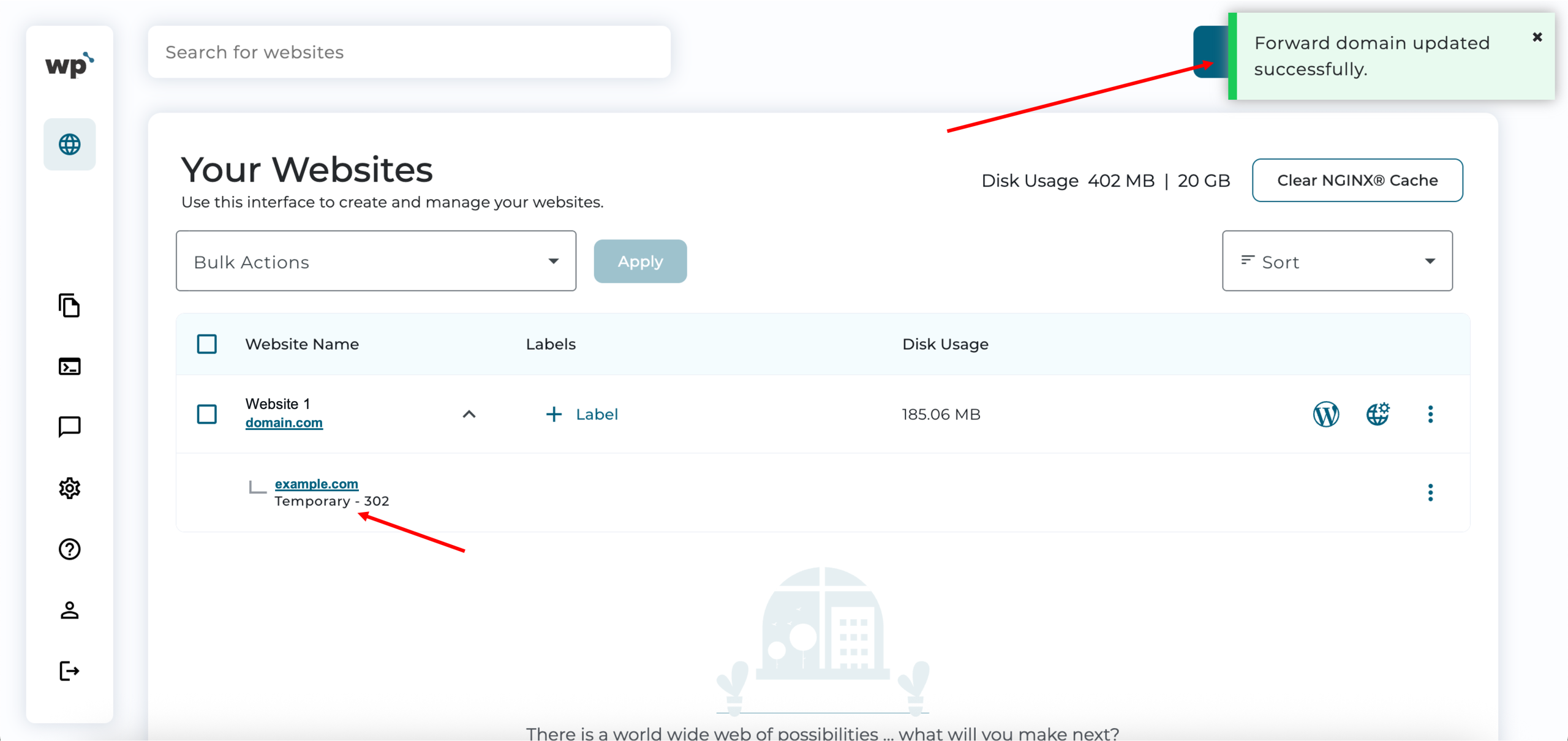
3. Done! Successfully updating the redirect type will look like the following, with the Forward domain updated successfully prompt.
3. How to remove a forwarding domain
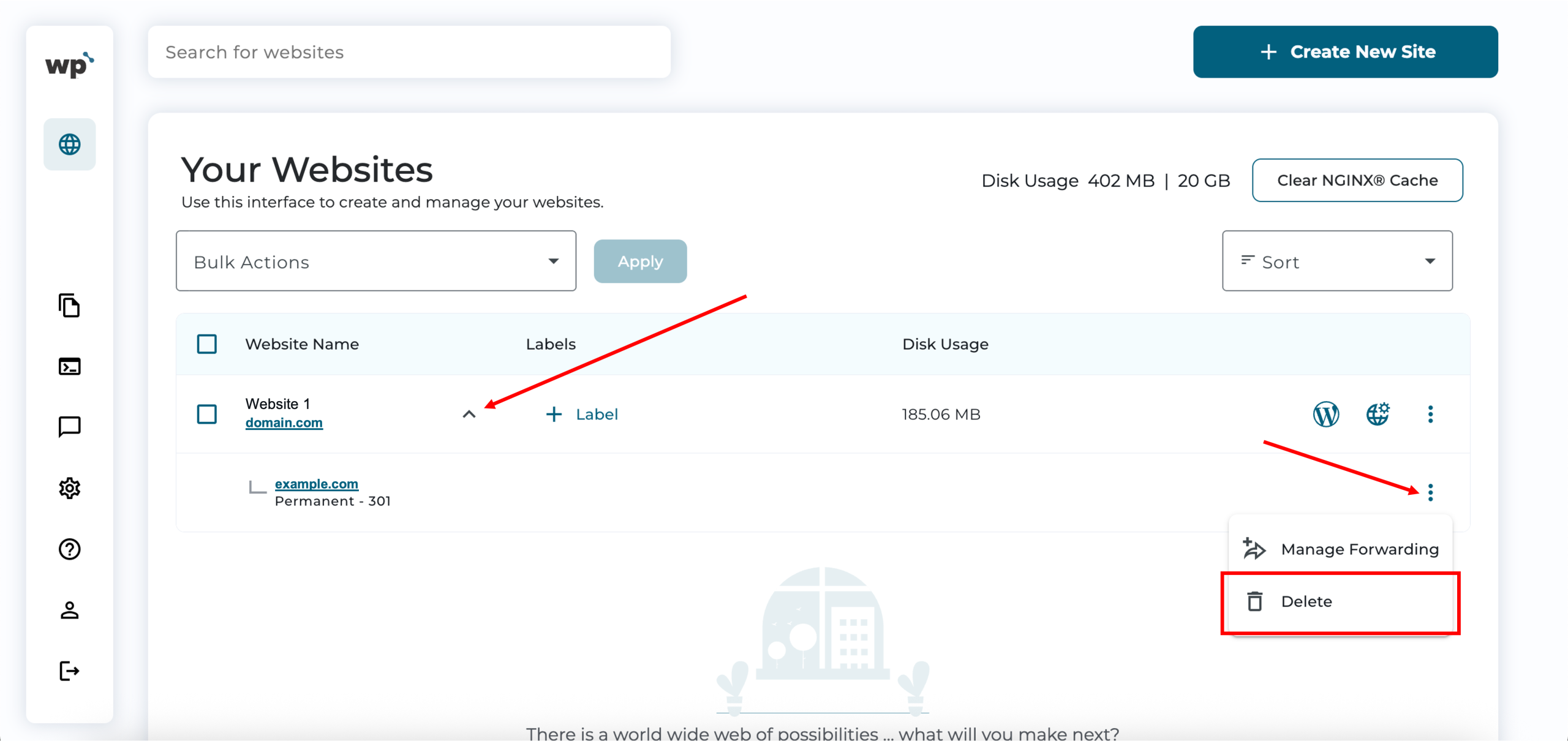
1. Upon reaching your WP Squared dashboard, select the drop-down arrow next to the website to view the current list of forwarded domains. Select the vertical ellipsis (⋮) option next to the forwarded domain and click Delete.
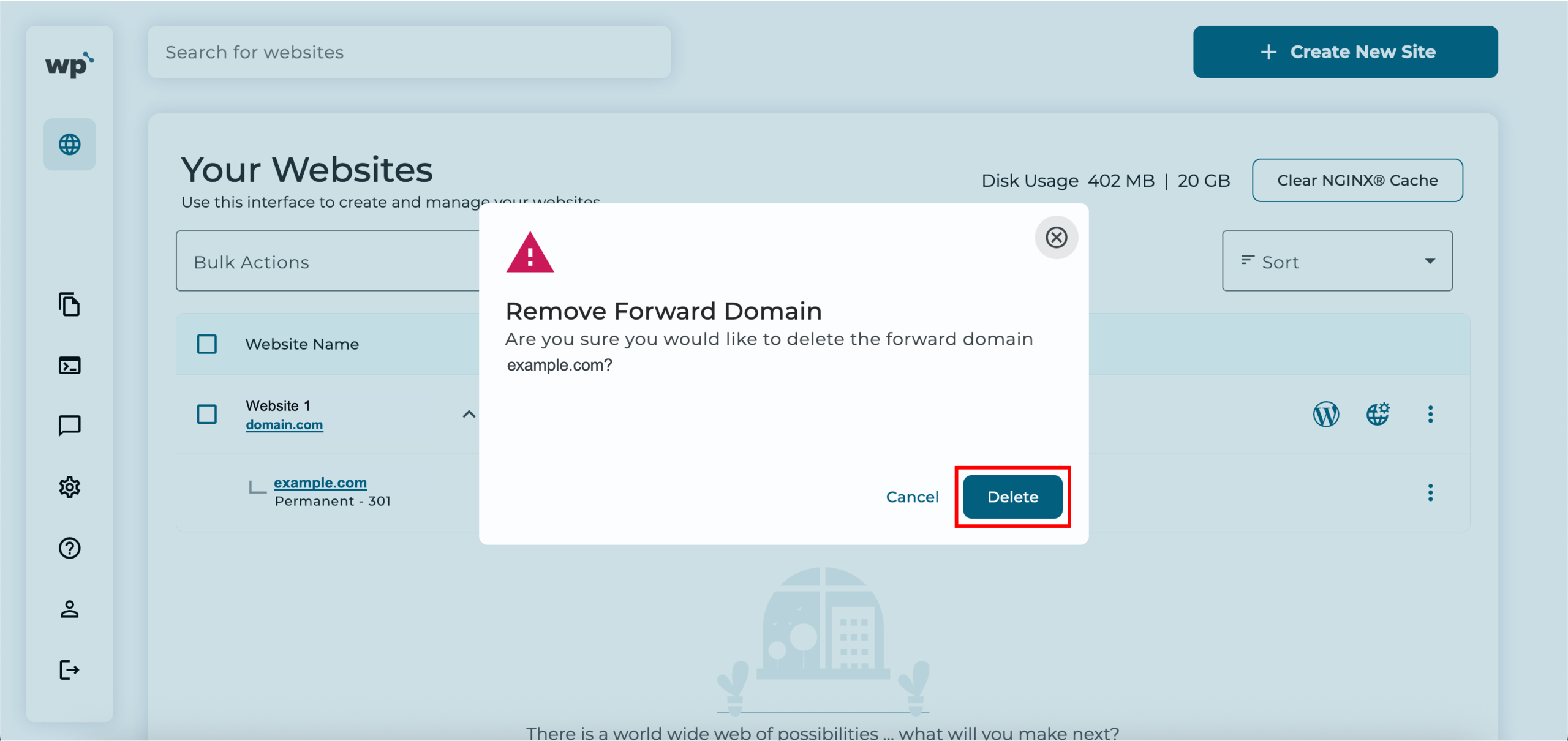
2. Confirm you want to remove the forwarded domain by clicking Delete once again.
3. Done! Successfully removing the domain automatically removes the drop-down arrow next to the website, indicating that the website has no current forwarded domains.