Example :
How to set up an email or change my account settings.
- Help Center
- WordPress Hosting
- WordPress Management
- How to reset the password of the WordPress admin page (yourdomain.com/wp-admin)
How to reset the password of the WordPress admin page (yourdomain.com/wp-admin)
To reset your WordPress admin password directly in the browser, you will need access to the admin email address used during activation or installation.
Note: If you do not have access to your admin email address, refer to our guide on how to locate your WordPress admin login details (username, email, password setup).
To reset your WordPress admin password directly in the browser:
1. First, access the WordPress login page directly by entering your login link in your browser. Simply go to yourdomain.com/wp-admin (replace yourdomain.com with your actual domain name).
2. Click the Lost your password? option below.
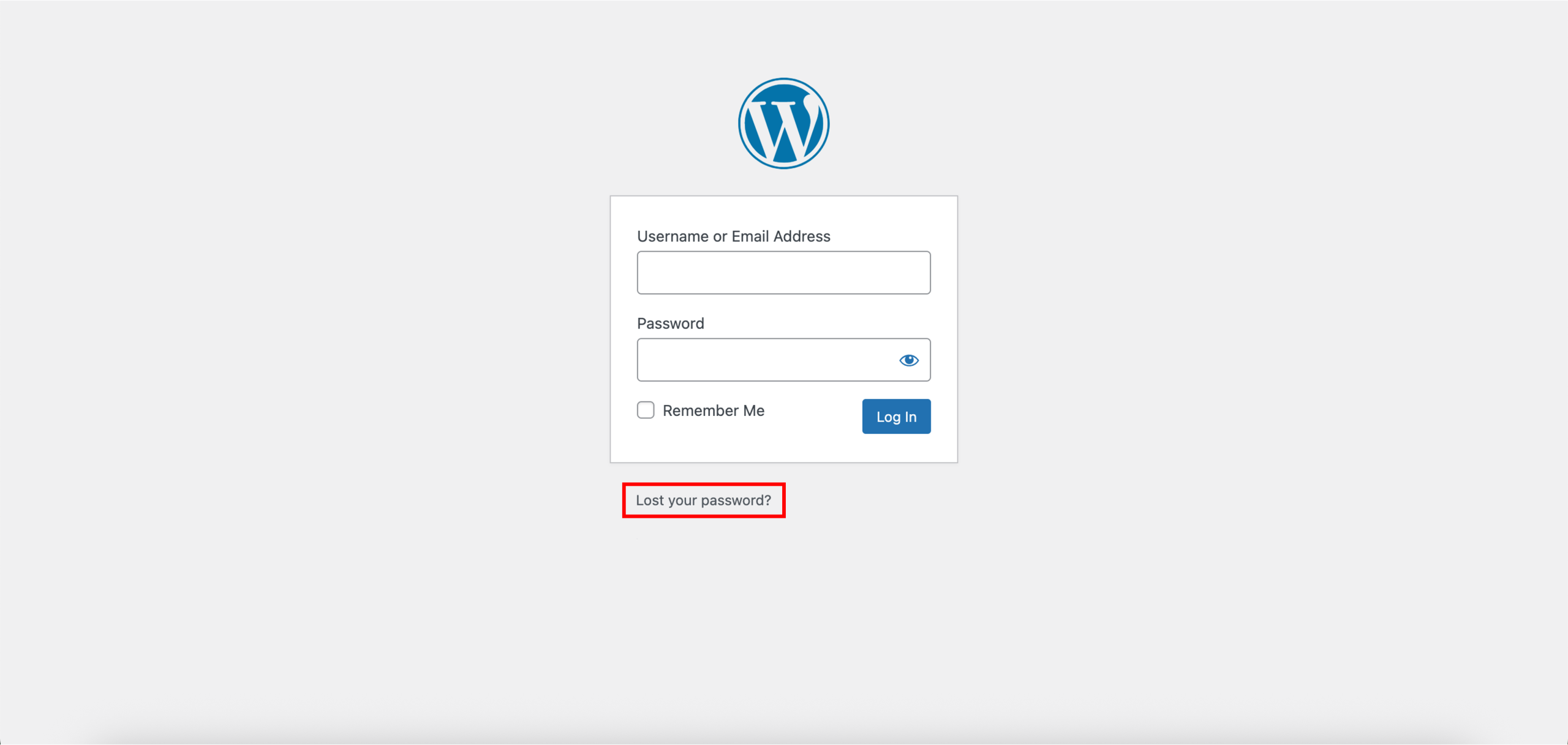
Note: The “Lost your password?” option will not work if you are still using the default admin email (admin@yourdomain.com) because that email address does not exist. To resolve this, 1. Access the WordPress admin page from WP Squared, then reset the WordPress admin password directly, then 2. Update your admin email address to a valid one, then use “Lost your password?” to reset it.
You can also refer to our guide on how to locate your WordPress admin login details (username, email, password setup).
3. Enter the admin email address linked to your WordPress account. Once done, click Get New Password.
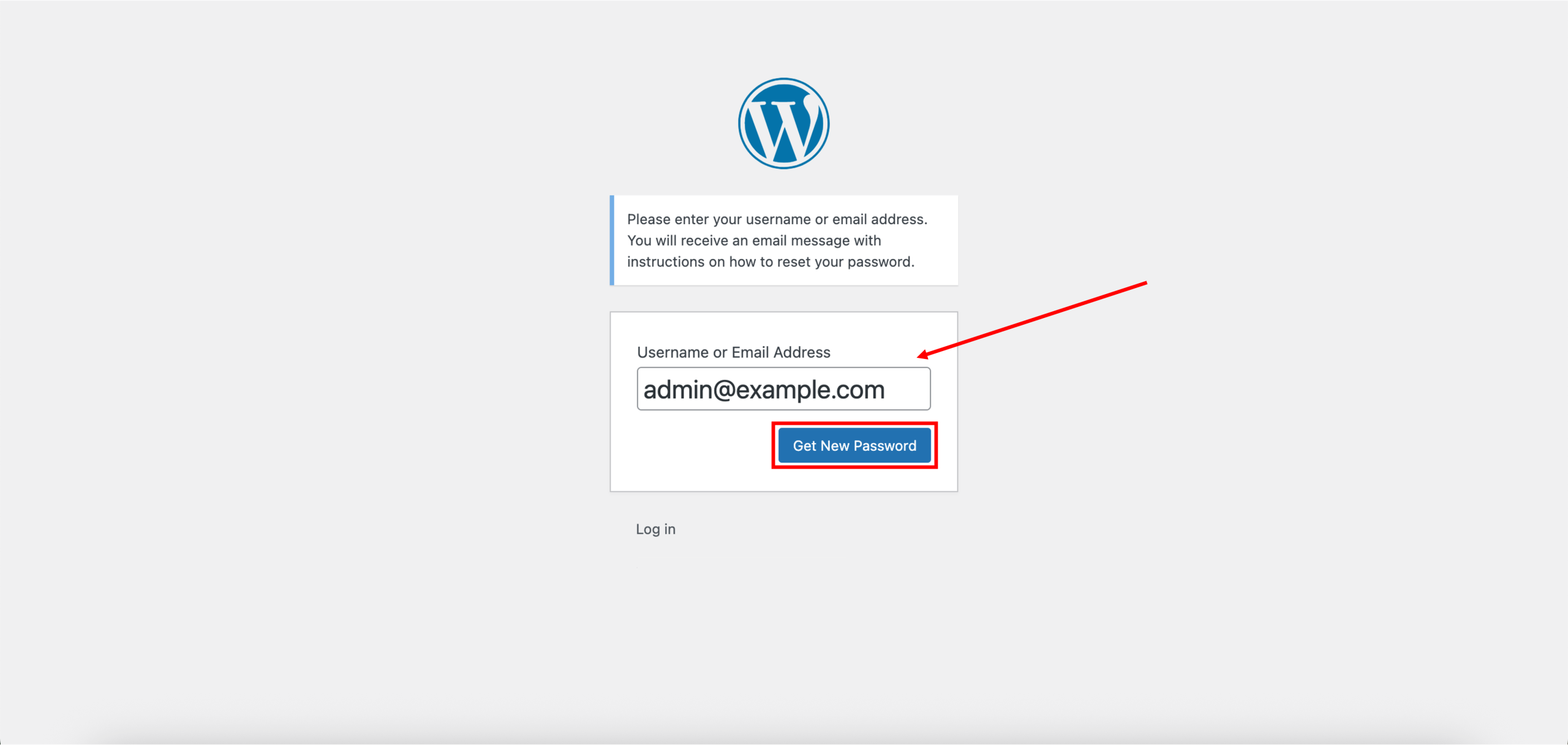
Note: To complete the password reset, you will need access to the admin email associated with your WordPress account.
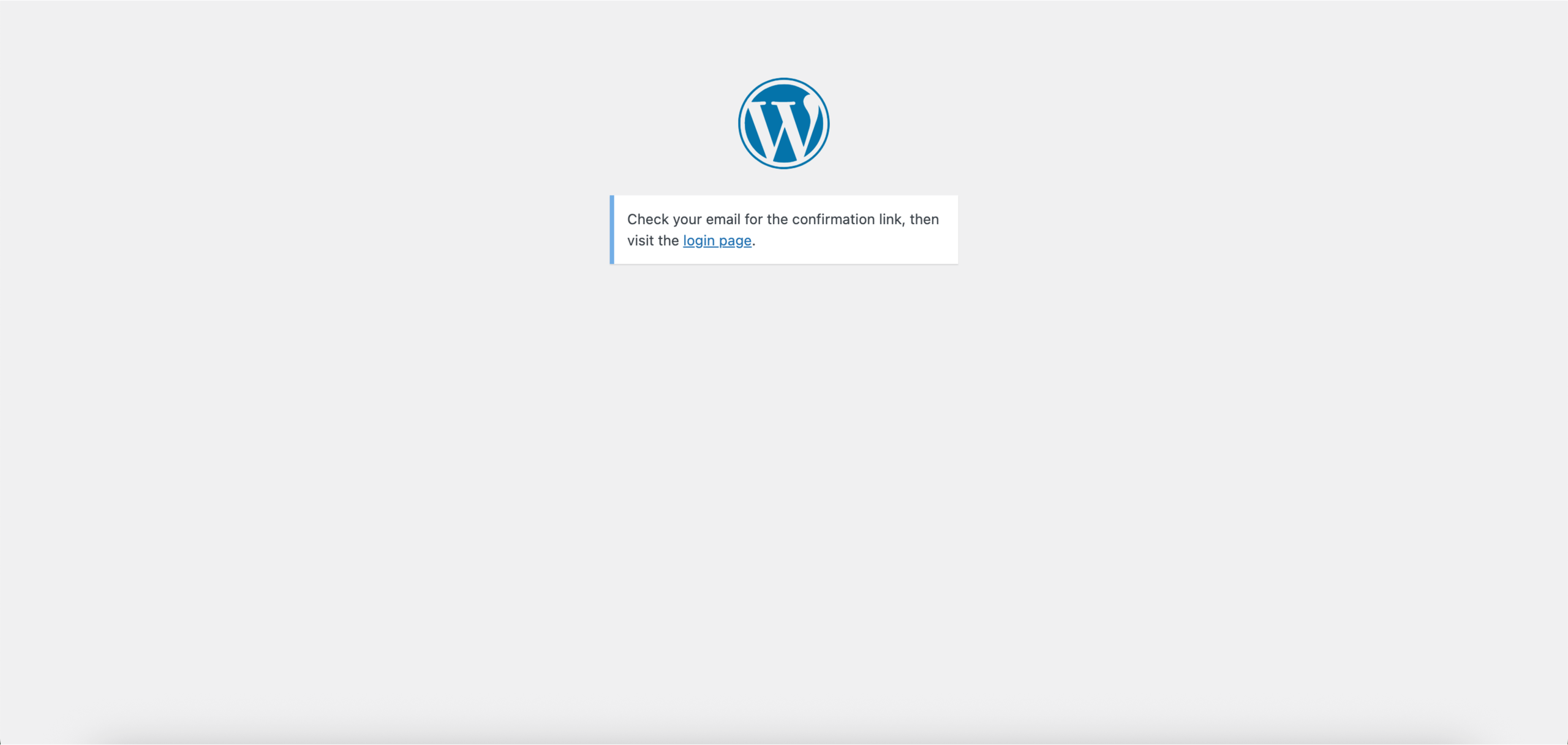
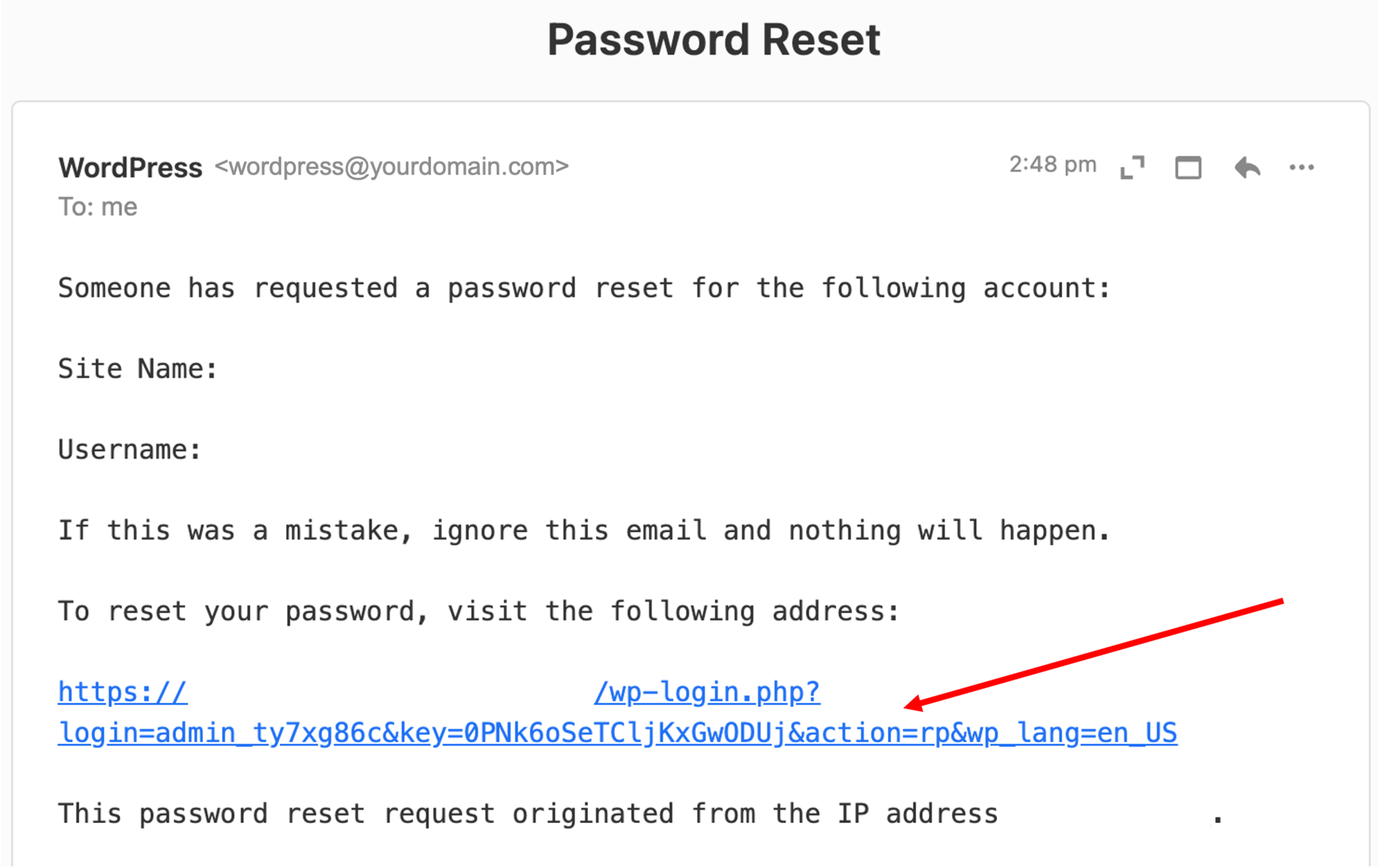
4. Next, check your email for the confirmation link. You should receive an email with the Subject: [Password Reset] from WordPress. To reset your password, click the password reset link in the email.
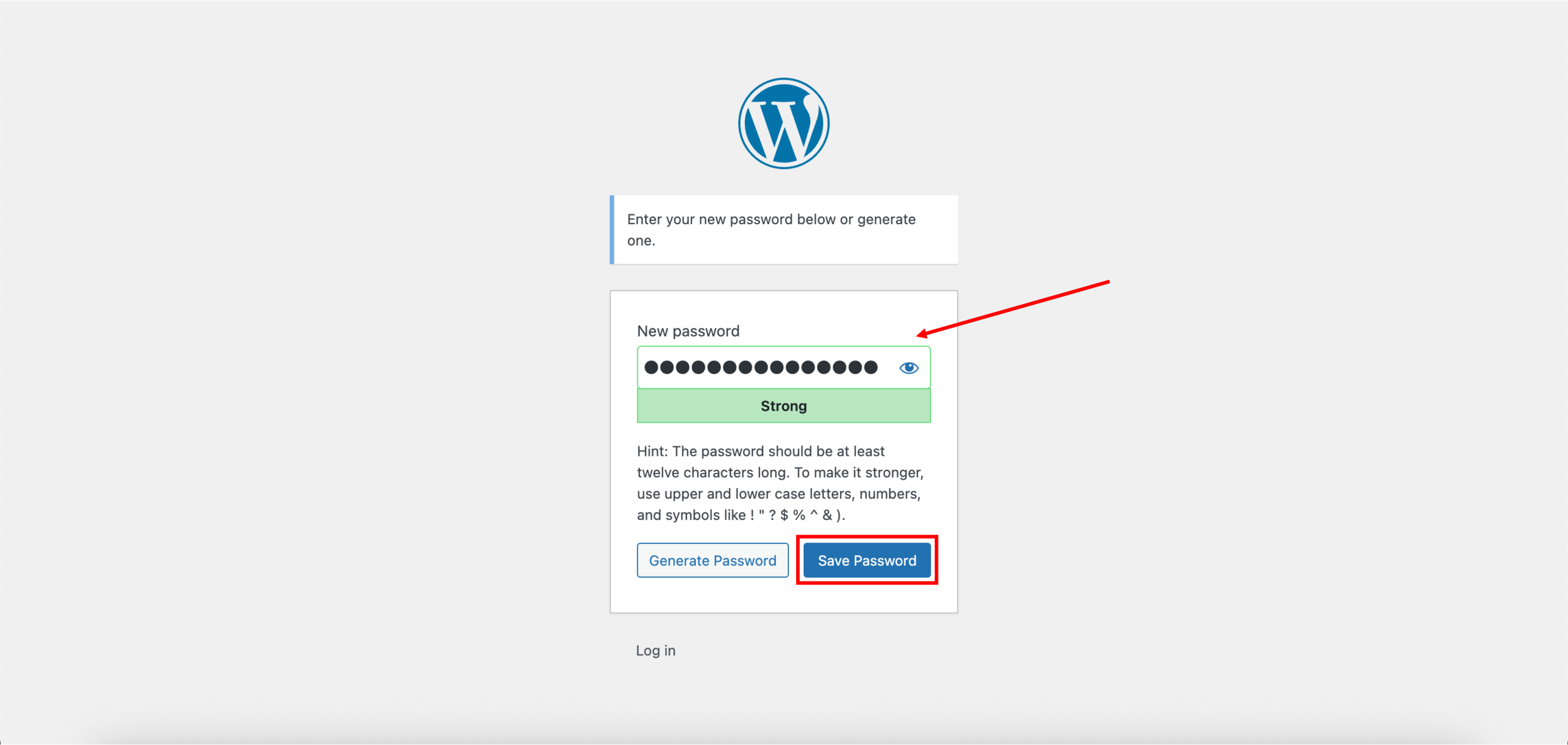
5. Enter your new password or generate one. Once done, click Save Password.
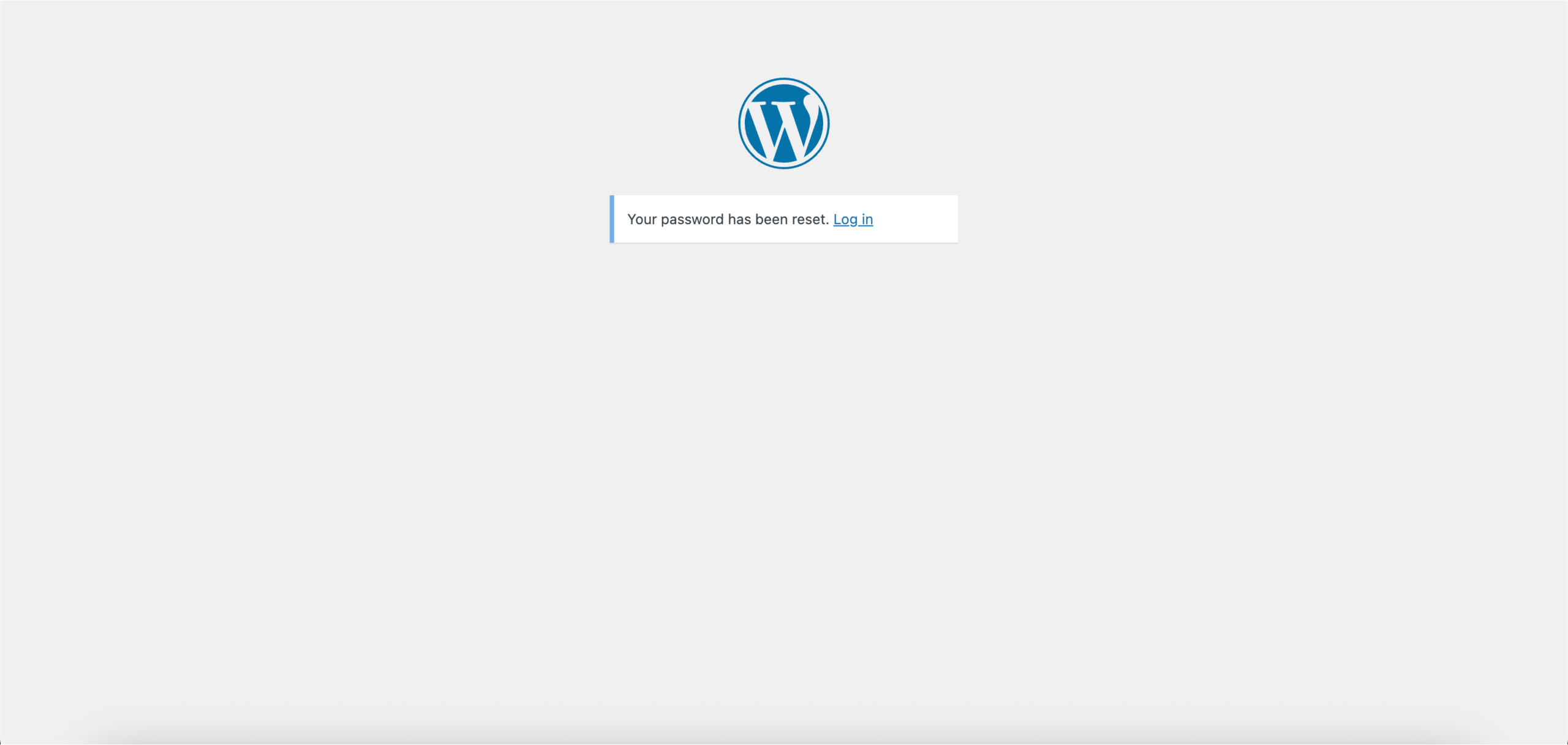
6. Done! A successful password reset should look like the following. You can click Log in to log in to WordPress using your new password.