Example :
How to set up an email or change my account settings.
- Help Center
- WordPress Hosting
- Websites
- How to restore your WordPress website using the WP Squared dashboard
How to restore your WordPress website using the WP Squared dashboard
Restoring your WordPress website lets you roll it back to a previous working state in case of issues like failed updates, plugin conflicts, or accidental changes. With WordPress hosting, you can restore your website directly from the WP Squared dashboard, without logging in to the WordPress admin dashboard.
Before proceeding, make sure that a backup has already been created. If you have not done so yet, click here for a guide on backing up your WordPress website using the WP Squared dashboard, as a restore can only be performed from an existing backup.
Note:
• Website restoration is only possible if a backup already exists.
• Restoring a backup will overwrite your current website files and database with the selected backup version.
• Any changes made after the backup date will be lost once the restore is completed.
• The restore process is handled entirely through the WP Squared dashboard and does not require WordPress admin access.
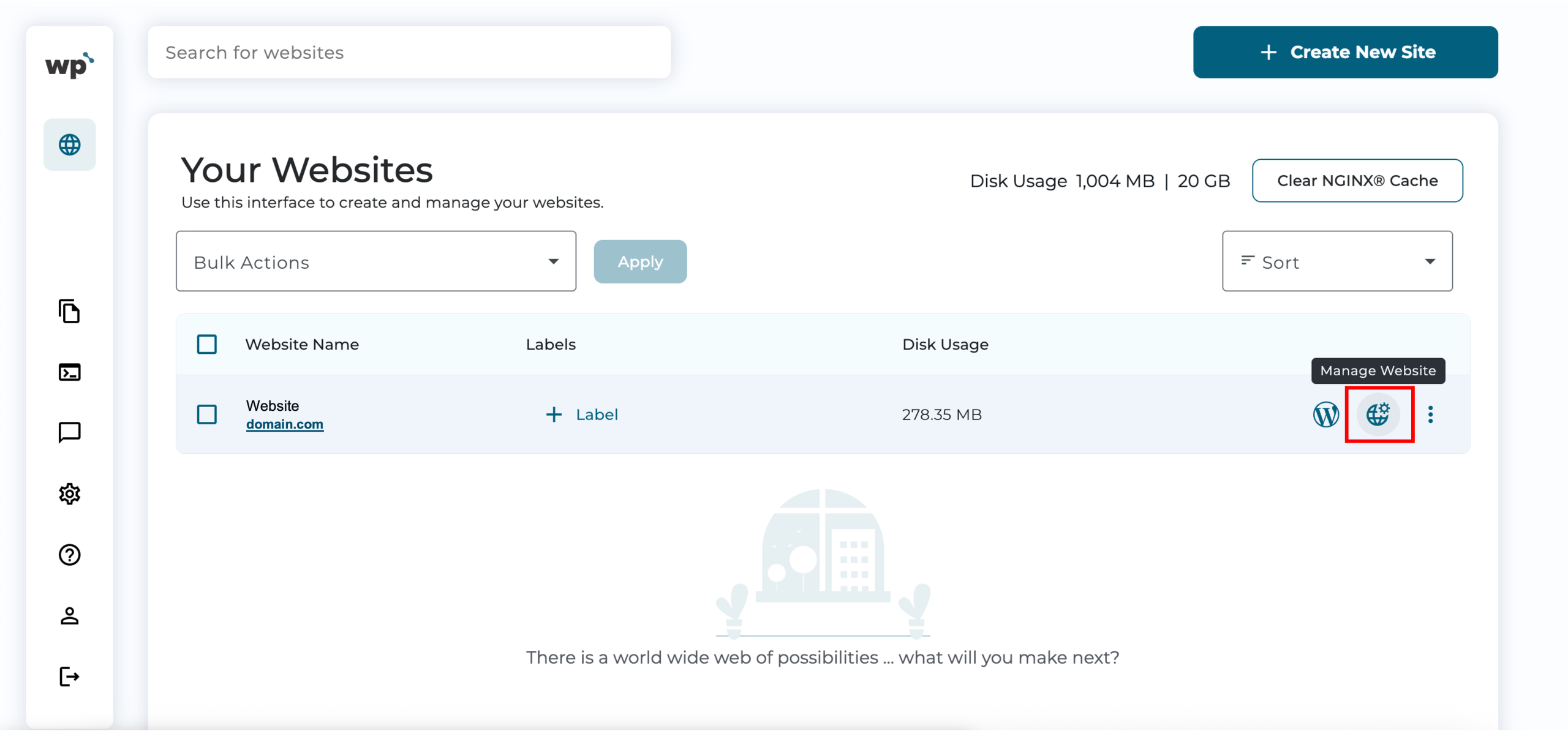
1. Upon reaching your WP Squared dashboard, click Manage Website next to the website you wish to back up.
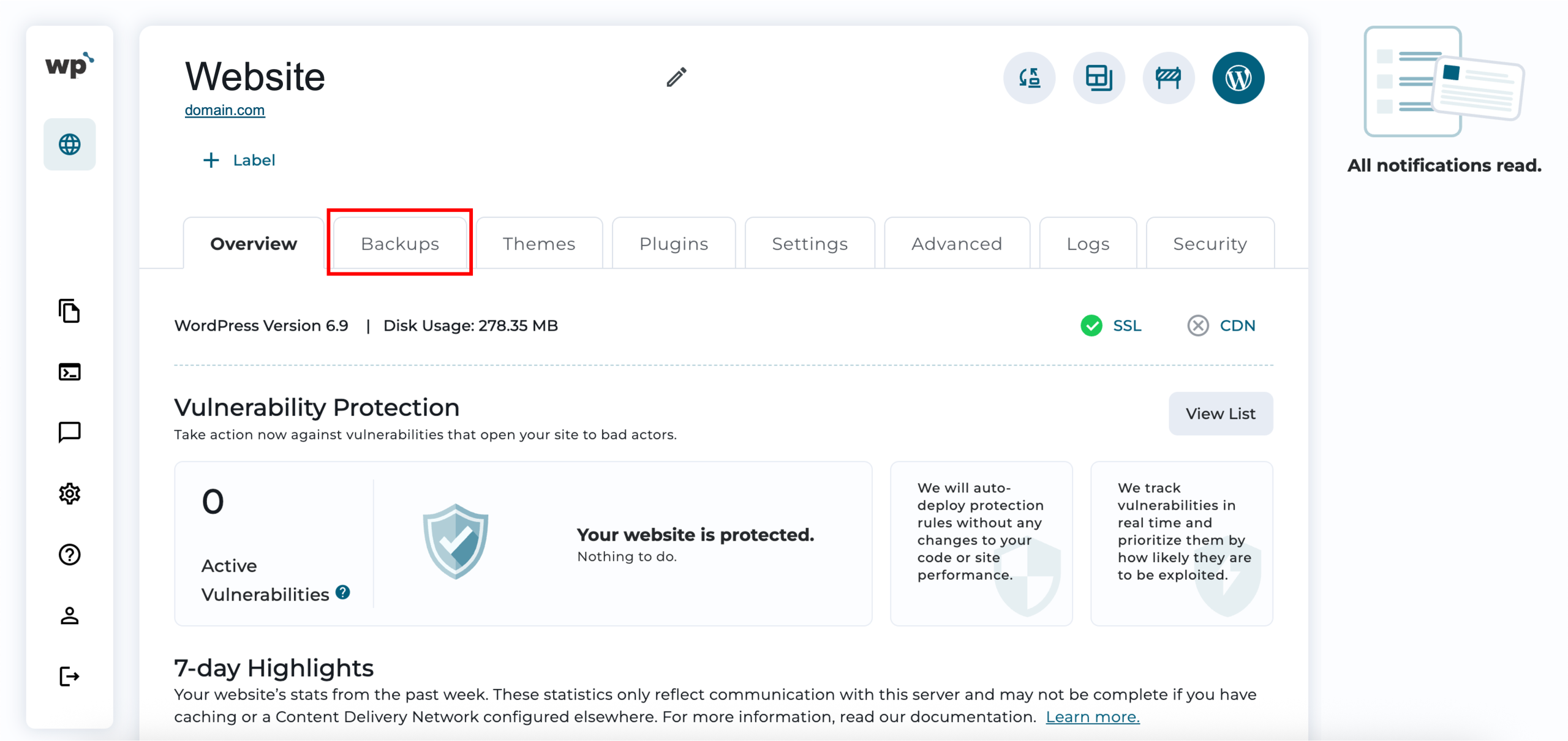
2. Click on the Backups tab.
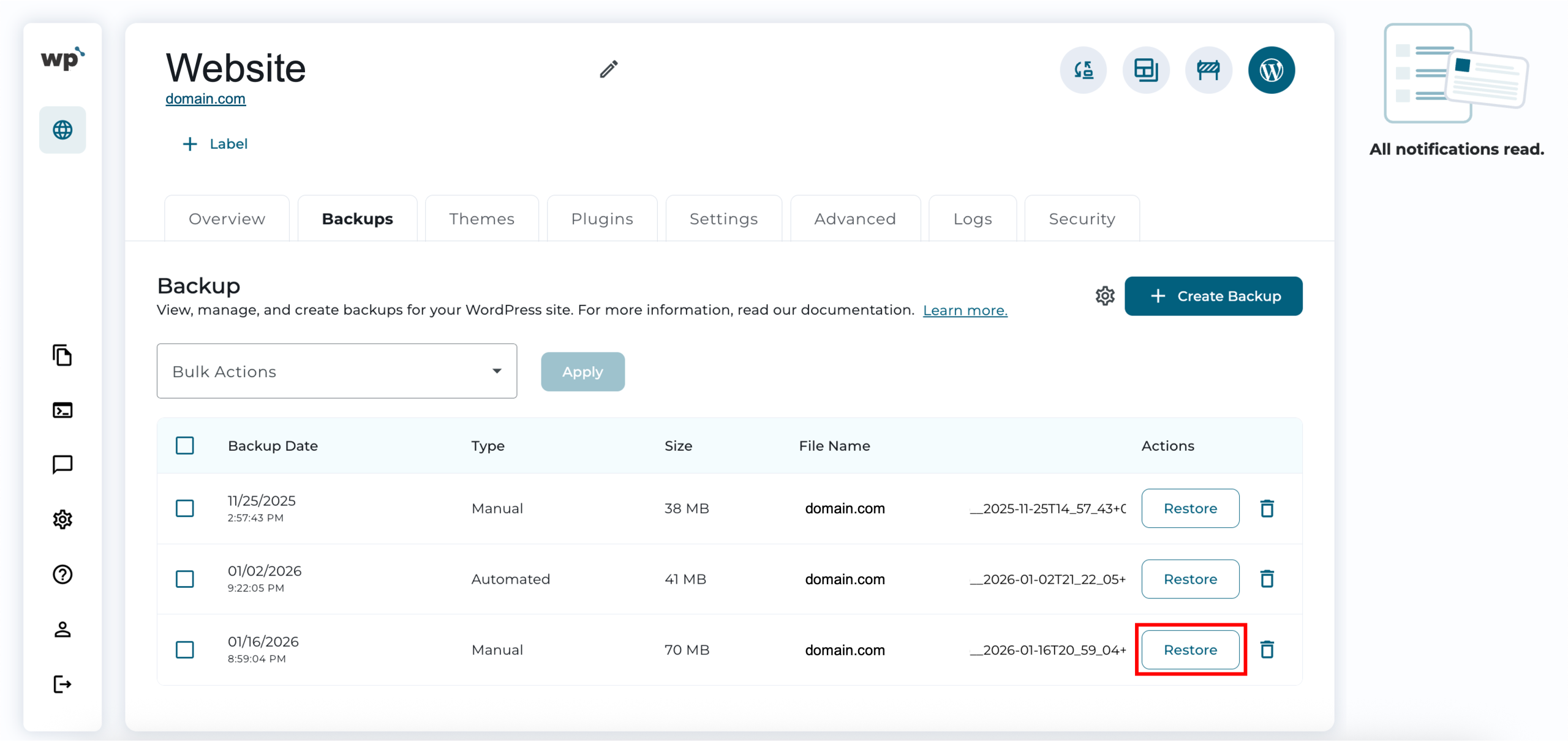
3. Under Backup, you should see a list of existing backups, including their dates, types, sizes, file names, and actions. Click Restore next to the backup you wish to restore.
Note: The availability of backup features may vary depending on your WordPress hosting plan.
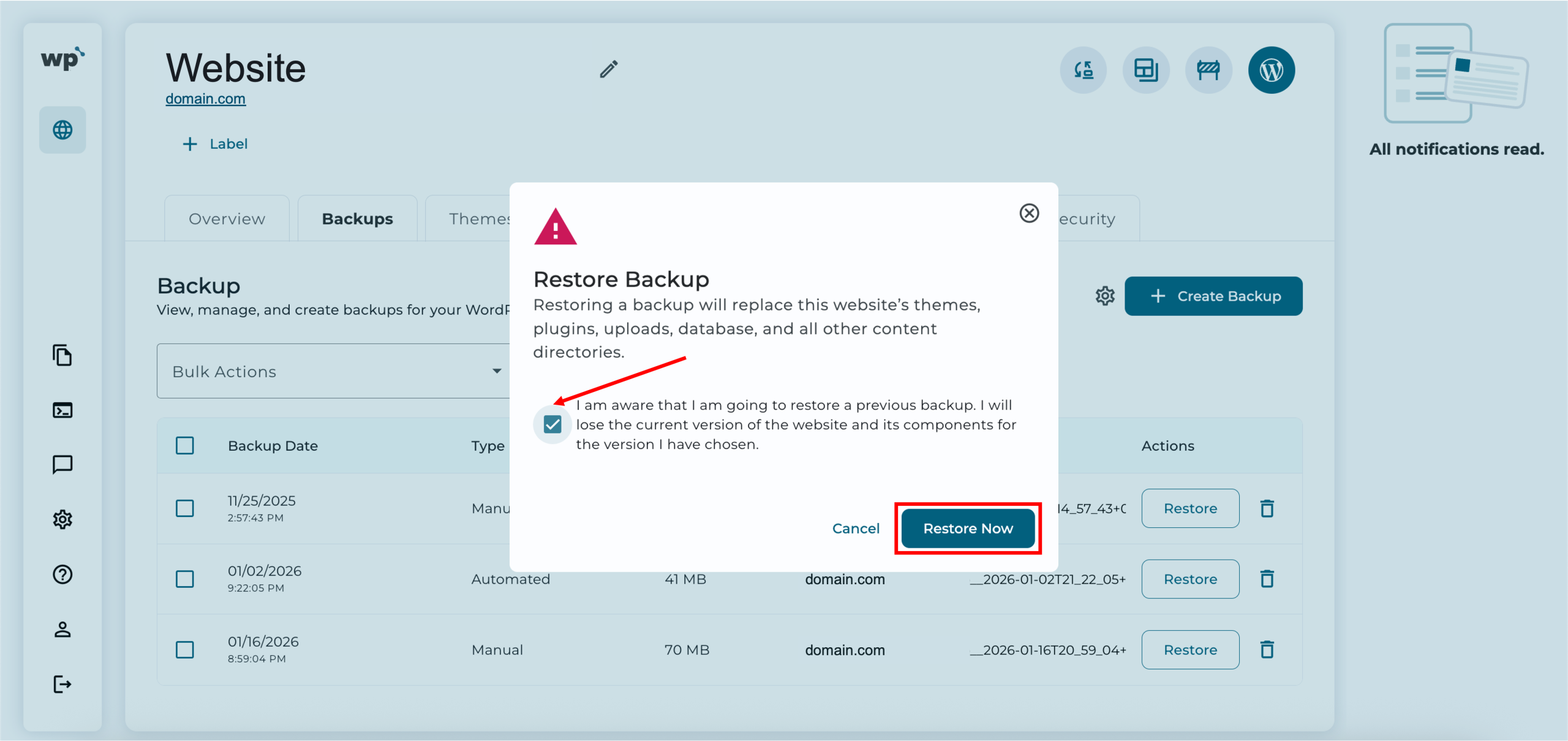
4. Check the confirmation box to confirm that you understand the current version of your website will be replaced by the selected backup, then click Restore Now.
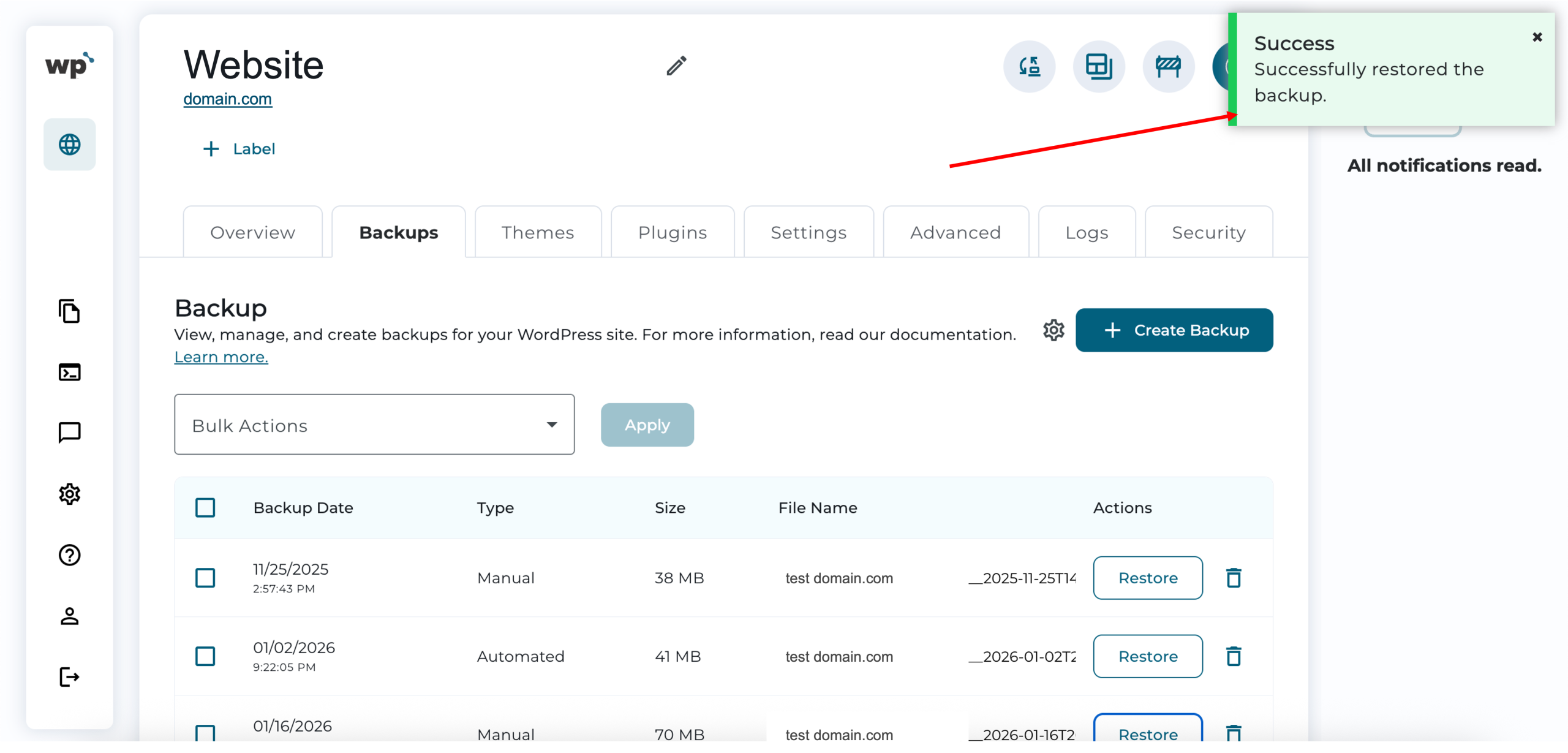
5. Done! Successfully restoring the selected backup will look like the following, with the successfully restored backup prompt.