Example :
How to set up an email or change my account settings.
- Help Center
- WordPress Hosting
- Websites
- How to clone a WordPress website to a new domain in the WP Squared dashboard
How to clone a WordPress website to a new domain in the WP Squared dashboard
Cloning a WordPress website allows you to create a copy of an existing website and use it on a different domain within your WordPress hosting account. This is useful when you want to test changes, launch a similar website, or move your content to a new domain without having to rebuild the website from scratch.
With the WP Squared dashboard, you can clone your WordPress website to another domain in just a few steps. This guide shows you how to duplicate an existing WordPress website to a new domain using the WP Squared dashboard.
Note:
• The destination domain can be added to your WordPress hosting account before cloning. Click here for a guide on how to add a domain name to your WordPress hosting account.
• Cloning copies your website files, database, themes, plugins, and settings to the new domain.
• Changes made to the cloned website will not affect the original website.
• The cloning process may take a few minutes, depending on the size of your website.
• It is recommended to create a backup before cloning your website. Click here for a guide to backing up your WordPress website.
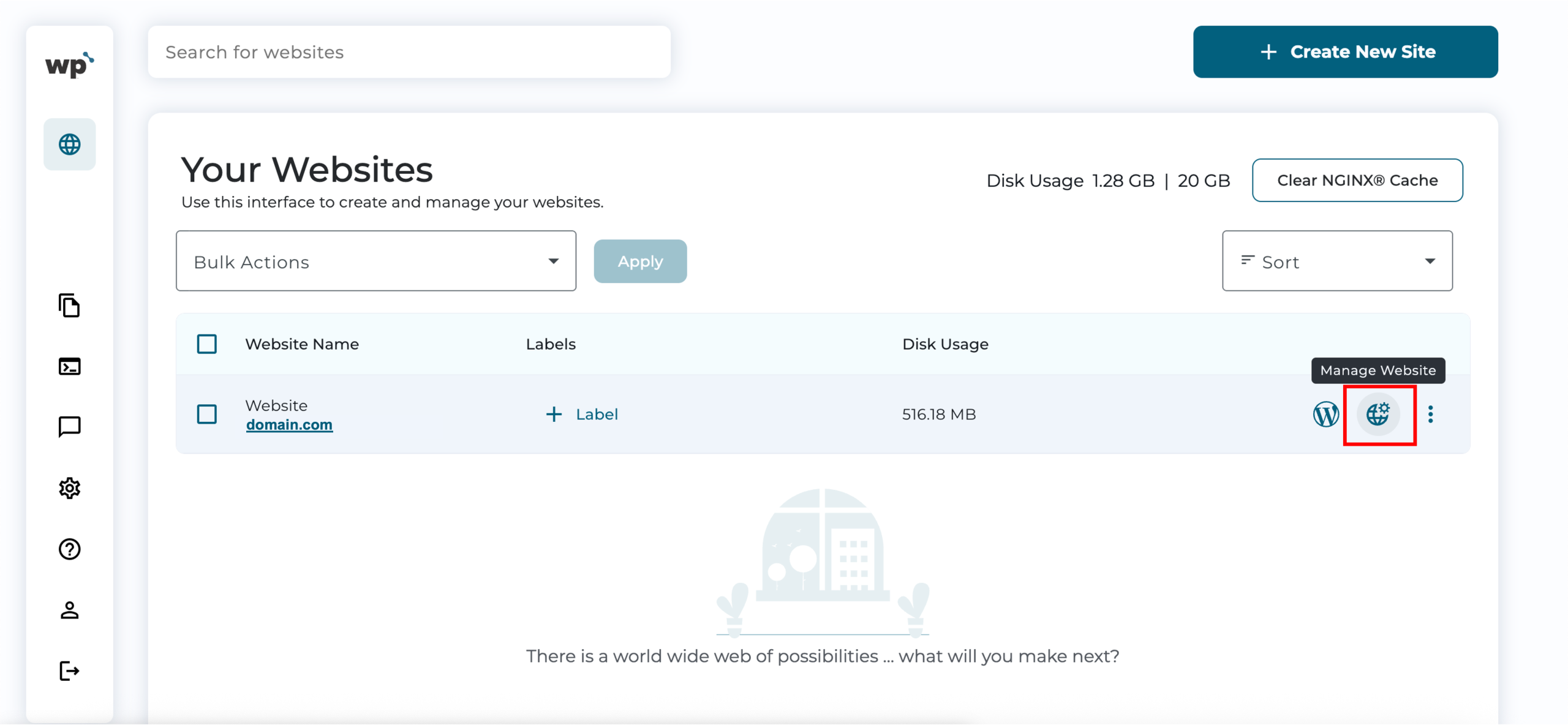
1. Upon reaching your WP Squared dashboard, click Manage Website next to the website you wish to clone.
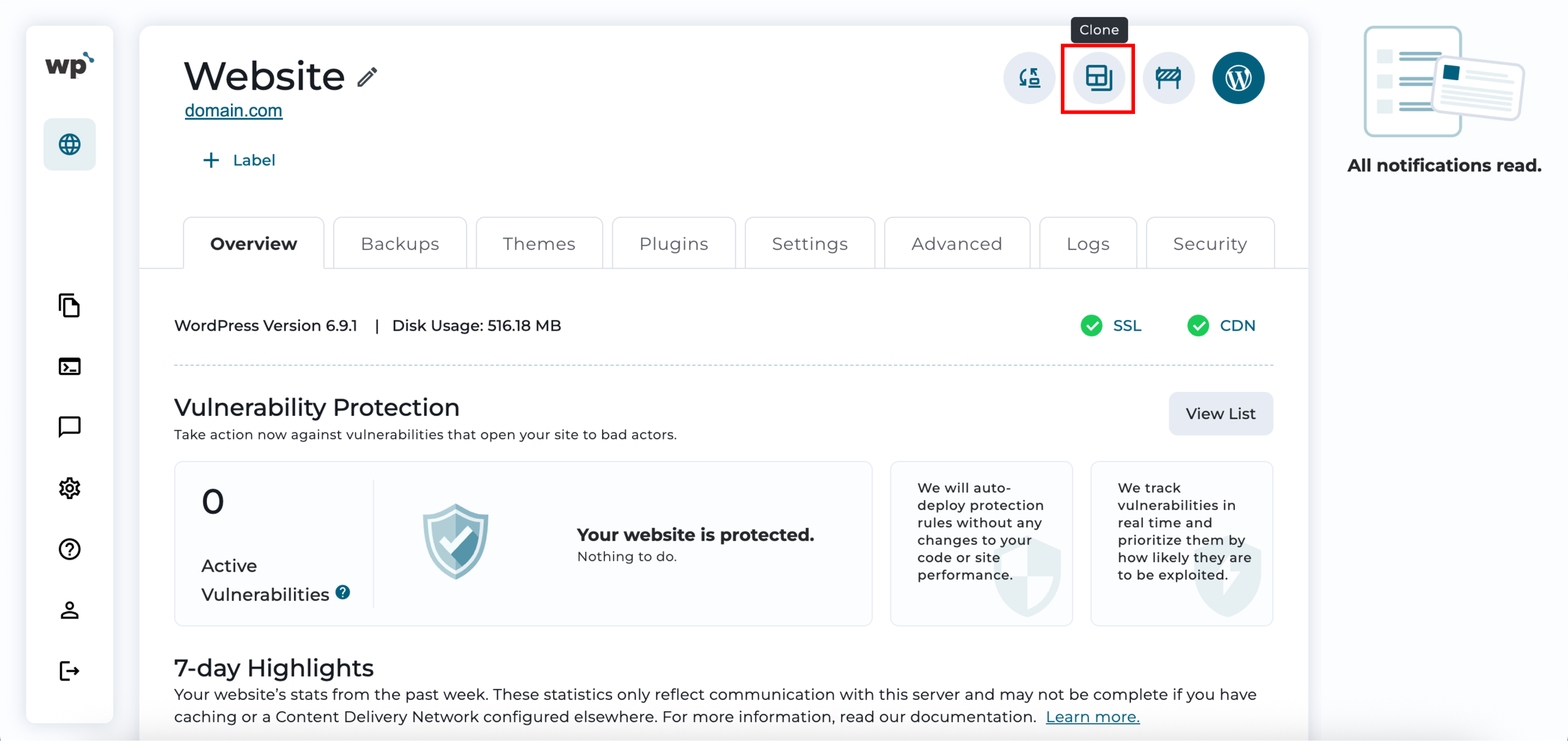
2. In the top-right corner next to the website title, click Clone.
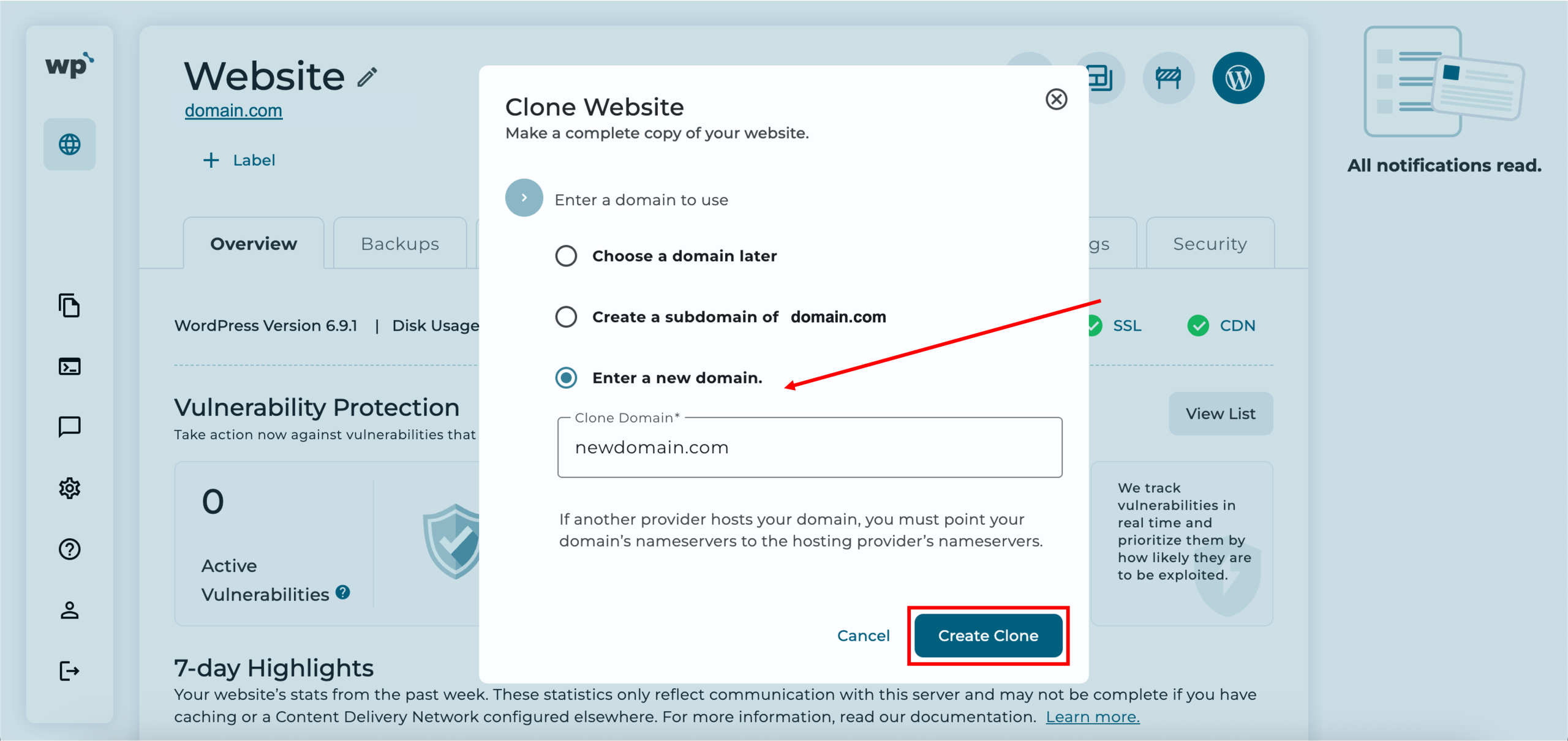
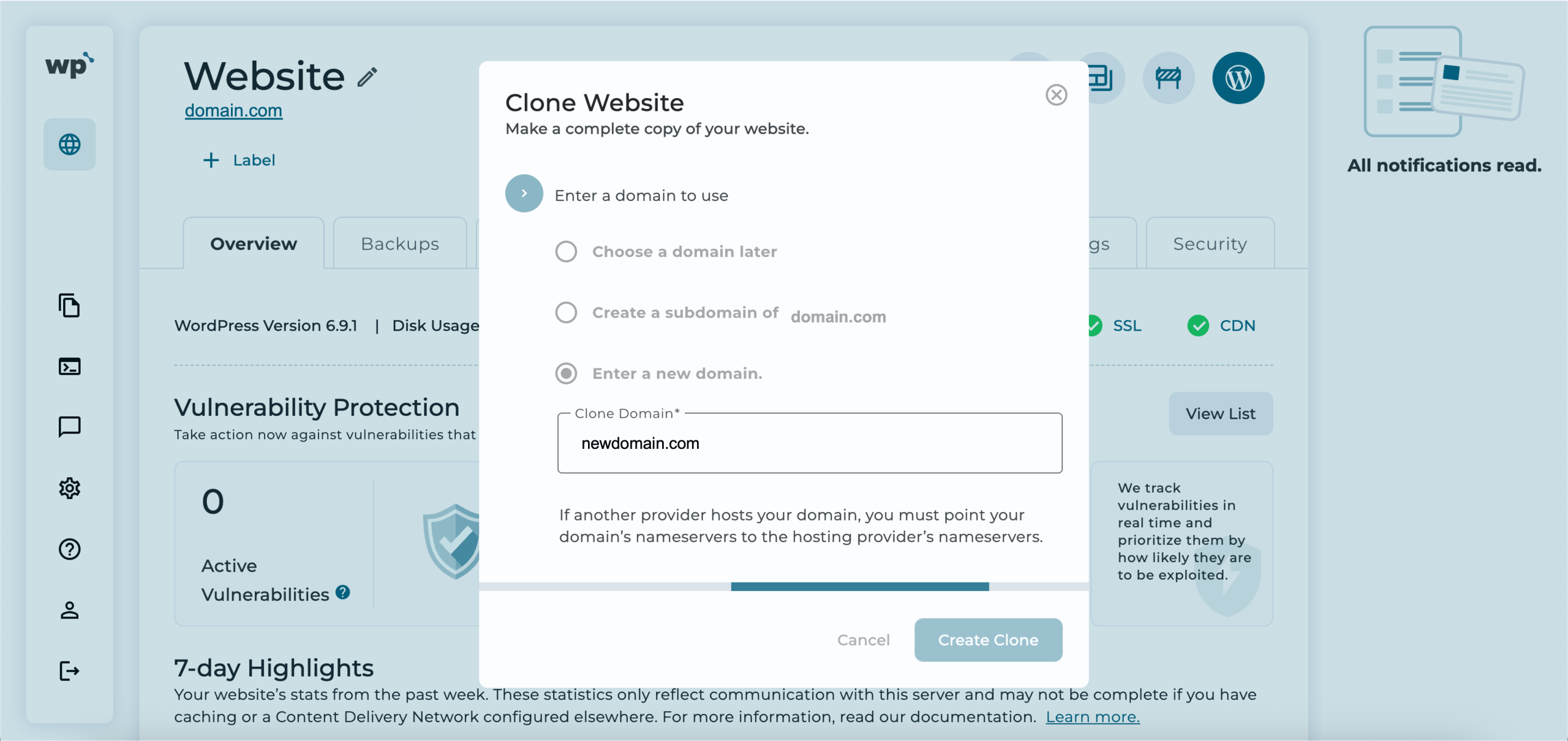
3. A prompt will appear, allowing you to select one of the three options. If you have not already added the new domain to your WordPress hosting account, select the last option and enter the new domain. Once done, click Create Clone.
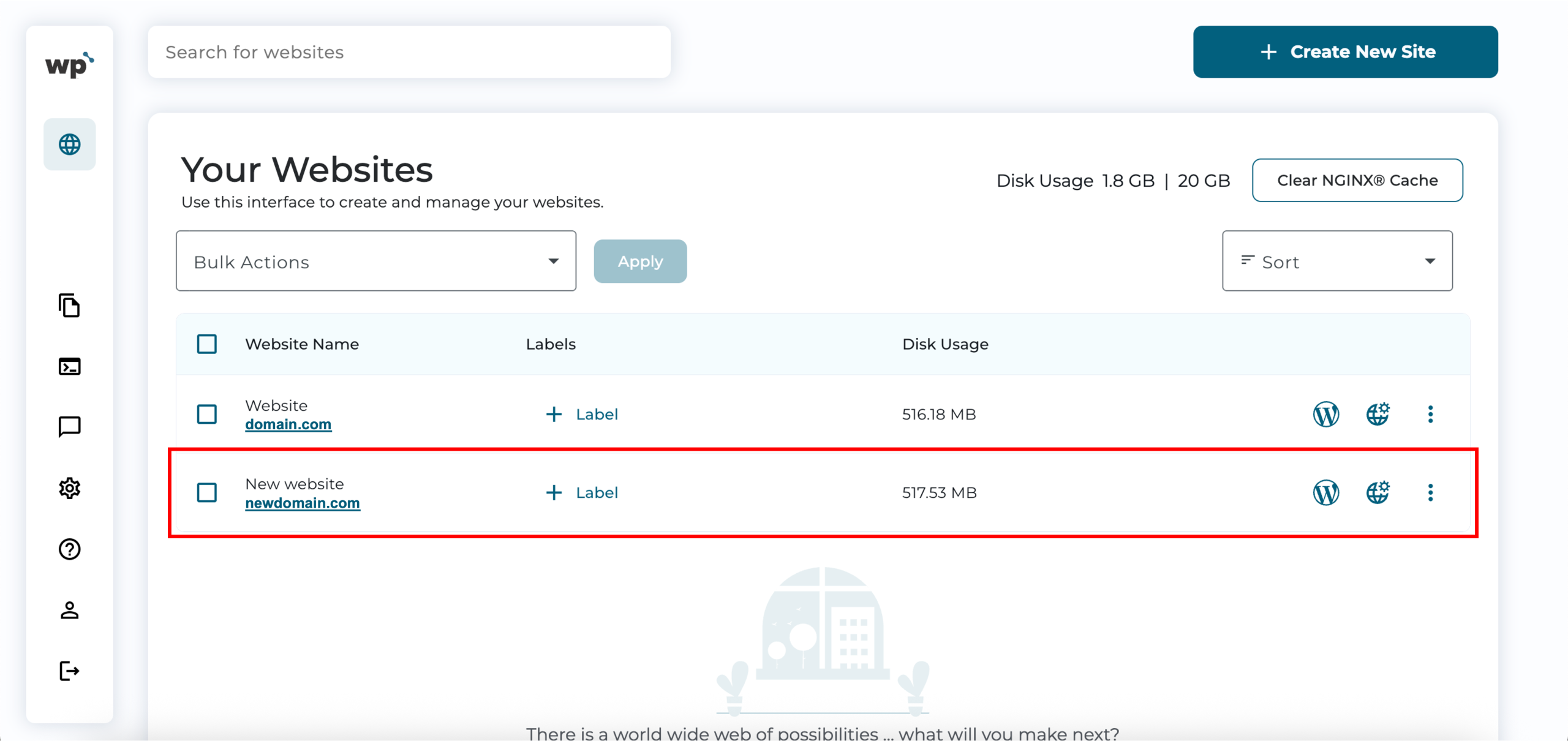
4. Done! Successfully cloning a WordPress website to the new domain will redirect you to your WP Squared dashboard, where the new domain will be added to your list of websites.